
QEOME NS-A90802
QEOME Wireless Pro Bluetooth Mobile Gamepad Controller User Manual
Model: NS-A90802
Introduction
Thank you for purchasing the QEOME Wireless Pro Bluetooth Mobile Gamepad Controller. This versatile controller is designed to enhance your gaming experience across multiple platforms, including Nintendo Switch, Android, iOS, Windows PC, and PS3. Please read this manual carefully to ensure proper use and maintenance of your device.
Product Overview and Components
The QEOME Wireless Pro Gamepad comes with the following components:
- 1 x QEOME Wireless Pro Bluetooth Mobile Gamepad Controller
- 1 x Detachable Mobile Holder Bracket
- 1 x USB Charging Cable (Type-C)
- 1 x User Manual (this document)
Familiarize yourself with the controller's layout:

Figure 1: Controller Layout - This image displays the front and bottom views of the QEOME Wireless Pro Gamepad, with labels pointing to key components such as the Cross Key, Left Rocker, Right Rocker, A/B/X/Y buttons, SELECT button, START button, Power Key, LED indicators, L1/L2/R1/R2 buttons, and the Charging Port.
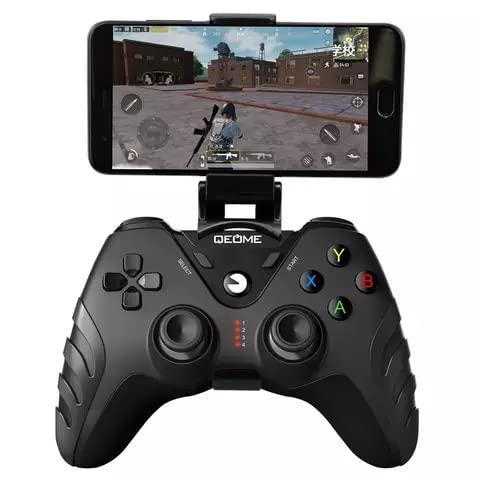
Figure 2: Controller with Mobile Phone Mounted - This image shows the QEOME Wireless Pro Gamepad with a smartphone securely attached to its integrated mobile holder, demonstrating its use for mobile gaming.
Setup
1. Charging the Controller
Before first use, fully charge the controller. The built-in 450mAh Li-ion battery provides approximately 10 hours of play time on a full charge, which takes about 2.5 hours.
- Connect the supplied Type-C USB charging cable to the charging port on the controller.
- Connect the other end of the cable to a USB power source (e.g., PC, USB wall adapter).
- The LED indicators on the controller will show charging status and turn off or change color when fully charged (refer to specific LED behavior in the quick start guide if available).

Figure 3: Battery and Charging Information - This graphic highlights the controller's built-in 450mAh Li-ion battery, indicating a 2.5-hour charging time for approximately 10 hours of gameplay.
2. Connection Methods
The QEOME controller supports three connection methods:
- 2.4GHz Wireless Receiver: For PC (Windows 7/8/10) and PS3.
- Bluetooth: For Nintendo Switch/Switch Lite, Android, and iOS devices.
- Wired (USB Cable): For PC and PS3.
3. Pairing Instructions
3.1. Connecting to Nintendo Switch/Switch Lite (Bluetooth)
- On your Nintendo Switch, go to System Settings > Controllers and Sensors > Change Grip/Order.
- Press and hold the Power Key (QEOME logo button) on the controller for 3-5 seconds until the LED indicators start flashing rapidly.
- The Switch will detect the controller. Once connected, the corresponding player LED(s) on the controller will light up solid.
3.2. Connecting to PC (Windows 7/8/10)
Using 2.4GHz Wireless Receiver:
- Plug the 2.4GHz wireless receiver into an available USB port on your PC.
- Press the Power Key on the controller. The controller should automatically connect to the receiver.
- The LED indicators will show a stable light once connected.
Using USB Cable (Wired):
- Connect the controller to your PC using the supplied Type-C USB cable.
- The PC will automatically detect and install the necessary drivers. The controller will be ready for use.
3.3. Connecting to Android/iOS Devices (Bluetooth)
- Enable Bluetooth on your Android or iOS device.
- Press and hold the Power Key on the controller until the LED indicators flash rapidly, indicating pairing mode.
- On your device, search for Bluetooth devices and select "QEOME Gamepad" (or similar name) from the list.
- Once paired, the LED indicators on the controller will become solid.
3.4. Connecting to PS3
Using 2.4GHz Wireless Receiver:
- Plug the 2.4GHz wireless receiver into an available USB port on your PS3.
- Press the Power Key on the controller. The controller should automatically connect.
- The LED indicators will show a stable light once connected.
Using USB Cable (Wired):
- Connect the controller to your PS3 using the supplied Type-C USB cable.
- The PS3 will recognize the controller for wired gameplay.
Operating Instructions
1. Basic Controls
- Analog Sticks (Left/Right Rocker): Used for movement and camera control.
- D-Pad (Cross Key): For directional input, menu navigation.
- Action Buttons (A/B/X/Y): For in-game actions, confirmations.
- Shoulder Buttons (L1/R1): Typically for quick actions or weapon selection.
- Trigger Buttons (L2/R2): Often used for shooting, accelerating, or braking.
- SELECT/START Buttons: For pausing games, opening menus, or specific in-game functions.
- Power Key (QEOME Logo): Turns the controller on/off, enters pairing mode.
2. Special Features
2.1. Dual Vibration Motors
The controller features built-in asymmetric double vibration motors that provide a more immersive gaming experience. The intensity and pattern of vibrations vary depending on the in-game scene and actions, offering realistic feedback.

Figure 4: Dual Vibration Motors - This image illustrates the placement of the asymmetric double vibration motors inside the controller, emphasizing their role in providing immersive haptic feedback during gameplay.
2.2. Linear LT/RT Buttons
The LT and RT buttons are designed with a linear response, allowing for precise control. This feature accurately recognizes the magnitude and speed of your press, providing a more delicate and nuanced input, similar to a gas pedal in racing games.

Figure 5: Linear LT/RT Buttons - This image focuses on the linear trigger buttons (LT/RT) of the controller, indicating their ability to provide precise and nuanced input for enhanced game control.
Maintenance
- Cleaning: Use a soft, dry cloth to clean the controller. Do not use harsh chemicals or abrasive materials.
- Storage: Store the controller in a cool, dry place away from direct sunlight and extreme temperatures.
- Battery Care: To prolong battery life, avoid fully discharging the controller frequently. If storing for a long period, charge it to about 50% every few months.
- Avoid Drops: Protect the controller from drops and impacts, which can damage internal components.
Troubleshooting
| Problem | Possible Cause | Solution |
|---|---|---|
| Controller does not turn on. | Low battery. | Charge the controller for at least 30 minutes. |
| Controller does not connect. | Not in pairing mode; out of range; interference; incorrect connection method. | Ensure controller is in pairing mode (flashing LEDs). Move closer to the device. Check for other wireless devices causing interference. Verify you are using the correct connection method for your platform (Bluetooth for Switch/Android/iOS, 2.4GHz/Wired for PC/PS3). |
| Input lag or disconnections. | Low battery; too far from receiver/device; wireless interference. | Charge the controller. Reduce distance to the connected device (within 8m for wireless). Minimize other wireless devices operating nearby. |
| Buttons/Joysticks not responding. | Software glitch; physical damage. | Restart the controller and the connected device. If the issue persists, contact customer support. |
Specifications
- Model Number: NS-A90802
- Product Dimensions: 18 x 14 x 6.7 cm
- Item Weight: 250 g
- Battery: Built-in 450mAh Li-ion
- Charging Time: Approximately 2.5 hours
- Play Time: Over 10 hours
- Connection Methods: 2.4GHz Wireless, Bluetooth, USB Wired
- Wireless Range: Up to 8 meters
- Compatibility: Nintendo Switch/Switch Lite, PC (Windows 7/8/10), PS3, Android, iOS
Warranty and Support
This product is a third-party accessory. For any questions or concerns regarding the QEOME Wireless Pro Bluetooth Mobile Gamepad Controller, please contact the seller or manufacturer directly. Contact information for the manufacturer (C-STAR INDUSTRIAL LIMITED) is available on their website: www.ialucard.com. They typically respond within 24 hours.
Ask a question about this manual
Ask about setup, troubleshooting, compatibility, parts, safety, or missing instructions. Manuals+ will review the question and use this page’s manual context to help answer it.