
TREBLEET 7005
TREBLEET Thunderbolt 3 Docking Station
Model: 7005
User Manual
1. Introduction
Thank you for purchasing the TREBLEET Thunderbolt 3 Docking Station. This ultra-compact 8-in-1 docking station is designed to expand the connectivity of your Thunderbolt 3 or Thunderbolt 4 enabled devices, offering high-speed data transfer, video output, network connectivity, and power delivery.
Key features include:
- 8-in-1 Connectivity: 1x DisplayPort 1.4, 1x RJ45 Ethernet, 2x USB-A (10 Gbps), 1x USB-C (10 Gbps), 1x NVMe Slot (PCIe 3.0), 1x DC 120W Power Jack (24V / 5A; 60W bypass to host), and 1x Thunderbolt 3 Daisy Chain Port.
- NVMe SSD Expansion: Supports super-high-speed NVMe M.2 SSD insertion for data backup and transfer up to 2800 MB/s.
- Dual Video Output: DisplayPort 1.4 supports dual high-resolution output (DP 1.4 8K/60Hz + 4K/30Hz or Dual 4K/60Hz) to enhance workspace versatility and productivity.
- Daisy Chaining: Connect up to 6 additional Thunderbolt 3 compatible devices and displays using the daisy chain port.
- Universal Compatibility: Equipped with Intel Titan Ridge technology, this docking station works with Thunderbolt 3 or Type-C hosts running macOS or Windows. (Note: NVMe slot is not recognized in USB 3.1 mode).
2. Product Overview
Familiarize yourself with the ports and indicators on your TREBLEET Thunderbolt 3 Docking Station.
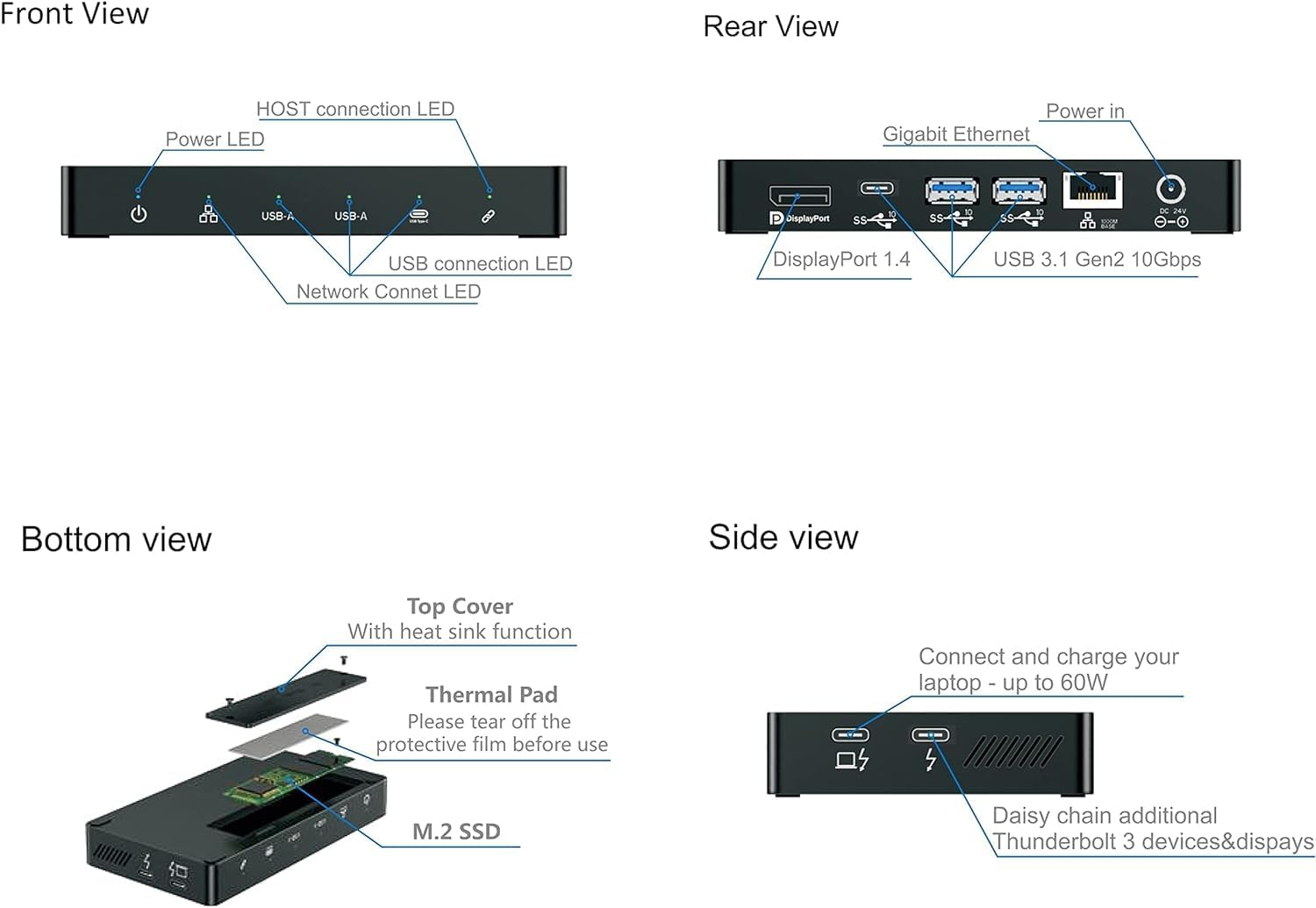
Figure 2.1: Front, Rear, Bottom, and Side Views with Port Labels
This diagram illustrates the various connection points and indicators on the docking station. The front panel features LED indicators for power, host connection, USB connection, and network connection. The rear panel includes the DisplayPort 1.4, two USB 3.1 Gen2 10Gbps ports, a Gigabit Ethernet port, and the DC power input. The bottom view shows the removable cover for M.2 SSD installation, along with a thermal pad for heat dissipation. The side view highlights the Thunderbolt ports for host connection and daisy chaining, along with the power delivery capability.
Port and Indicator Descriptions:
| Component | Description |
|---|---|
| Power LED | Indicates the power status of the docking station. |
| Host Connection LED | Indicates successful connection to the host device (laptop/PC). |
| USB-A Ports (x2) | USB 3.1 Gen2 ports for connecting USB devices, offering up to 10Gbps data transfer. |
| USB-C Port (x1) | USB 3.1 Gen2 port for connecting USB-C devices, offering up to 10Gbps data transfer. |
| Network Connect LED | Indicates active network connection via the Gigabit Ethernet port. |
| DisplayPort 1.4 | Connects to an external monitor for video output, supporting up to 8K/60Hz or dual 4K/60Hz. |
| Gigabit Ethernet Port | Provides a stable wired network connection (10/100/1000 Mbps). |
| DC Power Input | Connect the included power adapter here. Provides 120W input, with 60W Power Delivery to the host. |
| Thunderbolt Ports (x2) | One port for host connection (up to 60W PD), and one for daisy-chaining additional Thunderbolt devices. |
| NVMe Slot (M.2 SSD) | Internal slot for installing an M.2 NVMe SSD for high-speed storage expansion. |
3. Setup Guide
Follow these steps to set up your TREBLEET Thunderbolt 3 Docking Station.
3.1. Package Contents
Please ensure all items are present in the package:
- TREBLEET Thunderbolt 3 Docking Station
- Thunderbolt 3 Cable
- Power Adapter (DC 24V/5A)
- Screwdriver and screws for M.2 SSD installation
- User Manual (this document)
3.2. Installing an M.2 NVMe SSD (Optional)
The docking station supports M.2 NVMe SSDs for expanded storage. Follow these steps to install one:
- Locate the M.2 SSD slot cover on the bottom of the docking station.
- Using the provided screwdriver, carefully remove the screws securing the cover and lift it off.
- If present, peel off the protective film from the thermal pad located on the underside of the cover.
- Gently insert your M.2 NVMe SSD into the slot at an angle, ensuring the notch aligns correctly.
- Press down the SSD and secure it with the provided screw.
- Replace the slot cover and secure it with the screws.

Figure 3.1: M.2 NVMe SSD Installation
This image provides an exploded view of the docking station, illustrating how to access the M.2 NVMe SSD slot. It shows the top cover, thermal pad, and the SSD being inserted into the main unit, emphasizing the importance of the thermal pad for heat management.
3.3. Connecting the Docking Station
- Connect the included power adapter to the DC Power Input port on the docking station, then plug the adapter into a power outlet. The Power LED on the front panel should illuminate.
- Connect one end of the Thunderbolt 3 cable to the Thunderbolt port labeled for host connection on the docking station.
- Connect the other end of the Thunderbolt 3 cable to a Thunderbolt 3 or Thunderbolt 4 port on your laptop or computer. The Host Connection LED should illuminate.
- Connect your external monitor(s) to the DisplayPort 1.4 port(s) on the docking station.
- Connect any USB peripherals (keyboard, mouse, external drives) to the available USB-A and USB-C ports.
- For a wired network connection, connect an Ethernet cable from your router/modem to the Gigabit Ethernet port on the docking station.
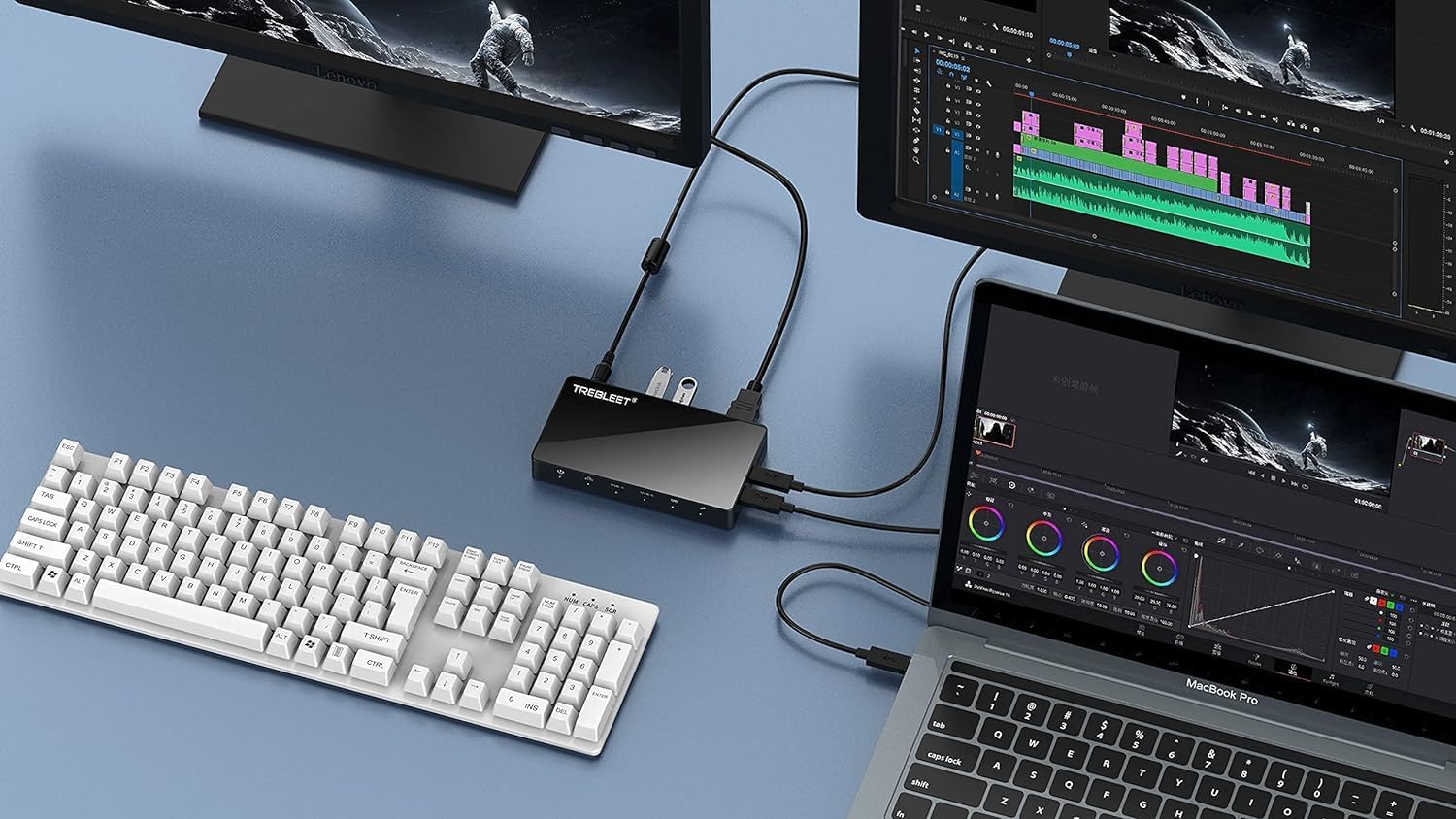
Figure 3.2: Typical Setup with External Monitors
This image demonstrates a common setup where the docking station is connected to a laptop, extending the display to two external monitors and providing connectivity for a full-sized keyboard. This setup highlights the multi-display capability and peripheral expansion.
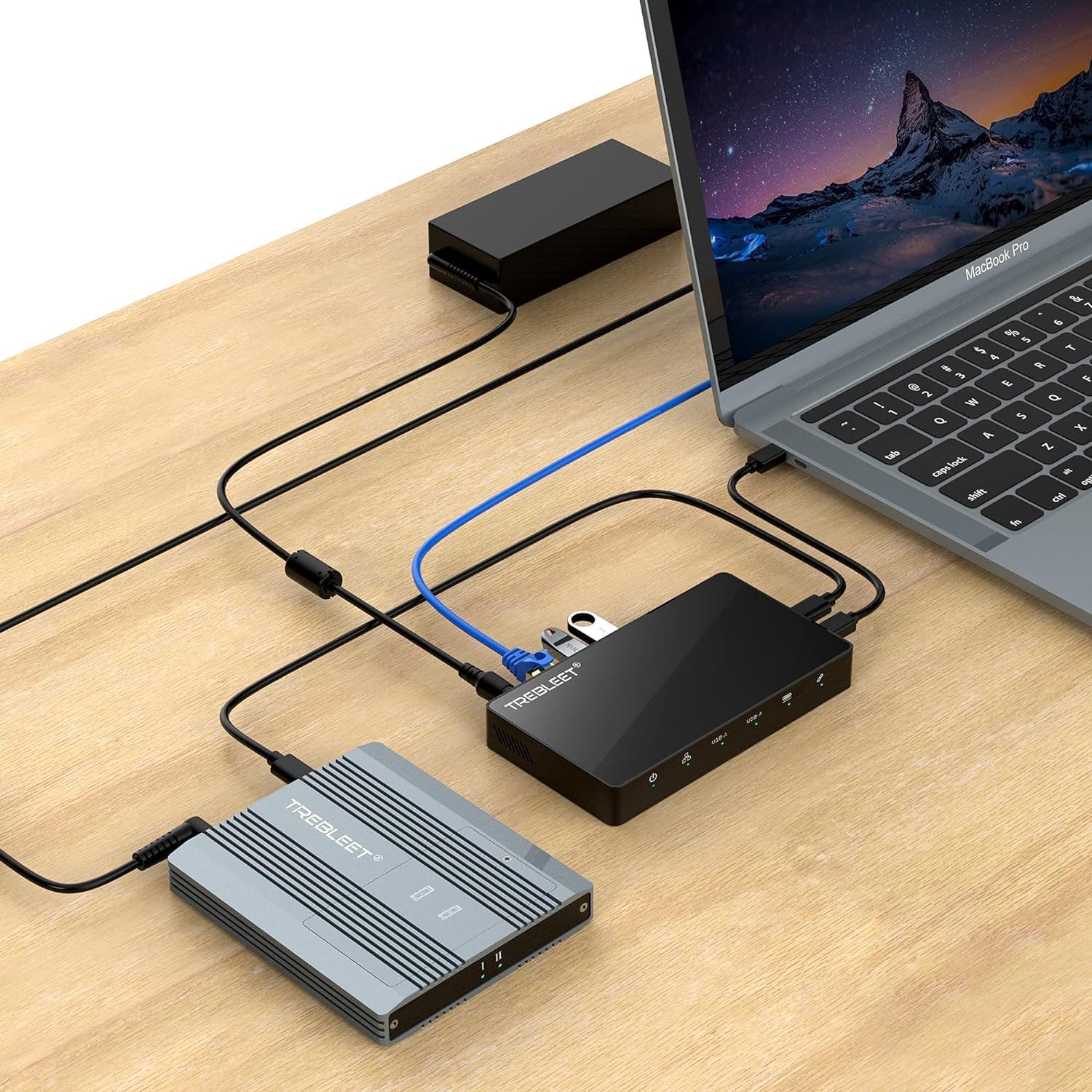
Figure 3.3: Setup with External SSD and Network
This image shows the docking station connected to a laptop, an external SSD enclosure, and an Ethernet cable, illustrating its use for high-speed data transfer and reliable network access. It also shows a USB flash drive connected to one of the USB-A ports.
4. Operating Instructions
4.1. Power Delivery
The docking station provides up to 60W of Power Delivery to your connected laptop via the Thunderbolt cable. This allows you to charge your laptop while using the dock, eliminating the need for a separate laptop charger.
4.2. Video Output
Connect your monitor(s) to the DisplayPort 1.4 port. The dock supports:
- Single Display: Up to 8K (7680x4320) at 60Hz.
- Dual Displays: One display at 8K/60Hz and another at 4K/30Hz, or two displays at 4K/60Hz.
Ensure your host device and monitors support the desired resolutions and refresh rates for optimal performance.
4.3. Data Transfer (USB & NVMe SSD)
The USB-A and USB-C ports support USB 3.1 Gen2 speeds, providing up to 10Gbps for fast data transfer with compatible devices. The internal NVMe M.2 SSD slot supports PCIe 3.0, allowing for read/write speeds up to 2800 MB/s, depending on the installed SSD model.
Note: For optimal performance with 2.4GHz wireless devices (e.g., wireless mouse/keyboard dongles), it is recommended to connect them to a USB 2.0 port on your host device or use a USB extension cable to minimize potential wireless interference from USB 3.0 signals.
4.4. Gigabit Ethernet
The RJ45 Gigabit Ethernet port provides a stable and high-speed wired network connection, ideal for critical tasks requiring reliable internet access.
4.5. Thunderbolt Daisy Chaining
The secondary Thunderbolt port allows you to daisy chain up to 6 additional Thunderbolt 3 compatible devices or displays, expanding your workstation capabilities even further.
5. Maintenance
To ensure the longevity and optimal performance of your docking station, follow these maintenance guidelines:
- Cleaning: Use a soft, dry, lint-free cloth to clean the exterior of the docking station. Avoid using abrasive cleaners, solvents, or aerosol sprays.
- Ventilation: Ensure the docking station is placed in a well-ventilated area to prevent overheating, especially during prolonged heavy use. Do not block the ventilation grilles.
- Storage: When not in use for extended periods, disconnect the power adapter and store the device in a cool, dry place away from direct sunlight and extreme temperatures.
- Cable Management: Avoid bending or crimping cables excessively, as this can damage them over time.
6. Troubleshooting
If you encounter issues with your TREBLEET Thunderbolt 3 Docking Station, refer to the following common problems and solutions:
6.1. No Display Output
- Check Connections: Ensure the Thunderbolt cable is securely connected to both the dock and your host device. Verify that the DisplayPort cable is firmly connected to both the dock and the monitor.
- Power: Confirm the docking station is receiving power and the Power LED is illuminated.
- Monitor Input: Make sure your monitor is set to the correct input source (e.g., DisplayPort).
- Drivers: Ensure your computer's graphics drivers and Thunderbolt drivers are up to date.
- Resolution/Refresh Rate: Try lowering the resolution or refresh rate of the external display to see if it resolves the issue.
6.2. Devices Not Recognized / Slow Data Transfer
- Reconnect: Disconnect and reconnect the problematic device from the USB port.
- Power Cycle: Disconnect the docking station from power and your host device, wait a few seconds, then reconnect.
- Host Compatibility: Ensure your host device's Thunderbolt port is functioning correctly.
- NVMe SSD: If the NVMe SSD is not recognized, ensure it is properly seated in the slot and the cover is secured. Check if your host device's operating system recognizes the drive. (Note: NVMe slot is not recognized in USB 3.1 mode).
- 2.4GHz Wireless Interference: If experiencing issues with 2.4GHz wireless devices (mouse, keyboard), try connecting their dongles directly to your computer's USB 2.0 port or use a USB extension cable.
6.3. Docking Station Feels Warm
- It is normal for the docking station to become warm during operation, especially under heavy load (e.g., high-speed data transfer, multiple displays, or charging).
- Ensure adequate ventilation around the device. Do not place it on soft surfaces that can block airflow.
- If the device becomes excessively hot and performance degrades, disconnect it and allow it to cool down.
7. Specifications
| Feature | Detail |
|---|---|
| Brand Name | TREBLEET |
| Model Number | 7005 |
| Color | Black |
| Product Dimensions | 14.4 x 7.9 x 1.93 cm; 790 g (approx. 5.67 x 3.11 x 0.76 inches) |
| Total USB Ports | 3 (2x USB-A, 1x USB-C) |
| Port Count | 8 (including NVMe slot) |
| Compatible Devices | Thunderbolt 3 and Thunderbolt 4 Devices |
| Hardware Interface | Thunderbolt, Ethernet, DisplayPort |
| Power Delivery | 60W to host |
| Display Output | DisplayPort 1.4 (up to 8K/60Hz single, dual 4K/60Hz or 8K/60Hz + 4K/30Hz) |
| Ethernet | Gigabit Ethernet (RJ45) |
| SSD Slot | 1x NVMe M.2 (PCIe 3.0) |

Figure 7.1: Product Dimensions Comparison
This image shows the compact size of the docking station (5.67 inches by 3.11 inches) in comparison to a typical smartphone, highlighting its portability and small footprint on a desk.
8. Warranty and Support
TREBLEET products are designed for reliability and performance. For information regarding warranty coverage, technical support, or service inquiries, please refer to the warranty card included with your product or visit the official TREBLEET website.
Please retain your proof of purchase for warranty claims.
No official seller videos were found for this product.
Ask a question about this manual
Ask about setup, troubleshooting, compatibility, parts, safety, or missing instructions. Manuals+ will review the question and use this page’s manual context to help answer it.