
1. Product Overview
The LexonElec 60% Mechanical Gaming Keyboard is a compact 68-key keyboard designed for gaming and office use. It features RGB backlighting, durable Red mechanical switches, and full key anti-ghosting for responsive performance. Its ultra-compact design saves desktop space while providing essential functionality through FN key combinations.

Image 1.1: Overview of the LexonElec 60% Mechanical Gaming Keyboard, highlighting its compact size and RGB backlighting.
2. Package Contents
Please verify that all items are present in the package:
- 1 x LexonElec 68-Key Mechanical Keyboard
- 1 x USB Type-C Cable
- 1 x Keycap Removal Tool
- 1 x User Manual (this document)
3. Setup Instructions
Follow these steps to set up your LexonElec Mechanical Gaming Keyboard:
- Connect the Keyboard: Insert the USB Type-C end of the provided cable into the port on the back of the keyboard. Connect the standard USB-A end to an available USB port on your computer.
- System Recognition: Your operating system (Windows, Mac, Linux, Android) should automatically detect and install the necessary drivers. This may take a few moments.
- Adjust Keyboard Feet: For optimal typing comfort, you can adjust the two-stage feet located on the bottom of the keyboard to achieve your preferred angle. Ensure the non-slip pads are securely in place for stability.
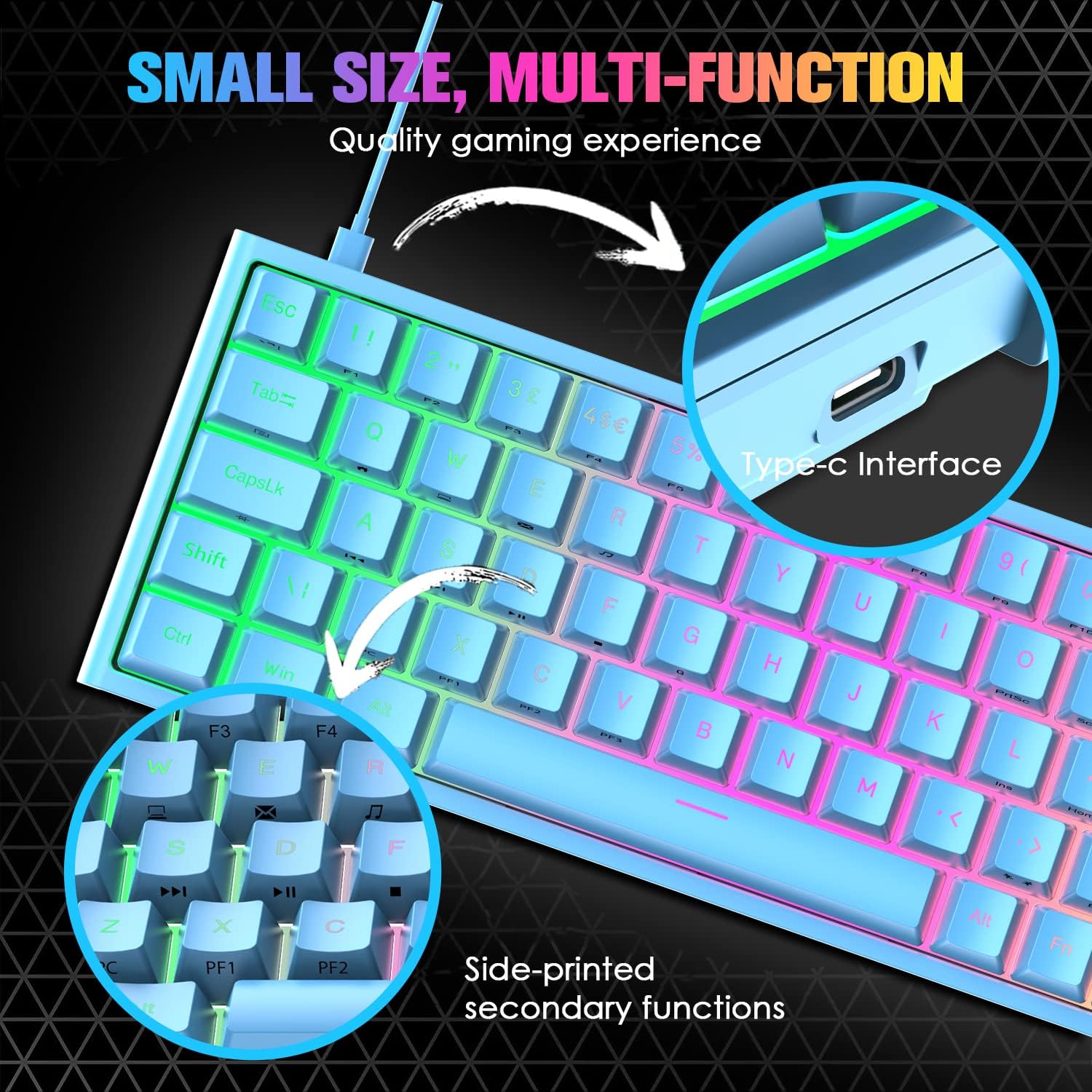
Image 3.1: Illustration of the Type-C interface connection point on the keyboard.
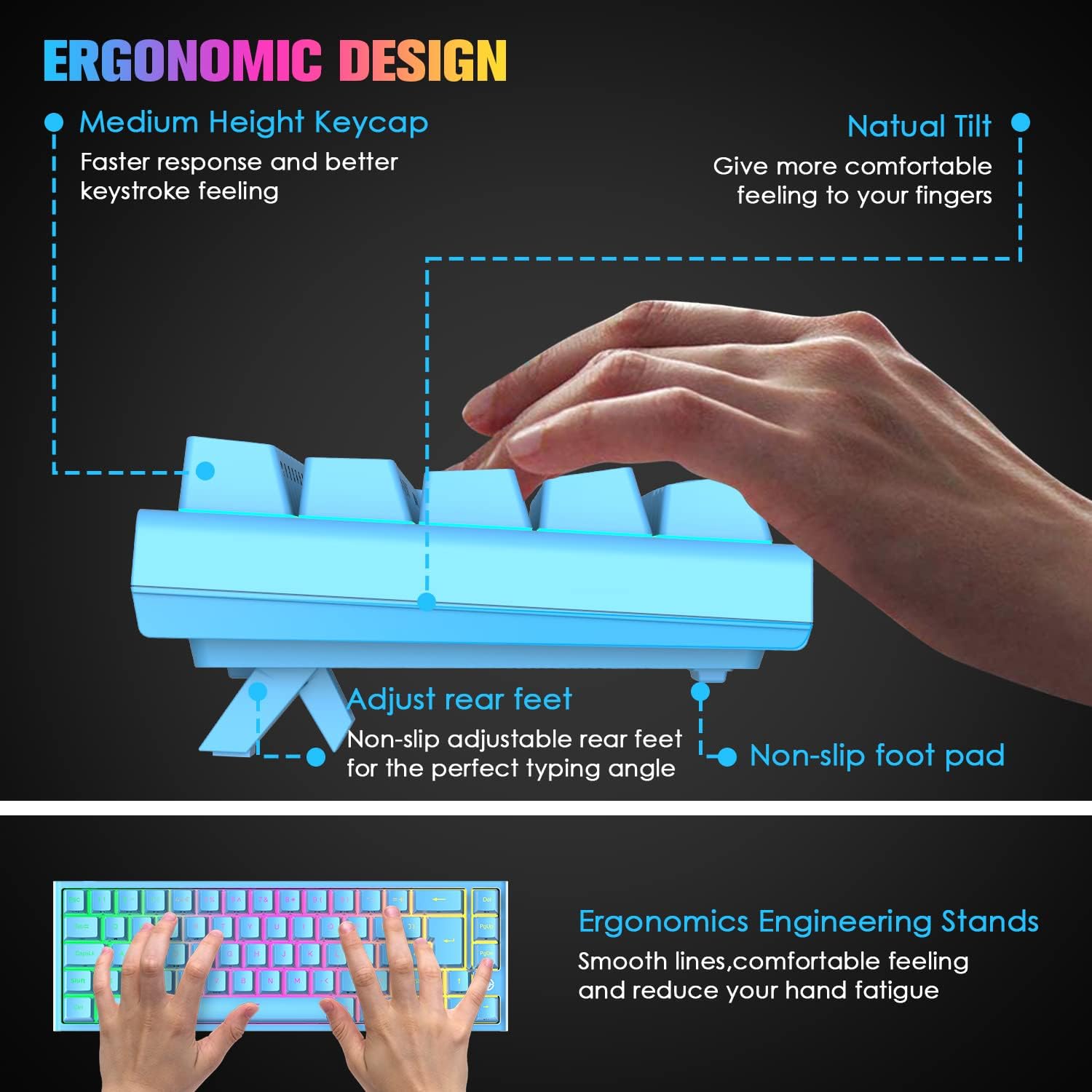
Image 3.2: Diagram showing the adjustable rear feet and non-slip foot pads for ergonomic positioning.
4. Operating Instructions
4.1. Basic Keyboard Functions
The keyboard functions as a standard 68-key layout. All keys feature anti-ghosting, ensuring that multiple simultaneous key presses are registered accurately, which is crucial for gaming.
4.2. RGB Backlight Control
The keyboard supports 14 RGB lighting effects and 8 monochromatic light modes. You can customize the brightness and breathing speed of the backlight.
- Turn On/Off Backlight: Press Fn + ←
- Switch Lighting Effects: Press Fn + Tab
- Adjust Brightness: Press Fn + ↑ (Increase) / ↓ (Decrease) (5 levels)
- Adjust Breathing Speed: Press Fn + ← (Decrease) / → (Increase) (6 levels)

Image 4.1: The keyboard displaying various RGB backlight effects and controls.
4.3. FN Combination Functions
The keyboard utilizes FN key combinations to access multimedia and other functions due to its compact layout:
| Combination | Function |
|---|---|
| Fn + Q | Home Page |
| Fn + W | My Computer |
| Fn + E | Email Box |
| Fn + R | Music |
| Fn + T | Calculator |
| Fn + [ | Pause |
| Fn + ] | Search |
| Fn + A | Last Song |
| Fn + S | Next Song |
| Fn + D | Play/Pause |
| Fn + F | Stop |
| Fn + L | INS (Insert) |

Image 4.2: Visual guide to the FN combination functions for multimedia and system controls.
5. Maintenance
5.1. Cleaning the Keyboard
To maintain optimal performance and appearance, regularly clean your keyboard:
- Dust Removal: Use a can of compressed air to blow away dust and debris from between the keycaps.
- Surface Cleaning: Wipe the keycaps and keyboard surface with a soft, slightly damp cloth. Avoid excessive moisture.
- Deep Cleaning (Keycaps): For a more thorough clean, use the provided keycap removal tool to carefully detach keycaps. Clean them with mild soap and water, then ensure they are completely dry before reattaching.

Image 5.1: Close-up of the Red mechanical switches and double-shot keycaps, illustrating components that may require cleaning.
6. Troubleshooting
If you encounter issues with your keyboard, please refer to the following common solutions:
- Keyboard Not Responding:
- Ensure the USB cable is securely connected to both the keyboard and the computer.
- Try connecting the keyboard to a different USB port on your computer.
- Test the keyboard on another computer to determine if the issue is with the keyboard or the computer's port/drivers.
- Keys Not Registering / Double Tapping:
- Dust or debris under the keycap can sometimes cause issues. Refer to the cleaning instructions in Section 5.1.
- If a specific key consistently malfunctions, it may indicate a switch issue. Contact customer support for assistance.
- Backlight Not Working / Incorrect:
- Ensure the backlight is turned on using Fn + ←.
- Adjust brightness using Fn + ↑ / ↓.
- Cycle through lighting effects with Fn + Tab.
7. Specifications
| Feature | Specification |
|---|---|
| Keyboard Layout | 68 Keys (60% Compact) |
| Switch Type | Red Mechanical Switches |
| Keystroke Life | Up to 50 Million Keystrokes |
| Actuation Force | 40g |
| Keystroke Travel | 2.0mm |
| Backlight | RGB (14 effects, 8 monochromatic modes) |
| Interface | USB Type-C (Wired) |
| Anti-Ghosting | Full Key Anti-Ghosting |
| Material | ABS Keycaps, Metal Panel |
| Dimensions (L x W x H) | 350 x 155 x 50 mm (13.78 x 6.1 x 1.97 inches) |
| Weight | 850g (1.87 lbs) |
| Compatibility | Windows 7/8/10/Vista/XP, limited Mac OS, Android, Linux |

Image 7.1: Diagram illustrating the physical dimensions of the keyboard.
8. Warranty and Support
For warranty information or technical support, please refer to the purchase platform or contact LexonElec customer service directly. Keep your purchase receipt as proof of purchase.
For further assistance, you may visit the LexonElec official website or contact their support channels.