
1. Introduction
The LexonElec MK26 is a 60% mechanical gaming keyboard designed for compact setups and portability. It features RGB Chroma backlighting, red mechanical switches, and full key anti-ghosting for a responsive typing and gaming experience. This manual provides instructions for setup, operation, maintenance, and troubleshooting.
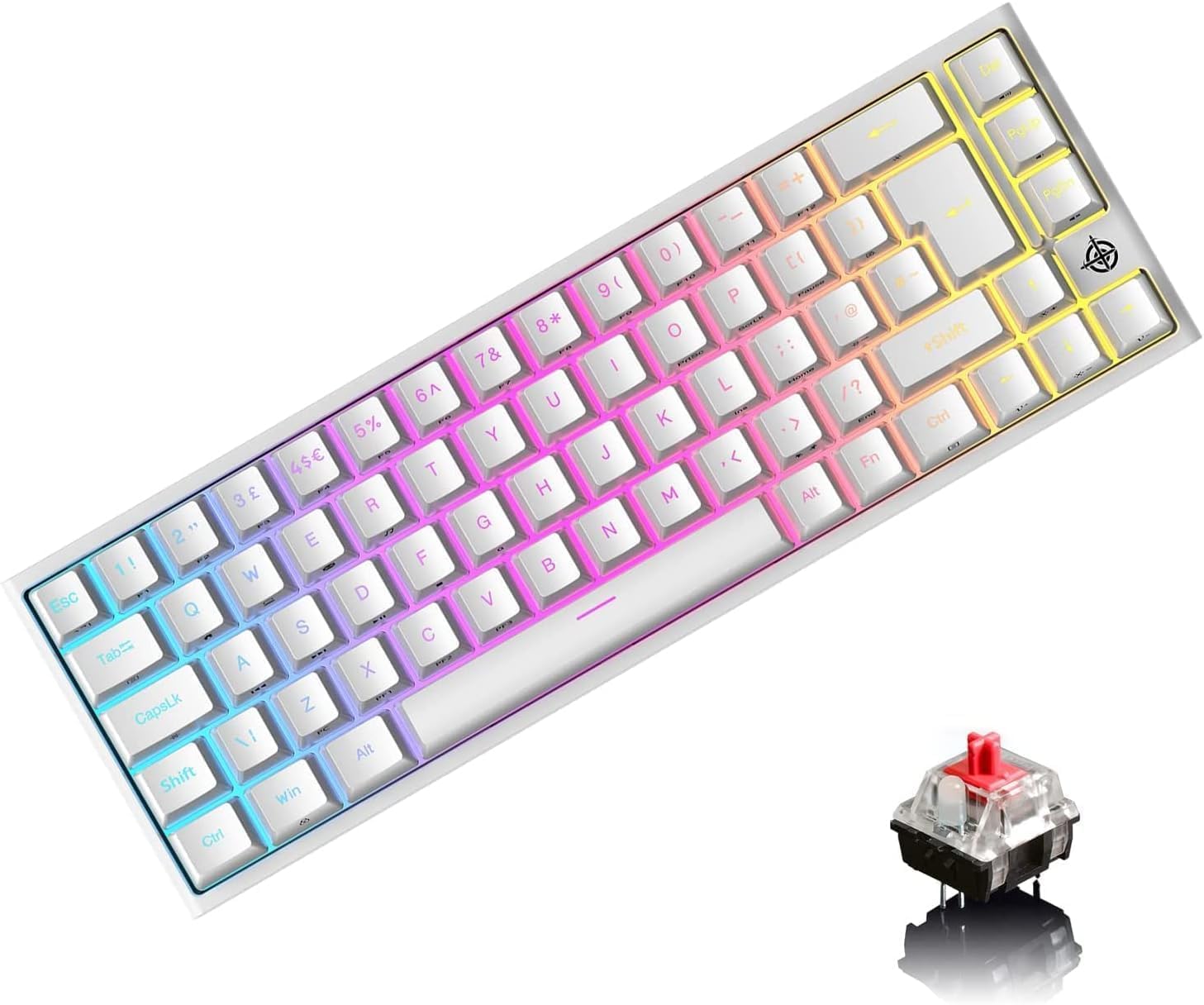
Image: LexonElec MK26 60% Mechanical Gaming Keyboard in white, showcasing its compact design and RGB backlighting.
2. Package Contents
- 1 x LexonElec 68-Key Mechanical Keyboard
- 1 x USB-C to USB-A Cable
- 1 x Keycap Removal Tool
- 1 x User Manual
3. Setup
- Connect the USB Cable: Connect the provided USB-C cable to the Type-C port located on the keyboard.
- Connect to Device: Plug the other end of the USB cable (USB-A) into an available USB port on your computer, laptop, or gaming console.
- Automatic Recognition: The keyboard is plug-and-play and should be automatically recognized by your operating system without requiring additional drivers.

Image: Close-up view of the LexonElec MK26 keyboard, highlighting the Type-C interface for connection.
4. Operating Instructions
4.1 RGB Backlight Control
The keyboard supports 14 RGB lighting effects and 8 monochromatic light modes. Use the following Fn key combinations to control the backlighting:
- Fn + ←: Turn the backlight on or off.
- Fn + Tab: Switch between different RGB lighting effects.
- Fn + ↑ / ↓: Adjust backlight brightness (5 levels available).
- Fn + ← / →: Adjust the light breathing speed.

Image: The LexonElec MK26 keyboard displaying various RGB backlight effects and illustrating the Fn key combinations for control.
4.2 FN Combination Keys
The 68-key layout utilizes Fn key combinations to access additional functions, including multimedia controls and system shortcuts:
| Combination | Function |
|---|---|
| Fn + Q | Home Page |
| Fn + W | My Computer |
| Fn + E | Email Box |
| Fn + R | Music |
| Fn + T | Calculator |
| Fn + [ { | Pause |
| Fn + ] } | Search |
| Fn + A | Last Song |
| Fn + S | Next Song |
| Fn + D | Play/Pause |
| Fn + F | Stop |
| Fn + L | INS (Insert) |

Image: The LexonElec MK26 keyboard showing the various Fn key combinations for multimedia and system functions.
5. Features Overview
5.1 Ergonomic Design
The keyboard features a medium height keycap profile and natural tilt for comfortable typing. Adjustable rear feet allow you to set the keyboard to your preferred angle for optimal comfort. Non-slip pads on the bottom ensure stability during intense gaming sessions or typing.

Image: Diagram illustrating the ergonomic design of the LexonElec MK26, including medium height keycaps, natural tilt, and adjustable rear feet.
5.2 Red Mechanical Switches
The keyboard is equipped with red mechanical switches, known for their linear feel, low actuation force (40g), and quiet operation. They offer a smooth and fast keystroke with a travel distance of 2.0mm, making them suitable for both rapid typing and gaming. The switches are tested for up to 50 million keystrokes, ensuring durability.

Image: Close-up view of the red mechanical switches and double-shot keycaps of the LexonElec MK26 keyboard, highlighting their construction and durability.
6. Maintenance
Proper maintenance ensures the longevity and performance of your keyboard.
- Cleaning Keycaps: Use the provided keycap removal tool to carefully lift keycaps. Clean them with a soft, slightly damp cloth. Ensure keycaps are completely dry before reattaching.
- Cleaning the Keyboard Base: Use compressed air to remove dust, crumbs, and debris from between the switches and under the keycaps. Wipe the keyboard surface with a soft, dry, lint-free cloth.
- Avoid Liquids: Do not spill liquids on the keyboard. If a spill occurs, immediately disconnect the keyboard and allow it to dry completely before reconnecting.
- Avoid Harsh Chemicals: Do not use harsh chemicals, abrasive cleaners, or solvents, as these can damage the keyboard's finish and keycap legends.
7. Troubleshooting
- Keyboard Not Responding:
- Ensure the USB-C cable is securely connected to both the keyboard and your computer/device.
- Try connecting the keyboard to a different USB port on your device.
- Restart your computer or device.
- Specific Keys Not Working or Double-Tapping:
- Carefully remove the affected keycap using the keycap removal tool.
- Check for any visible obstructions, dust, or debris around the mechanical switch. Use compressed air to clean the area.
- Reattach the keycap firmly. If the issue persists, the switch may require professional service.
- Backlight Not Working or Changing:
- Ensure the backlight is turned on using the Fn + ← key combination.
- Try cycling through different lighting modes with Fn + Tab.
- Adjust the brightness using Fn + ↑ / ↓.
- Keycap Layout Discrepancy (UK vs. US):
- Some keyboards may have keycaps printed with a UK layout (e.g., '@' on '2', '"' on '3', '£' on '3'), even if the internal software functions as a US layout.
- The keyboard's output will typically follow your operating system's keyboard language settings. If your OS is set to US English, pressing Shift+3 will produce '#' regardless of the keycap printing.
- If you type by sight, this may require an adjustment period.
8. Specifications
| Feature | Detail |
|---|---|
| Keyboard Layout | 68 Keys (60% Percent) |
| Mechanical Switch Type | Red Switch |
| Backlight | RGB Backlight (14 effects, 8 monochromatic modes) |
| Interface Type | USB-C (Detachable Cable) |
| Anti-Ghosting | Full Key Anti-Ghosting |
| Keyboard Dimensions (L x W x H) | 350mm x 155mm x 50mm (13.78" x 6.1" x 1.97") |
| Keyboard Weight | 850g (1.87 lbs) |
| Compatible Systems | Windows (7/8/10/Vista/XP), Mac OS (limited), Android, Linux, PS4 |
| Keystroke Life | Up to 50 Million Keystrokes |
| Actuation Force | 40g |
| Keystroke Travel | 2.0mm |

Image: Diagram showing the physical dimensions of the LexonElec MK26 keyboard.
9. Warranty and Support
LexonElec products are designed for reliability and performance. For any issues or questions regarding your keyboard, please refer to the seller's return policy or contact their customer support directly. Keep your purchase receipt for any potential warranty claims.