1. Introduction
Thank you for choosing TALOYA Smart Light Bulbs. These smart bulbs offer a wide range of features including color changing, dimmable light, and control via app or voice assistants like Alexa and Google Assistant. This manual provides essential information for safe installation, operation, and maintenance of your new smart bulbs.
2. Safety Information
- Always cut off power before installing or removing the bulb.
- Do not use with standard dimmers. These bulbs are dimmable via the app or voice control only.
- Suitable for dry locations only.
- Do not disassemble or modify the bulb.
- Keep out of reach of children.
- Ensure the bulb is securely screwed into a compatible E26 base.
3. Product Overview
The TALOYA Smart Light Bulbs are A21 RGB WiFi and Bluetooth enabled bulbs designed for various lighting needs. They offer 16 million colors, adjustable white light (warm to cool), and various smart features.
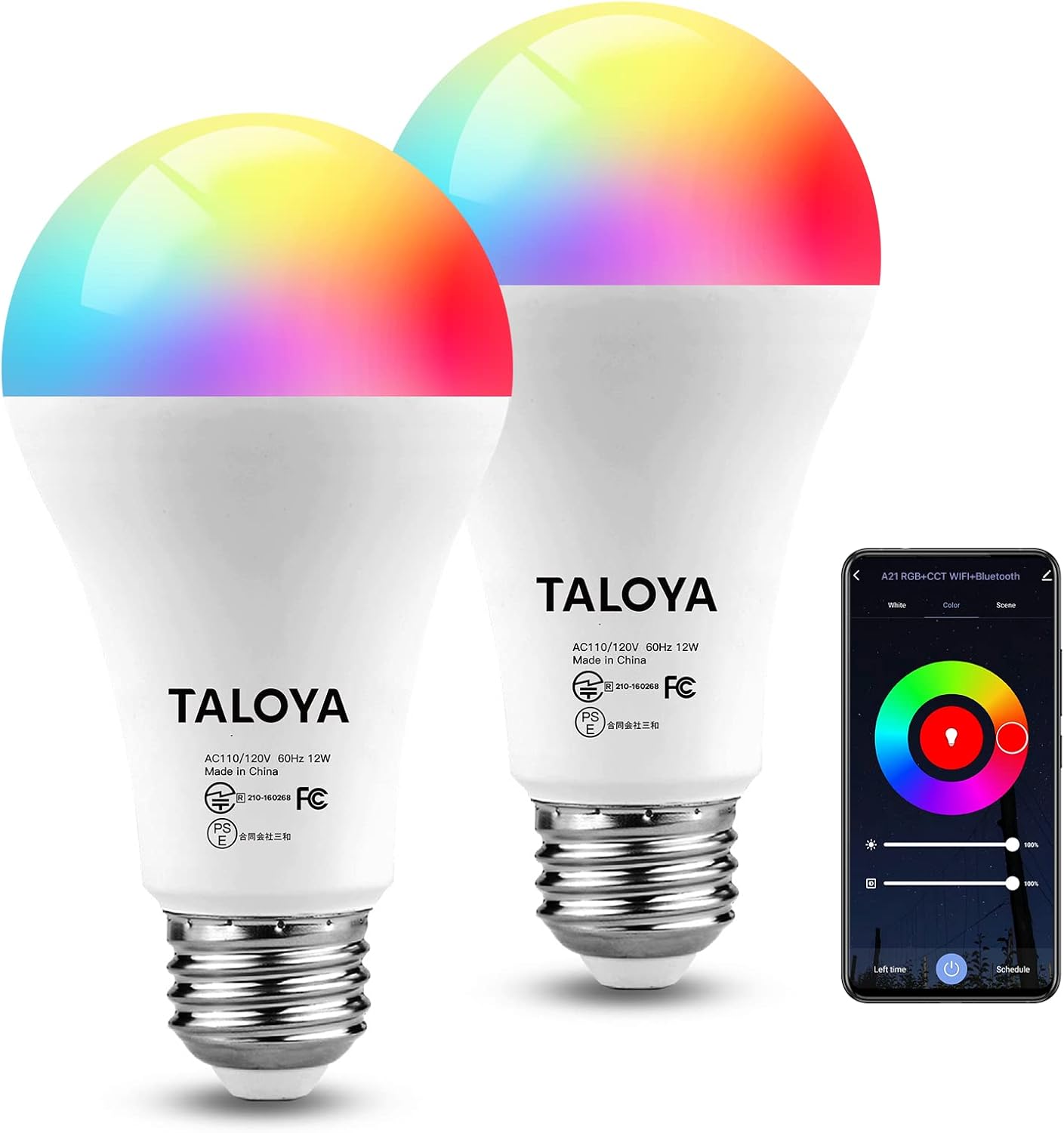
Image: Two TALOYA Smart Light Bulbs and the accompanying mobile application interface.

Image: Overview of TALOYA Smart Bulb features including dimensions (65mm width, 129mm height) and E26 base type.
4. Specifications
| Feature | Detail |
|---|---|
| Brand | TALOYA |
| Model Number | Smart Bulbs 2-Packs |
| Light Type | Color Changing (RGB) |
| Bulb Base | E26 |
| Shape | A21 |
| Wattage | 12 Watts (120W Equivalent) |
| Lumen Output | 1200LM |
| Control Method | App, Voice (Alexa, Google Assistant) |
| Connectivity | WiFi (2.4GHz), Bluetooth |
| Product Dimensions | 2.6 x 2.6 x 5.1 inches |
| Item Weight | 6.3 ounces |
| Batteries Included | No |
5. Setup and Installation
5.1 Physical Installation
Step 1: Cut off the power. Before installing the bulb, ensure the power to the light fixture is turned off at the switch or circuit breaker.

Image: Step 1 - Safely install the bulb after cutting off power.
Step 2: Install the bulb. Screw the TALOYA Smart Light Bulb into a standard E26 light socket. Ensure it is firmly seated.
Step 3: Restore power. Turn the power back on to the light fixture.
5.2 App Pairing (SmartEra App)
The TALOYA Smart Light Bulbs are controlled via the SmartEra app. Ensure your smartphone is connected to a 2.4GHz Wi-Fi network.
Step 1: Download the SmartEra App. Search for "SmartEra" in your smartphone's app store (Google Play Store for Android or Apple App Store for iOS) and download it.
Step 2: Register or Log In. Open the SmartEra app and create a new account or log in if you already have one.
Step 3: Enable Wi-Fi and Bluetooth. Ensure both Wi-Fi and Bluetooth are enabled on your smartphone.

Image: Step 2 - Open Wi-Fi and Bluetooth on your device for app pairing.
Step 4: Add Device. In the SmartEra app, tap the "+" icon or "Add Device" to begin the pairing process. The app should automatically detect the new bulb(s).
Step 5: Connect to Bulbs. Follow the on-screen instructions to connect the bulb(s) to your Wi-Fi network. You may need to confirm the Wi-Fi password.

Image: Step 3 - Connect to your bulbs easily through the app interface.
6. Operating Instructions
6.1 App Control
The SmartEra app provides full control over your TALOYA Smart Light Bulbs:
- Color and Brightness Adjustment: Select from 16 million colors or adjust the white light temperature from warm to cool. Adjust brightness from 1% to 100%.
- Scene Modes: Choose from pre-set scenes or create custom scenes for different moods and activities.
- Timer and Schedule: Set schedules for the bulbs to turn on/off at specific times, or use the "Biorhythm" feature to schedule lighting changes throughout the day.
- Music Sync: Synchronize the light effects with music playing in your environment.

Image: Control your smart bulbs anywhere via the SmartEra app, including timer settings.

Image: Adjust color temperature and brightness to create the desired atmosphere, with options for 16 million colors and warm to cool white light.

Image: Utilize the Biorhythm timer to schedule your biological clock properly, and explore multicolor and dimmable options.
6.2 Voice Control
TALOYA Smart Light Bulbs are compatible with Amazon Alexa and Google Assistant. To enable voice control:
- Ensure your smart bulb(s) are successfully paired with the SmartEra app.
- Open the Alexa or Google Home app on your smartphone.
- Navigate to "Skills & Games" (Alexa) or "Works with Google" (Google Home) and search for "SmartEra".
- Enable the SmartEra skill/service and link your SmartEra account.
- Discover devices. Once linked, you can use voice commands such as:
- "Alexa, turn on the living room light."
- "Hey Google, dim the bedroom light to 50%."
- "Alexa, change the kitchen light to blue."
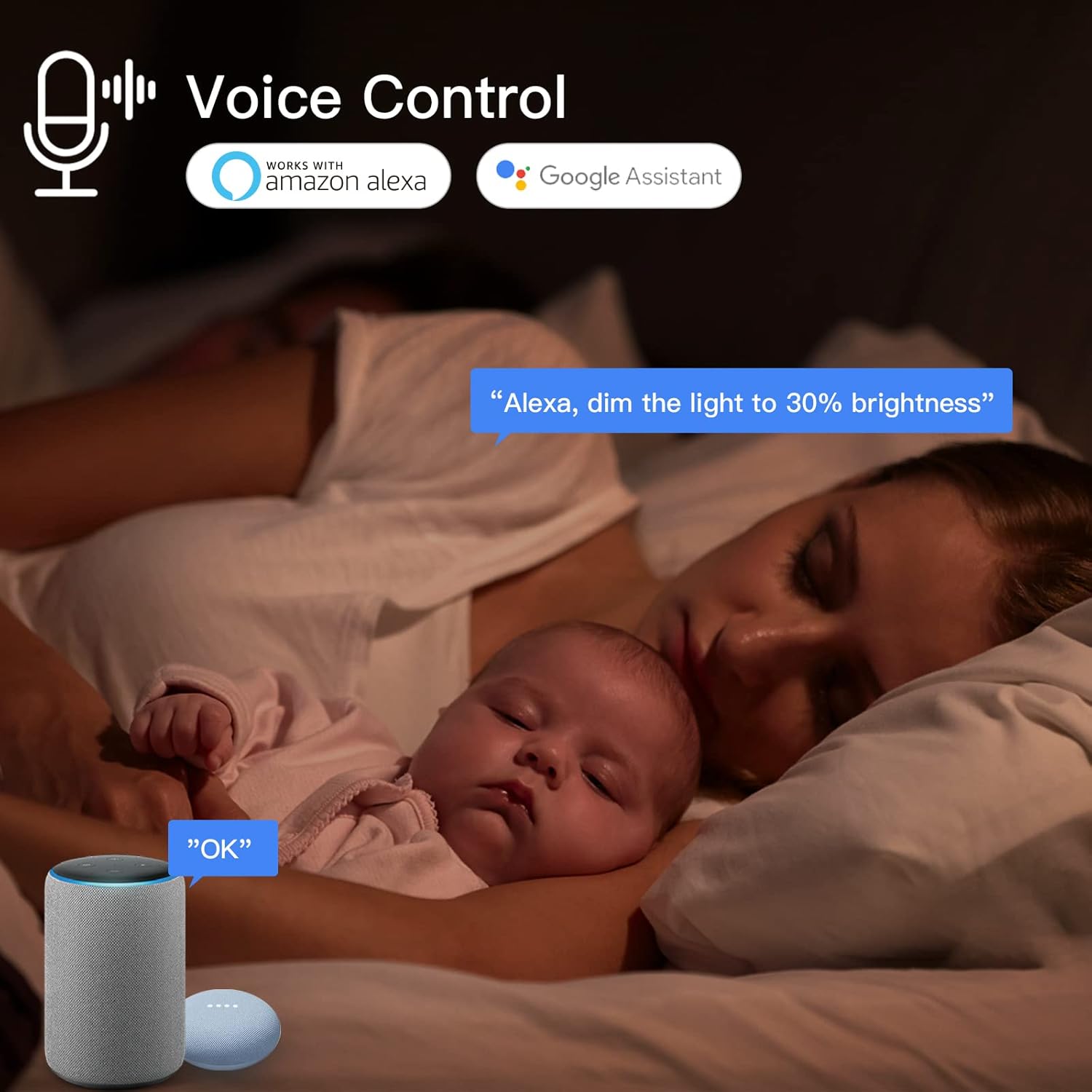
Image: Voice control functionality with Amazon Alexa and Google Assistant.

Image: Group control for multiple bulbs and hands-free voice control capabilities.
6.3 Group Control
You can group multiple TALOYA Smart Light Bulbs together in the SmartEra app to control them simultaneously. This is useful for controlling lights in a single room or area.
- Open the SmartEra app.
- Select one of the bulbs you wish to group.
- Look for a "Group" or "Create Group" option within the device settings.
- Select the other bulbs you want to add to this group and confirm.
- Name your group (e.g., "Living Room Lights").

Image: Group control functionality for managing multiple bulbs simultaneously and music sync feature.
7. Maintenance
- Cleaning: Ensure the bulb is off and cool before cleaning. Wipe with a soft, dry cloth. Do not use liquid cleaners or abrasive materials.
- Firmware Updates: Periodically check the SmartEra app for firmware updates for your bulbs to ensure optimal performance and access to new features.
- Storage: If storing the bulbs for an extended period, keep them in a cool, dry place away from direct sunlight.
8. Troubleshooting
| Problem | Possible Cause | Solution |
|---|---|---|
| Bulb not turning on. | No power; Loose connection; Bulb faulty. | Check power switch/breaker; Re-screw bulb firmly; Test bulb in another fixture. |
| Cannot connect to Wi-Fi. | Incorrect Wi-Fi password; Router too far; 5GHz Wi-Fi network; Too many devices on network. | Verify password; Move bulb closer to router; Ensure 2.4GHz network is used; Reduce network congestion. |
| Voice control not working. | SmartEra skill not enabled; Incorrect device name; Internet connection issue. | Enable SmartEra skill in Alexa/Google Home app; Use correct device name; Check internet connection. |
| Bulb frequently disconnects. | Weak Wi-Fi signal; Network interference. | Improve Wi-Fi signal strength; Reduce interference from other devices. |
9. Warranty and Support
TALOYA products come with a standard manufacturer's warranty. For specific warranty details, please refer to the product packaging or contact TALOYA customer support.
For technical support, troubleshooting assistance, or warranty claims, please contact TALOYA customer service through their official website or the contact information provided with your purchase.
Website: TALOYA Official Store on Amazon


