1. Introduction
Thank you for purchasing the Asonic AS-A33S Portable Speaker. This device is designed to provide high-quality audio playback from various sources, including Bluetooth-enabled devices, USB drives, TF cards, and AUX input. Please read this manual carefully before using the product to ensure proper operation and to maximize its lifespan.
2. Safety Information
- Do not expose the speaker to extreme temperatures, direct sunlight, or high humidity.
- Avoid dropping or subjecting the speaker to strong impacts.
- Do not disassemble, repair, or modify the device yourself. Refer all servicing to qualified personnel.
- Keep the speaker away from water and other liquids.
- Use only the specified charging voltage (DC 5V) and compatible charging cables.
- Clean the speaker with a soft, dry cloth. Do not use abrasive cleaners or solvents.
3. Package Contents
Please check the package for the following items:
- Asonic AS-A33S Portable Speaker
- USB Charging Cable
- AUX Audio Cable
- User Manual (this document)
4. Product Overview
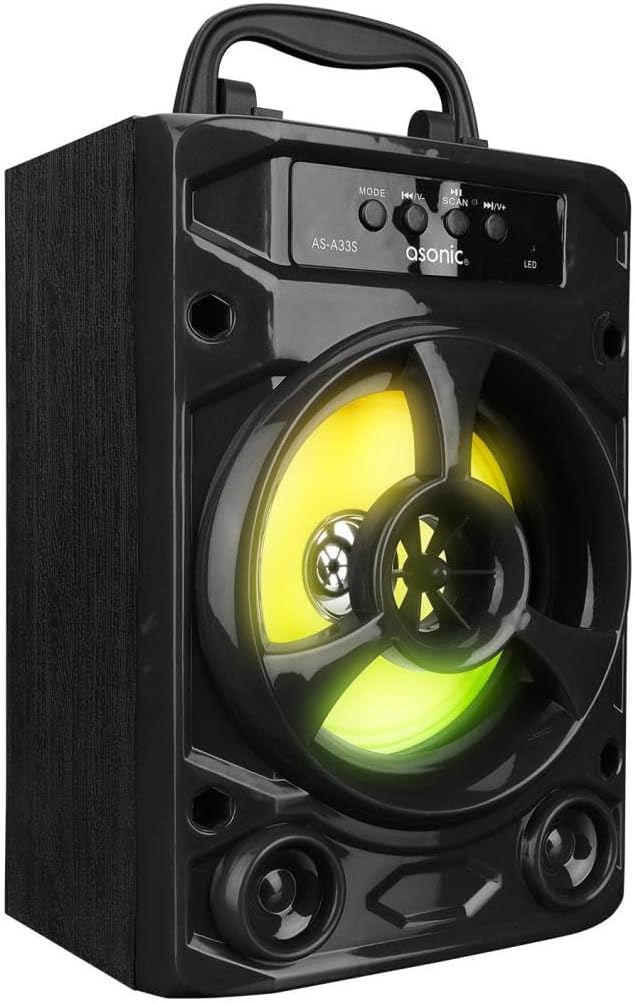
Figure 4.1: Front view of the Asonic AS-A33S speaker, showing the main speaker grille with LED illumination, control buttons on top, and a carrying handle.
Control Panel and Ports:
- MODE Button: Press to switch between Bluetooth, USB, TF Card, and AUX modes.
- Previous Track / Volume Down Button (K44/V-): Short press for previous track, long press to decrease volume.
- Play/Pause / Scan Button (SCAN): Press to play or pause audio. In FM mode (if available), long press to scan for stations.
- Next Track / Volume Up Button (V+): Short press for next track, long press to increase volume.
- LED Indicator: Shows charging status and operating mode.
- USB Port: For USB drive playback.
- TF Card Slot: For TF (MicroSD) card playback.
- AUX Input: 3.5mm jack for external audio devices.
- DC 5V Charging Port: For charging the speaker.
- Power Switch: To turn the speaker ON/OFF.
5. Setup
5.1 Initial Charging
Before first use, fully charge the speaker. Connect the supplied USB charging cable to the DC 5V charging port on the speaker and the other end to a USB power adapter (not included) or a computer's USB port. The LED indicator will show charging status and turn off or change color when fully charged.
5.2 Powering On/Off
Locate the Power Switch on the speaker. Slide it to the "ON" position to power on the speaker. Slide it to the "OFF" position to power off the speaker.
6. Operating Instructions
6.1 Bluetooth Pairing
- Turn on the speaker. It will automatically enter Bluetooth pairing mode, indicated by a flashing LED light and an audible prompt.
- Enable Bluetooth on your smartphone, laptop, or other Bluetooth-enabled device.
- Search for "AS-A33S" in the list of available Bluetooth devices.
- Select "AS-A33S" to connect. Once successfully paired, the LED indicator will stop flashing, and you will hear a confirmation sound.
- You can now play audio from your device through the speaker.
6.2 USB Playback
- Insert a USB flash drive containing MP3 audio files into the USB port.
- The speaker will automatically switch to USB mode and begin playing audio. If not, press the MODE button to select USB mode.
- Use the Previous Track / Volume Down and Next Track / Volume Up buttons to navigate tracks.
- Use the Play/Pause button to pause or resume playback.
6.3 TF Card Playback
- Insert a TF (MicroSD) card containing MP3 audio files into the TF Card slot.
- The speaker will automatically switch to TF Card mode and begin playing audio. If not, press the MODE button to select TF Card mode.
- Use the Previous Track / Volume Down and Next Track / Volume Up buttons to navigate tracks.
- Use the Play/Pause button to pause or resume playback.
6.4 AUX Mode
- Connect one end of the supplied 3.5mm AUX audio cable to the AUX input port on the speaker.
- Connect the other end of the AUX cable to the headphone jack or audio output of your external device (e.g., MP3 player, computer).
- Press the MODE button to switch to AUX mode.
- Control playback and volume directly from your connected external device.
6.5 Volume Control
Long press the Next Track / Volume Up button to increase the volume. Long press the Previous Track / Volume Down button to decrease the volume.
7. Charging the Speaker
When the battery is low, the speaker may emit an audible warning. Connect the USB charging cable to the DC 5V charging port on the speaker and to a suitable USB power source. The LED indicator will illuminate during charging and turn off or change color when charging is complete. A full charge typically takes approximately 2-3 hours.
8. Maintenance
- Keep the speaker clean by wiping it with a soft, dry cloth.
- Do not use liquid or aerosol cleaners.
- Store the speaker in a cool, dry place when not in use for extended periods.
- Avoid exposing the speaker to strong magnetic fields.
9. Troubleshooting
| Problem | Possible Cause | Solution |
|---|---|---|
| Speaker does not turn on. | Battery is depleted. | Charge the speaker fully. |
| No sound. | Volume is too low; Incorrect mode selected; Device not connected. | Increase volume on speaker and connected device; Press MODE button to select correct input; Re-pair Bluetooth or re-connect cable. |
| Bluetooth connection fails. | Speaker not in pairing mode; Device too far; Interference. | Ensure speaker is in pairing mode; Move device closer to speaker; Turn off other Bluetooth devices. |
| USB/TF card not playing. | Incorrect file format; Card/drive not inserted correctly. | Ensure files are MP3 format; Re-insert USB drive/TF card firmly; Press MODE button to select correct input. |
10. Specifications
| Brand | Asonic |
| Model | AS-A33S |
| Speaker Maximum Output Power | 3 Watt |
| Connectivity Technology | AUX, Bluetooth, USB, TF Card |
| Battery Capacity | 800mAh |
| Compatible Devices | Smartphone, Laptop |
| Power Input | DC 5V |
11. Warranty and Support
This product is covered by a standard manufacturer's warranty. For detailed warranty information, please refer to the warranty card included with your purchase or contact the retailer where you purchased the product. For technical support or service inquiries, please contact Asonic customer service through their official website or the contact information provided on the product packaging.


