
Introduction
This manual provides essential information for setting up, operating, and maintaining your Kinhank Super Consoles X PRO 256G. Please read these instructions carefully before use to ensure proper functionality and longevity of your device. The Super Consoles X PRO is a retro gaming system featuring both EmuELEC and Android operating systems, supporting a wide range of classic games and multimedia applications.
Product Contents
Verify that all items listed below are included in your package:
- Super Console X-Pro Unit (x1)
- Wireless Controllers (x2)
- 256GB TF Card (pre-installed) (x1)
- Remote Control (x1)
- HD Cable (x1)
- Power Supply (x1)
- USB Hub (x1)
- Storage Bag (x1)
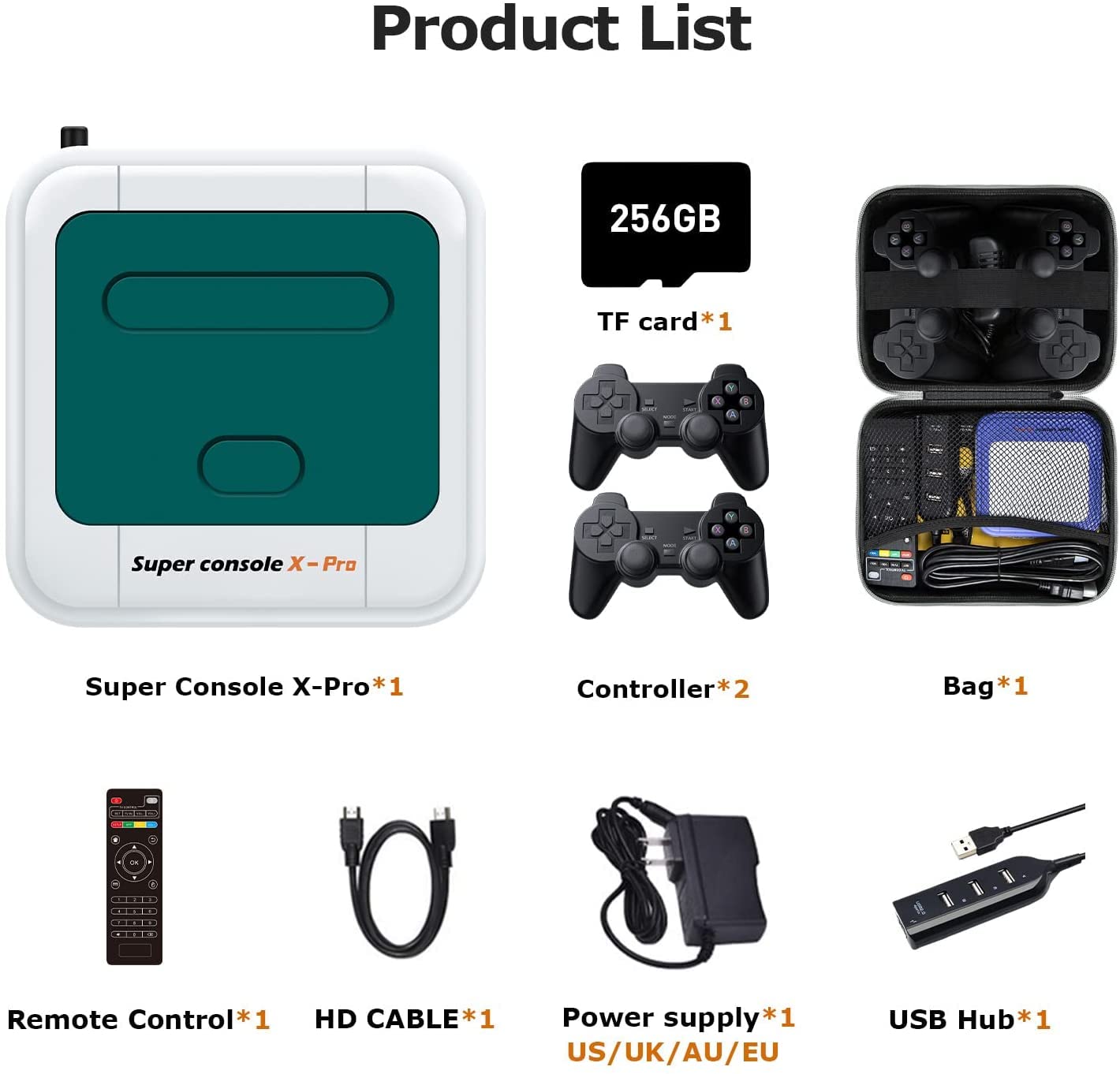
Figure 1: Included Product Components
Setup
- Connect to Display: Connect the Super Console X PRO to your TV or monitor using the provided HD cable. Insert one end into the 'HD' port on the console and the other into an available HDMI input on your display. For older displays, an AV cable (not included) can be used with the 'AV' port.
- Connect Power: Plug the power adapter into the 'DCIN' port on the console and then into a wall outlet. The console will power on automatically.
- Connect Controllers: The included wireless controllers are pre-paired. Insert the USB receiver (usually found in the battery compartment or packaged separately) into one of the USB ports on the console. Power on the controllers.
- Network Connection (Optional): For online features and updates, connect the console to the internet. You can use an Ethernet cable by plugging it into the 'Ethernet' port, or connect via Wi-Fi through the system settings in Android mode.

Figure 2: 4K HD Output Connection

Figure 3: WiFi and LAN Connection Options
Operating Instructions
The Super Consoles X PRO operates with two main systems: EmuELEC for retro gaming and Android for multimedia functions.
Switching Between Systems
- From EmuELEC to Android: Navigate to the 'Quit' or 'System Settings' menu within EmuELEC and select the option to boot into Android.
- From Android to EmuELEC: Locate the 'EmuELEC' application icon within the Android interface and launch it.
EmuELEC (Gaming System)
- Game Selection: Use the controller's directional pad and 'A' button (or equivalent) to navigate through the list of emulators and games.
- Starting a Game: Select a game from the list and press the 'A' button to launch it.
- Exiting a Game: Press the 'START' and 'SELECT' buttons simultaneously (or refer to the in-game menu) to access the EmuELEC menu and exit the game.
- Adding Games: Games can be added by connecting the TF card to a computer and transferring compatible ROM files to the appropriate emulator folders. Ensure the file formats are supported by EmuELEC.
Android (Multimedia System)
- Navigation: Use the remote control or a connected USB mouse/keyboard to navigate the Android interface.
- Applications: Access pre-installed applications like YouTube, Kodi, and web browsers. You can also download and install new applications from the Google Play Store (requires internet connection and Google account).
- Settings: Adjust display, network, and other system settings through the Android settings menu.

Figure 4: EmuELEC and Android Dual System Overview
Maintenance
- Cleaning: Use a soft, dry cloth to clean the console and controllers. Avoid liquid cleaners or abrasive materials.
- Storage: Store the console in a cool, dry place away from direct sunlight and extreme temperatures.
- Software Updates: Periodically check for system updates in Android settings to ensure optimal performance and access to the latest features. For EmuELEC, updates may require specific procedures; consult online resources or manufacturer support.
- TF Card Handling: Always safely eject the TF card from the console or computer before removing it to prevent data corruption.
Troubleshooting
| Problem | Possible Cause | Solution |
|---|---|---|
| No display on TV | Loose HD cable connection, incorrect TV input, power issue. | Ensure HD cable is securely connected. Select correct HDMI input on your TV. Verify power adapter is connected and console is powered on. |
| Controller not responding | Low battery, USB receiver not connected, not paired. | Replace controller batteries. Ensure USB receiver is plugged into the console. Re-pair controllers if necessary (refer to controller specific instructions). |
| Games not loading or freezing | Corrupted game file, insufficient system resources, TF card issue. | Ensure game files are not corrupted. Restart the console. Check if the TF card is properly inserted. Avoid running too many background applications in Android mode. |
| Difficulty navigating menus | Unfamiliarity with system, incorrect controller input. | Familiarize yourself with the controller layout and system navigation. In EmuELEC, 'A' typically confirms, 'B' goes back. In Android, use the remote or a mouse. |
| Cannot connect to Wi-Fi | Incorrect password, out of range, router issue. | Double-check Wi-Fi password. Move console closer to router. Restart your router. |
Specifications
| Feature | Detail |
|---|---|
| Model | Super Consoles X PRO |
| Memory Storage Capacity | 256 GB (TF Card) |
| Resolution Output | Up to 4K HD |
| Input Device | Gamepad, Remote Control |
| Compatible Flash Memory Type | microSD |
| Processor | S905X (implied from images) |
| RAM | 1GB (implied from images) |
| GPU | 4-Core (implied from images) |
| Connectivity | WiFi, LAN (Ethernet), USB |

Figure 5: Product Display and Port Overview
Warranty and Support
For warranty information and technical support, please refer to the documentation included with your product or contact Kinhank customer service directly. Contact details can typically be found on the manufacturer's official website or on the product packaging.