
Rebel KOM1060
Contents
Rebel KOM1060 USB DVB-T2 H.265 HEVC Digital TV Tuner User Manual
1. Introduction
This manual provides comprehensive instructions for the Rebel KOM1060 USB DVB-T2 H.265 HEVC Digital TV Tuner. This device allows you to receive digital television and radio broadcasts on your personal computer. It supports DVB-T, DVB-T2, and DVB-C standards, along with H.265 HEVC decoding for high-quality video. Key features include Full HD channel support, recording capabilities, TimeShift functionality, and EPG (Electronic Program Guide) support.

Image 1.1: Top view of the Rebel KOM1060 USB Digital TV Tuner.
Please read this manual carefully before using the product to ensure proper installation and operation.
2. Package Contents
Verify that all items listed below are included in your package:
- Rebel KOM1060 USB Digital TV Tuner
- Remote Control
- Extendable Antenna
- Driver CD
- User Manual (this document)

Image 2.1: Rebel KOM1060 USB Digital TV Tuner, antenna, and connecting cable.
3. System Requirements
To ensure optimal performance, your computer system should meet the following specifications:
- Operating System: Windows XP / Vista / 7 / 8 / 10
- Processor: Intel Pentium 4 2.0 GHz or equivalent AMD Athlon XP (minimum)
- RAM: 512 MB (1 GB recommended for Full HD viewing)
- Storage Capacity: 300 MB free space (1 GB recommended)
- Graphics Card: DirectX 9.0 compatible
- Sound Card: Required
- USB Port: USB 2.0 port
- Optical Drive: CD drive for driver installation
- Internet Connection: Recommended for software updates and EPG data
4. Setup Guide
4.1 Hardware Installation
- Connect the Antenna: Attach the extendable antenna to the BLC antenna connection port on the USB TV tuner. For best reception, position the antenna in an area with clear signal.
- Insert the Tuner: Plug the Rebel KOM1060 USB Digital TV Tuner into an available USB 2.0 port on your computer.

Image 4.1: Rebel KOM1060 USB Digital TV Tuner with its protective cap removed, showing the USB connector.
4.2 Software Installation
- Insert Driver CD: Place the provided Driver CD into your computer's CD drive.
- Run Setup: Follow the on-screen instructions to install the necessary drivers and application software. If auto-run does not start, navigate to the CD drive in 'My Computer' or 'This PC' and run the 'setup.exe' file.
- Complete Installation: Restart your computer if prompted after the installation is complete.
- Software Updates: It is recommended to check the manufacturer's website for the latest software updates to ensure compatibility and access to new features.
5. Operating Instructions
5.1 Launching the Application
After successful installation, launch the TV application from your desktop shortcut or Start Menu. The application interface will appear, allowing you to control the tuner.
5.2 Channel Scan
- Upon first launch, the software will typically prompt you to perform a channel scan. If not, locate the 'Channel Scan' or 'Settings' menu within the application.
- Select your region and the type of broadcast (DVB-T, DVB-T2, or DVB-C) you wish to scan for.
- Initiate the scan. This process may take several minutes.
- Once complete, the available TV and radio channels will be listed.
5.3 Watching TV and Listening to Radio
- Channel Selection: Use the channel list within the application or the provided remote control (Image 5.1) to navigate between channels.
- Volume Control: Adjust the volume using the application's controls or the remote control.
- Full HD Support: The tuner supports Full HD channels, providing high-resolution viewing where available.
- Radio Reception: Switch to radio mode within the application to access FM, DAB, DAB+, VHF, and UHF radio stations.
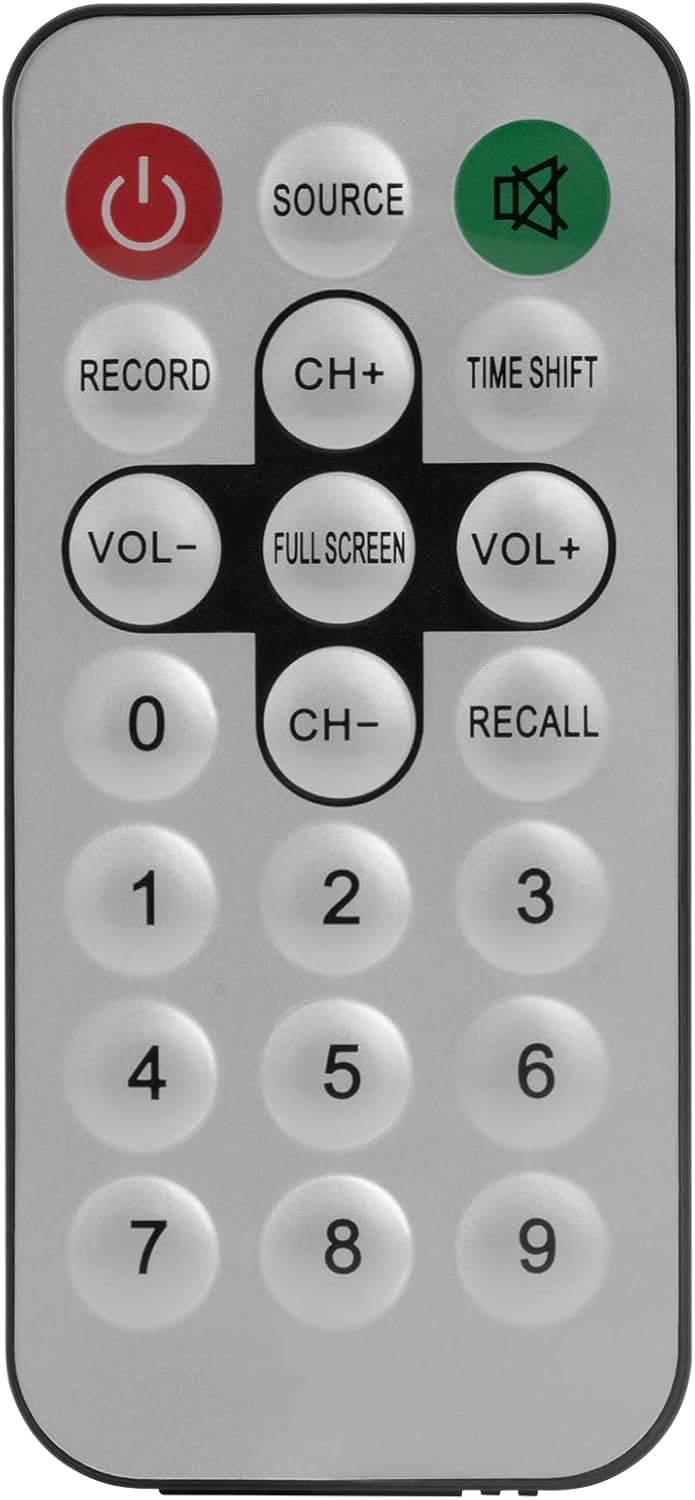
Image 5.1: The included remote control for the Rebel KOM1060 tuner.
5.4 Recording and TimeShift
- Recording Function: Use the 'Record' button on the remote control or the corresponding option in the software to record live TV programs. Ensure you have sufficient storage space on your computer.
- TimeShift Function: The TimeShift feature allows you to pause live TV and resume watching later. Activate TimeShift via the remote control or software interface.
- Video Recording: The device supports direct video recording of broadcasts.
5.5 EPG and Teletext
- EPG (Electronic Program Guide): Access the EPG through the software to view upcoming program schedules and information.
- Teletext: The tuner supports teletext services, which can be accessed via the software interface.
6. Maintenance
- Keep the device clean and free from dust. Use a soft, dry cloth for cleaning.
- Avoid exposing the tuner to extreme temperatures, humidity, or direct sunlight.
- Do not attempt to disassemble or repair the device yourself. Refer to qualified service personnel.
- Ensure the antenna connection is secure for optimal signal reception.
7. Troubleshooting
- No Signal/Poor Reception:
- Ensure the antenna is properly connected and positioned for best reception.
- Perform a channel scan again.
- Check for local broadcast availability in your area.
- Software Not Launching/Crashing:
- Verify that your system meets the minimum requirements.
- Reinstall the drivers and software from the provided CD or the manufacturer's website.
- Ensure your operating system is up to date.
- No Audio/Video Issues:
- Check your computer's sound settings.
- Ensure the correct codecs are installed (usually included with the software).
- Update your graphics card drivers.
- Remote Control Not Working:
- Ensure there are no obstructions between the remote and the tuner's IR receiver.
- Check if the remote control requires batteries and if they are correctly inserted and charged.
8. Specifications
| Feature | Detail |
|---|---|
| Brand | Rebel |
| Model Number | KOM1060 |
| Color | Black |
| Interface | USB 2.0 |
| Chipset | R828D |
| Antenna Connection | BLC |
| Supported TV Standards | DVB-T, DVB-T2, DVB-C |
| Supported Radio Standards | FM, DAB, DAB+, VHF, UHF |
| Supported Codecs | MPEG-2, H.264, H.265, HEVC |
| Full HD Support | Yes |
| Recording Function | Yes |
| TimeShift Function | Yes |
| EPG Support | Yes |
| Teletext Support | Yes |
| Remote Control Included | Yes |
| Compatible Devices | PC (Windows XP/Vista/7/8/10) |
9. Warranty and Support
Rebel products are designed for reliability and performance. For warranty information, please refer to the documentation included with your purchase or visit the official Rebel website. For technical support, driver updates, or further assistance, please visit the manufacturer's support page or contact their customer service.
Keep your proof of purchase for warranty claims.
Ask a question about this manual
Ask about setup, troubleshooting, compatibility, parts, safety, or missing instructions. Manuals+ will review the question and use this page’s manual context to help answer it.