
Mantian HD7088
Mantian Android 11 Double Din Car Stereo User Manual
Model: HD7088
1. Introduction
This manual provides detailed instructions for the installation, operation, and maintenance of your Mantian Android 11 Double Din Car Stereo. Please read this manual thoroughly before using the product to ensure proper functionality and safety. Keep this manual for future reference.

Figure 1.1: Mantian Android 11 Double Din Car Stereo Overview
This image displays the main unit of the Mantian Android 11 Double Din Car Stereo, featuring its 7-inch touchscreen interface with various application icons. Below the main unit, a compact backup camera and a smartphone screen demonstrating the 'Mirror Link' function are shown, highlighting key features of the system.
2. Product Features
- Android 11 Operating System: Equipped with 2GB RAM and 16GB ROM for responsive and sensitive performance. Features a tempered glass screen for a seamless touch experience and excellent visual clarity.
- Integrated GPS/WiFi: Built-in GPS receiver with pre-installed "Here We GO" for offline maps. Supports online maps and allows downloading of various applications like YouTube, Spotify, and TikTok via WiFi connection.
- Bluetooth 4.0 Connectivity: Enables hands-free calls and media music streaming. Includes a built-in microphone for clear voice pickup and utilizes car speakers for enhanced audio during calls.
- Rear View Camera Input: Comes with a backup camera for safe parking, offering great night vision and waterproof capabilities for clear images day and night.
- Steering Wheel Control (SWC) and Mirror Link: Supports mirror link functionality for most Android phones (Android 8 and below) and iPhone 7 series and below. Retains original car steering wheel control functions for convenience.
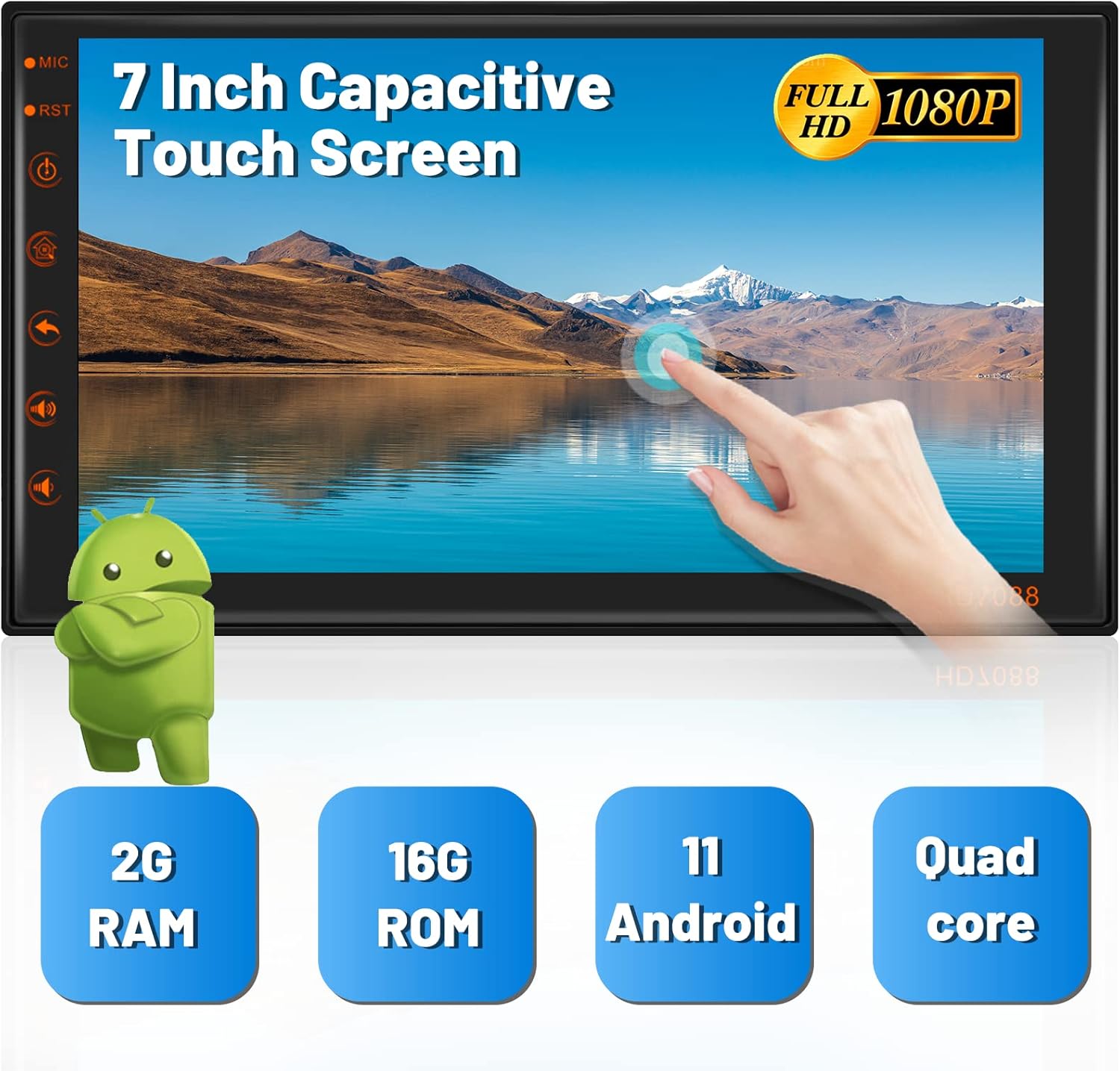
Figure 2.1: High-Resolution Touch Screen and Core Specifications
This image highlights the 7-inch capacitive touch screen, emphasizing its Full HD 1080P resolution. Below the screen, key specifications are presented: 2GB RAM, 16GB ROM, Android 11 operating system, and a Quad-core processor, indicating the unit's performance capabilities.
3. What's in the Box
The following components are included with your Mantian Android 11 Double Din Car Stereo:
- Main Head Unit
- Backup Camera
- GPS Antenna
- Installation Brackets
- Power Cable
- RCA Input/Output Cables
- 2 USB Cables
- Operating Manual (this document)

Figure 3.1: Package Contents
This image displays all the items included in the product package: the main car stereo unit, power cable, RCA input/output cables, GPS antenna, the operating manual, camera input cable, two USB cables, metal frame for installation, and the rear camera.
4. Setup and Installation
Proper installation is crucial for optimal performance. It is recommended to have the unit installed by a professional if you are unfamiliar with car audio wiring.
4.1 Wiring Diagram
Refer to the detailed wiring diagram below for connecting the power, speakers, camera, and other accessories.
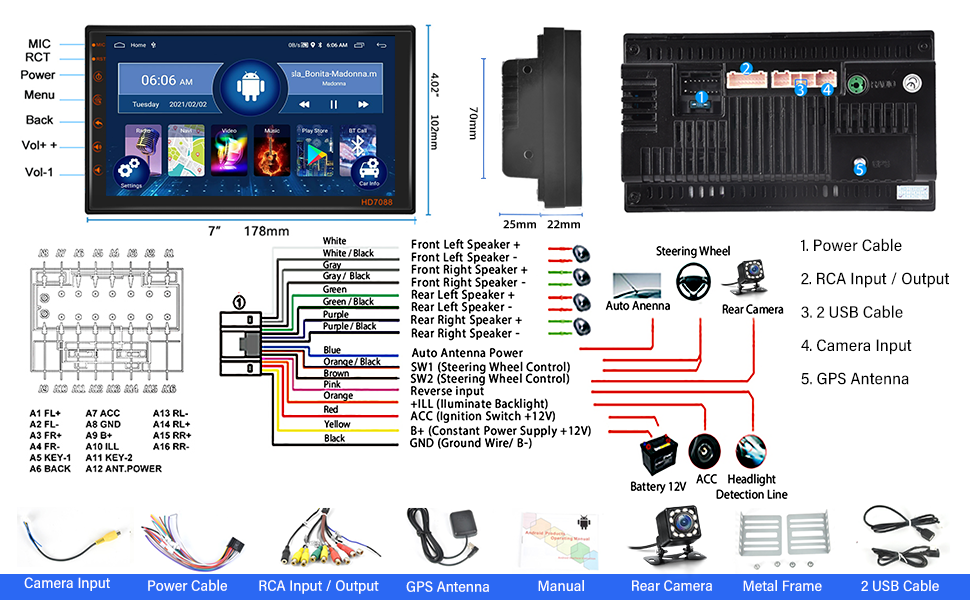
Figure 4.1: Wiring Diagram and Product Dimensions
This comprehensive image provides a detailed wiring diagram for the car stereo, illustrating connections for power, speakers, steering wheel controls, reverse camera input, and antenna. It also includes precise product dimensions (7 inches wide, 178mm, 4.02 inches high, 102mm, and depth of 25mm/22mm) and a visual representation of all included components.
4.2 Installation Steps (General)
- Prepare the Dashboard: Carefully remove your existing car stereo and any necessary trim pieces to access the double din slot.
- Connect Power and Ground: Connect the yellow wire (B+ Constant Power +12V) to your car's constant 12V power supply, the red wire (ACC Ignition Switch +12V) to the accessory power, and the black wire (GND Ground Wire/B-) to a suitable ground point.
- Connect Speakers: Connect the speaker wires (White, Gray, Green, Purple) to their corresponding positive (+) and negative (-) speaker terminals in your vehicle.
- Connect GPS Antenna: Mount the GPS antenna in a location with a clear view of the sky (e.g., dashboard, corner of the windshield) and connect it to the GPS antenna input on the back of the unit.
- Install Backup Camera: Mount the backup camera at the rear of your vehicle. Connect its video output to the "Camera Input" on the stereo and its power to your car's reverse light circuit so it activates when shifting into reverse.
- Connect USB Cables: Utilize the provided USB cables for media playback or connecting external devices.
- Steering Wheel Control (SWC): If your vehicle supports it, connect the SWC wires (SW1, SW2) to your car's steering wheel control interface. Refer to your vehicle's manual for specific wiring.
- Secure the Unit: Use the included metal installation brackets to secure the car stereo firmly into the double din slot.
- Test Functionality: Before reassembling the dashboard, turn on the car and test all functions of the stereo: power, audio, touch screen, GPS, Bluetooth, radio, and backup camera.
- Reassemble: Once all functions are verified, carefully reassemble the dashboard trim.
5. Operating Instructions
5.1 Touch Screen and User Interface
The unit features a responsive 7-inch capacitive touch screen. Navigate through menus and applications by tapping, swiping, and dragging. The Android 11 interface is intuitive and customizable. You can long-press on the home screen to change wallpapers or select from 15 different themes.

Figure 5.1: Customizable Themes
This image illustrates the car stereo's ability to customize its interface with 15 different themes. A finger is shown long-pressing the screen, indicating the action required to change the wallpaper, allowing users to personalize their display.
5.2 GPS Navigation
The stereo comes with a built-in GPS receiver and pre-installed "Here We GO" for offline navigation. You can also use online mapping applications by connecting to WiFi.
- Offline Maps: Ensure "Here We GO" maps are downloaded for your region for navigation without an internet connection.
- Online Maps: Connect to a WiFi hotspot (e.g., from your smartphone) to use real-time traffic and updated maps from apps like Google Maps.
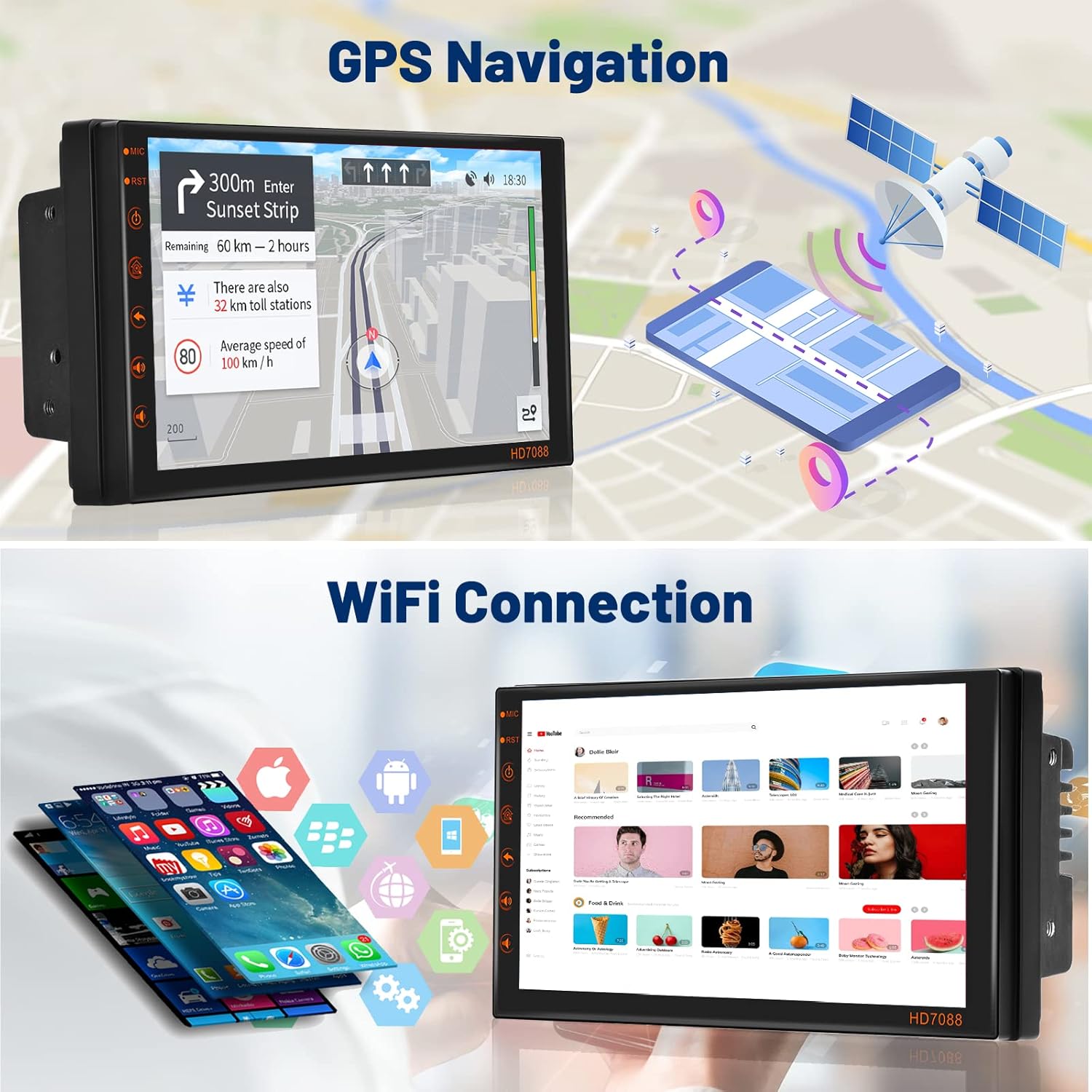
Figure 5.2: GPS Navigation Interface
This image shows the car stereo's screen actively displaying GPS navigation, complete with a map, route details, and estimated travel time. A graphic of a satellite above the unit further emphasizes its GPS capabilities.
5.3 WiFi Connectivity
Connect the stereo to a WiFi network or a mobile hotspot to access online features, download apps, and browse the internet.
- Go to Settings > Network & Internet > Wi-Fi.
- Select your desired network and enter the password if required.
- Once connected, you can download applications from the pre-installed app store or browse the web.

Figure 5.3: WiFi and Online Content Access
This image demonstrates the car stereo's WiFi capabilities, showing the unit displaying the YouTube interface. Alongside it, a smartphone is shown with its WiFi hotspot function active, illustrating how the stereo can connect to the internet for streaming and app downloads.
5.4 Bluetooth Functionality
Pair your smartphone via Bluetooth for hands-free calling and audio streaming.
- Go to Settings > Connected devices > Bluetooth.
- Enable Bluetooth on both the stereo and your phone.
- Search for available devices on your phone and select "HD7088" (or similar name) to pair.
- Once paired, you can make/receive calls and play music from your phone through the car speakers.

Figure 5.4: Bluetooth and Backup Camera Features
The top section of this image illustrates the Bluetooth functionality, showing the car stereo's dial pad for making calls and a graphic of people engaged in a phone conversation. The bottom section demonstrates the backup camera feature, displaying the camera's view on the stereo screen with parking guidelines, alongside an image of the physical backup camera unit.
5.5 Mirror Link
Mirror Link allows you to display your smartphone's screen on the car stereo. For Android devices, it supports two-way control (control from both phone and stereo). For iOS devices, it supports one-way control (control from phone only).
- Connect your smartphone to the stereo using a USB cable.
- Follow the on-screen prompts on the stereo and your phone to establish the Mirror Link connection.

Figure 5.5: Mirror Link Functionality
This image visually compares the Mirror Link capabilities for iOS and Android devices. It shows that iOS devices offer one-way control (from the phone to the stereo), while Android devices support two-way control, allowing interaction from both the phone and the car stereo screen.
5.6 FM Radio
Access your favorite radio stations with the built-in FM tuner.
- Tap the "Radio" icon on the home screen.
- Use the on-screen controls to scan for stations, save presets, or manually tune to a frequency.
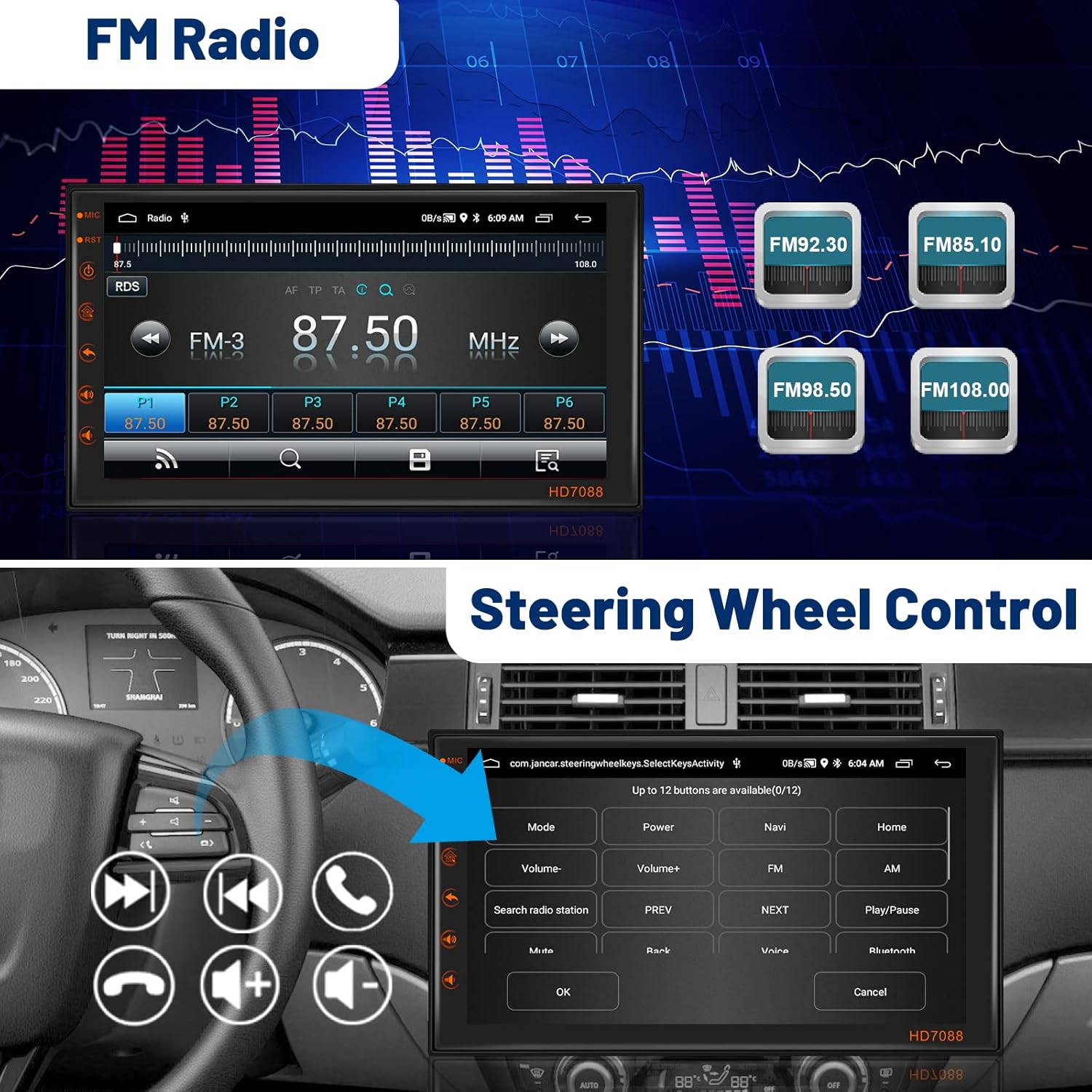
Figure 5.6: FM Radio and Steering Wheel Control
The top part of this image displays the car stereo's FM radio interface, showing current frequency and preset buttons. The bottom part illustrates the steering wheel control feature, with a steering wheel and the stereo screen displaying the customizable button mapping for various functions.
5.7 Steering Wheel Control (SWC)
If properly connected during installation, you can control basic functions of the stereo directly from your car's steering wheel buttons.
- Access the SWC settings in the stereo's menu to program or re-program the buttons according to your preference.
5.8 Backup Camera
When the vehicle is shifted into reverse, the stereo will automatically display the view from the connected backup camera, complete with parking guidelines.
6. Maintenance
- Screen Cleaning: Use a soft, lint-free cloth to clean the touchscreen. For stubborn smudges, slightly dampen the cloth with water or a screen-safe cleaner. Avoid abrasive materials or harsh chemicals.
- Software Updates: Periodically check for software updates to ensure optimal performance and access to new features. Updates may be available via WiFi.
- General Care: Keep the unit free from dust and debris. Avoid exposing it to extreme temperatures or direct sunlight for prolonged periods.
7. Troubleshooting
| Problem | Possible Cause | Solution |
|---|---|---|
| No Power | Incorrect wiring; Blown fuse; Loose connection. | Check power (yellow, red) and ground (black) wire connections. Inspect vehicle's fuse box and the unit's fuse. Ensure all connections are secure. |
| No Sound | Speaker wires incorrectly connected; Volume too low; Mute function active. | Verify speaker wire connections (positive/negative). Increase volume. Check if the unit is muted. |
| GPS Not Working | GPS antenna not connected or poorly positioned; Map data missing. | Ensure GPS antenna is securely connected and placed in a clear line of sight to the sky. Download or update map data if necessary. |
| Bluetooth Connection Issues | Device not in pairing mode; Incorrect pairing code; Interference. | Ensure both devices are in pairing mode. Try re-pairing. Move closer to the unit. Clear previous Bluetooth connections. |
| Backup Camera Not Displaying | Camera not powered; Video cable loose; Reverse trigger wire not connected. | Check camera power supply. Ensure video cable is securely connected. Verify the reverse trigger wire is connected to the car's reverse light circuit. |
| Touch Screen Unresponsive | System crash; Software issue. | Perform a soft reset (locate the RST pinhole and press with a non-sharp object). If issue persists, consider a factory reset (data will be lost). |
8. Specifications
| Feature | Specification |
|---|---|
| Product Dimensions | 7.01 x 2.05 x 4.02 inches |
| Item Weight | 2.2 pounds |
| Screen Size | 7 Inches |
| Resolution | 1024 x 600 |
| Operating System | Android 11 |
| RAM | 2GB |
| ROM | 16GB |
| Connectivity Technology | Bluetooth, Wi-Fi |
| Special Features | Bluetooth, Touchscreen, GPS, Mirror Link, Backup Camera Input, FM Radio, Steering Wheel Control |
| Map Type | Worldwide (via pre-installed app and online maps) |
| Audio Output Mode | Speaker, Stereo |
| Mounting Type | Panel Mount |
| Vehicle Service Type | Car |
9. Warranty and Support
Mantian products are designed and manufactured to the highest quality standards. This product is covered by a limited warranty from the date of purchase. Please retain your proof of purchase for warranty claims.
For technical support, warranty inquiries, or replacement parts, please contact Mantian customer service through the retailer where you purchased the product or visit the official Mantian website for contact information.
Please note that unauthorized modifications or improper installation may void the product warranty.
Related documentsHD7088

Ask a question about this manual
Ask about setup, troubleshooting, compatibility, parts, safety, or missing instructions. Manuals+ will review the question and use this page’s manual context to help answer it.