1. Introduction
The Kinhank 2T HDD Portable External Game Hard Drive is a plug-and-play solution designed to transform your computer into a retro gaming console. Pre-installed with the Batocera 33 system, it offers access to over 120,000 games across more than 70 classic emulators, including 5,000+ large and 3D games. This device is compatible with Windows, Mac OS, and Linux operating systems, making it versatile for various PC, laptop, and mini-computer setups. Featuring a USB 3.0 interface, it ensures fast transmission speeds of up to 6G/S for a smooth gaming experience, complemented by a 10-minute smart sleep function to reduce hard disk wear.
Key features include:
- Pre-installed Batocera 33 system with 90+ game collections and emulators.
- Over 120,000 built-in games, including 5,000+ large and 3D titles.
- Plug and play functionality, requiring no driver installation.
- Wide compatibility with Windows, Mac OS, and Linux operating systems.
- USB 3.0 interface for fast data transmission (up to 6G/S).
- 10-minute Smart Sleep feature to prolong hard disk life.
- SATA 3.0 main control chip with UASP protocol support for reduced CPU occupancy and data delay.
2. What's in the Box
Verify that all items are present in your package:
- 1 x Kinhank 2T Portable External Game Hard Drive
- 2 x Wireless Controllers
- 1 x USB 3.0 Data Cable

Image: Kinhank 2T HDD package contents, showing the portable hard drive, two wireless controllers, and a USB 3.0 data cable.
3. Product Overview

Image: Kinhank 2T HDD connected to a laptop, showcasing the gaming interface with a racing game.
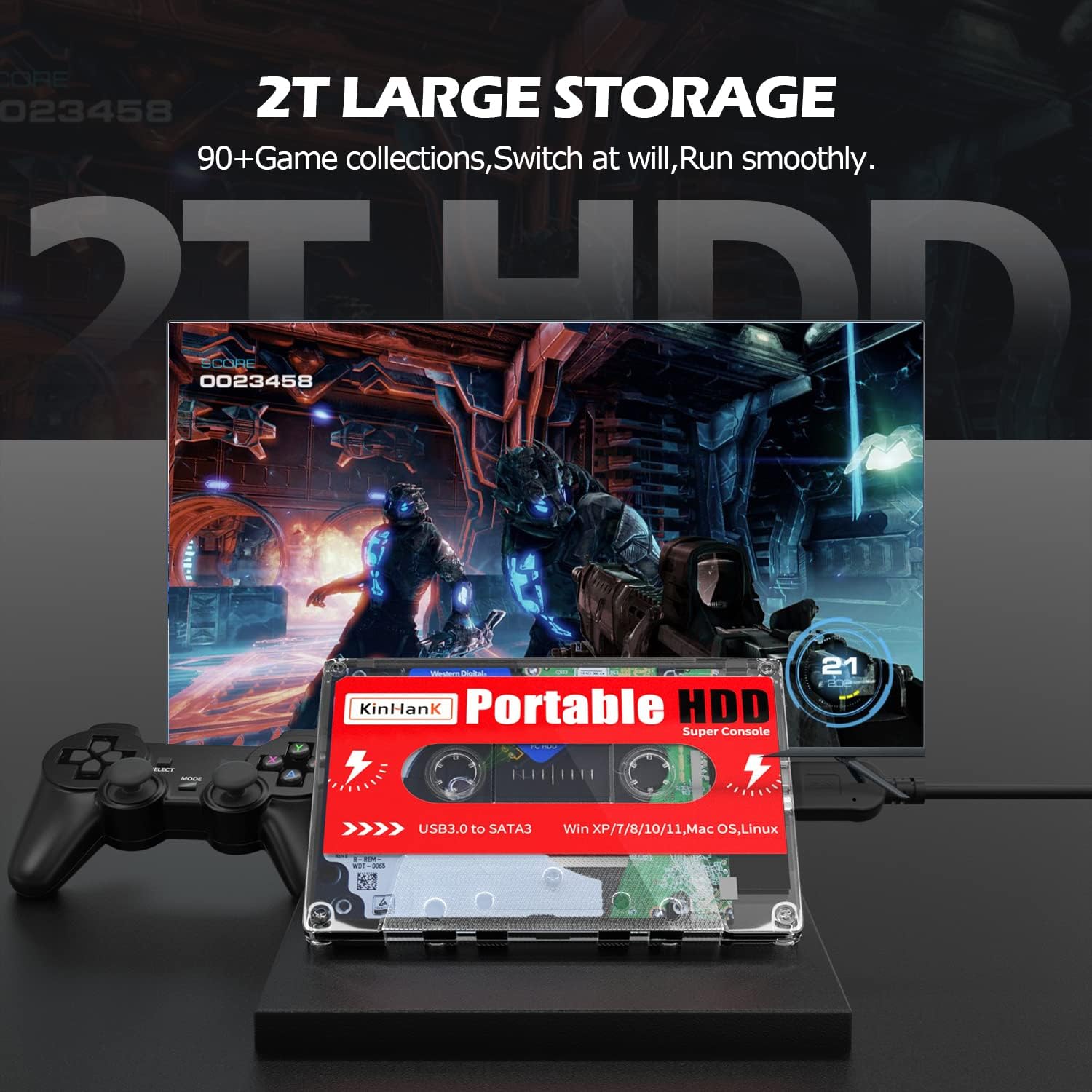
Image: The 2T HDD highlighting its large storage capacity, with a game displayed on a monitor.

Image: The portable HDD connected to a laptop via USB, illustrating its plug-and-play nature.

Image: A close-up of the USB 3.0 interface on the Kinhank 2T HDD, indicating high-speed data transmission.

Image: The compact size of the Kinhank 2T HDD shown next to a smartphone, emphasizing its portability.
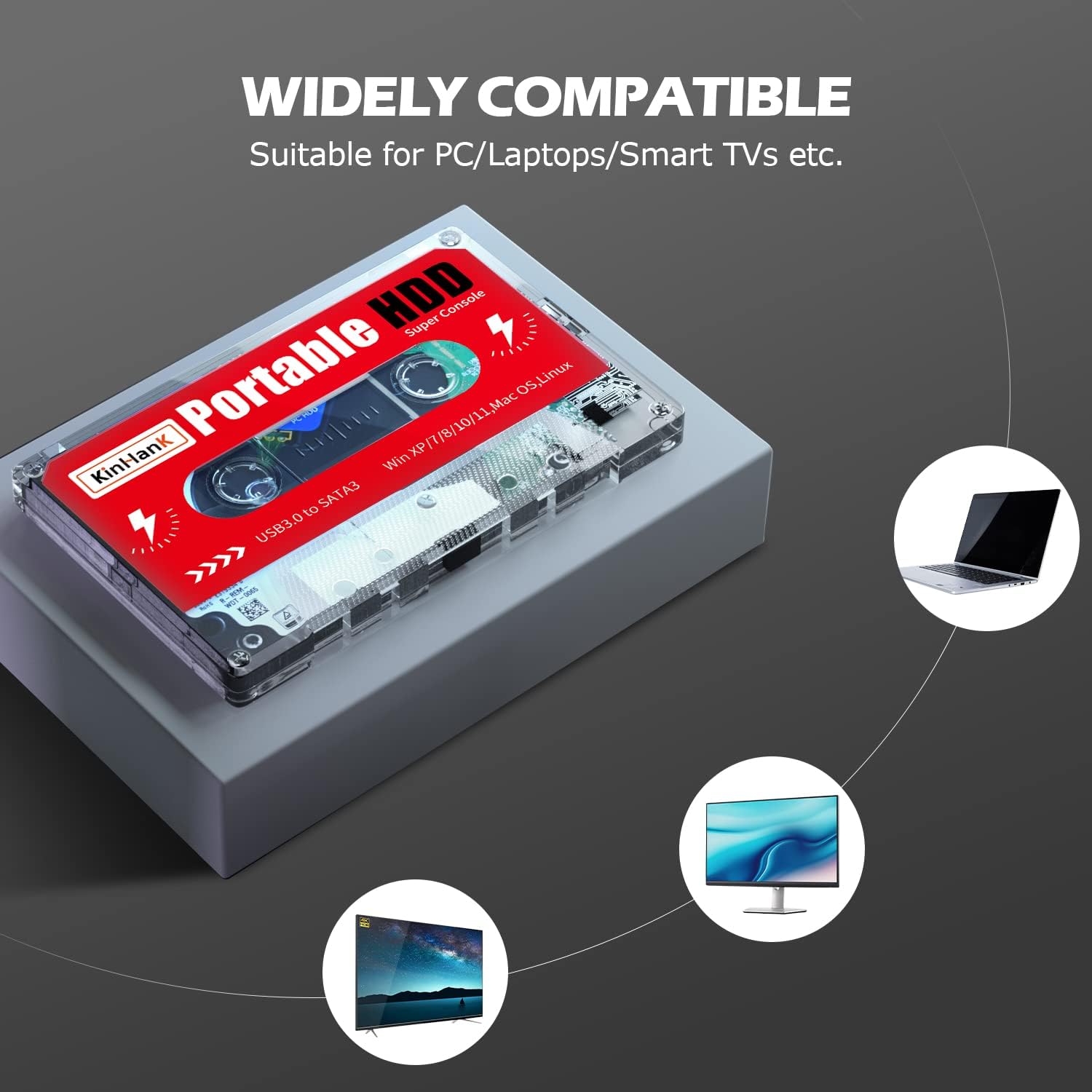
Image: The Kinhank 2T HDD demonstrating its wide compatibility with devices such as PCs, laptops, and Smart TVs.
4. Setup Instructions
4.1 Connecting the Hard Drive
- Connect one end of the provided USB 3.0 data cable to the Kinhank Portable HDD.
- Connect the other end of the USB 3.0 data cable to an available USB 3.0 port on your computer (PC, laptop, or mini-computer).
4.2 Booting the Batocera System
- With the Kinhank HDD connected, restart your computer.
- During startup, repeatedly press the designated key to enter your computer's BIOS/UEFI settings. Common keys include F2, F10, F12, or Del (consult your computer's manual for the exact key).
- In the BIOS/UEFI menu, navigate to the Boot Options or Boot Order section.
- Select the Kinhank Portable HDD as the primary boot device.
- Save the changes and exit the BIOS/UEFI menu. Your computer will now boot directly into the Batocera 33 gaming system.
4.3 Installing Required Drivers/Runtimes (Windows)
For optimal performance and compatibility on Windows systems, it is recommended to install the following runtime files found on the hard drive:
Video: Installation Guide for the KinHanK 12TB HDD. This video demonstrates the process of installing necessary drivers and runtimes on a Windows PC for the Kinhank hard drive.
- Navigate to the
_WINDOWS INSTALL FILESfolder located on the Kinhank Portable HDD. - Install DirectX 9: Open the
DirectX 9folder and runDXSETUP.exe. Follow the on-screen prompts to complete the installation. - Install Microsoft .NET Framework: Open the
Microsoft .NET Framework 4 e .NET 2.0folder. RundotNetFx40_Full_x86_x64.exeandNetFx20SP1_x64.exe. Follow the installation instructions. - Install Visual C++ Runtimes: Open the
Visual-C-Runtimes-All-in-Onefolder and runinstall_all.bat. This batch file will install multiple Visual C++ Redistributable packages. - Install BebasNeue Font: Locate the
BebasNeuefont file. Right-click on it and select "Install" to ensure proper display of the Batocera interface.
5. Operating Instructions
5.1 Navigating the Batocera Interface
Once the Batocera system has booted, you can navigate the interface using the included wireless controllers or any compatible gamepad connected to your computer.
Video: Portable SDD that has 110,000 retro games! This video provides a quick overview of the Batocera interface, showcasing various emulators and game selection.
5.2 Playing Games
- Browse through the available emulators and game collections.
- Select your desired game and press the designated button on your controller to launch it.
- The Batocera system will utilize your computer's hardware to emulate the game.
Video: Great Plug & Play Gaming Setup For PC. This video demonstrates the plug-and-play functionality and shows a game running on the system.
5.3 Adding Games
The Batocera system supports adding new games and ROMs. For detailed instructions on how to add games, connect the hard drive to your computer in standard mode (not booting into Batocera) and refer to the official Batocera documentation or community forums for guidance on transferring game files to the appropriate emulator folders.
6. Compatibility
The Kinhank 2T HDD Portable External Game Hard Drive offers broad compatibility:
- Operating Systems: Windows (XP/7/8/10/11), Mac OS, Linux.
- Devices: PC, Laptops, Mini Computers.
- Hardware Platforms: Nintendo 64, PC/Mac/Linux/Unix, PlayStation (PS1, PS2, PS3, PSP), Sega Genesis, Dreamcast, Game Boy, Wii, Wii U, and many more emulated systems.
7. Specifications
| Feature | Description |
|---|---|
| Brand | Kinhank |
| Model Number | 761594 |
| Digital Storage Capacity | 2 TB (2000 GB) |
| Hard Disk Interface | USB 3.0 |
| Connectivity Technology | USB |
| Special Feature | Portable |
| Hard Disk Form Factor | 2.5 Inches |
| Operating System | Linux (Batocera 33), Mac OS |
| Hardware Platform | Nintendo 64, PC/Mac/Linux/Unix, PlayStation |
| Item Weight | 1 pound |
| Product Dimensions | 5 x 3.15 x 0.55 inches |
| Color | Black |
8. Troubleshooting
8.1 Common Issues
Hard Drive Not Booting
- Ensure the hard drive is correctly connected via the provided USB 3.0 data cable to a functional USB 3.0 port on your computer.
- Verify that the hard drive is selected as the primary boot device in your computer's BIOS/UEFI settings. Incorrect boot order is a common cause.
Games Not Launching or Performance Issues
- Ensure all necessary Windows runtime files (DirectX, .NET Framework, Visual C++ Runtimes) are installed as per the setup instructions in Section 4.3.
- Game performance is dependent on your computer's hardware. Higher-end games or emulators may require a more powerful CPU/GPU.
- Some games may have specific compatibility issues or require additional configuration within the Batocera system. Consult Batocera documentation for specific game or emulator settings.
Antivirus Software Flags the Drive
- Some antivirus software may flag the game files or system components as suspicious. Temporarily disable your antivirus software during the initial setup and installation of runtime files.
- Alternatively, add the hard drive's directory to your antivirus exclusions list. Remember to re-enable your antivirus software after setup is complete.
Controller Connectivity Issues
- Ensure your wireless controllers are properly paired via Bluetooth or connected via USB.
- Check controller settings within the Batocera system to ensure they are recognized and configured correctly.
9. Warranty and Support
For detailed warranty information, technical support, and further assistance, please refer to the manufacturer's official website or contact their customer service directly. Keep your purchase receipt for warranty claims.