
DoHome doit-ah1
Contents
DoHome Smart Plug Mini HomeKit User Manual
Model: doit-ah1
1. Introduction
The DoHome Smart Plug Mini HomeKit is designed to transform your traditional electrical outlets into smart, controllable power sources. This device allows you to manage your connected appliances remotely, set schedules, and integrate with popular smart home ecosystems like Apple HomeKit, Amazon Alexa, and Google Assistant. Enjoy enhanced convenience and energy efficiency in your home.

Image: Two DoHome Smart Plugs highlighting compatibility with Apple HomeKit, Amazon Alexa, Google Assistant, and SmartThings.
2. Package Contents
Please check the package for the following items:
- DoHome Smart Plug Mini (2 units)
- User Manual
3. Product Overview
The DoHome Smart Plug Mini is a compact device designed for ease of use and integration into your smart home. It features a power button for manual control and a sleek, minimalist design.

Image: A single DoHome Smart Plug Mini with icons illustrating its key features, including HomeKit support, 2.4G WiFi connectivity, voice control, app remote control, and scheduling capabilities.

Image: Various perspectives of the DoHome Smart Plug Mini, emphasizing its compact form factor and standard plug configuration.
4. Setup Instructions
Follow these steps to set up your DoHome Smart Plug Mini:
- Power On: Plug the Smart Plug Mini into a standard electrical outlet. The indicator light will begin to flash, indicating it is ready for pairing.
- Download the App: For HomeKit integration, use the Apple Home app. For other functionalities or if not using HomeKit, download the 'Cozylife' app from the App Store or Google Play Store.
- Connect to Wi-Fi:
- For Apple HomeKit: Open the Apple Home app, tap the '+' icon, and select 'Add Accessory'. Scan the HomeKit QR code located on the smart plug or its packaging. Follow the on-screen prompts to complete the setup.
- For Cozylife App: Open the Cozylife app, tap the '+' icon to add a device. Select 'Electrical Outlet' or 'Smart Plug'. Ensure your phone is connected to a 2.4GHz Wi-Fi network (5GHz networks are not supported). The app will guide you through connecting the smart plug to your Wi-Fi network.
No separate hub is required for operation.
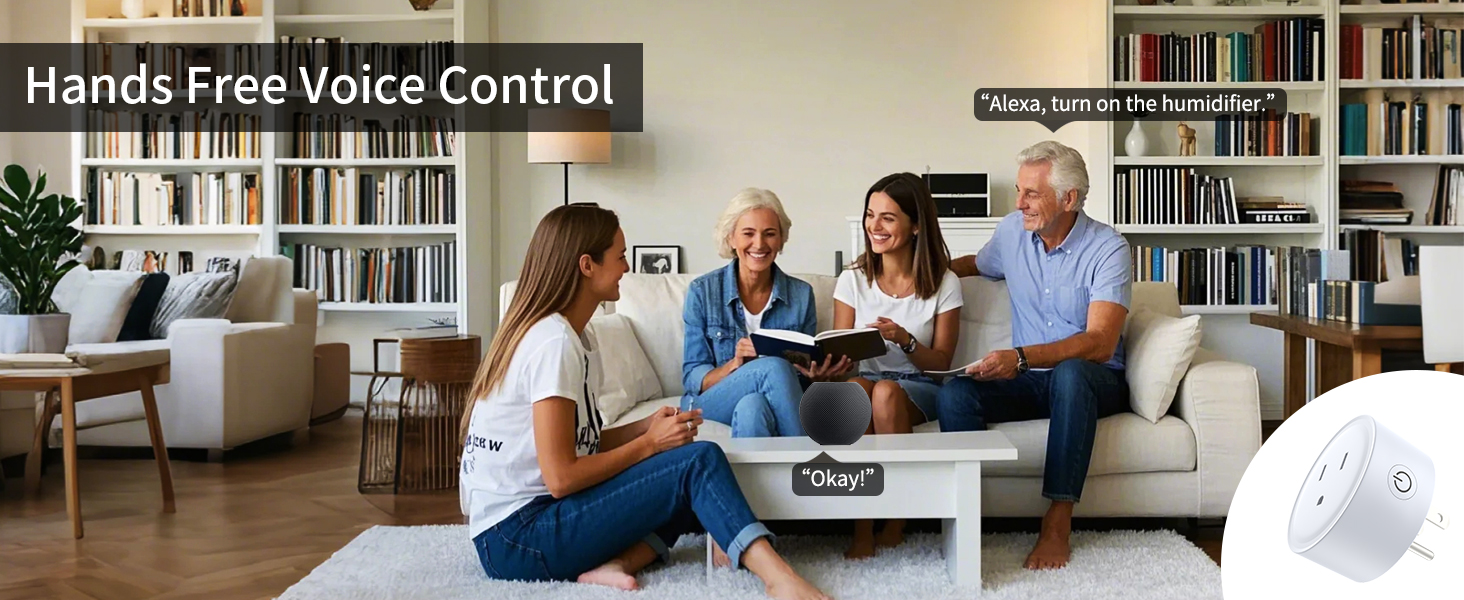
Image: An iPhone displaying the Apple HomeKit interface, with a laptop and smart speaker in the background, illustrating the process of adding an accessory.
5. Operating Instructions
5.1. Voice Control
Once connected, you can control your smart plug using voice commands through Apple HomeKit (Siri), Amazon Alexa, or Google Assistant.
- Apple HomeKit (Siri): Say "Hey Siri, turn on the [device name]" or "Hey Siri, turn off the [device name]".
- Amazon Alexa: Say "Alexa, turn on the [device name]" or "Alexa, turn off the [device name]".
- Google Assistant: Say "Hey Google, turn on the [device name]" or "Hey Google, turn off the [device name]".

Image: A smart plug powering a coffee maker, demonstrating voice control with the command 'Hey Siri, turn on the coffee maker.' This image also shows compatibility with Google Assistant and Amazon Alexa.

Image: An Apple HomeKit environment featuring a HomePod, iPad, and iPhone, illustrating a voice command to change light color, with the response 'Okay.' from Siri.
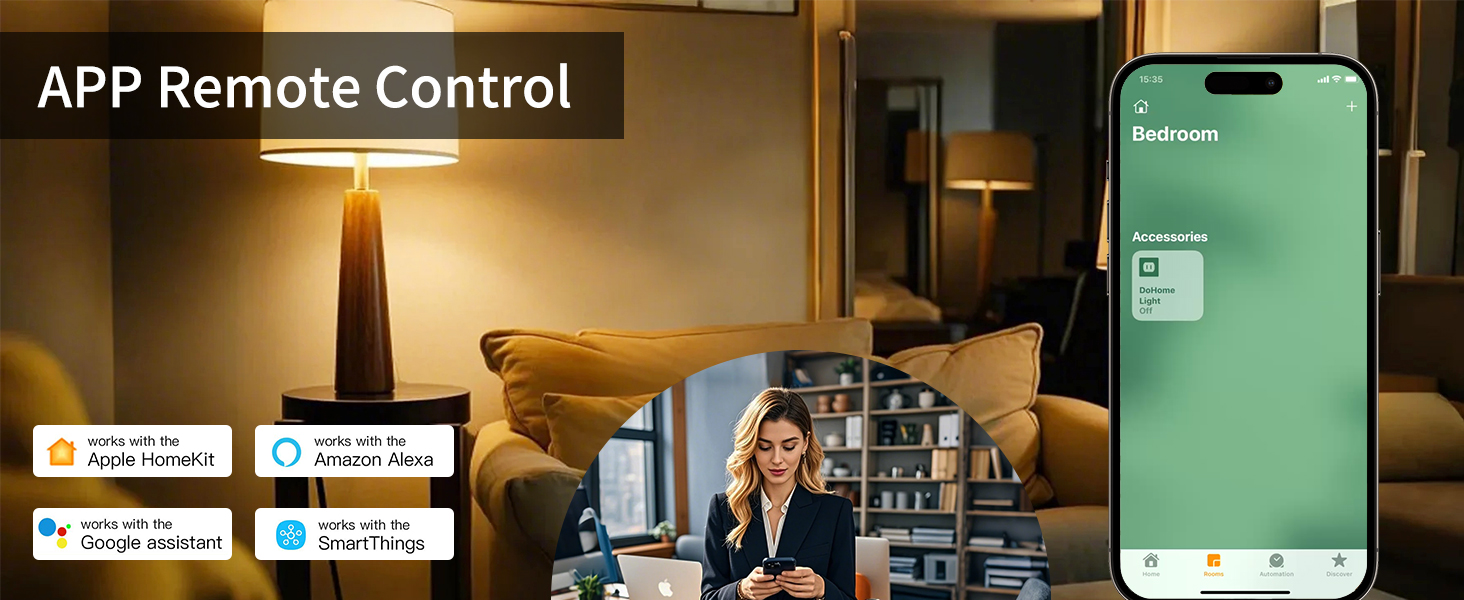
Image: Individuals in a living room interacting with smart devices using voice commands, showcasing the convenience of hands-free control with the smart plug.
5.2. App Remote Control
Control your devices from anywhere using the Apple Home app or the Cozylife app on your smartphone or tablet.
- Open the app and select the smart plug you wish to control.
- Tap the power icon to turn the connected appliance on or off.
- Access additional settings like timers, schedules, and group controls within the app.

Image: A modern kitchen setting where multiple appliances, such as a lamp, oven, and kettle, are connected to smart plugs and controlled remotely through a smartphone app displaying a color selection interface.
Image: A user operating smart devices in a bedroom via a smartphone app, illustrating the convenience of remote control functionality.
5.3. Group Control
Organize multiple smart plugs into groups to control them simultaneously with a single command or tap.
- In the app, navigate to the group settings.
- Create a new group and add the desired smart plugs.
- You can now turn the entire group on or off, or apply schedules to all devices within that group.

Image: A kitchen environment depicting the concept of group control, where a single smart plug can manage multiple connected appliances such as a lamp, smoke machine, refrigerator, oven, and humidifier.
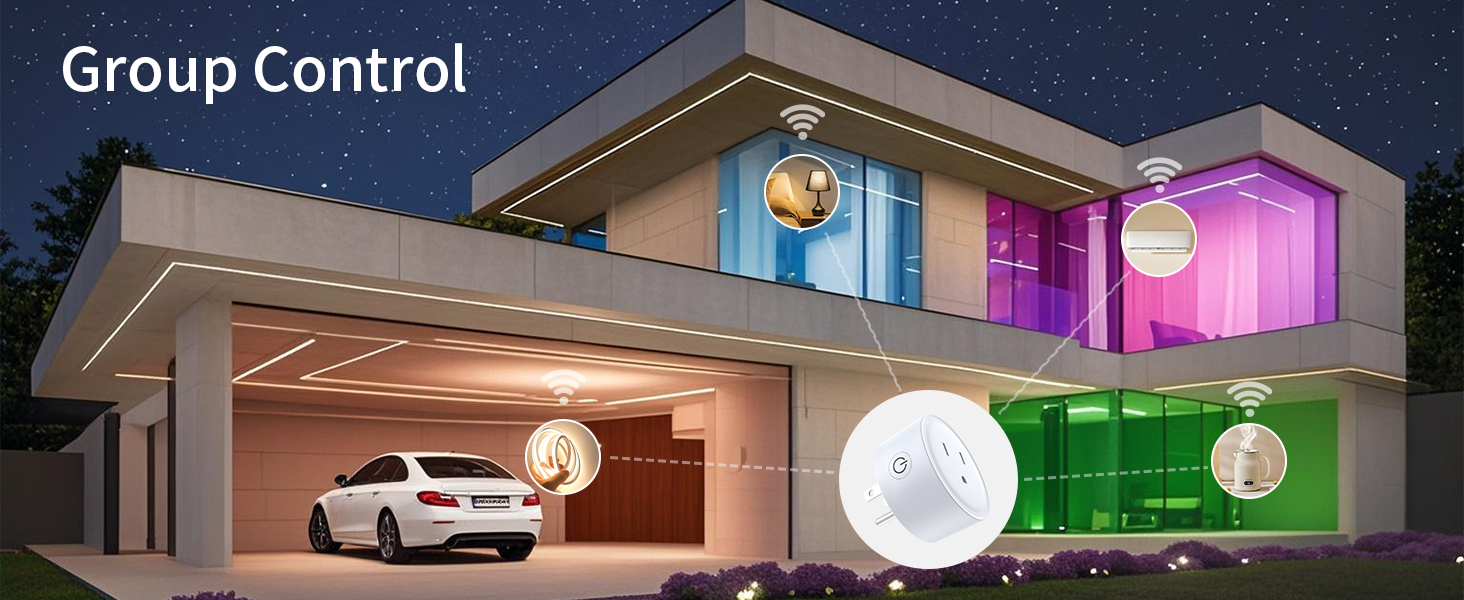
Image: An illustration of a modern house at night, demonstrating group control where various smart devices across different rooms (garage, living room, bedroom) are managed collectively.
5.4. Timer and Schedule
Automate your appliances by setting custom schedules and timers.
- In the app, select the smart plug and navigate to the 'Schedule' or 'Timer' section.
- Set specific times for the appliance to turn on or off daily, weekly, or on custom days.
- Use the timer function for countdown-based operations (e.g., turn off after 30 minutes).

Image: A nighttime bedroom scene featuring a sleeping child and an adult reading, demonstrating the timer function set to turn on at 8:00 AM and turn off at 10:00 PM.

Image: A split view demonstrating the schedule and timer functions, with a water dispenser automatically activating at 8 AM and deactivating at 10 PM.
6. Maintenance
To ensure optimal performance and longevity of your DoHome Smart Plug Mini:
- Keep the device clean and free from dust. Wipe with a dry, soft cloth.
- Avoid exposing the smart plug to water or excessive humidity.
- Do not disassemble or attempt to repair the device yourself.
- The smart plug is designed with overcharging and overheating protection; however, avoid overloading the outlet beyond its specified limits.
7. Troubleshooting
If you encounter issues with your DoHome Smart Plug Mini, refer to the following common solutions:
| Problem | Possible Cause | Solution |
|---|---|---|
| Smart plug not connecting to Wi-Fi. | Incorrect Wi-Fi band (5GHz), weak signal, incorrect password. | Ensure your router is broadcasting a 2.4GHz Wi-Fi network. Move the smart plug closer to the router. Double-check your Wi-Fi password. |
| Voice control not responding. | Incorrect device name, smart assistant not linked, internet connectivity issues. | Verify the device name in your smart assistant app. Ensure your smart assistant account is correctly linked to the Cozylife app or Apple Home. Check your internet connection. |
| Appliance not turning on/off. | Smart plug is off, appliance is off, power outage. | Check if the smart plug is powered on (manual button). Ensure the connected appliance is switched on. Verify power supply to the outlet. |
| HomeKit setup failed. | Incorrect QR code scan, network issues, accessory already added. | Ensure clear scan of the HomeKit QR code. Reset the smart plug and try again. Check if the accessory was previously added to another HomeKit setup. |
8. Specifications
| Feature | Detail |
|---|---|
| Model Number | doit-ah1 |
| Product Dimensions | 1.57 x 1.57 x 1.57 inches |
| Item Weight | 4.66 ounces |
| Manufacturer | DoHome |
| Material | Plastic |
| Connector Type | Plug in |
| Number Of Poles | 3 |
| Wireless Connectivity | 2.4GHz Wi-Fi (IEEE 802.11 b/g/n) |
| Compatibility | Apple HomeKit, Amazon Alexa, Google Assistant |
| Certifications | FCC, RoHS, CE, Apple MFi Certified |
9. Warranty and Support
DoHome products are designed for reliability and performance. For warranty information or technical support, please refer to the contact details provided with your purchase or visit the official DoHome website. Keep your purchase receipt for warranty claims.
Ask a question about this manual
Ask about setup, troubleshooting, compatibility, parts, safety, or missing instructions. Manuals+ will review the question and use this page’s manual context to help answer it.