
1. Introduction
The Easyfone T6 is a 4G senior-friendly mobile phone designed for ease of use, featuring large picture buttons, clear sound, and an SOS emergency function. This manual provides detailed instructions for setting up and operating your device, ensuring you can utilize all its features effectively.
2. What's in the Box
Upon unboxing your Easyfone T6, please verify that all the following items are included:
- 1x Easyfone T6 Cell Phone
- 1x Charging Dock
- 1x Battery (1050mAh)
- 1x US Standard Charger
- 1x SpeedTalk SIM card
- 1x USB Cable
- 1x Neck Lanyard
- 1x Picture Cutting Adapter
- 1x User Manual (this document)

An overview of all items included with the Easyfone T6: the phone, charging dock, battery, US standard charger, USB cable, neck lanyard, and a picture cutting adapter for customizing speed dial buttons.
3. Setup
3.1. SIM Card and Battery Installation
The Easyfone T6 uses a Nano SIM card. A SpeedTalk SIM card is included in the package. Please ensure your chosen carrier is compatible with the device. Refer to the network compatibility information below.
- Carefully remove the back cover of the phone.
- Insert the Nano SIM card into the designated SIM card slot. Ensure it is correctly oriented.
- Insert the provided 1050mAh battery into its compartment.
- Replace the back cover, ensuring it clicks securely into place.
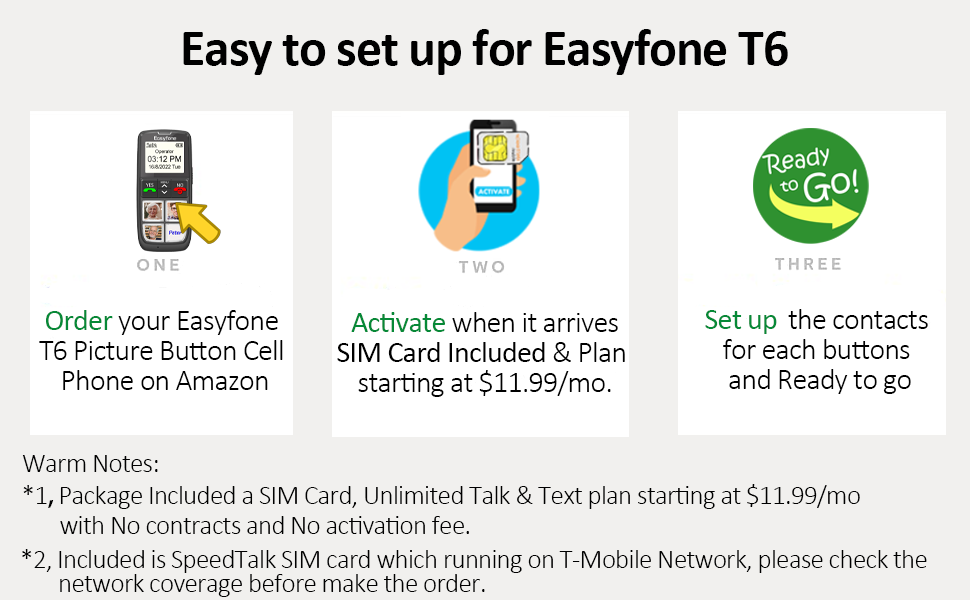
A visual guide outlining the simple three-step process to get the Easyfone T6 ready: ordering, activating the included SIM card, and setting up contacts for the picture buttons.
3.2. Charging the Device
To charge your Easyfone T6, use the provided charging dock and US standard charger.
- Connect the US standard charger to the charging dock.
- Place the Easyfone T6 into the charging dock, ensuring it is seated correctly. The phone will indicate that it is charging.
- Allow the phone to charge fully before first use. The 1050mAh battery provides long standby time.

The Easyfone T6 phone securely placed in its dedicated charging dock, ready for use.
4. Operating Instructions
4.1. Power On/Off
- To Power On: Press and hold the red 'NO' button (power button) until the screen lights up.
- To Power Off: Press and hold the red 'NO' button until the power-off options appear, then select 'Power Off'.
4.2. Setting Up and Using Picture Speed Dial Buttons
The Easyfone T6 features four large, customizable picture buttons (A, B, C, D) for quick dialing of your most important contacts. You can print photos of your contacts and use the included cutting adapter to fit them into the buttons.
- Prepare photos of your family or write names on small cards. Use the provided picture cutting adapter to size them correctly.
- Carefully open the transparent cover on each picture button. Insert the prepared picture/name card and close the cover securely.
- To assign a phone number to a picture button:
- From the main screen, press the MENU button.
- Navigate to CONTACTS and select ADD CONTACT.
- Choose to save the contact to PHONE.
- Enter the contact's name and mobile number. You can also add a photo if desired. Select SAVE.
- Go back to the CONTACTS list, select the contact you just saved.
- Press OPTION, then select ADD TO SPEED DIAL.
- Choose one of the available picture button slots (A, B, C, or D) and confirm.
- To make a call using a picture button: Simply long-press the desired picture button on the keypad. The phone will automatically dial the assigned contact.

A close-up view of the Easyfone T6's large, customizable picture buttons, designed for quick dialing of important contacts.
Video: This tutorial demonstrates how to add phone numbers to the picture speed dial buttons on your Easyfone T6, simplifying calling for users.
4.3. SOS Emergency Button
The Easyfone T6 is equipped with a dedicated SOS button for emergencies. When activated, it will automatically dial and send an emergency message to pre-set contacts.
- Setting SOS Numbers:
- From the main screen, press the MENU button.
- Navigate to SOS SETTINGS.
- Select SOS NUMBERS. You can save up to 5 emergency contact numbers.
- Choose an empty slot, press OPTION, and select ADD FROM CONTACTS to choose a contact, or MANUAL EDIT to enter a new number.
- Ensure SOS ACTIVE is set to 'On' in the SOS Settings menu.
- Activating SOS: In an emergency, long-press the SOS button located on the back of the phone for 3 seconds. The phone will automatically dial the saved emergency contacts in a loop until a call is answered, and simultaneously send an emergency SMS message to these contacts.

A detailed view of the dedicated SOS button on the side of the Easyfone T6, designed for quick access in emergency situations.
4.4. Sound and Hearing Aid Compatibility (HAC)
The Easyfone T6 is designed to provide clear sound for better hearing and is HAC (Hearing Aid Compatible), making it ideal for users with hearing aid devices. Adjust the call volume using the side buttons during a call.

An illustration highlighting the Easyfone T6's Hearing Aid Compatibility (HAC) feature, ensuring clear audio for users with hearing aids.
4.5. Other Features
- Simple Operating System: The phone runs on Easyfone OS with a minimalist UI, focusing on essential calling functions.
- Connectivity: Supports Bluetooth and Cellular (4G LTE) communication.
- Camera: Equipped with front and rear cameras.
- Lanyard: Use the included neck lanyard for convenient carrying and to prevent loss.
5. Maintenance
To ensure the longevity and optimal performance of your Easyfone T6, follow these maintenance guidelines:
- Cleaning: Use a soft, dry cloth to clean the phone's surface. Avoid using liquid cleaners or abrasive materials.
- Battery Care: Charge the phone regularly. Avoid extreme temperatures, as they can affect battery life. If the phone will not be used for an extended period, charge it to about 50% before storing.
- Storage: Store the phone in a cool, dry place away from direct sunlight and moisture.
- Handling: Handle the phone with care to prevent drops or impacts that could damage internal components.
6. Troubleshooting
If you encounter any issues with your Easyfone T6, please refer to the following common troubleshooting steps:
- Phone does not power on: Ensure the battery is correctly inserted and charged. Connect the phone to the charging dock and wait a few minutes before attempting to power on again.
- Cannot make or receive calls: Check if the SIM card is properly inserted and activated. Verify that you have network coverage in your area.
- Poor call quality: Ensure you are in an area with good network signal. If using a hearing aid, confirm HAC is active and adjust volume.
- SOS button not working: Verify that emergency contacts are correctly set up in the SOS settings and that the SOS function is active.
- Charging issues: Ensure the charging dock and cable are properly connected and free from damage. Check if the power outlet is functional.
If the problem persists after trying these steps, please contact Easyfone customer support for further assistance.
7. Specifications
| Feature | Specification |
|---|---|
| Model Name | T6 |
| Brand | Easyfone |
| Operating System | Easyfone OS |
| Cellular Technology | 4G (LTE) |
| Screen Size | 1.8 Inches |
| Battery Capacity | 1050 Milliamp Hours (1050mAh) |
| Memory Storage Capacity | 1 GB |
| Wireless Communication | Bluetooth, Cellular |
| Connectivity Technologies | Bluetooth, USB |
| Special Features | Big picture button, Charging Dock, HAC Compatible, Long Time Standby |
| Human Interface Input | Buttons |
| Camera Features | Front, Rear |
| Item Weight | 11.7 ounces |
| Package Dimensions | 5.28 x 4.69 x 3.03 inches |
8. Important Network Compatibility Notes
The Easyfone T6 is designed to work with specific carriers. Please review the following compatibility information carefully:
- This phone is compatible with T-Mobile, SpeedTalk, and Tello Mobile networks.
- It works especially well with the included SpeedTalk SIM card, which operates on the T-Mobile network.
- Important: Carriers not listed above may not be compatible with this device. It is crucial to check T-Mobile coverage in your area before use to ensure optimal service.
9. Warranty and Support
For warranty information, technical support, or any questions not covered in this manual, please contact Easyfone customer service. Refer to the contact details provided in your product packaging or visit the official Easyfone website.
