
1. Introduction
The MOOER GWF4 Wireless Footswitch Driver is designed to enhance your control over compatible MOOER intelligent devices such as the Prime P1, SD30i, Hornet 05i, and GTRS Guitar. This manual provides detailed instructions for setup, operation, and maintenance to ensure optimal performance and a seamless user experience.
2. Safety Information
- Read all instructions carefully before using the device.
- Do not expose the device to water, excessive moisture, or extreme temperatures.
- Avoid attempting to disassemble or repair the unit yourself. Refer to qualified service personnel for any maintenance or repair needs.
- Use only specified power adapters and cables to prevent damage and ensure safe operation.
3. Product Overview
The GWF4 is a compact and versatile wireless footswitch designed for seamless integration with your MOOER intelligent devices. It features four footswitches (A, B, C, D) and a clear LED display for status and preset indication.
Key Features
- Wireless connectivity (2.4GHz)
- Rechargeable battery (720mAh)
- Tap Tempo function
- Preset switching
- Looper and Drum machine control
- Tuner function

Image: A black MOOER GWF4 wireless footswitch with four silver footswitch buttons and a central display. The image highlights its compact design.
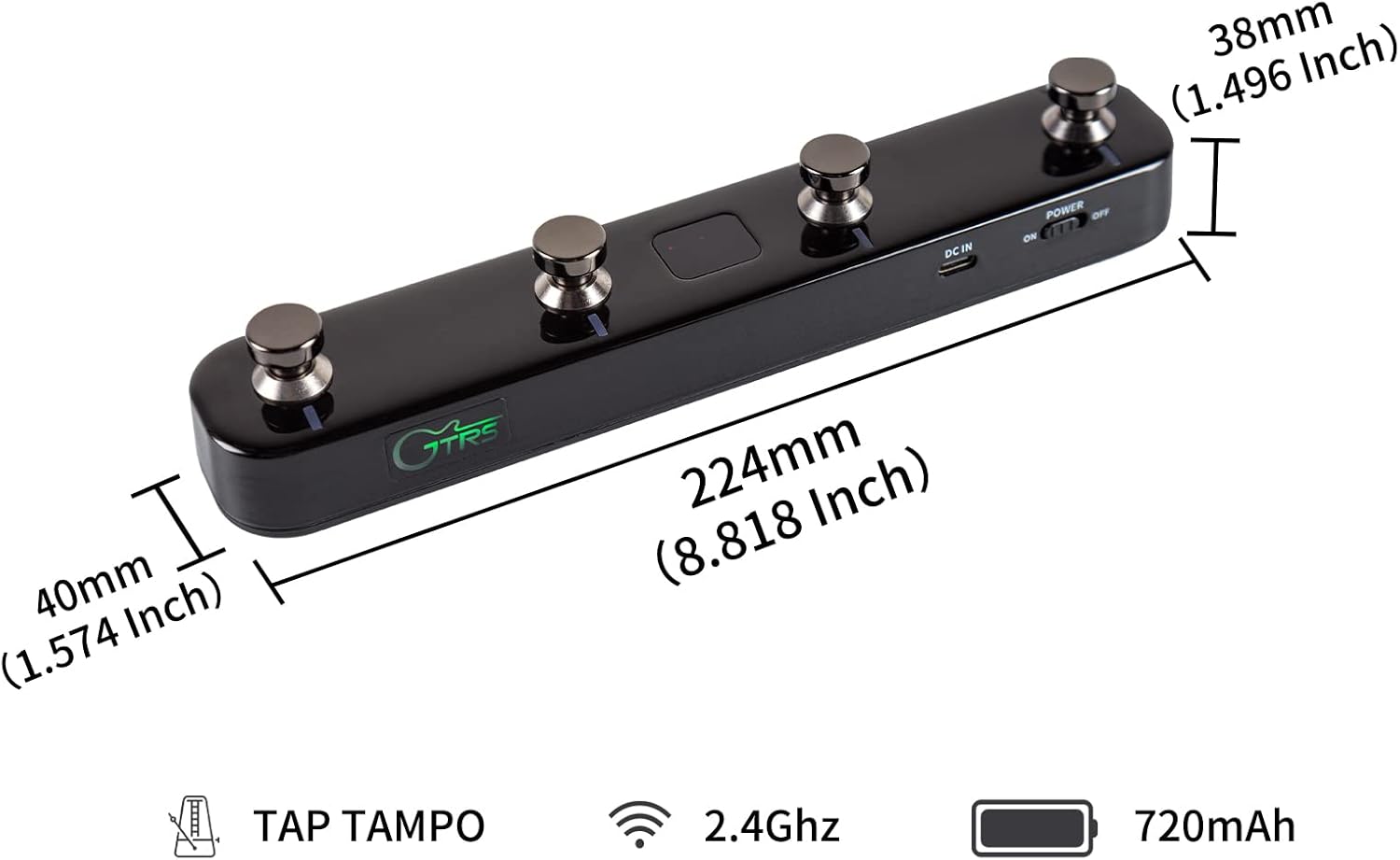
Image: The MOOER GWF4 wireless footswitch shown with its dimensions: 224mm (8.818 Inch) length, 40mm (1.574 Inch) width, and 38mm (1.496 Inch) height.
4. Setup and Pairing
4.1 Charging the Device
Connect the provided USB charging cable to the DC IN port on the GWF4 footswitch and a suitable USB power source. The power indicator will show the charging status.
4.2 Powering On/Off
Use the ON/OFF switch located on the side of the footswitch to power the device on or off.
4.3 Pairing with MOOER Prime P1 App
- Ensure your MOOER Prime P1 device is powered on.
- Open the MOOER Prime P1 App on your mobile device.
- Turn on Bluetooth in your mobile device's system settings.
- In the Prime P1 App, select the Bluetooth icon and confirm connection to "Prime P1".
- On the GWF4 footswitch, press and hold footswitches A and C simultaneously until the footswitch LEDs start blinking, indicating pair mode.
- In the app, click on the wireless footswitch icon to initiate pairing.
- Once connected, the footswitch display will show the currently selected preset slot.
Video: This video demonstrates the process of connecting the GTRS GWF4 Guitar Wireless Footswitch to a mobile device via the MOOER Prime P1 app, showing the pairing steps and successful connection.
5. Operating Instructions
5.1 Preset Switching
Once paired, you can use the footswitches to navigate through presets:
- Press footswitches A and B simultaneously to scroll up through preset banks.
- Press footswitches C and D simultaneously to scroll down through preset banks.
- Individual footswitches (A, B, C, D) can be assigned to specific presets or functions within the app.
5.2 Tuner Function
Press and hold footswitch B to enter tuner mode. You can view the tuning on the app display or the footswitch's LED display.
5.3 Tap Tempo
If a selected preset includes a delay effect, the LED of footswitch B will blink to indicate the delay time. Press footswitch B multiple times (more than three) to set the delay time via tap tempo.
5.4 Looper and Drum Machine
To enter Looper and Drum Machine mode, press footswitches B and C simultaneously. The footswitch display will show "Ld".
- In drum machine mode, press footswitch D to start playing a drum groove.
- Press footswitch C to set the playing speed via tap tempo.
- Press and hold footswitch C to enter drum groove select mode. The LEDs of C and D will blink simultaneously. Use C or D to switch between grooves. The mode will exit automatically after 3 seconds of inactivity.
- Footswitches A and B are used for looper control. Press A to start recording. If a guitar signal is detected, the looper will begin recording.
- Press B to stop recording. Press and hold B to delete tracks.
- To use the looper and drum machine simultaneously, ensure "SYNC" is turned on in the drum machine page of the app.
Video: This tutorial demonstrates the various functions of the MOOER Prime P1 app, including firmware management, effect chain editing, preset selection, and the use of built-in tools like tap tempo, drum machine, tuner, and looper.
6. MOOER Prime P1 App Interface Guide
The MOOER Prime P1 App provides comprehensive control over your device and its functionalities.
6.1 Firmware Management
The Prime P1 has A, B, C three different firmware slots for loading various firmwares (e.g., guitar, bass). You can select a firmware to load to a target slot and overwrite the currently installed firmware. Switching firmware usually takes approximately 1 minute.
6.2 Effect Chain and Presets
The app allows for an editable effect chain for both guitar and bass signals. You can select target modules to turn them on/off, drag modules to change their order (for guitar firmware), and select preset patches. Remember to click the SAVE button to store any changes. A quick preset menu is also available for easy access.
6.3 Mixer and Guide Mode
Adjust the mixer for all signals to fine-tune your sound. The app also features a guide mode (accessed via the "?" icon) to help you understand its various functions quickly.
6.4 System Menu and Tools
Access the system menu via the "P1" icon. Here you can upload or download presets to/from the cloud, adjust system settings (e.g., output mode, global EQ, input gain, sleep settings, Bluetooth rename), and access built-in tools like tap tempo, drum machine, tuner, and looper.
7. Bluetooth Audio Function
The Prime P1 supports Bluetooth audio, allowing you to play backing tracks from your mobile device.
- Open the Bluetooth menu on your mobile device.
- Search for "Prime P1 Audio" and confirm the connection.
- Once connected, you can play audio from your mobile device through the Prime P1.
8. OTG Recording Tutorial
The Prime P1 can be used for direct recording to your mobile device via OTG (On-The-Go) functionality.
8.1 Requirements
- Type-C USB 3.0 cable
- OTG cable (Type-C for Android, Lightning for iOS)
8.2 Connection Steps
- Connect the type-C USB port of the USB 3.0 cable to the Prime P1.
- Connect the type-A port of the USB 3.0 cable to the OTG cable.
- Connect the OTG cable to your mobile device.
- The indicator on the Prime P1 will light up, confirming connection.
8.3 Recording
For Android devices supporting OTG, you can use the native camera app for recording. If your Android device does not support OTG, please use a third-party recording app. iOS/iPadOS users can use the native camera app directly for recording.
Video: This video provides a tutorial on how to use the OTG function with the MOOER Prime P1, demonstrating the necessary cables and connection steps for recording audio directly to mobile devices.
9. Maintenance
- Clean the device with a soft, dry cloth. Avoid using abrasive cleaners or solvents.
- Store the device in a cool, dry place away from direct sunlight.
- Ensure the device is fully charged before long-term storage to maintain battery health.
10. Troubleshooting
10.1 Device Not Powering On
- Check the battery level and charge the device using the provided USB cable.
- Ensure the power switch is firmly in the "ON" position.
10.2 Footswitch Not Pairing
- Ensure Bluetooth is enabled on your mobile device.
- Verify the MOOER Prime P1 app is open and the correct device is selected for pairing.
- Re-enter pair mode on the GWF4 footswitch by pressing and holding footswitches A and C simultaneously.
- Ensure the footswitch is within effective Bluetooth range of the Prime P1.
10.3 Audio Issues
- Check all cable connections (instrument input, audio output, headphones).
- Adjust volume levels on the Prime P1, the app, and any connected audio devices.
- Ensure the correct firmware (guitar or bass) is loaded for your instrument in the app.
10.4 App Not Responding
- Close and restart the MOOER Prime P1 app.
- Restart your mobile device.
- Check for any available app updates in your device's app store.
11. Specifications
| Feature | Detail |
|---|---|
| Item Weight | 10.2 ounces |
| Product Dimensions | 8.82 x 1.57 x 1.5 inches |
| Power Source | Battery Powered |
| Special Feature | Wireless |
| Color | Black |
| Compatible Devices | Windows (for app control), Mobile Devices (Android/iOS) |
| Signal Format | Analog |
| Hardware Platform | Desktop (for app control) |
| Controller Type | Guitar |
| Connectivity | 2.4GHz Wireless |
| Battery Capacity | 720mAh |
12. Warranty and Support
For detailed warranty information, technical support, and service inquiries, please refer to the official MOOER website or contact your local authorized distributor. It is recommended to retain your purchase receipt as proof of purchase for any warranty claims.


