
Introduction
The GOLDCHAMP ET360 Digital Coating Thickness Gauge is a high-precision instrument designed for measuring the thickness of coatings on various metal substrates. It automatically identifies the substrate type (iron, aluminum, and zinc) and offers a measurement range of 0-1500 µm with 0.1 µm resolution. This compact and portable device is suitable for inspecting car paint thickness, steel structures, aerospace components, marine applications, and general metal surface treatment.

Image: The GOLDCHAMP ET360 gauge highlighting its magnetic and vortex measurement principles, 0.1µm accuracy, and 0-1500µm measurement range. It indicates compatibility with magnetic (Fe), non-magnetic (NF), and magnetic zinc (Fe+Zn) substrates.
Package Contents
Upon opening the package, please verify that all items are present and in good condition. The standard package includes:
- GOLDCHAMP ET360 Digital Coating Thickness Gauge
- Aluminum Base Film
- Iron Base Film
- Calibration Pieces (50µm, 100µm, 250µm, 500µm, 1000µm)
- Hanging Rope
- Velvet Bag
- 2 x AAA Batteries
- Instruction Manual
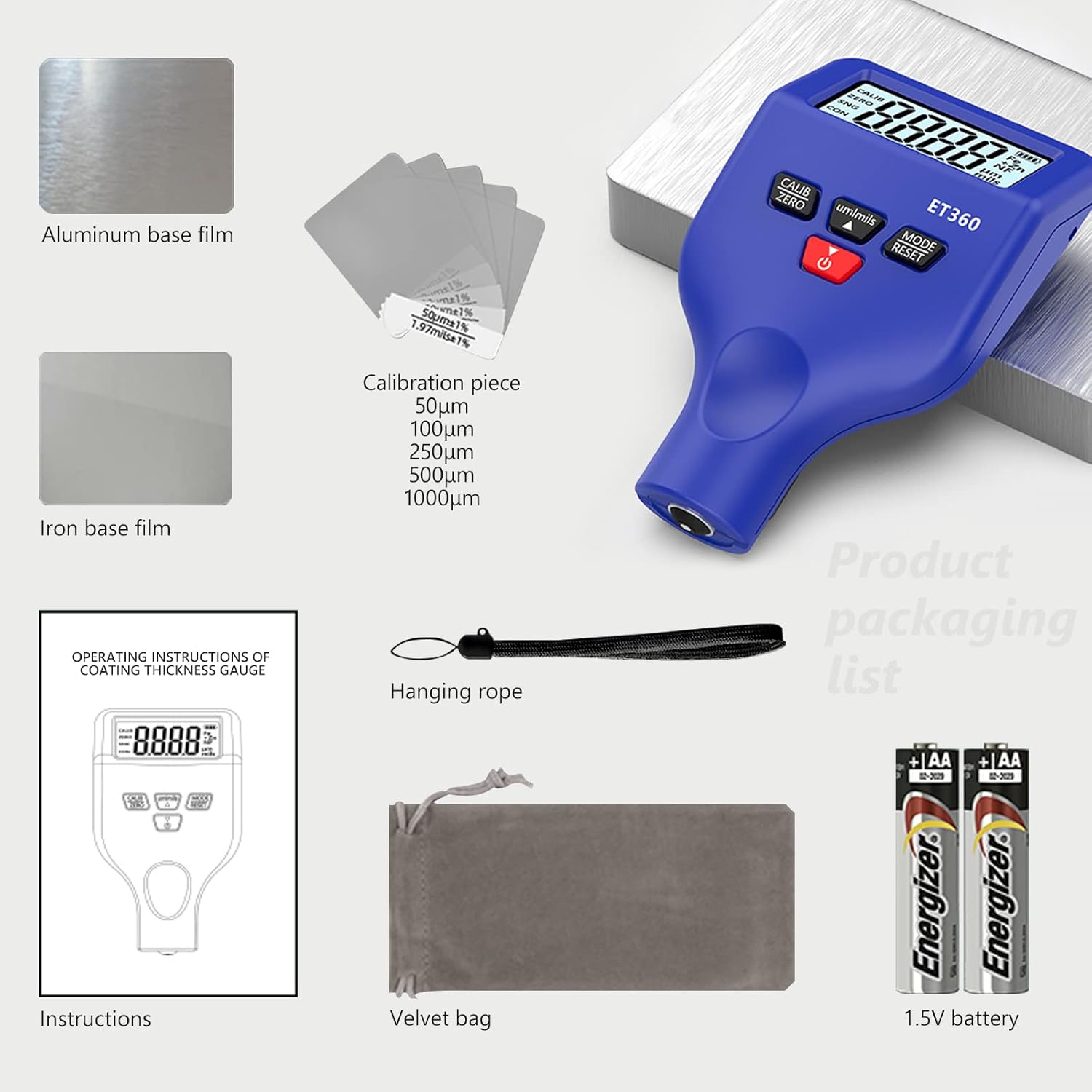
Image: A visual representation of the ET360 package contents, including the gauge, calibration films, batteries, and accessories.
Setup
1. Battery Installation
The device requires 2 AAA batteries (included).
- Locate the battery compartment cover on the back of the device.
- Slide the cover open.
- Insert the 2 AAA batteries, ensuring correct polarity (+/-).
- Close the battery compartment cover securely.
2. Power On/Off
Press the power button (⏻) to turn the device on or off. The LCD display will illuminate upon power-on.
Video: An unboxing and initial setup demonstration of a similar digital coating thickness gauge, showing battery installation and basic operation. This video is provided by the seller and demonstrates the product's functionality.
Operating Instructions
1. Understanding the Display
The LCD display provides crucial information during operation. Refer to the diagram below for an explanation of each indicator.

Image: Detailed view of the ET360's LCD screen and physical buttons. The screen shows indicators for calibration (CALIB), zeroing (ZERO), single point measurement (SNG), continuous measurement (CON), battery power, substrate types (Fe, Fe+Zn, NF), unit (µm, mils), and the measurement reading. The physical diagram points out the LCD display, unit switching/data regulation buttons, measurement mode/factory settings buttons, on/off/data down button, anti-slip groove, and measuring probe.
- CALIB: Indicates calibration mode.
- ZERO: Indicates zeroing operation is complete.
- SNG: Single point measurement mode (one point at a time).
- CON: Continuous measurement mode (continuous detection).
- Battery Indicator: Shows current battery level.
- Fe: Indicates magnetic conductive metal substrates (e.g., steel, iron).
- Fe+Zn: Indicates a zinc coating on magnetic conductive materials (e.g., galvanized steel).
- NF: Indicates non-magnetic metal substrates (e.g., aluminum, copper).
- µm / mils: Measurement unit (microns or mils).
- Measurement Reading: Displays the thickness value.
2. Substrate Identification
The ET360 automatically identifies the type of substrate:
- Fe (Magnetic Substrate): For iron and steel.
- NF (Nonmagnetic Substrate): For aluminum, copper, and other non-ferrous metals.
- Fe+Zn (Magnetic Zinc Substrate): For galvanized layers on magnetic substrates. This new function detects anti-corrosion, wear-resistant, and anti-oxidation coatings, helping to identify original accessories by detecting galvanized layers.
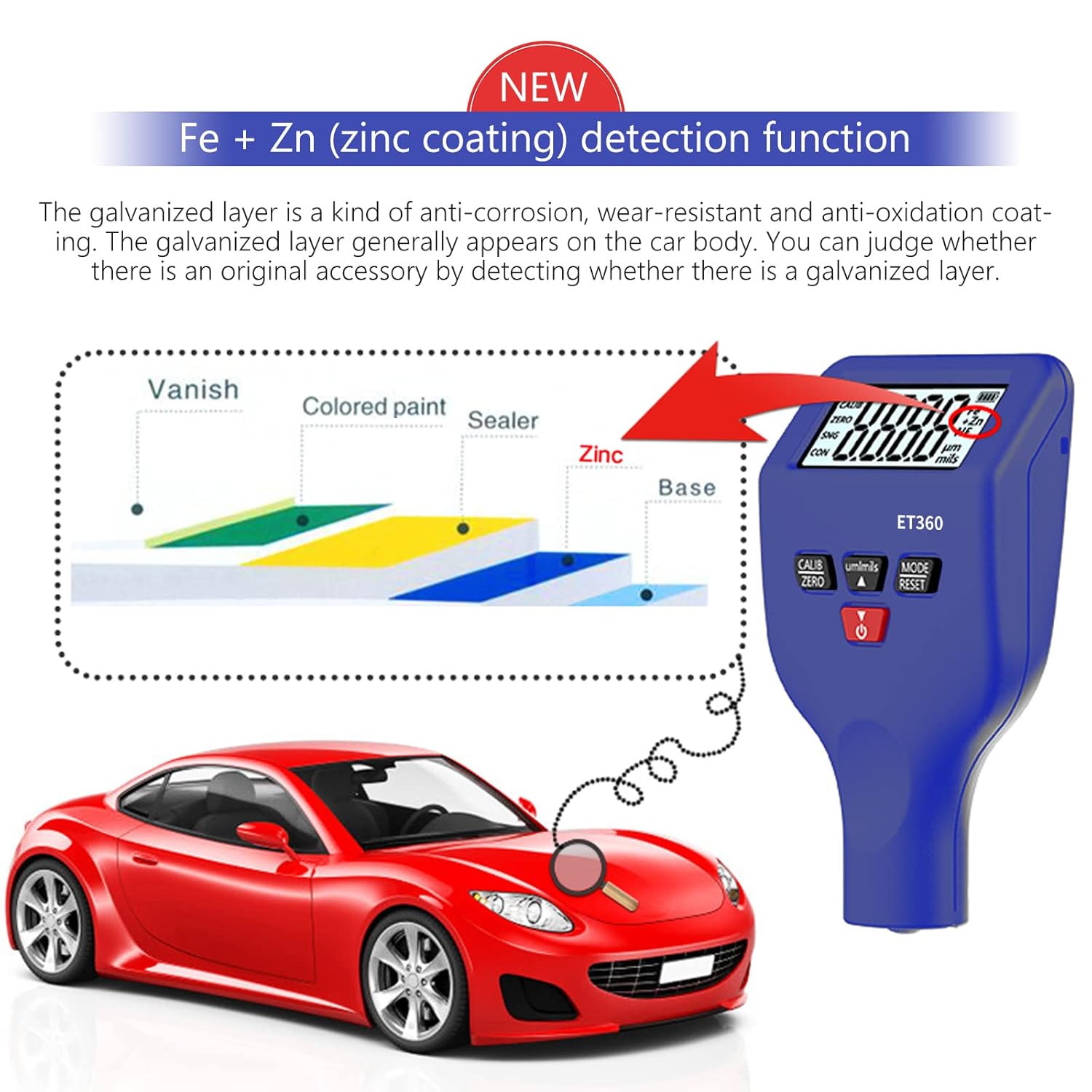
Image: Illustration of the Fe+Zn detection function, demonstrating how the gauge identifies a zinc coating layer on a car body, distinguishing between varnish, colored paint, sealer, zinc, and base layers.
3. Measurement Procedure
- Ensure the device is powered on.
- Place the measuring probe firmly and perpendicularly onto the surface to be measured.
- The device will automatically detect the substrate type and display the coating thickness on the LCD screen.
- For single point measurement (SNG mode), lift the probe and place it again for a new reading.
- For continuous measurement (CON mode), slide the probe across the surface for real-time readings.
4. Interval Calibration
To ensure accurate measurements, periodic calibration is recommended.
- Turn on the device and wait for a stable measurement value.
- Press the CALIB button to enter calibration mode.
- Adjust the displayed data to match the target value of your calibration piece using the up/down buttons.
- Press CALIB again to save the data.
- Take another measurement with the calibrated piece to verify the result.
Maintenance
- Keep the device clean and dry. Wipe with a soft, dry cloth.
- Avoid exposing the device to extreme temperatures, humidity, or direct sunlight.
- When not in use for extended periods, remove the batteries to prevent leakage.
- Store the device in the provided velvet bag to protect it from dust and scratches.
- Handle the measuring probe with care to prevent damage.
Troubleshooting
- Device does not power on: Check battery installation and ensure batteries are not depleted. Replace if necessary.
- Inaccurate readings: Perform an interval calibration using the provided calibration pieces. Ensure the probe is clean and making full contact with the surface.
- Display is dim or flickering: Batteries may be low. Replace with new AAA batteries.
- Error message on display: Refer to the full instruction manual for specific error codes or contact customer support.
Specifications
| Feature | Specification |
|---|---|
| Model | ET360 |
| Measurement Range | 0-1500 µm |
| Resolution | 0.1 µm |
| Substrate Identification | Automatic (Fe, NF, Fe+Zn) |
| Power Supply | 2 x AAA Batteries |
| Dimensions (Package) | 14.2 x 10.3 x 5.3 cm |
| Weight (Package) | 60 g |
| Manufacturer | GOLDCHAMP |
Warranty and Support
GOLDCHAMP products are manufactured to high-quality standards. If you encounter any issues with your ET360 Digital Coating Thickness Gauge, please contact our customer support team immediately. We are committed to responding to your inquiries within 24 hours.
For further assistance, please refer to the official GOLDCHAMP website or contact your retailer.