
Introduction
The Logitech Wireless Mouse Signature M650 is designed to enhance comfort and productivity with its advanced features. This manual provides essential information for setting up, operating, and maintaining your mouse, ensuring a seamless user experience.

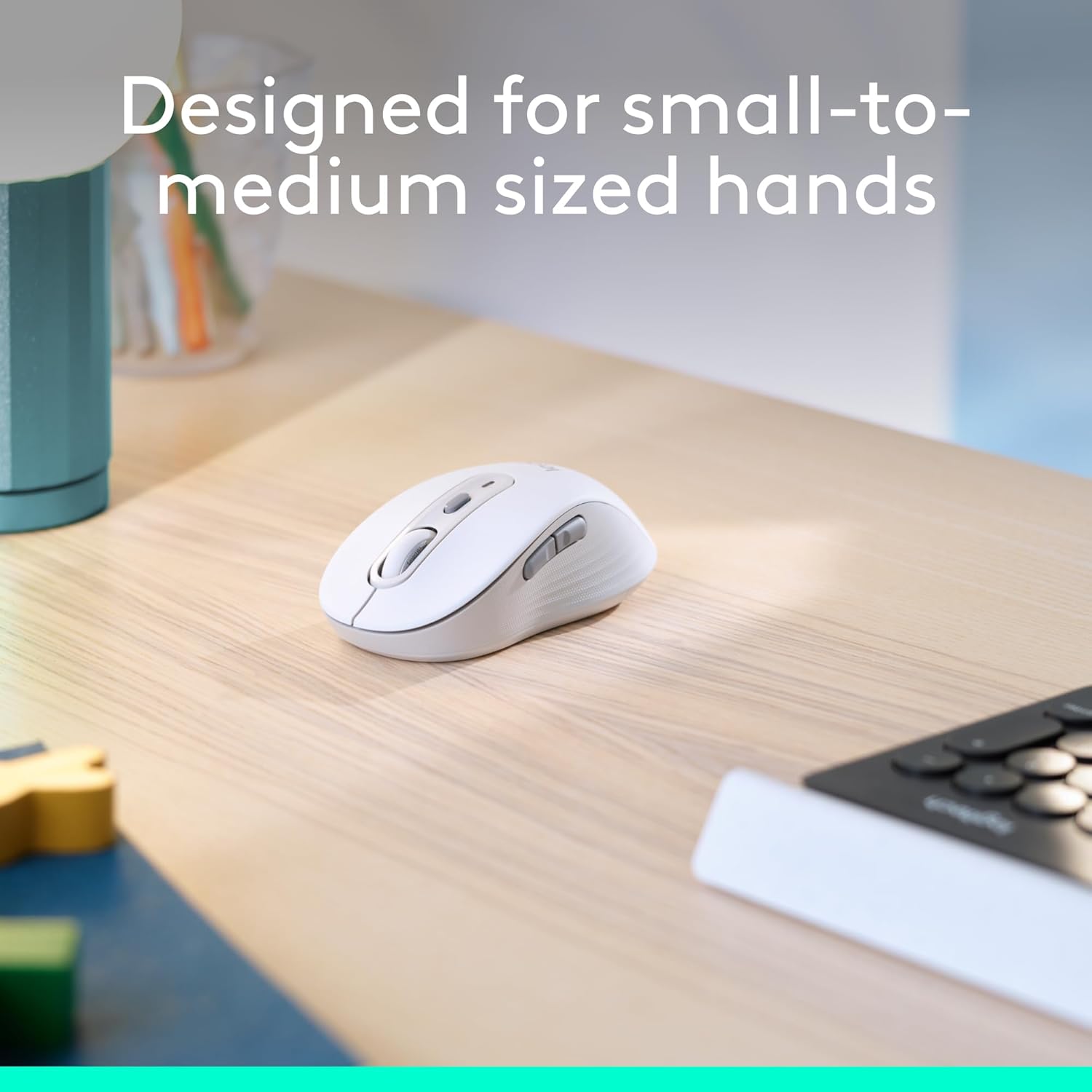

Setup
Follow these steps to quickly set up your Logitech Wireless Mouse Signature M650.
1. Battery Installation
- Locate the battery compartment on the underside of the mouse.
- Remove the cover.
- Insert the included AA battery, ensuring correct polarity.
- Replace the battery compartment cover.

2. Connectivity Options
Your M650 mouse offers two ways to connect to your device:
- Logi Bolt USB Receiver: The receiver is stored inside the battery compartment. Plug it into an available USB port on your computer. The mouse should connect automatically.
- Bluetooth Low Energy: Activate Bluetooth on your device. Turn on the mouse and press the connect button on the underside to enter pairing mode. Select 'Logi M650' from your device's Bluetooth settings.


Operating Instructions
SmartWheel Scrolling
The SmartWheel provides two scrolling modes:
- Line-by-line precision: For detailed navigation in documents or spreadsheets.
- Super-fast free spin: Flick the wheel for rapid scrolling through long web pages or large files.

Customizable Side Buttons
The two side buttons can be customized using Logitech Options+ software (available on Windows and macOS) to perform your favorite shortcuts, such as back/forward navigation or copy/paste functions.

Silent Clicks
The mouse features SilentTouch technology, reducing click noise by 90% compared to traditional mice, allowing for a quieter work environment.

Maintenance
Battery Life
The Logitech Signature M650 is designed for extended use, offering up to 24 months of battery life on a single AA battery. Battery life may vary based on user and computing conditions.
Cleaning
To clean your mouse, use a soft, damp cloth. Avoid harsh chemicals or abrasive materials.
Troubleshooting
If you experience issues with your mouse, try the following:
- Ensure the mouse is powered on and the battery is correctly installed.
- Verify that the Logi Bolt USB receiver is securely plugged into a working USB port, or that your device's Bluetooth is enabled and the mouse is paired.
- Try connecting the mouse to a different USB port or a different device to isolate the issue.
- If using Bluetooth, try unpairing and re-pairing the mouse.
Specifications
| Feature | Detail |
|---|---|
| Brand | Logitech |
| Model Number | 910-006252 |
| Connectivity Technology | Bluetooth, Logi Bolt USB Receiver |
| Movement Detection Technology | Optical |
| Special Features | Lightweight, Portable, Silent Clicks (SilentTouch), Wireless, Customizable Buttons, SmartWheel |
| Hardware Platform | Linux, Mac, PC |
| Operating System Compatibility | Chrome OS, Linux, Windows |
| Item Weight | 3.57 ounces |
| Product Dimensions | 4.22 x 2.43 x 0.1 inches |
| Color | Off White |
| Power Source | Battery Powered (1 AA battery included) |
| Average Battery Life | 24 months |

Warranty and Support
For warranty information, technical support, or to download the Logitech Options+ software for button customization, please visit the official Logitech support website. The mouse is designed for long-lasting performance, with an average battery life of 24 months.


