
Lenovo 82H801DQUS
Lenovo IdeaPad 3 Laptop User Manual
Model: 82H801DQUS
1. Introduction
This manual provides essential information for setting up, operating, maintaining, and troubleshooting your Lenovo IdeaPad 3 laptop. Please read this manual thoroughly to ensure optimal performance and longevity of your device.
2. What's in the Box
Upon unboxing your Lenovo IdeaPad 3, verify that all the following items are included:
- Lenovo IdeaPad 3 Laptop
- Power Adapter and Cord
- JAWFOAL® Accessories
- Quick Start Guide / Safety Information
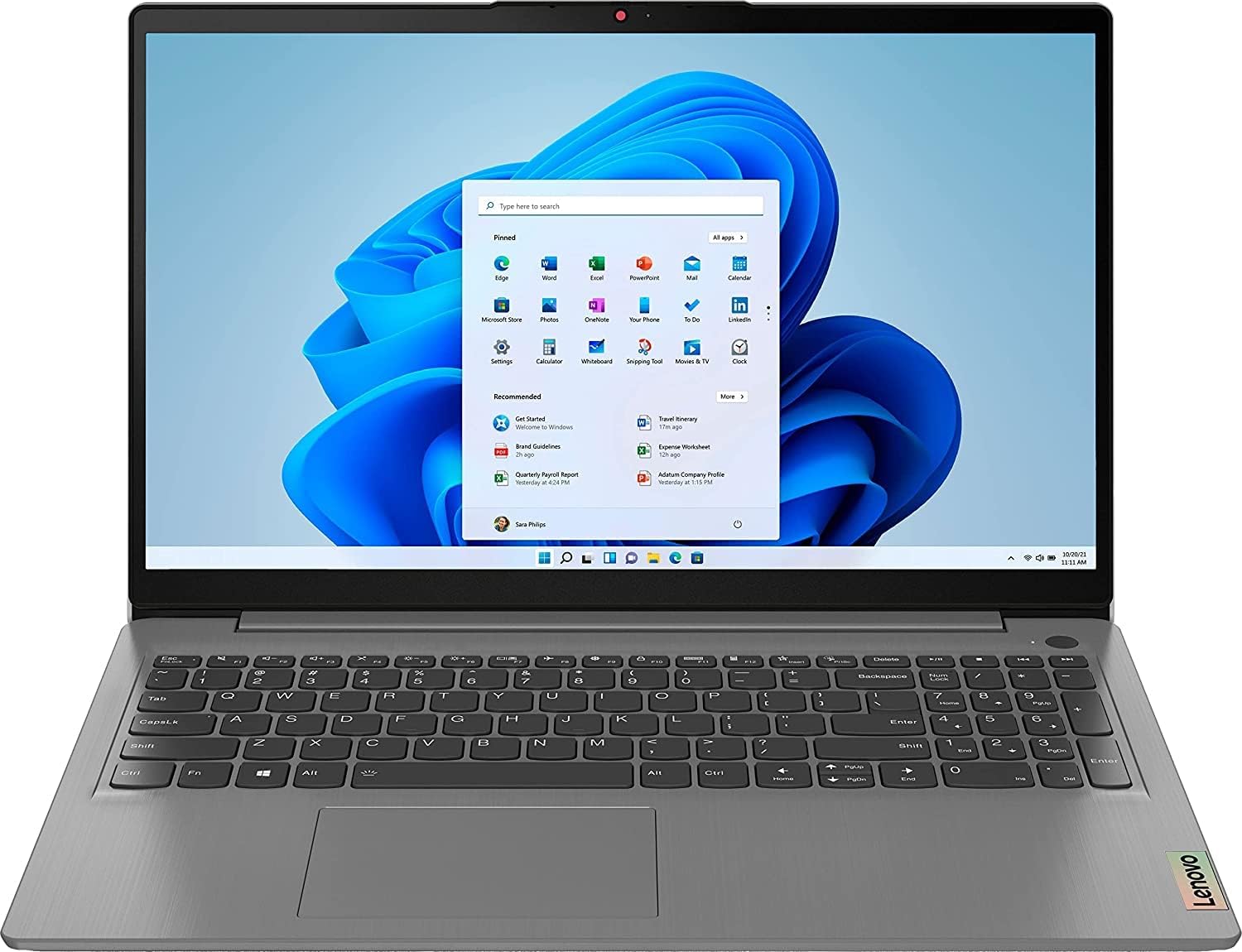
Figure 2.1: Lenovo IdeaPad 3 Laptop with Windows 11 Desktop
3. Setup
3.1 Initial Power On
- Connect the power adapter to the laptop's power connector and then to a power outlet.
- Open the laptop lid. The laptop may power on automatically, or you may need to press the power button located on the side or keyboard deck.
- Follow the on-screen instructions to complete the initial Windows setup.
3.2 Operating System Configuration
Your laptop comes with Windows 11 Home in S Mode. If you wish to switch out of S Mode for broader application compatibility, follow the instructions provided during initial setup or refer to Microsoft's official documentation.
3.3 Connecting to a Network
To connect to Wi-Fi:
- Click the Wi-Fi icon in the taskbar.
- Select your desired network from the list and click 'Connect'.
- Enter the network security key if prompted.
Bluetooth devices can be paired via the Windows Settings menu under 'Bluetooth & devices'.
3.4 Peripheral Connections
The Lenovo IdeaPad 3 offers various ports for connecting external devices:
- USB 2.0 Port (x1): For older USB devices.
- USB 3.2 Gen 1 Ports (x2): For high-speed data transfer with compatible USB devices.
- HDMI 1.4 Port (x1): Connect to external displays or projectors.
- Card Reader (x1): For reading data from memory cards.
- Headphone / Microphone Combo Jack (3.5mm) (x1): For audio input/output.

Figure 3.1: Left Side Ports

Figure 3.2: Right Side Ports
4. Operating Your Laptop
4.1 Keyboard and Touchpad
The laptop features a full-size keyboard and a precision touchpad. To toggle the keyboard backlight, press Fn + Spacebar. For standard function key behavior (F1-F12), you may need to press the Fn key in combination with the desired function key (e.g., Fn + F1 for F1). This behavior can often be adjusted in the BIOS settings.

Figure 4.1: Keyboard and Touchpad Layout
4.2 Touchscreen Functionality
Your IdeaPad 3 is equipped with a 15.6-inch Full HD touchscreen. You can interact directly with the display using touch gestures for navigation, scrolling, and selecting items.
4.3 Power Management
The laptop is designed for efficient power usage, offering approximately 7.5 hours of battery life under typical usage conditions. Always use the provided power adapter for charging. To conserve battery, adjust screen brightness, close unused applications, and utilize Windows power saving modes.
4.4 Accessing BIOS and Boot Menu
To enter the BIOS setup, press F2 (or potentially DEL) repeatedly during startup. To access the boot device selection menu (e.g., to boot from a USB drive), press F12 repeatedly during startup and select your desired device.
5. Maintenance
5.1 Cleaning Your Laptop
Regular cleaning helps maintain your laptop's appearance and functionality:
- Use a soft, lint-free cloth slightly dampened with water or a screen cleaner for the display.
- For the keyboard and chassis, use a soft cloth. Avoid harsh chemicals.
- Use compressed air to clear dust from vents and keyboard crevices.
5.2 Software Updates
Keep your operating system and drivers updated. Windows Update will handle most OS updates. For system BIOS and specific Lenovo drivers, use the Lenovo Vantage application or visit the official Lenovo support website.
5.3 Storage Management
Periodically check your 256GB PCIe SSD storage. Delete unnecessary files, uninstall unused programs, and consider using cloud storage to free up space and maintain performance.
5.4 Battery Care
To prolong battery life, avoid fully discharging the battery frequently. If storing the laptop for an extended period, ensure the battery is charged to around 50-60%.
6. Troubleshooting
6.1 Common Issues
- Laptop not powering on: Ensure the power adapter is securely connected and the outlet is functional. Try a different outlet.
- No display: Check if the laptop is powered on. Connect to an external monitor to rule out a display issue.
- Wi-Fi connectivity issues: Restart your router and laptop. Check network settings in Windows.
- Slow performance: Close unnecessary applications, check for background processes, ensure sufficient free storage space.
6.2 System Restore / Reset
Windows provides options to restore your system to an earlier point or reset it to factory settings. These options can be found in Windows Settings under 'Recovery'.
6.3 Contacting Support
If you encounter persistent issues that cannot be resolved using this manual, please visit the official Lenovo support website or contact their customer service for assistance.
7. Specifications
| Feature | Specification |
|---|---|
| Processor | Intel Core i5-1135G7 (up to 4.20 GHz) |
| Graphics | Integrated Intel Iris Xe Graphics |
| Operating System | Windows 11 Home in S Mode |
| Memory (RAM) | 12 GB DDR4 |
| Storage | 256 GB PCIe SSD |
| Display | 15.6" FHD (1920x1080) TN 220nits Anti-glare Touchscreen |
| Connectivity | Wi-Fi (2x2 802.11ac), Bluetooth 5.0 |
| Ports | 1x USB 2.0, 2x USB 3.2 Gen 1, 1x HDMI 1.4, 1x Card reader, 1x Headphone / microphone combo jack, 1x Power connector |
| Keyboard | Non-backlit, English (with backlight toggle via Fn+Spacebar) |
| Dimensions (LxWxH) | 14.26 x 9.98 x 0.78 inches (362.2 x 253.4 x 19.8 mm) |
| Weight | 3.75 lbs (1.7 kg) |
| Battery Life | Approx. 7.5 Hours |

Figure 7.1: Laptop Side Profile
8. Warranty and Support
Your Lenovo IdeaPad 3 laptop is covered by Lenovo's standard limited warranty. For detailed warranty terms and conditions, please refer to the warranty card included with your product or visit the official Lenovo support website. For technical assistance, driver downloads, and service requests, please visit support.lenovo.com.