
1. Introduction
Thank you for choosing the doqo iPad Pro 11 Magic-Style Keyboard Case. This manual provides detailed instructions for setting up, operating, maintaining, and troubleshooting your new keyboard case. Designed for seamless integration with your iPad, this case transforms your tablet into a versatile workstation with a responsive trackpad and comfortable backlit keyboard.
This keyboard case is compatible with the following iPad models:
- iPad Air 10.9-inch 5th Gen 2022 (Models: A2588/A2589)
- iPad Air 10.9-inch 4th Gen 2020 (Models: A2325/A2324/A2316/A2072)
- iPad Pro 11-inch 1st Generation 2018 (Models: A1980/A2013/A1943/A1979)
- iPad Pro 11-inch 2nd Generation 2020 (Models: A2228/A2068/2230/A2231)
- iPad Pro 11-inch 3rd Generation 2021 (Models: A2301/A2459/A2460)
- iPad Pro 11-inch 4th Generation 2022 (Model: A2759)

Figure 1.1: The doqo iPad Pro 11 Magic-Style Keyboard Case with an iPad attached, showcasing its floating cantilever design.
2. Setup
2.1 Verifying iPad Model Number
Before attaching your iPad, please verify its model number to ensure compatibility. There are two methods:
- Method 1: Verify on back of iPad
Locate the small text printed on the back of your iPad. The model number typically starts with 'A' followed by four digits (e.g., A1876). - Method 2: Verify in iPad Settings App
Open the Settings app on your iPad. Navigate to General > About. Tap on Model Number to display it.

Figure 2.1: Instructions for verifying your iPad's model number, either from the back of the device or through the iPadOS Settings app.
2.2 Attaching Your iPad
The doqo keyboard case features a magnetic floating cantilever design, allowing for easy attachment and removal of your iPad.
- Align your iPad with the magnetic back panel of the keyboard case.
- The magnets will securely snap the iPad into place.
- To remove, gently pull the iPad away from the magnetic panel.
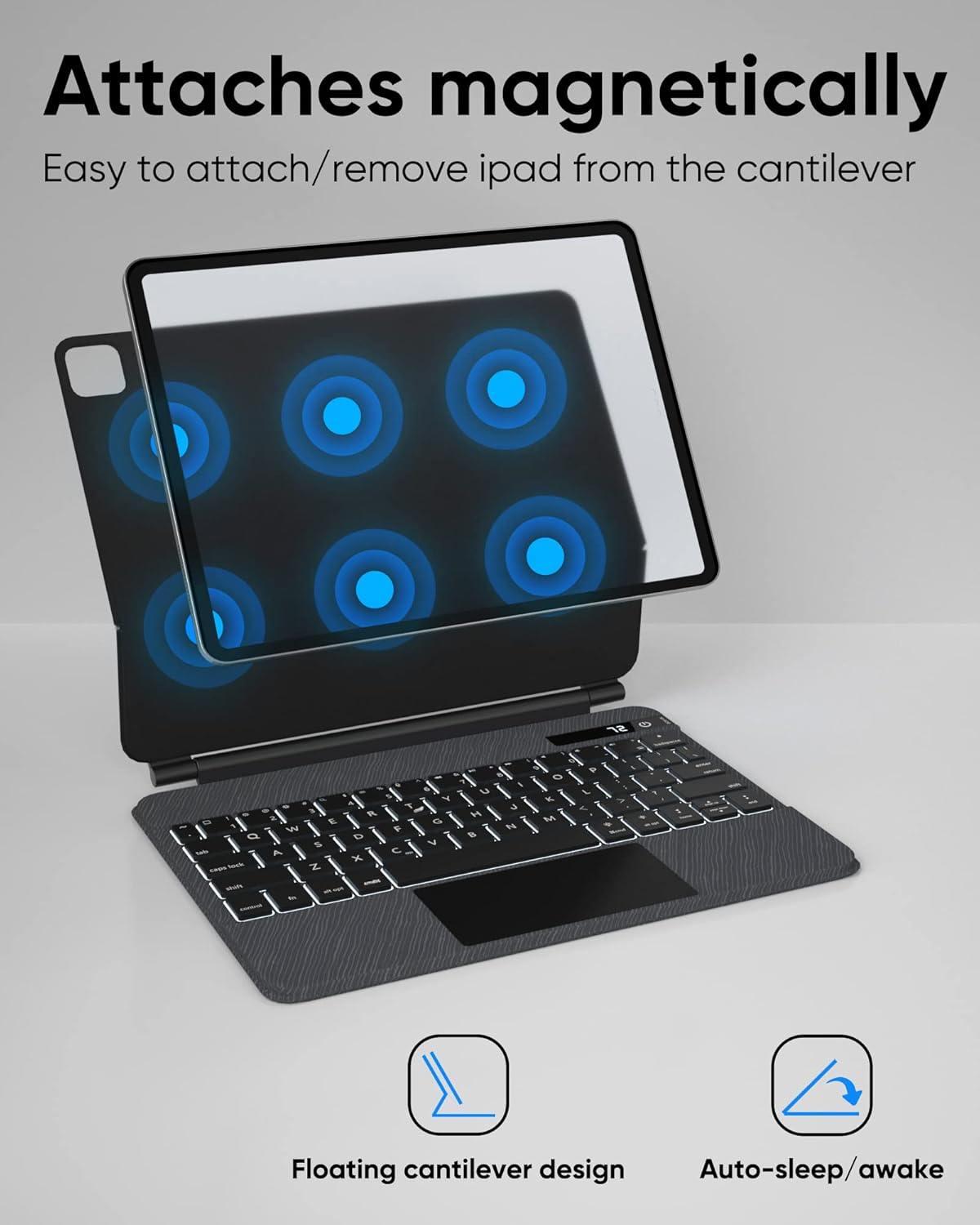
Figure 2.2: The magnetic attachment mechanism, showing how the iPad securely connects to the keyboard case.
2.3 Powering On/Off
To power on or off the keyboard, double-click the switch button. A single touch for 0.3-0.8 seconds is not sufficient; a quick double-click is required.
2.4 Bluetooth Pairing
To pair the keyboard case with your iPad via Bluetooth:
- Ensure the keyboard is powered on.
- Press the Fn + C keys simultaneously on the keyboard.
- The Bluetooth indicator light on the keyboard will flash, indicating it is in pairing mode.
- On your iPad, go to Settings > Bluetooth.
- Select the doqo keyboard from the list of available devices to complete the pairing process.
2.5 Charging the Keyboard Case
The keyboard case is equipped with a Type-C charging port. Connect the provided Type-C cable to the port on the keyboard and to a power source.
- The LED display will show "CH" and a slow flash during charging.
- A full charge typically takes less than 3 hours.
- The keyboard offers approximately 90 days of battery life in standby mode.
- Continuous working time is approximately 5 hours with the backlight on, and up to 80 hours with the backlight off.
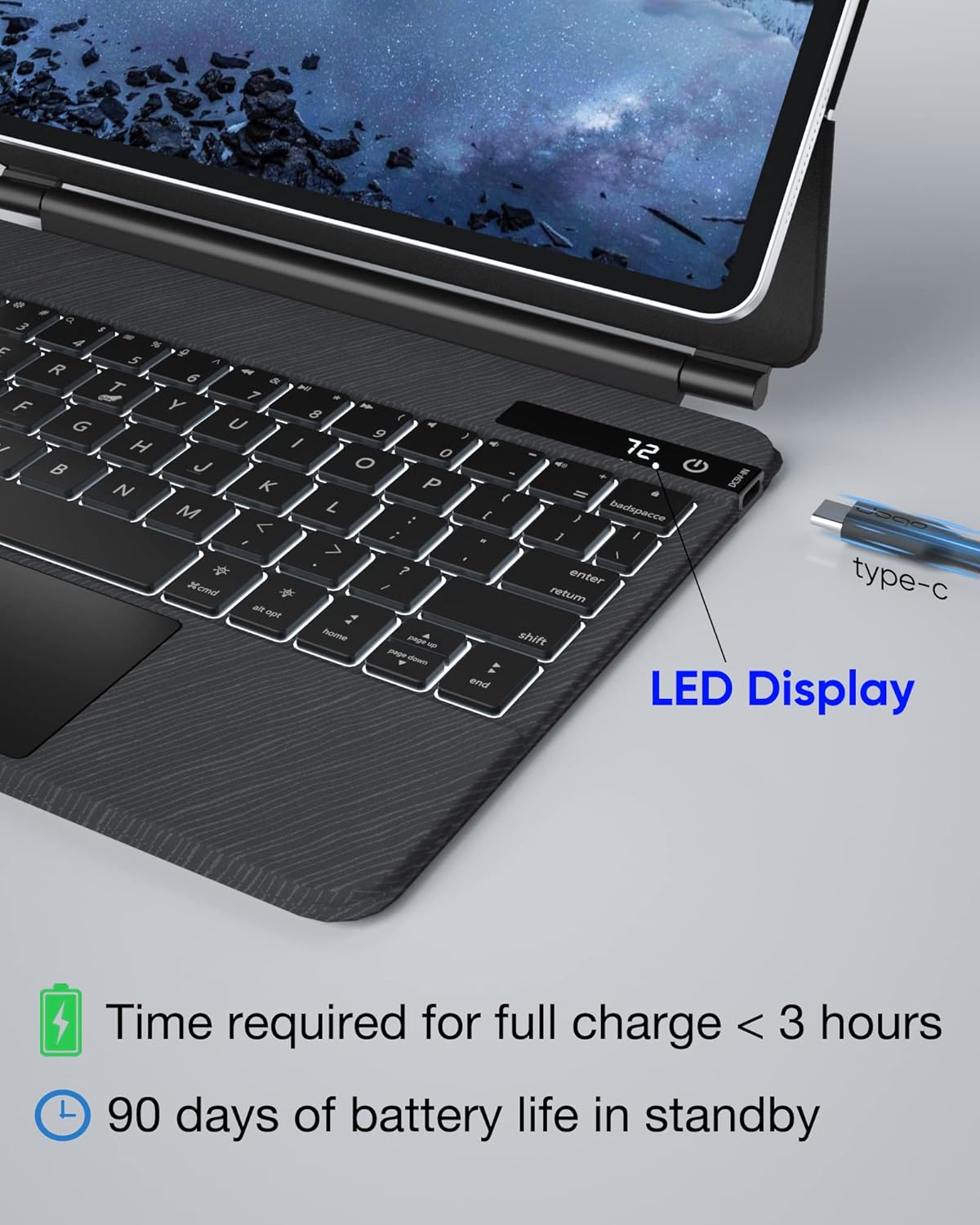
Figure 2.3: Close-up of the keyboard's LED display and Type-C charging port, indicating charging status and battery life.

Figure 2.4: Visual representation of the keyboard's battery performance, including working time with/without backlight, standby time, and charging duration.
3. Operating Instructions
3.1 Smart Touchpad Functionality
The integrated smart touchpad allows for multi-gesture control, enhancing your iPad navigation experience. Note: To fully access the touchpad functions, please upgrade your iPad software to iPadOS 15.0 or above.
- The touchpad acts as a second screen support, reducing the need to frequently touch your iPad screen.
- It facilitates web browsing and document editing through clicking and sliding gestures.
Touchpad Settings:
After successful wireless pairing, you can adjust touchpad settings:
- Go to Settings > General > Touchpad.
- To enable Tap to Tap/Two-finger assist point, select the corresponding option.
- Adjust tracking speed under Settings > General > Touchpad > Tracking speed.
- The touchpad supports no-drag gesture function (optional).
- To turn on/off the touchpad function, press FN + T.

Figure 3.1: The multi-touch trackpad designed for iPad cursor control and the scissor foot button mechanism for comfortable typing.

Figure 3.2: Overview of the keyboard's iOS shortcut keys, quiet scissor keys, and the built-in multi-touch trackpad optimized for iPadOS.
3.2 Backlit Keyboard
The keyboard features a white backlight with 3 adjustable brightness levels, allowing you to type comfortably in various lighting conditions.
- Adjust backlight brightness using the dedicated function keys.

Figure 3.3: The keyboard illuminated with its white backlight, demonstrating the adjustable brightness feature.

Figure 3.4: A visual representation of the keyboard's backlighting feature, highlighting the three adjustable brightness levels.
3.3 Smart Features: Auto Sleep and Wake
The keyboard case is designed with an auto sleep and wake function to conserve your iPad's battery life. When you open the iPad cover, your iPad will automatically wake up. When you close the cover, the iPad will go to sleep.

Figure 3.5: The magnetic floating cantilever design, also illustrating the automatic sleep and wake functionality of the case.
4. Maintenance
To ensure the longevity and optimal performance of your doqo keyboard case, follow these maintenance guidelines:
- Cleaning: Use a soft, lint-free cloth to wipe down the exterior of the case. For the keyboard keys and trackpad, a slightly damp cloth can be used, but ensure no moisture enters the internal components. Avoid harsh chemicals or abrasive cleaners.
- Storage: When not in use for extended periods, store the keyboard case in a cool, dry place away from direct sunlight and extreme temperatures.
- Handling: While the case offers comprehensive protection, avoid dropping it or subjecting it to strong impacts. Do not place heavy objects on top of the case.
- Charging: Use only the provided Type-C cable or a certified equivalent for charging to prevent damage to the battery.
5. Troubleshooting
If you encounter any issues with your doqo keyboard case, please refer to the following common troubleshooting steps:
| Problem | Possible Cause | Solution |
|---|---|---|
| Keyboard not powering on | Low battery; Incorrect power-on method | Charge the keyboard case fully. Ensure you perform a quick double-click on the power button. |
| Bluetooth pairing fails | Keyboard not in pairing mode; iPad Bluetooth off; Interference | Press Fn + C to enter pairing mode. Ensure iPad Bluetooth is on. Move closer to the iPad and away from other wireless devices. |
| Touchpad not working | iPadOS version too old; Touchpad disabled; Software glitch | Upgrade iPadOS to 15.0 or above. Press FN + T to enable the touchpad. Restart both iPad and keyboard. |
| Backlight not working/adjusting | Low battery; Incorrect key press | Charge the keyboard. Ensure you are using the correct function keys for backlight adjustment. |
| iPad not waking/sleeping automatically | Case not properly aligned; iPad settings | Ensure the iPad is securely and correctly seated in the magnetic case. Check iPad settings for 'Lock/Unlock' feature. |
If the problem persists after trying these steps, please contact doqo customer support for further assistance.
6. Specifications
| Feature | Detail |
|---|---|
| Product Dimensions | 9.92 x 7.8 x 0.79 inches |
| Item Weight | 2.33 pounds |
| Model Number | P109 PRO |
| Batteries | 1 Lithium Ion battery required |
| Connectivity Technology | Bluetooth |
| Keyboard Description | Backlit |
| Special Features | Backlit, Magnetic, Rechargeable, Trackpad, Wireless |
| Color | Gray |
| Keyboard Backlighting Color Support | Single Color (White) |
| Material | Leather |
| Included Components | doqo keyboard case |
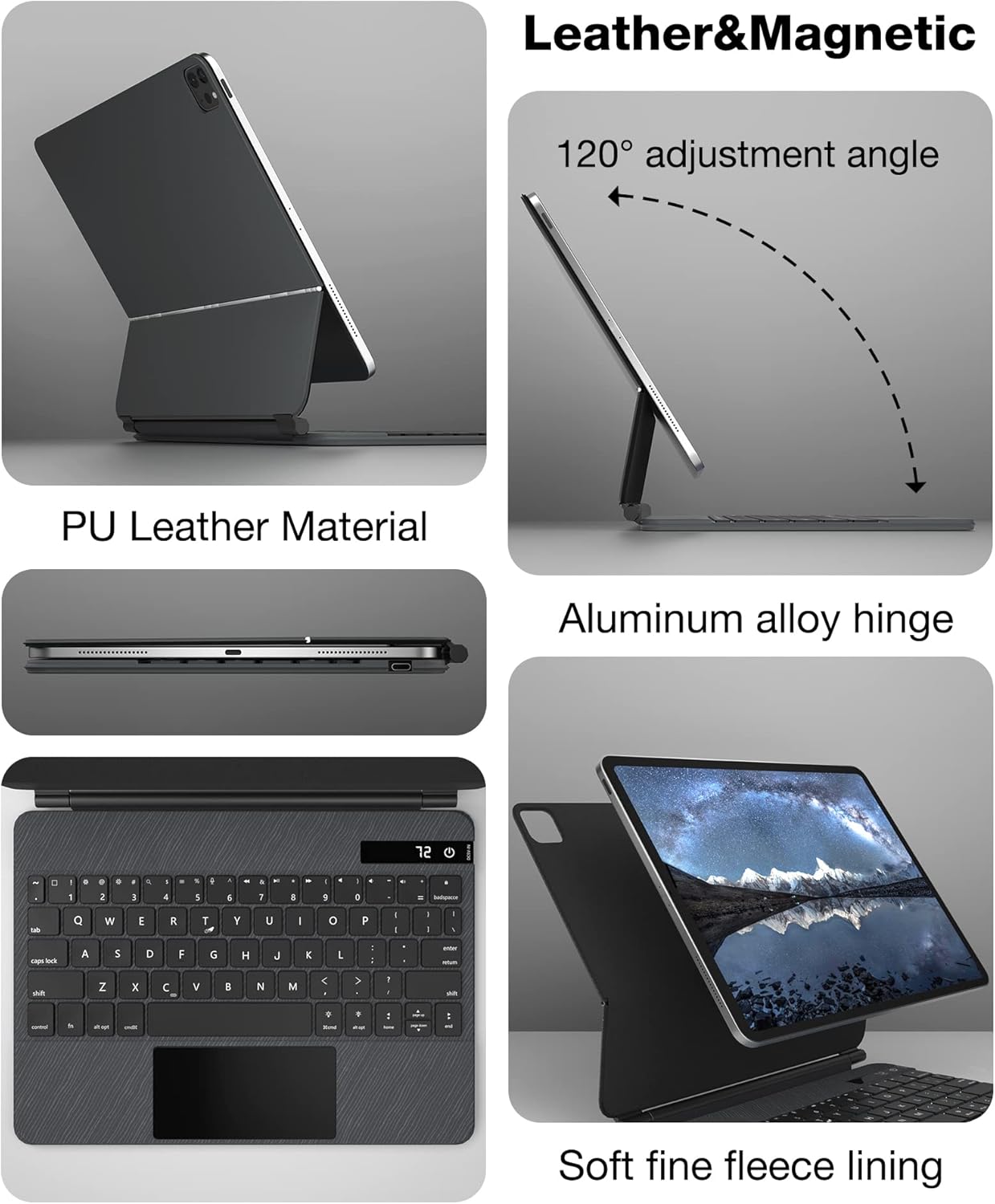
Figure 6.1: Key design and material features of the keyboard case, including PU leather, aluminum alloy hinge, adjustable viewing angle, and soft lining.
7. Warranty & Support
doqo provides comprehensive support for your product:
- Warranty: Your doqo keyboard case comes with a 12-month manufacturer's warranty from the date of purchase. This warranty covers defects in materials and workmanship under normal use.
- Technical Support: Free lifetime technical support is available to assist you with any questions or issues you may encounter.
For warranty claims, technical assistance, or any other inquiries, please visit the official doqo store or contact their customer service directly. You can find more information at the doqo Store on Amazon.


