
1. Introduction
This manual provides detailed instructions for the MOKiN 18-in-1 USB-C Docking Station. Please read this manual carefully before using the product to ensure proper operation and to maximize its features. This docking station is designed to expand the connectivity of your USB-C enabled laptop, providing multiple ports for displays, peripherals, network, and storage.

Figure 1: MOKiN 18-in-1 USB-C Docking Station, showcasing its compact design and removable top cover.
2. Product Overview
The MOKiN 18-in-1 USB-C Docking Station offers a comprehensive solution for expanding your laptop's connectivity. It features a wide array of ports to connect various devices simultaneously.
2.1 Port Layout

Figure 2: Detailed diagram illustrating the 18-in-1 ports of the MOKiN docking station, including USB-C, USB 3.0, SD/Micro SD, 3.5mm Audio, HDMI, VGA, Ethernet, and Power Delivery.
The docking station includes the following ports:
- USB-C (Host 1 & Host 2): Connects to your laptop.
- 3 x HDMI (4K@60Hz/30Hz): For connecting external displays.
- 1 x DisplayPort (4K@60Hz): For connecting an external display.
- 1 x VGA (1080P@60Hz): For connecting an external display.
- 1 x RJ45 Ethernet (10/100/1000Mbps): For wired network connection.
- 1 x USB-C Power Delivery (PD3.0, 100W): For charging your laptop.
- 3 x USB 3.0 (5Gbps): For high-speed data transfer and peripheral connection.
- 2 x USB 2.0: For connecting standard USB peripherals.
- 1 x SD Card Reader: For reading SD, SDHC, SDXC cards.
- 1 x Micro SD (TF) Card Reader: For reading Micro SD, Micro SDHC, Micro SDXC cards.
- 1 x 3.5mm Audio/Mic (2-in-1): For headphones, speakers, or microphones.
- 1 x M.2 SATA 3.0 NGFF SSD Enclosure: Supports M Key, B&M Key, and B Key SSDs up to 2TB.


Figure 3: Close-up views of the RJ45 Ethernet port and the 3.5mm Audio/Mic port.
3. Setup Instructions
Follow these steps to set up your MOKiN 18-in-1 USB-C Docking Station.
3.1 Connecting to Your Laptop
- Connect the included USB-C cable from the docking station's 'HOST' port to a USB-C or Thunderbolt 3 port on your laptop.
- For optimal performance and charging, connect your laptop's power adapter to the USB-C Power Delivery (PD) port on the docking station. This port supports up to 100W power delivery to your laptop.

Figure 4: The docking station connected to a laptop, illustrating stable and reliable connections for RJ45 Ethernet (10/100/1000Mbps) and 100W Power Delivery.
3.2 Connecting Peripherals
- External Displays: Connect your monitors to the HDMI, DisplayPort, or VGA ports using appropriate cables.
- USB Devices: Plug in your USB peripherals (e.g., keyboard, mouse, external hard drives) into the USB 3.0 or USB 2.0 ports.
- Ethernet: Connect an Ethernet cable from your router or modem to the RJ45 port for a stable wired network connection.
- Audio: Connect headphones, speakers, or a microphone to the 3.5mm Audio/Mic port.
- SD/TF Cards: Insert your SD or Micro SD cards into the respective card reader slots.

Figure 5: The docking station connected to a MacBook Pro, highlighting USB 3.0 ports (up to 5Gbps) and SD/TF card reader functionality, along with a 3.5mm audio jack.
3.3 Installing an M.2 SATA SSD
- Gently remove the top cover of the docking station to access the SSD enclosure.
- Insert your M.2 SATA 3.0 NGFF SSD (M Key, B&M Key, or B Key) into the slot. Ensure it is properly seated.
- Secure the SSD with the provided screw or clip, if applicable.
- Replace the top cover.
- The SSD will appear as an external drive on your computer. You may need to initialize and format it through your operating system's Disk Management utility before use.

Figure 6: Diagram detailing the M.2 SATA 3.0 NGFF SSD enclosure, showing compatibility with M Key, B&M Key, and B Key SSDs, and various sizes (22*30, 22*42, 22*60, 22*80) up to 2TB capacity.
4. Operating Instructions
4.1 Display Modes
The docking station supports various display configurations, including Mirror Mode and Extend Mode. The specific capabilities depend on your laptop's operating system and graphics card.
Windows Systems:
Windows systems generally support both Mirror and Extend modes across multiple displays.

Figure 7: Visual representation of 'Extend Mode' for multiple monitors, showing Mirror Mode with HDMI1+HDMI2 4K@60Hz, Mirror Mode with HDMI1+VGA 1080P@60Hz, and Mirror Mode with HDMI1+HDMI2+VGA 1080P@60Hz.
- Mirror Mode: All connected external displays show the same content as your laptop screen.
- Extend Mode: Each connected external display can show different content, extending your desktop workspace.
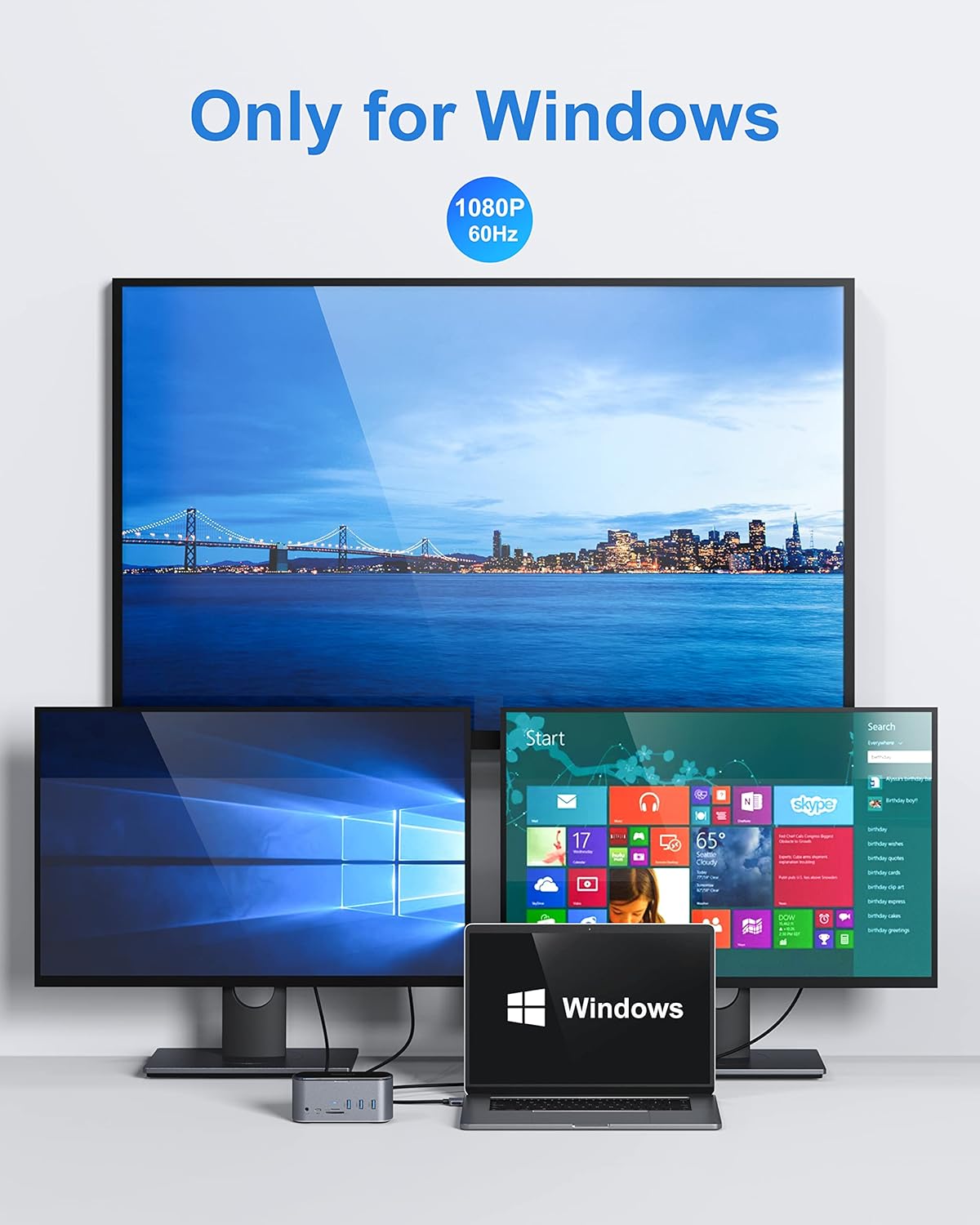
Figure 8: Example of a Windows setup with one large external monitor and two smaller ones, all displaying content at 1080P 60Hz.

Figure 9: Another example of a Windows setup with one large external monitor and two smaller ones, showing various application icons, all displaying content at 1080P 60Hz.
macOS Systems:
macOS systems typically support Mirror Mode across all displays. For Extend Mode, macOS may have limitations depending on the specific MacBook model and chip (e.g., M1/M2 chips may support fewer external displays in extend mode than Intel-based Macs or Windows systems). Please refer to your MacBook's specifications for multi-display support.
4.2 Data Transfer
The USB 3.0 ports support data transfer speeds up to 5Gbps, ideal for external hard drives, SSDs, and other high-speed peripherals. The SD and Micro SD card readers also provide fast access to your memory card data.
5. Specifications
| Feature | Specification |
|---|---|
| Model | 18-in-1 USB-C Docking Station |
| Brand | MOKiN |
| Color | Black |
| Hardware Interface | Solid State Drive (for enclosure) |
| Compatible Devices | MacBook Pro, Windows Laptops with USB-C/Thunderbolt 3 |
| Power Delivery | Up to 100W via USB-C PD port |
| Ethernet Speed | 10/100/1000Mbps |
| USB 3.0 Speed | Up to 5Gbps |
| SSD Enclosure | M.2 SATA 3.0 NGFF (M Key, B&M Key, B Key), up to 2TB |
| Video Output | 3x HDMI (4K@60Hz/30Hz), 1x DisplayPort (4K@60Hz), 1x VGA (1080P@60Hz) |
| Package Dimensions | 7.24 x 5.51 x 3.43 inches |
| Item Weight | 1.17 pounds |
| ASIN | B09KTZWZBM |
| Date First Available | August 22, 2023 |
6. Troubleshooting
If you encounter issues with your docking station, please refer to the following common solutions:
- No Display Output:
- Ensure all display cables are securely connected to both the docking station and the monitors.
- Verify your laptop's display settings (e.g., 'Duplicate', 'Extend', 'Second screen only').
- Try connecting one monitor at a time to isolate the issue.
- Ensure your laptop's graphics drivers are up to date.
- Some laptops may require specific display drivers for multi-monitor setups via USB-C.
- No Power Delivery to Laptop:
- Ensure your laptop's original power adapter is connected to the docking station's USB-C PD port.
- Verify the power adapter is functioning correctly and plugged into a working power outlet.
- Check if your laptop's USB-C port supports Power Delivery.
- USB Devices Not Recognized:
- Reconnect the USB device.
- Try a different USB port on the docking station.
- Ensure the docking station is properly connected to your laptop.
- For high-power USB devices, ensure sufficient power is supplied to the docking station.
- Ethernet Connection Issues:
- Check the Ethernet cable connection to both the docking station and your router/modem.
- Verify network settings on your laptop.
- Restart your router/modem and laptop.
- SSD Not Detected:
- Ensure the SSD is correctly installed in the enclosure and the top cover is secured.
- Check Disk Management (Windows) or Disk Utility (macOS) to see if the SSD needs to be initialized or formatted.
- Verify the SSD is an M.2 SATA NGFF type, as NVMe SSDs are not compatible with this enclosure.
7. Maintenance
To ensure the longevity and optimal performance of your MOKiN docking station, follow these maintenance guidelines:
- Cleaning: Use a soft, dry cloth to clean the exterior of the docking station. Avoid liquid cleaners or abrasive materials.
- Storage: Store the docking station in a cool, dry place away from direct sunlight and extreme temperatures.
- Handling: Avoid dropping or subjecting the device to strong impacts.
- Ventilation: Ensure the docking station has adequate ventilation to prevent overheating, especially during prolonged use with multiple connected devices.
8. Warranty and Support
MOKiN products are designed for reliability and performance. This product comes with a standard manufacturer's warranty. For specific warranty terms and conditions, please refer to the documentation included with your purchase or visit the official MOKiN website.
If you require technical assistance or have questions not covered in this manual, please contact MOKiN customer support through their official channels. When contacting support, please have your product model and purchase information ready.
Manufacturer: MOKiN
ASIN: B09KTZWZBM


