
1. Product Overview
The ASUS TUF Gaming LC 240 ARGB is an all-in-one liquid CPU cooler designed for mid-sized gaming builds. It provides efficient CPU cooling and features Addressable RGB (ARGB) lighting for aesthetic customization. This cooler is compatible with various Intel (LGA 1700, 1200, 1150, 1151, 1152, 1155, 1156, 1366) and AMD (AM4) CPU sockets.

Image 1.1: The ASUS TUF Gaming LC 240 ARGB Liquid CPU Cooler, showcasing its dual ARGB fans and illuminated pump head.
Key Features:
- TUF Gaming ARGB Radiator Fans: Equipped with a fan blade groove design for optimized airflow and reduced noise levels.
- NCVM-Coated Pump Cover: Features a durable, non-conductive vacuum metallization coating that enhances the cooler's rugged and modern aesthetic.
- Aura Sync Compatibility: Allows for synchronized lighting effects with other Aura Sync-enabled components.
- Reinforced, Sleeved Tubing: Provides increased durability and protection against wear and tear.
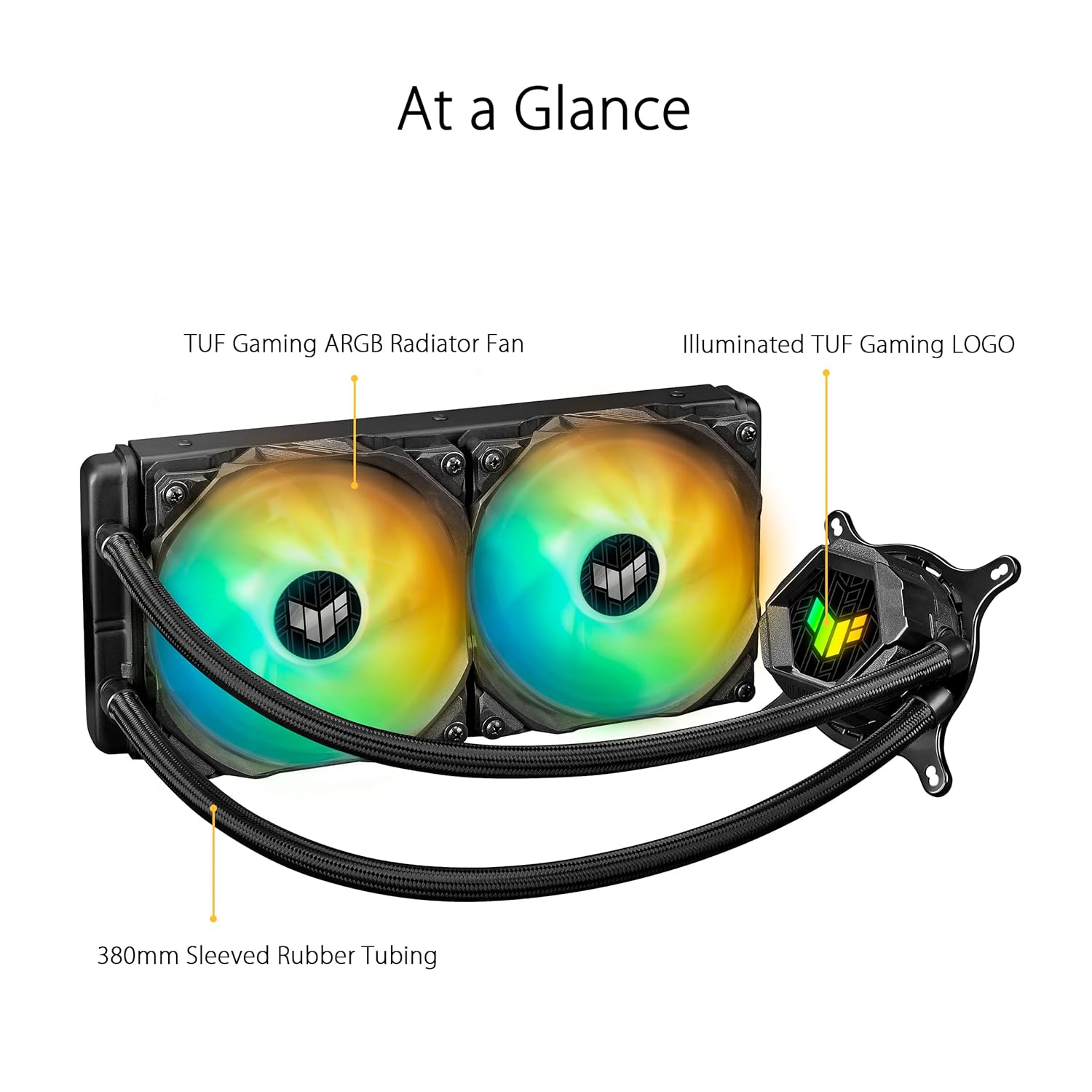
Image 1.2: An 'At a Glance' view of the cooler, highlighting the TUF Gaming ARGB Radiator Fans, Illuminated TUF Gaming LOGO on the pump, and 380mm Sleeved Rubber Tubing.
2. Package Contents
Verify that all components are present in the package before beginning installation. If any items are missing or damaged, contact your retailer or ASUS support.
 2 x 120mm TUF Gaming ARGB Radiator Fans Fan Cable for Fan Connection ARGB Cable for Lighting Control Accessory Pack of Screws and Brackets Quick Start Guide TUF Gaming Sticker.jpg)
Image 2.1: All components included in the ASUS TUF Gaming LC 240 ARGB package. This includes the liquid cooler unit with pre-applied thermal compound, two 120mm ARGB radiator fans, fan cables, ARGB lighting control cables, an accessory pack of screws and mounting brackets for various CPU sockets, a quick start guide, and a TUF Gaming sticker.
Included Items:
- ASUS TUF Gaming LC 240 ARGB Liquid Cooler (with pre-applied thermal compound)
- 2 x 120mm TUF Gaming ARGB Radiator Fans
- Fan Cable for Fan Connection
- ARGB Cable for Lighting Control
- Accessory Pack of Screws and Brackets (for Intel and AMD sockets)
- Quick Start Guide
- TUF Gaming Sticker
3. Setup and Installation
Proper installation is crucial for optimal cooling performance. Refer to the detailed Quick Start Guide included in your package for specific, step-by-step instructions for your CPU socket type. The following provides a general overview.
General Installation Steps:
- Prepare Motherboard: Install the appropriate mounting backplate (if required) for your CPU socket (Intel or AMD) onto the motherboard.
- Mount Radiator Fans: Attach the two 120mm ARGB fans to the radiator using the provided screws. Ensure the fan airflow direction is correct for your case's cooling configuration (intake or exhaust).
- Install Radiator: Secure the radiator assembly to an available fan mount in your PC case (e.g., top, front, or rear).
- Mount Pump/Cold Plate: Carefully align the pump/cold plate assembly over your CPU. The thermal compound is pre-applied; avoid touching it. Secure the pump to the CPU socket using the correct mounting brackets and screws. Apply even pressure when tightening.
- Connect Cables:
- Connect the pump power cable to the designated CPU_FAN or AIO_PUMP header on your motherboard.
- Connect the fan cables to available fan headers on your motherboard or a fan controller.
- Connect the ARGB lighting cables from the fans and pump to an Addressable RGB header (5V-D-G) on your motherboard or a compatible ARGB controller.
- Cable Management: Route all cables neatly to ensure proper airflow within your PC case.

Image 3.1: The ASUS TUF Gaming LC 240 ARGB cooler installed within a PC system, showing the radiator, fans, and illuminated pump head on the CPU.
4. Operating Instructions
Once installed, the ASUS TUF Gaming LC 240 ARGB operates automatically to cool your CPU. The pump circulates coolant through the system, and the fans dissipate heat from the radiator.
Monitoring and Control:
- CPU Temperature: Monitor your CPU temperatures using motherboard monitoring software or third-party utilities to ensure optimal performance.
- Fan Speed Control: Fan speeds can typically be controlled via your motherboard's BIOS/UEFI settings or through motherboard-specific software (e.g., ASUS Fan Xpert). Adjust fan curves to balance cooling performance and noise levels.
- ARGB Lighting Control: The Addressable RGB lighting on the fans and pump head can be customized using ASUS Aura Sync software. This allows you to synchronize lighting effects with other compatible components in your system.

Image 4.1: A close-up of the illuminated TUF Gaming logo on the pump head, demonstrating the ARGB lighting capabilities.
5. Maintenance
Regular maintenance helps ensure the longevity and optimal performance of your liquid CPU cooler.
- Dust Removal: Periodically clean dust from the radiator fins and fan blades using compressed air. Excessive dust buildup can impede airflow and reduce cooling efficiency.
- Inspect Tubing: Check the reinforced, sleeved tubing for any signs of kinks, leaks, or damage. While designed for durability, regular inspection is recommended.
- Fan Inspection: Ensure fan blades are free from obstructions and rotate smoothly. Clean any debris that may have accumulated.
- Thermal Paste: The cooler comes with pre-applied thermal compound. If you ever need to remount the cooler (e.g., for CPU upgrade), clean off the old thermal paste from both the CPU and cold plate, and apply a fresh layer of high-quality thermal paste.
6. Troubleshooting
If you encounter issues with your ASUS TUF Gaming LC 240 ARGB cooler, refer to the following common troubleshooting steps.
Common Issues and Solutions:
- High CPU Temperatures:
- Ensure the pump is running and connected to the correct motherboard header.
- Verify fans are spinning and properly oriented for airflow.
- Check for dust buildup on the radiator and clean if necessary.
- Confirm the cold plate is making proper contact with the CPU and that thermal paste is adequately applied.
- Fans Not Spinning/ARGB Not Lighting Up:
- Check all power and ARGB cable connections to the motherboard or controller.
- Ensure ARGB headers are enabled in motherboard BIOS/UEFI.
- Verify that ASUS Aura Sync software is installed and configured correctly.
- Unusual Noises:
- A slight gurgling sound upon initial startup is normal as air settles. If persistent, ensure the radiator is mounted higher than the pump if possible, to allow air to collect in the radiator.
- Check for any cables or obstructions hitting fan blades.
- If the pump makes loud grinding noises, contact ASUS support.
7. Specifications
Detailed technical specifications for the ASUS TUF Gaming LC 240 ARGB Liquid CPU Cooler.
| Feature | Specification |
|---|---|
| Brand | ASUS |
| Model Number | TUF GAMING LC 240 ARGB |
| Cooling Method | Fan, Water |
| Compatible Devices | Desktop |
| CPU Socket Support | Intel LGA 1700, 1200, 1150, 1151, 1152, 1155, 1156, 1366; AMD AM4 |
| Radiator Size | 240mm (Dual 120mm fans) |
| Fan Size | 120mm |
| Maximum Rotational Speed | 2000 RPM |
| Noise Level | 29 Decibels |
| Power Connector Type | 3-Pin (Pump), 4-Pin PWM (Fans) |
| Voltage | 20 Kilovolts (Pump, typical operating voltage is 12V) |
| Wattage | 1 watts (Pump) |
| Material | Aluminum, Metal, Plastic, Rubber |
| Product Dimensions | 11.81 x 7.87 x 4.72 inches |
| Item Weight | 2.2 pounds |
| UPC | 195553233149 |
8. Warranty and Support
ASUS products are manufactured to high quality standards. For specific warranty information, please refer to the warranty card included with your product or visit the official ASUS website.
Customer Support:
If you require technical assistance or have questions regarding your ASUS TUF Gaming LC 240 ARGB Liquid CPU Cooler, please contact ASUS customer support through their official channels.
- ASUS Official Website: For drivers, FAQs, and support resources, visit www.asus.com.
- Product Support Page: Look for the specific product support page for the TUF Gaming LC 240 ARGB on the ASUS website.