
Introduction
This manual provides detailed instructions for the installation, operation, and maintenance of your AZDOME PG18S 12-inch Mirror Dash Cam. This device is designed to enhance driving safety and provide reliable video evidence with its advanced features, including 4K front recording, 1080P rear recording, night vision, GPS tracking, and parking assistance.
What's in the Box

Image: All components included in the AZDOME PG18S package.
- PG18S Mirror Dash Cam
- Front Camera (1.2M/4ft Cable)
- Rear Camera (6M/20ft Cable)
- GPS Module
- USB Car Charger (3.5M/12ft Power Cable)
- 2 in 1 Connect Cable (For Power & GPS)
- Anti-glare Screen Film
- Cable Clips/Pry Tool
- Cleaning Cloth
- User Manual
- 64GB SD Card
- 4 Rubber Fasteners
Setup and Installation
Follow these steps to correctly install your AZDOME PG18S Mirror Dash Cam.
Video: Unboxing and Quick Installation of PG18S. This video demonstrates the unboxing and installation process for the dash cam components.
1. Mirror Dash Cam Installation
- Attach the main mirror dash cam unit over your existing rearview mirror using the provided rubber fasteners. Ensure it is securely mounted and does not obstruct your view.
- Connect the 2-in-1 Type-C cable to the main unit for power and GPS input.
2. Front Camera Installation

Image: The detached front camera can be rotated 360 degrees and mounted flexibly to avoid obstruction by the sun visor.
- Connect the detached front camera to the main mirror unit.
- Mount the front camera on your windshield. Its 360-degree rotation allows for flexible positioning to capture the desired view and avoid obstruction from the sun visor.
3. GPS Module Installation

Image: The GPS module provides accurate vehicle information, including speed, route, latitude, and longitude, viewable via the AZDOME GPS Player on a PC.
- Connect the GPS module to the main mirror unit via the 2-in-1 cable.
- Mount the GPS module on your dashboard or windshield, ensuring it has a clear view of the sky for optimal signal reception.
4. Rear Camera Installation
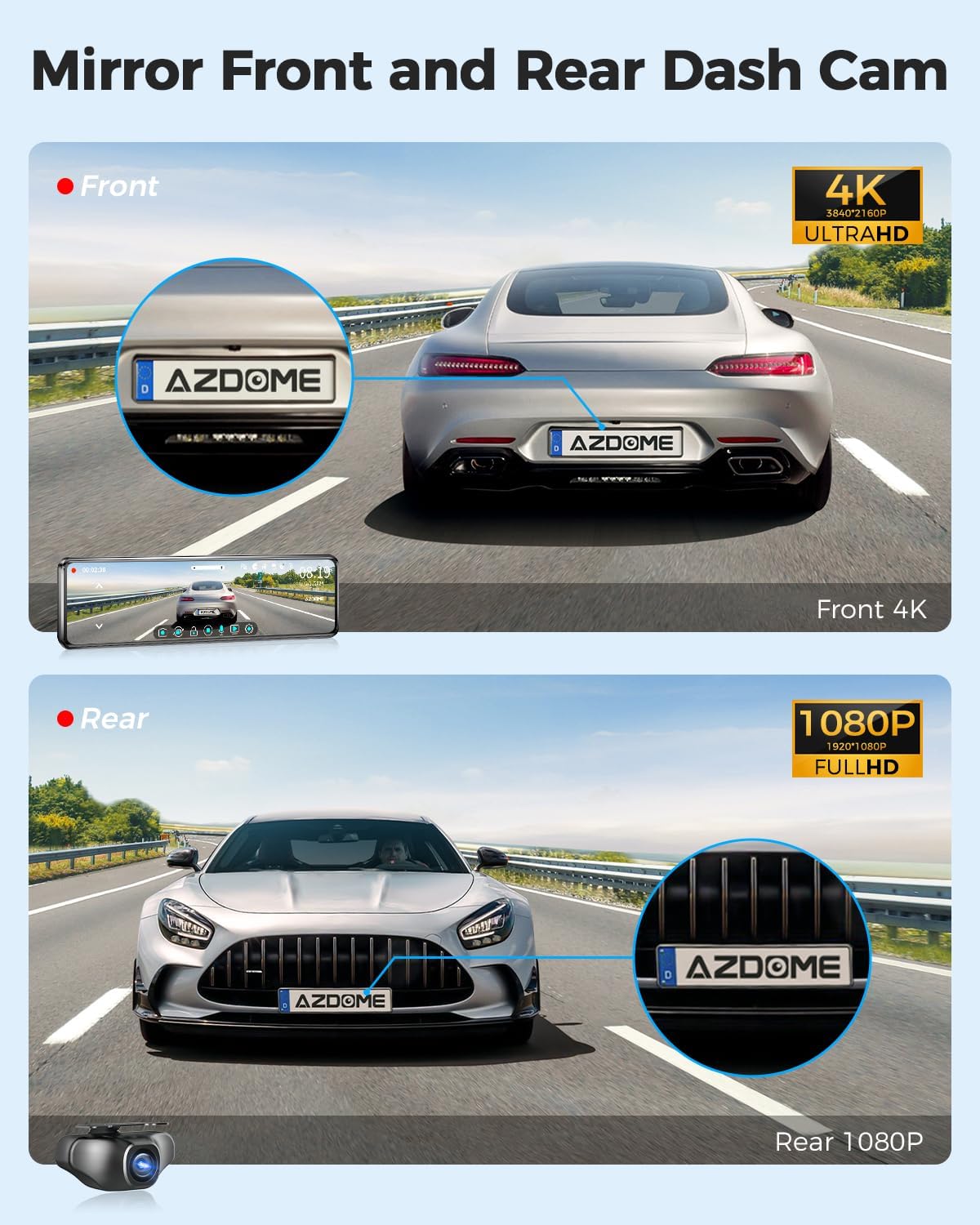
Image: The dash cam records 4K video from the front and 1080P from the rear, capturing details from both perspectives.
- Connect the rear camera cable to the main mirror unit.
- Route the rear camera cable discreetly along the headliner and A-pillar, down to the rear of your vehicle. Use the pry tool to tuck the cable under trim panels.
- Mount the rear camera above your license plate frame or in a suitable location at the rear of your vehicle. The rear camera is IP66 waterproof.
- Connect the red trigger wire from the rear camera power cord to the positive wire of your vehicle's reversing light. This enables the parking assistance function when reversing. Use a multimeter to identify the positive wire.
5. Wiring Diagram

Image: A visual guide illustrating the connections between the mirror dash cam, front camera, rear camera, GPS module, and power source.
Refer to the diagram above for a visual representation of all connections. Ensure all cables are securely connected and routed to prevent interference or damage.
Operating Instructions
1. 12" IPS Full Touch Screen Interface

Image: The 12-inch IPS full touch screen allows for easy operation, including adjusting the field of view and displaying front and rear camera feeds simultaneously in split screen mode.
- The 12-inch IPS full touch screen provides a clear view and intuitive operation.
- Swipe left/right to switch between front, rear, or split-screen views.
- Swipe up/down on the screen to adjust the camera's field of view.
2. Recording Modes

Image: The dash cam offers 24-hour parking modes, including collision detection (G-sensor) and time-lapse recording, requiring a 3-lead hardwire kit.
- Loop Recording: The dash cam records video in continuous loops (1, 3, or 5 minutes). When the SD card is full, it automatically overwrites the oldest unlocked footage.
- 24H Parking Mode: Requires a 3-lead hardwire kit (sold separately). Choose between:
- Collision Detection Parking Mode: The built-in G-sensor detects impacts and automatically locks the current video to prevent overwriting.
- Time-Lapse Parking Mode: Records continuously at a low frame rate for 24 hours, conserving storage space while providing comprehensive surveillance.
3. GPS Tracking
The integrated GPS module allows you to record your vehicle's speed, route, latitude, and longitude. This data can be viewed alongside your recorded video using the AZDOME GPS Player software on your computer, providing crucial evidence in case of incidents.
4. Parking Assistance Function

Image: When reversing, the mirror dash cam automatically displays the rear camera feed in full screen with parking lines for assistance.
When your vehicle is put into reverse, the rear camera image will automatically display in full screen on the mirror, complete with parking lines to assist with safe maneuvering.
5. Super Night Vision

Image: The Super Night Vision feature, powered by the Sony IMX335 sensor and WDR technology, captures clear road details in low-light conditions.
Equipped with a Sony IMX335 sensor and 6-glass lens, the PG18S provides enhanced night vision. Wide Dynamic Range (WDR) technology further improves image clarity by balancing highlights and shadows, ensuring important details are captured even in challenging low-light environments.
Maintenance
- Regularly check and format the SD card to ensure optimal recording performance.
- Clean the camera lenses and mirror screen with the provided cleaning cloth to maintain clear visibility.
- Ensure all cables are securely connected and free from damage.
Troubleshooting
- Dash cam not powering on: Check the car charger connection and ensure the vehicle's power outlet is functioning.
- "Slow speed SD card" message: This indicates the included 64GB card may not be performing optimally or is nearing its lifespan. Replace with a high-speed (Class 10 or U3) SD card.
- Poor night vision: Ensure camera lenses are clean. Verify WDR setting is enabled in the menu.
- Rear camera not displaying when reversing: Check the connection of the red trigger wire to the vehicle's reversing light positive wire.
- GPS not tracking: Ensure the GPS module is mounted with a clear view of the sky and its cable is securely connected.
Specifications
| Feature | Detail |
|---|---|
| Product Dimensions | 11.4 x 2.7 x 0.6 inches |
| Item Weight | 2.57 pounds |
| Item Model Number | PG18S |
| Connectivity Technology | USB, Wireless |
| Special Features | Touch Screen, GPS, WDR Night Vision, Parking Assistance |
| Video Capture Resolution | Front: 4K (3840x2160P); Rear: 1080P |
| Included Components | Memory Card (64GB) |
| Mounting Type | Rearview Mirror Mount |
| Field Of View | 170 Degrees |
| Manufacturer | AZDOME Tech |
| Date First Available | November 27, 2021 |
Warranty and Support
AZDOME PG18S includes a 12-month warranty and 24/7 technical support. For any issues or inquiries regarding after-sales service, please contact AZDOME customer support. The AZDOME R&D team aims to respond within 24 hours on working days.


