
Introduction
Thank you for choosing the CRAFTSMAN CMMT77695 OBD2 Scanner Diagnostic Tool. This wireless Bluetooth device connects to your smartphone to provide comprehensive vehicle diagnostics, including reading and clearing check engine lights, generating diagnostic reports, and monitoring I/M readiness. This manual will guide you through the setup, operation, maintenance, and troubleshooting of your device.
Package Contents
- CRAFTSMAN CMMT77695 OBD2 Dongle (1)
- User Manual (this document)
Setup
1. Download the Application
The CRAFTSMAN CMMT77695 operates via a dedicated smartphone application. Search for the "CRAFTSMAN Auto Assist" app (or similar official CRAFTSMAN diagnostic app) on your device's app store (Apple App Store for iOS or Google Play Store for Android) and install it. Ensure your smartphone meets the minimum system requirements for the app.
2. Connect the OBD2 Dongle to Your Vehicle
Locate your vehicle's OBD-II port. This port is typically found under the dashboard on the driver's side, often near the steering column. Plug the CRAFTSMAN OBD2 dongle firmly into the OBD-II port. The dongle may have an indicator light that illuminates upon successful connection.
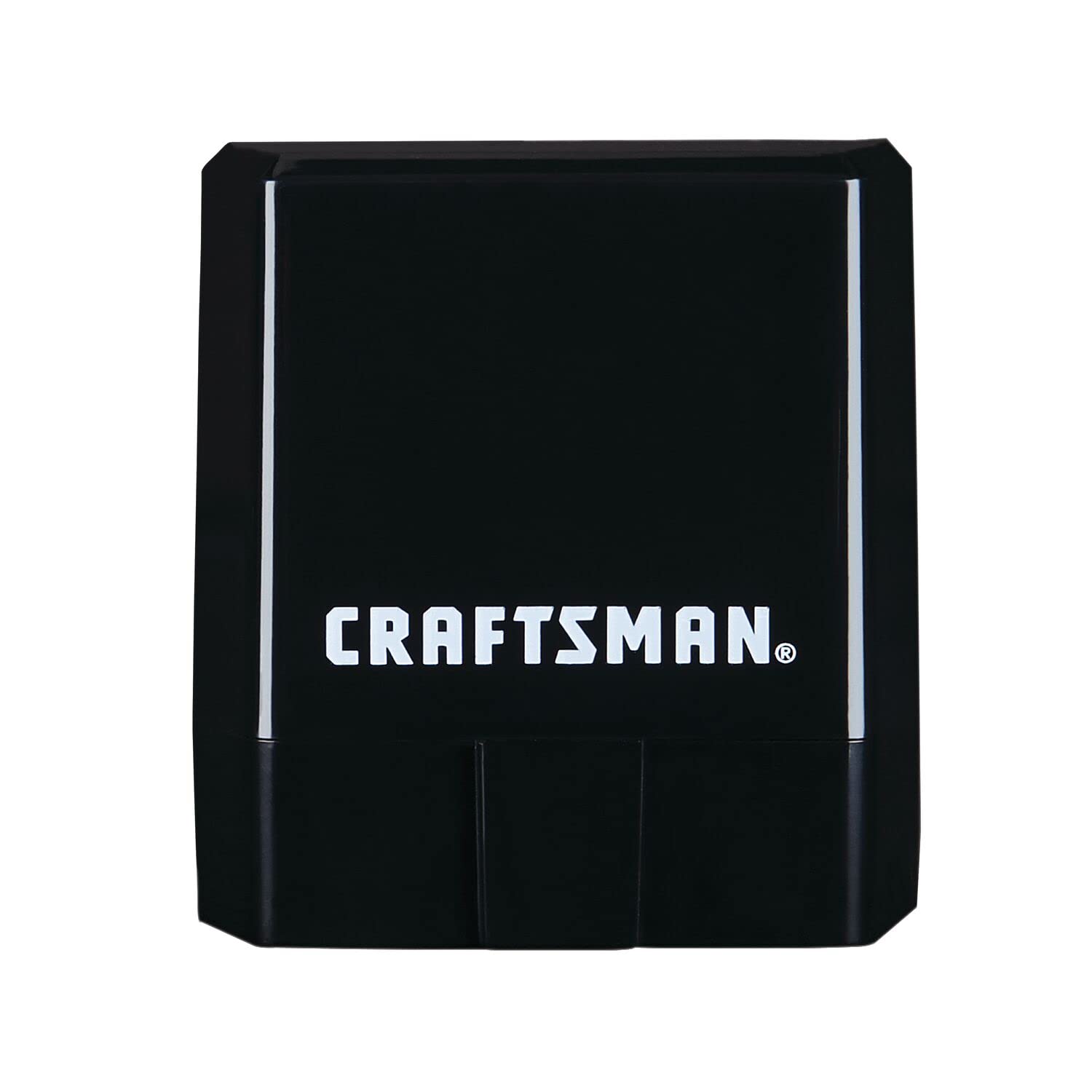
Image: The CRAFTSMAN CMMT77695 OBD2 dongle shown next to a smartphone displaying the CRAFTSMAN application. This illustrates the device and its companion app.
3. Pair with Your Smartphone via Bluetooth
- Turn on your vehicle's ignition (do not start the engine unless instructed by the app).
- Enable Bluetooth on your smartphone.
- Open the CRAFTSMAN diagnostic application.
- Follow the in-app instructions to search for and pair with the CRAFTSMAN CMMT77695 dongle. The device may appear as "CRAFTSMAN OBD2" or a similar identifier.
- Once paired, the app should indicate a successful connection to your vehicle.
Operating Instructions
After successful setup and connection, you can begin using the diagnostic features of your CRAFTSMAN CMMT77695.
1. Reading and Clearing Diagnostic Trouble Codes (DTCs)
- Scanning for Codes: From the main menu of the app, select the "Scan" or "Read Codes" option. The device will communicate with your vehicle's onboard computer to retrieve any stored, pending, or permanent diagnostic trouble codes.
- Viewing Diagnostic Reports: The app will display a diagnostic report detailing any detected issues, including code definitions and their severity level. This report helps you understand the nature of the problem.
- Clearing Check Engine Light: If you have resolved the underlying issue or wish to clear the "Check Engine" light (Malfunction Indicator Lamp - MIL), select the "Clear Codes" option within the app. Confirm the action when prompted. Note: Clearing codes without addressing the root cause will likely result in the codes reappearing.

Image: A smartphone screen showing a diagnostic report with "3 Issues Found" and details about detected problems, while the CRAFTSMAN OBD2 dongle is connected to the vehicle's port.
2. I/M Readiness Monitoring
The I/M (Inspection/Maintenance) Readiness function checks if the various emissions-related systems on your vehicle are operating correctly and have completed their self-tests. This is crucial for emissions testing. Access this feature through the app to view the status of each monitor (e.g., Catalyst Monitor, O2 Sensor Monitor).
3. Vehicle Snapshot (Freeze Frame Data)
When a Diagnostic Trouble Code (DTC) is stored, the vehicle's computer records a "snapshot" of operating conditions at that moment. This is known as Freeze Frame data. The CRAFTSMAN CMMT77695 allows you to access this data through the app, providing valuable information such as engine RPM, vehicle speed, coolant temperature, and fuel system status at the time the fault occurred.
4. On-Board Monitoring
This feature allows you to monitor various vehicle systems and components. The specific parameters available for monitoring will depend on your vehicle's make, model, and year. Consult the app for available real-time data streams.
Maintenance
- Cleaning: Wipe the exterior of the dongle with a soft, dry cloth. Do not use abrasive cleaners or solvents.
- Storage: Store the device in a cool, dry place away from direct sunlight and extreme temperatures when not in use.
- Software Updates: Regularly check for updates to the CRAFTSMAN diagnostic application through your smartphone's app store to ensure optimal performance and compatibility with the latest vehicle models and diagnostic protocols.
Troubleshooting
| Problem | Possible Cause | Solution |
|---|---|---|
| Device does not power on or connect. |
|
|
| App cannot find or pair with the device. |
|
|
| No diagnostic data or codes found. |
|
|
| App requires manual input for vehicle details. |
|
|
Specifications
| Feature | Detail |
|---|---|
| Model Number | CMMT77695 |
| Brand | CRAFTSMAN |
| Connectivity | Wireless Bluetooth |
| Power Source | Vehicle OBD-II Port (Electric) |
| Included Components | OBD2 Dongle (1) |
| Vehicle Compatibility | 1996 and newer Asian, Domestic, and European vehicles (excluding electric and diesel-powered vehicles) |
| Functions | Read/Clear DTCs, Diagnostic Reports, I/M Readiness, Vehicle Snapshot (Freeze Frame), On-Board Monitoring |
| UPC | 885911671330 |
Warranty Information
Specific warranty details for the CRAFTSMAN CMMT77695 OBD2 Scanner Diagnostic Tool are not provided in this manual. Please refer to the warranty card included with your product or visit the official CRAFTSMAN website for the most current and detailed warranty information. Keep your proof of purchase for warranty claims.
Customer Support
For technical assistance, product inquiries, or support regarding the CRAFTSMAN CMMT77695, please visit the official CRAFTSMAN website or contact their customer service department.
- Official Website: www.craftsman.com (or relevant support page)
- App Support: Check the "Help" or "Support" section within the CRAFTSMAN diagnostic application for in-app assistance.