Introduction
Welcome to the user manual for your Dell Precision 7670 Mobile Workstation. This document provides essential information for setting up, operating, maintaining, and troubleshooting your device. The Dell Precision 7670 is engineered for demanding professional applications, offering high performance and reliability for tasks such as CAD, video editing, and scientific simulations.
Please read this manual thoroughly to ensure optimal use and longevity of your workstation.
Setup
1. Unboxing and Initial Inspection
Carefully remove your Dell Precision 7670 Workstation and its accessories from the packaging. Verify that all components are present:
- Dell Precision 7670 Mobile Workstation
- Power Adapter and Power Cord
- Documentation (including this manual)
Inspect the workstation for any physical damage. If any components are missing or damaged, contact Dell support immediately.

Figure 1: Dell Precision 7670 Mobile Workstation. This image shows the laptop open, displaying a complex 3D simulation of a car model on its screen, highlighting its capability for demanding graphical tasks.
2. Connecting the Power Adapter
- Connect the power cord to the power adapter.
- Plug the power adapter into a grounded electrical outlet.
- Connect the power adapter's output cable to the power input port on your workstation.
The battery will begin charging automatically. It is recommended to fully charge the battery before initial use.
3. Initial Boot-Up and Operating System Setup
Press the power button located on the workstation to turn it on. The system will guide you through the initial setup process for Windows 11 Pro. Follow the on-screen instructions to configure:
- Language and region settings
- Network connection
- Microsoft account login or local account creation
- Privacy settings
Ensure you have an active internet connection during this process for updates and account synchronization.
Operating Your Workstation
1. Keyboard and Touchpad
The Dell Precision 7670 features a US English Single Pointing Backlit Keyboard and a precision touchpad. The keyboard includes a numeric keypad and function keys for various system controls (e.g., volume, brightness).
The touchpad supports multi-touch gestures for navigation and interaction with the operating system.

Figure 2: Top-down view of the Dell Precision 7670 keyboard and touchpad. This image highlights the full-size backlit keyboard with a numeric pad and the large, responsive touchpad.
2. Ports and Connectors
Your workstation is equipped with various ports for connecting external devices. Refer to the system's physical layout for exact port locations.
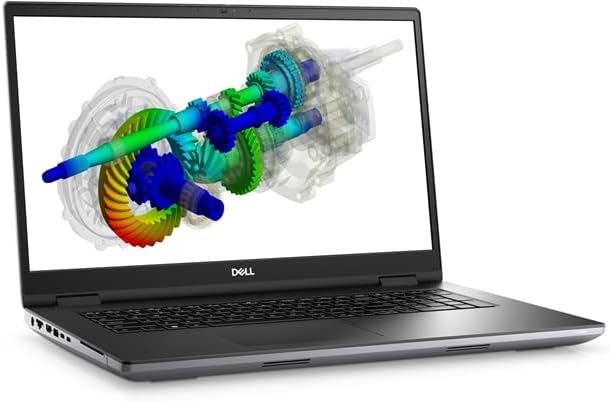
Figure 3: Side view of the Dell Precision 7670, illustrating the arrangement of various input/output ports such as USB, audio jack, and potentially display outputs.
Common ports include:
- USB-A ports
- USB-C / Thunderbolt ports
- HDMI or DisplayPort for external monitors
- Audio jack
- Ethernet port (if present)
- SD card reader (if present)
3. Wireless Connectivity
The workstation supports Intel Wi-Fi 6E (6GHz) AX211 2x2 for high-speed wireless internet access and Bluetooth for connecting wireless peripherals like mice, keyboards, and headsets.
- Wi-Fi: Access network settings in Windows 11 to connect to available Wi-Fi networks.
- Bluetooth: Enable Bluetooth in Windows settings to pair with compatible devices.
4. Camera and Microphone
The integrated FHD IR Camera supports ExpressSign-In and Intelligent Privacy features, enhancing security and convenience. The built-in microphone is suitable for video conferencing and voice commands.
- Camera Shutter: A physical shutter is included for privacy. Slide it to cover the camera lens when not in use.
- ExpressSign-In: Utilizes the IR camera for facial recognition login.
- Intelligent Privacy: Features like "Look Away Detect" and "Onlooker Detect" can dim the screen or alert you when someone is looking over your shoulder.
5. Display Features
Your workstation features a 16-inch FHD+ (1920 x 1200) Anti-Glare 60Hz 250-nits 45% NTSC Non-Touch Display. The anti-glare coating reduces reflections, improving visibility in various lighting conditions.
Maintenance
1. Cleaning Your Workstation
- Screen: Use a soft, lint-free cloth lightly dampened with water or a screen cleaner. Avoid harsh chemicals.
- Keyboard and Chassis: Use a soft cloth. For stubborn dirt, a slightly damp cloth can be used. Ensure no liquid enters the system. Compressed air can remove dust from between keys.
- Ports: Keep ports free of dust and debris to ensure proper connections.
2. Battery Care
To maximize battery life and longevity:
- Avoid extreme temperatures.
- Do not leave the battery fully discharged for extended periods.
- For long-term storage, charge the battery to approximately 50-80%.
3. Software Updates
Regularly update your Windows 11 Pro operating system and Dell drivers. Updates often include security patches, performance improvements, and new features.
- Windows Updates: Go to Settings > Windows Update.
- Dell Drivers: Use the Dell SupportAssist application or visit the official Dell support website for your model.
4. Storage Management
Your workstation is equipped with a 4TB PCIe M.2 NVMe Gen 4 Class 40 Solid State Drive. Regularly manage your storage to maintain optimal performance:
- Delete unnecessary files.
- Uninstall unused applications.
- Consider cloud storage for large files.
Troubleshooting
This section addresses common issues you might encounter with your Dell Precision 7670 Workstation.
1. Power Issues
- Workstation does not turn on:
- Ensure the power adapter is securely connected to both the workstation and a working electrical outlet.
- Verify the power outlet is functional by plugging in another device.
- Try a different power adapter if available and compatible.
- Battery not charging:
- Check power adapter connections.
- Ensure the power adapter is the correct one for your workstation.
- Update battery drivers via Dell SupportAssist.
2. Display Problems
- No display or blank screen:
- Ensure the workstation is powered on.
- Connect an external monitor to check if the issue is with the internal display.
- Restart the workstation.
- Flickering or distorted display:
- Update graphics drivers (NVIDIA RTX A3000).
- Adjust display resolution and refresh rate in Windows settings.
3. Connectivity Issues
- Wi-Fi not connecting:
- Ensure Wi-Fi is enabled in Windows settings.
- Restart your router and modem.
- Update Wi-Fi drivers (Intel Wi-Fi 6E AX211).
- Bluetooth device not pairing:
- Ensure Bluetooth is enabled on both the workstation and the device.
- Place devices close to each other.
- Remove and re-add the Bluetooth device in Windows settings.
4. Performance Slowdowns
- System is slow or unresponsive:
- Close unnecessary applications.
- Check Task Manager for processes consuming high CPU or RAM.
- Ensure sufficient free space on the 4TB SSD.
- Run a malware scan.
- Update drivers and Windows.
For more advanced troubleshooting or issues not covered here, please refer to the Dell support website or contact technical support.
Specifications
The following table outlines the key technical specifications for the Dell Precision 7670 Mobile Workstation:
| Feature | Specification |
|---|---|
| Model Name | Precision 7670 |
| Processor | Intel Core i9-12950HX (12th Generation, 16 Cores, up to 5.00GHz, 30MB Cache) |
| Operating System | Windows 11 Pro |
| Memory (RAM) | 64GB (2x32GB) DDR5 SoDIMM (up to 4800MHz) |
| Storage | 4TB PCIe M.2 NVMe Gen 4 Class 40 Solid State Drive |
| Graphics Card | NVIDIA RTX A3000 12GB GDDR6 |
| Display | 16-inch FHD+ (1920 x 1200) Anti-Glare 60Hz 250-nits 45% NTSC Non-Touch Display |
| Camera | FHD IR Camera with Shutter, ExpressSign-In, Intelligent Privacy |
| Wireless Connectivity | Intel Wi-Fi 6E (6GHz) AX211 2x2 + Bluetooth |
| Keyboard | US English Single Pointing Backlit Keyboard |
| Dimensions (LxWxH) | 15.99 x 157 x 0.75 inches |
| Item Weight | 8.78 pounds |
| Power Source | Battery Powered (1 Lithium Ion battery included) |
Note: Specifications are subject to change without notice. For the most current information, please refer to the official Dell product page. The listed width of 157 inches appears to be a data entry error and should be disregarded.
Warranty and Support
Your Dell Precision 7670 Mobile Workstation comes with a 5-Year Onsite Warranty. This warranty covers hardware defects and provides onsite service for eligible repairs.
For warranty claims, technical assistance, or to access additional support resources, please visit the official Dell support website:
When contacting support, please have your service tag or express service code ready. These can typically be found on a label on the bottom of your workstation or accessed through system information software.