
BOMAKER Mini WiFi Projector 10''
BOMAKER Mini WiFi Projector 10'' User Manual
Model: Mini WiFi Projector 10''
1. Introduction
This manual provides comprehensive instructions for the setup, operation, maintenance, and troubleshooting of your BOMAKER Mini WiFi Projector 10''. Please read this manual thoroughly before using the projector to ensure proper operation and to maximize its lifespan. Keep this manual for future reference.
The BOMAKER Mini WiFi Projector 10'' is a portable 720P HD LCD projector designed for home cinema, gaming, and various multimedia applications. It features WiFi connectivity for smartphone mirroring, multiple input options including HDMI, USB, and AV, and supports projection sizes up to 300 inches.
2. Important Safety Information
To prevent fire, electric shock, or injury, always observe the following safety precautions:
- Do not block the ventilation openings. Ensure adequate airflow around the projector.
- Do not look directly into the projector lens when the lamp is on. The bright light can cause eye damage.
- Do not expose the projector to rain or moisture to avoid electric shock.
- Use only the power adapter supplied with the projector.
- Place the projector on a stable, level surface.
- Unplug the projector from the power outlet during lightning storms or when unused for long periods.
- Do not attempt to repair this product yourself. Refer all servicing to qualified service personnel.
3. Package Contents
Verify that all items listed below are included in your package:
- 1 x BOMAKER Mini WiFi Projector
- 1 x Remote Control
- 1 x Power Adapter
- 1 x HDMI Cable
- 1 x AV Cable
- 1 x User Manual
4. Product Overview
Familiarize yourself with the various parts and connections of your projector.

Figure 4.1: Front view of the BOMAKER Mini WiFi Projector. This image shows the projector's lens, focus ring, and keystone correction dial, with a smartphone wirelessly connected and displaying content on its screen, illustrating the WiFi mirroring capability.
4.1. Input/Output Ports
The projector features a variety of ports for connecting different devices.

Figure 4.2: Rear view of the projector displaying its connectivity options. From left to right, the ports include AV, USB, Audio Out, VGA, HDMI, and Micro SD card slot, allowing for versatile device connections.
- AV Port: Connect to older devices using the included AV cable.
- USB Port: For connecting USB drives to play media files.
- Audio Out: Connect external speakers or headphones.
- VGA Port: Connect to computers or laptops with a VGA output.
- HDMI Port: Connect to devices like laptops, gaming consoles (PS4), TV sticks, etc.
- Micro SD Card Slot: Insert a Micro SD card to play media files.
5. Setup
5.1. Placement
Choose a suitable location for your projector. For optimal viewing, place the projector on a flat, stable surface or mount it. The optimal projection distance is between 8.2 and 11.2 feet (2.5 to 3.4 meters) for a screen size of 30 to 300 inches.
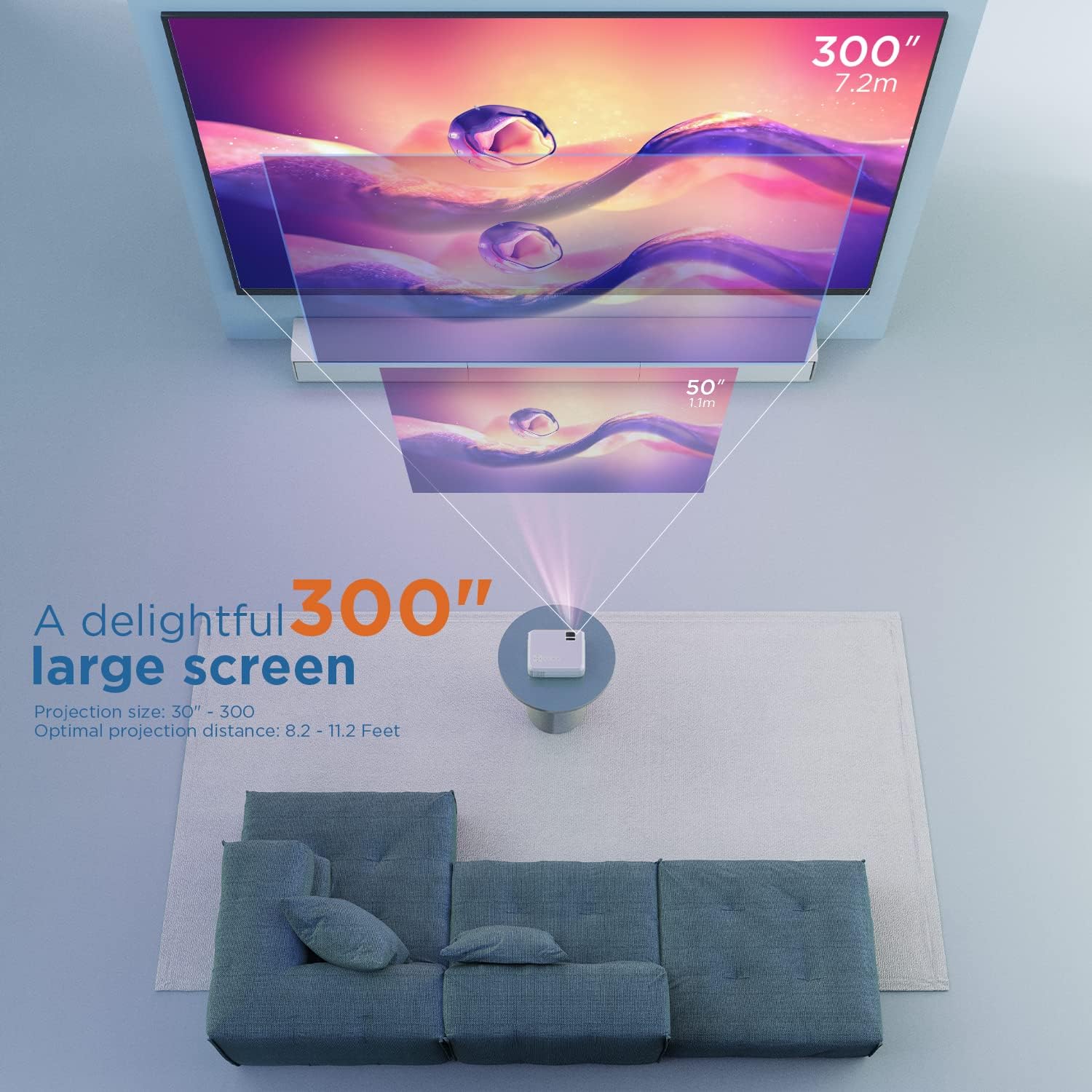
Figure 5.1: Illustration of projection distances and corresponding screen sizes. The image demonstrates how varying the distance between the projector and the screen affects the projected image size, from 50 inches (1.1m) to 300 inches (7.2m).
5.2. Power Connection
- Connect the power adapter to the projector's power input port.
- Plug the power adapter into a wall outlet.
- Press the power button on the projector or remote control to turn it on.
5.3. Focus and Keystone Correction
- Focus: Rotate the focus ring on the projector lens until the image is clear and sharp.
- Keystone: If the projected image appears trapezoidal, adjust the keystone correction dial (usually located near the lens) until the image is rectangular.
6. Operating Instructions
6.1. Basic Operation
- Power On/Off: Press the power button on the projector or remote control.
- Input Source Selection: Use the "Source" button on the remote or projector to select the desired input (HDMI, AV, USB, Micro SD, WiFi).
- Volume Adjustment: Use the volume buttons on the remote control.
6.2. Connecting Devices
The projector supports various connection methods:
6.2.1. HDMI Connection
Connect your laptop, gaming console (PS4), TV stick (e.g., Roku, Fire TV), or other HDMI-enabled devices using an HDMI cable. Select "HDMI" as the input source.
6.2.2. USB/Micro SD Connection
Insert a USB drive or Micro SD card into the respective port. Select "USB" or "Micro SD" as the input source. The projector will display a menu to browse and play media files (photos, videos, music, text).
6.2.3. AV Connection
Use the included AV cable to connect to devices with AV output. Select "AV" as the input source.
6.2.4. WiFi Mirroring (Smartphone Connection)
The projector supports wireless screen mirroring from smartphones (iOS and Android).
- Select "WiFi" as the input source on the projector.
- Follow the on-screen instructions to connect your smartphone to the projector's WiFi network.
- Once connected, enable screen mirroring/casting feature on your smartphone (e.g., "Screen Mirroring" for iOS, "Smart View" or "Cast" for Android).
- Select the projector from the list of available devices.
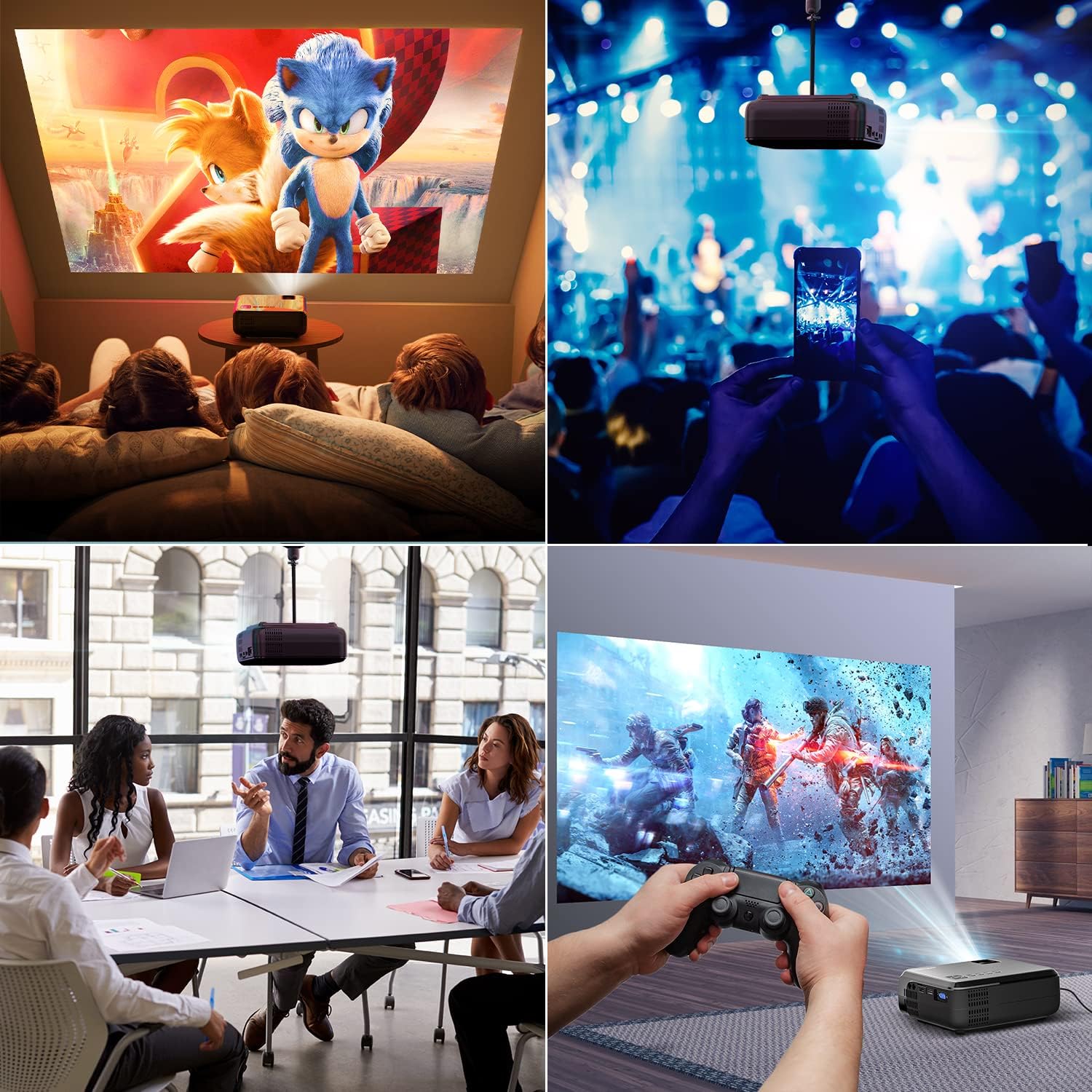
Figure 6.1: This image displays a collage of the projector in different environments: a family watching a movie, a person using a smartphone to control the projector at a concert, a business meeting with a presentation, and a person playing video games. It highlights the versatility of the BOMAKER Mini WiFi Projector for entertainment and professional use.
6.3. Visual Experience
The projector delivers a native 720P HD resolution, ensuring clear and detailed images. It supports 1080P decoding and features a high brightness output for vibrant visuals.
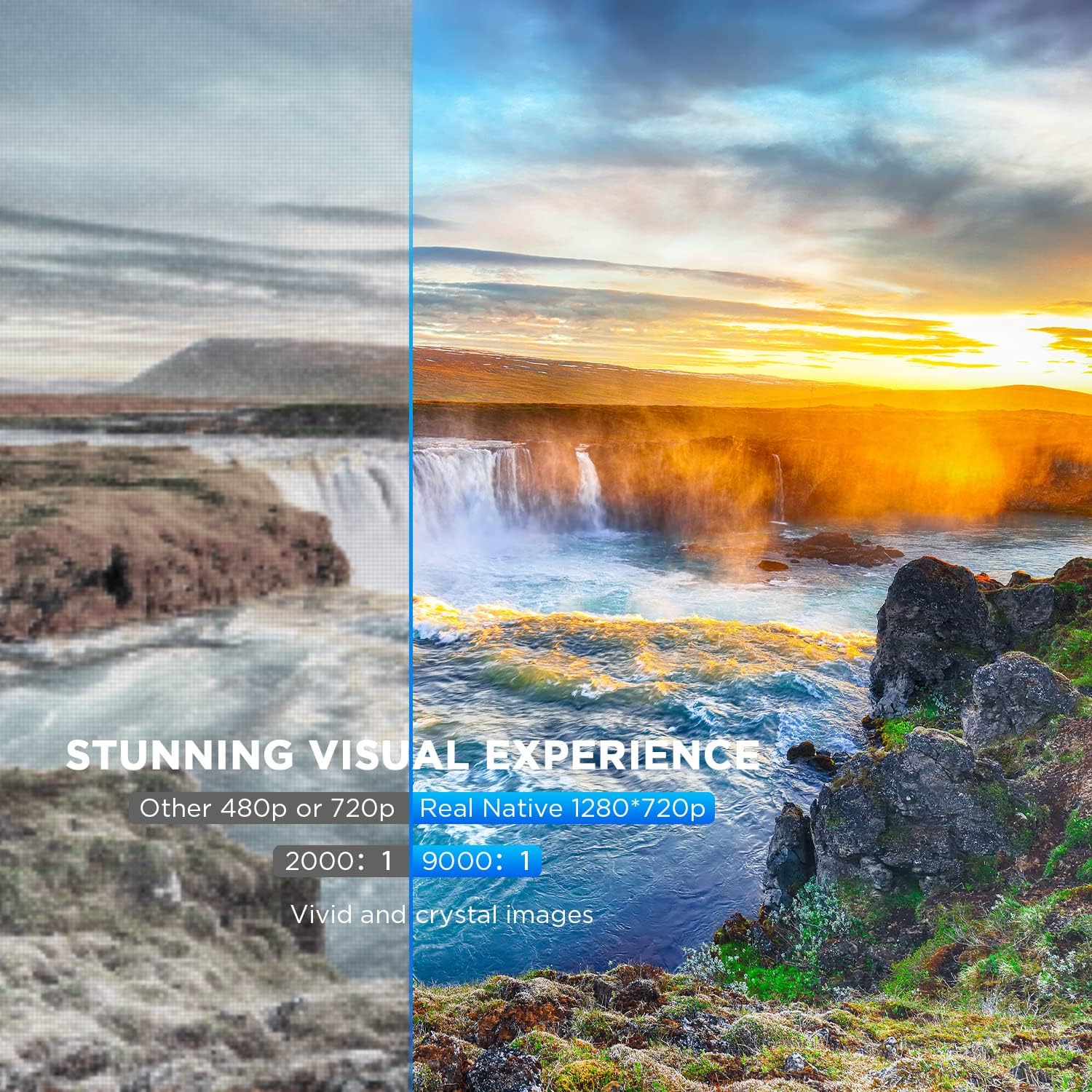
Figure 6.2: A side-by-side comparison demonstrating the difference between standard 480p/720p projection and the projector's real native 1280x720p resolution. The native resolution side shows significantly sharper details and richer colors in a landscape image, emphasizing the "Stunning Visual Experience" and "Vivid and crystal images".

Figure 6.3: This image illustrates the projector's "Crystal Clear Picture with Ultra-low Latency" feature, showing a vibrant, high-definition projection of a car racing scene on a large screen in a living room setting. The text highlights upgraded lens settings for a new visual experience with latency less than 30ms.
7. Maintenance
7.1. Cleaning the Lens
Use a soft, lint-free cloth specifically designed for cleaning optical lenses. Do not use abrasive cleaners or solvents. Gently wipe the lens to remove dust or smudges.
7.2. Cleaning the Projector Body
Wipe the projector's exterior with a soft, dry cloth. For stubborn dirt, a slightly damp cloth can be used, followed by a dry cloth. Ensure no liquid enters the ventilation openings.
7.3. Storage
When not in use, store the projector in a cool, dry place, away from direct sunlight and extreme temperatures. Cover the lens with its cap to protect it from dust.
8. Troubleshooting
If you encounter issues with your projector, refer to the following common problems and solutions:
| Problem | Possible Cause | Solution |
|---|---|---|
| No image on screen | Power cable not connected; incorrect input source; device not powered on. | Check power connection; select correct input source; ensure connected device is on. |
| Image is blurry | Focus not adjusted; projector too close/far from screen. | Adjust the focus ring; reposition the projector. |
| Image is trapezoidal | Keystone correction not adjusted. | Adjust the keystone correction dial. |
| No sound | Volume too low; external speakers not connected; audio settings on source device. | Increase volume; connect external speakers if needed; check audio output settings on source device. |
| WiFi mirroring issues | Incorrect WiFi connection; smartphone mirroring feature not activated. | Ensure correct WiFi network is selected; activate screen mirroring on your smartphone. |
9. Specifications
| Feature | Detail |
|---|---|
| Brand | BOMAKER |
| Model Number | Mini WiFi Projector 10'' |
| Display Resolution | Native 1280 x 720 (Supports 1080P decoding) |
| Display Type | LCD |
| Connectivity Technology | HDMI, Wi-Fi |
| Compatible Devices | Smartphone, TV Stick, PS4, Laptop, USB Drive, Micro SD Card |
| Product Dimensions | 22L x 17l x 9H centimeters |
| Form Factor | Portable |
| Recommended Uses | Home Cinema, Gaming |
| Color | White |
10. Warranty and Support
For warranty information or technical support, please refer to the documentation included with your purchase or contact BOMAKER customer service. Details regarding specific warranty periods and support channels are typically provided on the manufacturer's official website or within the product packaging.
Related documentsMini WiFi Projector 10''

Ask a question about this manual
Ask about setup, troubleshooting, compatibility, parts, safety, or missing instructions. Manuals+ will review the question and use this page’s manual context to help answer it.