
Logitech Pop Mouse
Logitech POP Mouse User Manual
Model: POP Mouse (Heartbreaker Edition)
Introduction
Welcome to the user manual for your new Logitech POP Mouse. This wireless mouse is designed for comfort and functionality, featuring customizable emoji buttons, SilentTouch Technology for quiet clicks, and a SmartWheel for versatile scrolling. It supports multi-device connectivity via Bluetooth, making it compatible with various operating systems.

The Logitech POP Mouse in Heartbreaker color, showcasing its vibrant design and compact form factor.
What's in the Box
- Logitech POP Wireless Mouse
- 1 AA Battery (pre-installed)
- User Documentation

Illustration of the Logitech POP Mouse packaging and its contents: the mouse, a pre-installed AA battery, and user documentation.
Setup
1. Powering On
The Logitech POP Mouse comes with a pre-installed AA battery. To power on the mouse, locate the on/off switch on the underside of the mouse and slide it to the 'ON' position.
2. Connecting via Bluetooth
- Ensure your device's Bluetooth is enabled.
- On the underside of the POP Mouse, press and hold the Easy-Switch button (labeled 1, 2, or 3) for 3 seconds until the LED light next to it starts blinking rapidly. This indicates the mouse is in pairing mode.
- On your computer or device, go to Bluetooth settings and select "Logitech POP Mouse" from the list of available devices to pair.
- Once connected, the LED light on the mouse will glow solid for 5 seconds.
The POP Mouse can connect to up to three devices. You can switch between paired devices by briefly pressing the Easy-Switch button on the underside of the mouse. The corresponding LED (1, 2, or 3) will light up to indicate the active connection.
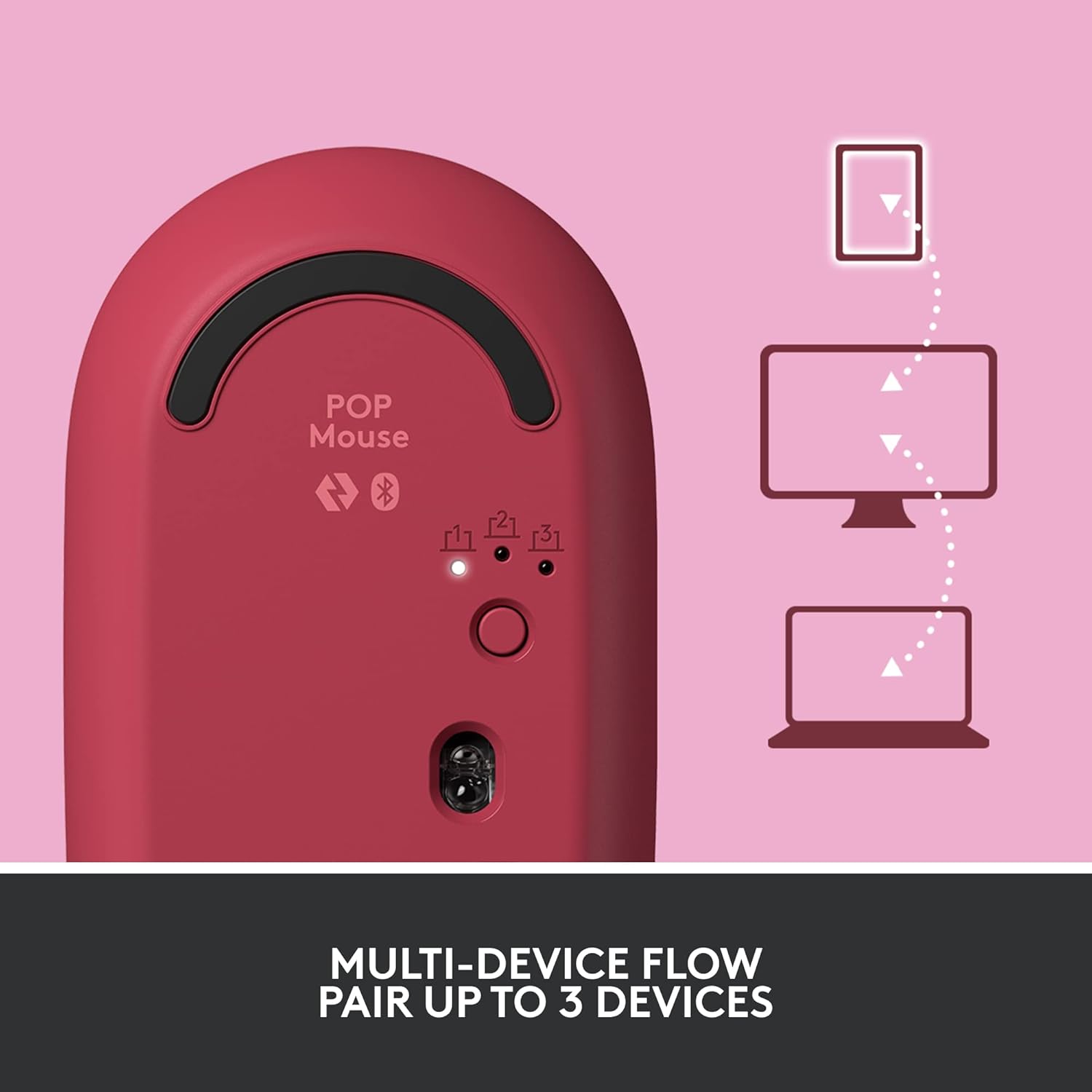
The underside of the POP Mouse, highlighting the Easy-Switch button for pairing and switching between up to three devices.
Operating the POP Mouse
Customizable Top Button (Emoji Button)
The POP Mouse features a unique customizable top button, often referred to as the 'emoji button'. By default, pressing this button opens a menu of emojis for quick access in chats and applications.

The customizable top button on the POP Mouse can be configured to open an emoji menu or perform other functions.
You can customize the function of this button using the Logitech Software (available for Windows and macOS). This allows you to assign it to open specific applications, perform keyboard shortcuts, or other actions based on your preference.

The one-touch emoji feature allows for quick insertion of emojis into conversations.

Customize the emoji button for different applications using the Logitech Software.
SmartWheel Scrolling
The POP Mouse is equipped with a SmartWheel that automatically shifts between two modes: precision scrolling and speed scrolling. This allows for precise control when needed and rapid navigation through long documents or web pages.

The SmartWheel dynamically adjusts its scrolling mode for optimal precision or speed.
SilentTouch Technology
Experience quiet clicks with Logitech's SilentTouch Technology. This feature significantly reduces clicking noise, making the POP Mouse ideal for quiet environments.

The POP Mouse features SilentTouch Technology for a quiet user experience.
FLOW Multi-Device Control
Utilize Logitech FLOW to seamlessly control multiple computers with your POP Mouse. This feature allows you to move your cursor across screens and even copy-paste text, images, and files between computers.
- Requires Logitech Options software installed on all connected computers.
- Ensure all devices are on the same network.
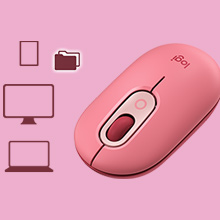
Logitech FLOW enables seamless control and content transfer between multiple devices.
Maintenance
Battery Replacement
The Logitech POP Mouse uses one AA battery, providing up to 24 months of battery life. When the battery is low, the LED indicator on the mouse will signal a low power state. To replace the battery:
- Gently lift the top cover of the mouse. It is held by magnets.
- Remove the old AA battery.
- Insert a new AA battery, ensuring correct polarity.
- Replace the top cover, aligning it properly until it snaps into place.
Cleaning
To clean your POP Mouse, use a soft, damp cloth. Avoid using harsh chemicals or abrasive materials that could damage the surface. Ensure no liquid enters the mouse's internal components.
Troubleshooting
| Issue | Solution |
|---|---|
| Mouse not connecting via Bluetooth |
|
| Cursor movement is erratic or unresponsive |
|
| Customizable button not working |
|
Specifications
| Feature | Detail |
|---|---|
| Model Name | POP Mouse (910-006516) |
| Dimensions (LxWxH) | 10.5 x 5.9 x 3.5 cm |
| Weight | 82 g |
| Connectivity | Bluetooth |
| Movement Detection | Optical |
| Battery Type | 1 x AA (Alkaline) |
| Battery Life | Up to 24 months |
| Special Features | SilentTouch Technology, Customizable Emoji Button, SmartWheel, Multi-Device (up to 3) |
| Compatible OS | Windows 10, Mac OS 9, Chrome OS, Android, Linux |
| Material | Plastic (includes post-consumer recycled plastic) |

Physical dimensions of the Logitech POP Mouse.
Warranty and Support
The Logitech POP Mouse comes with a 1-year manufacturer's warranty.
For technical support, warranty claims, or further assistance, please contact Logitech Customer Care:
- Toll-free Number: 1800 572 4730 (9:00am to 6:00pm - Monday to Friday)
- Visit the official Logitech support website for online resources and FAQs.
Related documentsPop Mouse


Ask a question about this manual
Ask about setup, troubleshooting, compatibility, parts, safety, or missing instructions. Manuals+ will review the question and use this page’s manual context to help answer it.