
1. Setup Guide
This section provides instructions for setting up your FMOUSE M101 Dual Mode Wireless Mouse.
1.1 Battery Installation
The FMOUSE M101 requires one AA battery (not included). Follow these steps to install the battery:
- Gently slide open the battery cover located on the underside of the mouse.
- Insert one AA battery into the compartment, ensuring correct polarity (+/-).
- Close the battery cover securely.

Figure 1.1: Battery and USB receiver installation. The image displays the underside of the mouse with the battery cover removed, showing the slot for an AA battery and the storage compartment for the USB receiver.
1.2 Connection Modes (2.4GHz USB Receiver & Bluetooth)
Your FMOUSE M101 supports two connection modes: 2.4GHz wireless via USB receiver and Bluetooth. You can switch between these modes using the switch on the underside of the mouse.
1.2.1 2.4GHz USB Receiver Connection
- Locate the USB receiver stored inside the battery compartment of the mouse (refer to Figure 1.1).
- Plug the USB receiver into an available USB port on your computer (laptop, desktop, etc.).
- Slide the mode switch on the underside of the mouse to the "2.4G" position.
- The mouse should automatically connect to your device. The indicator light will flash green during connection and turn off when connected.

Figure 1.2: Connecting the mouse via 2.4GHz USB receiver. A laptop is shown with the USB receiver inserted, indicating a wireless connection to the mouse.
1.2.2 Bluetooth Connection
- Slide the mode switch on the underside of the mouse to the "BT" (Bluetooth) position.
- On your device (MacBook, iPad, PC, Android device), go to Bluetooth settings.
- Search for available devices and select "FMOUSE M101" to pair.
- The indicator light will flash blue during pairing and turn off when successfully connected.
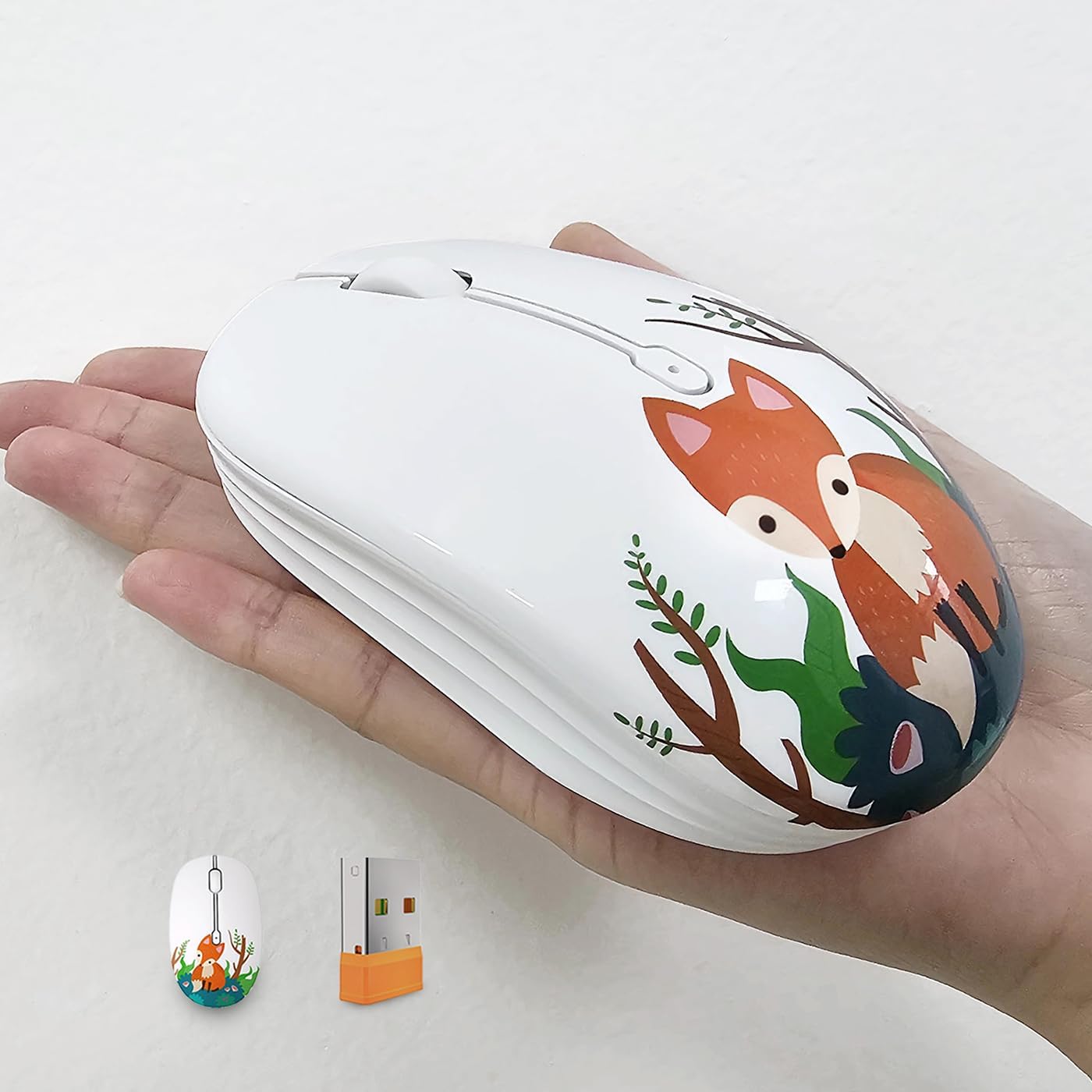
Figure 1.3: Connecting the mouse via Bluetooth. The mouse is positioned next to an iPad, illustrating a Bluetooth connection.
1.2.3 Mode Switch Indicator
The mouse features a mode switch indicator for easy status monitoring:
- Green Light Flash: Indicates 2.4G mode connection.
- Blue Light Flash: Indicates Bluetooth mode connection.
- Red Light Flash (Scroll Wheel): Indicates low battery alert.
- Light Off: Indicates successful connection and normal operation.

Figure 1.4: Mode switch indicator. Close-up of the mouse's underside showing the indicator lights for 2.4G, Bluetooth, and low battery status.
1.3 Compatibility
The FMOUSE M101 is compatible with a wide range of operating systems and devices, including:
- Windows 7 (x86/x64), Windows 8 (x86/x64), Windows 10 or later
- Mac OSX 10.08 or later
- Chrome OS
- Android 5.0 or later
- Personal computers, laptops, tablets, and smartphones.
1.4 Setup Video Guide
Video 1.1: This video demonstrates the setup process for the FMOUSE M101 Wireless Mouse, including battery installation and connecting via 2.4GHz USB receiver and Bluetooth.
Video 1.2: This video provides a quick guide on connecting the FMOUSE M101 via Bluetooth, highlighting the ease of pairing with compatible devices.
2. Operating Instructions
Learn how to effectively use your FMOUSE M101 Dual Mode Wireless Mouse.
2.1 Silent Click Design
The FMOUSE M101 features a silent click design, minimizing noise during use. This allows for a quiet working or studying environment, ideal for libraries, offices, or late-night use.

Figure 2.1: Silent click design. The image highlights the noiseless operation of the mouse buttons.
2.2 Intelligent Power Saving Mode
To conserve battery life, the mouse automatically enters a sleep mode after 10 minutes of inactivity. To wake the mouse, simply click any button.
2.3 Ergonomic Design
The mouse is designed with an ergonomic profile to fit comfortably in your hand, ensuring prolonged comfortable use.

Figure 2.2: Ergonomic design. A hand is shown comfortably gripping the mouse, demonstrating its ergonomic shape.
3. Maintenance
Proper maintenance ensures the longevity and optimal performance of your FMOUSE M101.
3.1 Battery Replacement
When the scroll wheel flashes red, it indicates a low battery. Replace the AA battery by following the steps in Section 1.1 Battery Installation.
3.2 Cleaning
To clean your mouse, use a soft, dry cloth. For stubborn dirt, slightly dampen the cloth with water or a mild cleaning solution. Avoid using harsh chemicals or abrasive materials, as these can damage the mouse's surface or internal components.
4. Troubleshooting
If you encounter issues with your FMOUSE M101, refer to the following common solutions:
4.1 Mouse Not Responding
- Check Battery: Ensure the AA battery is correctly installed and has sufficient charge. Replace if necessary.
- Power On: Verify the mouse is switched ON using the power switch on the underside.
- Wake from Sleep: Click any button to wake the mouse from its intelligent power-saving mode.
4.2 Connection Issues (2.4GHz USB Receiver)
- USB Receiver: Ensure the USB receiver is securely plugged into a working USB port on your device. Try a different USB port if available.
- Mode Switch: Confirm the mode switch on the mouse is set to "2.4G".
- Interference: Move the mouse closer to the USB receiver and away from other wireless devices that might cause interference.
4.3 Connection Issues (Bluetooth)
- Mode Switch: Confirm the mode switch on the mouse is set to "BT" (Bluetooth).
- Bluetooth On: Ensure Bluetooth is enabled on your device.
- Pairing Mode: If the mouse is not appearing in your device's Bluetooth settings, ensure it's in pairing mode (blue light flashing). You might need to briefly switch the mouse off and then back to BT mode to re-enter pairing.
- Forget Device: If previously paired, try "forgetting" or "removing" the mouse from your device's Bluetooth settings and then re-pairing.
5. Specifications
| Feature | Detail |
|---|---|
| Brand | FMOUSE |
| Model Name | M101 |
| Color | Fox Pattern |
| Connectivity Technology | Bluetooth, 2.4GHz USB |
| Special Feature | Wireless 2.4 GHz and Bluetooth dual-mode mouse |
| Movement Detection Technology | Optical |
| Button Quantity | 3 |
| Hand Orientation | Right |
| Compatible Devices | Windows 7/8/10+, Mac OSX 10.08+, Chrome OS, Android 5.0+, PCs, Laptops, Tablets, Smartphones |
| Operating System | Android, Linux, Mac OS, Windows |
| Wireless Range | 10.0 meters |
| Power Source | Battery Powered (1 AA battery required, not included) |
| Maximum Sensitivity | 1600 Dots per Inch (DPI) |
| Item Weight | 58 Grams |
| Item Dimensions (L x W) | 4.13"L x 2.44"W |
| Material | Plastic |
| UPC | 768494408725 |

Figure 5.1: Mouse dimensions. The image provides a visual representation of the mouse's length and width measurements.
6. Warranty & Support
6.1 Manufacturer Warranty
The FMOUSE M101 Dual Mode Wireless Mouse comes with a 1-year manufacturer warranty from the date of purchase. This warranty covers defects in materials and workmanship under normal use. It does not cover damage caused by misuse, accidents, unauthorized modifications, or external causes.
Please retain your proof of purchase for warranty claims.
6.2 Customer Support
For further assistance, technical support, or warranty inquiries, please contact FMOUSE customer service through the retailer's platform or visit the official FMOUSE website.
You can also visit the FMOUSE Store on Amazon for more product information and support resources.


