
YOTON Y7
YOTON Y7 WiFi Bluetooth Native 1080P Full HD Portable Projector User Manual
Model: Y7 | Brand: YOTON
1. Introduction
This user manual provides comprehensive instructions for the safe and efficient operation of your YOTON Y7 WiFi Bluetooth Native 1080P Full HD Portable Projector. Please read this manual thoroughly before using the product and retain it for future reference.
2. Safety Information
To ensure safe operation and prevent damage, please observe the following safety precautions:
- Do not look directly into the projector lens when the lamp is on.
- Do not block the ventilation openings. Ensure adequate airflow around the projector.
- Keep the projector away from water or other liquids.
- Do not expose the projector to extreme temperatures or high humidity.
- Use only the power adapter supplied with the projector.
- Do not attempt to repair the projector yourself. Refer all servicing to qualified personnel.
- Keep out of reach of children.
3. Package Contents
Please check that all items are present and in good condition:
- YOTON Y7 Projector
- Remote Control
- Power Adapter
- HDMI Cable
- AV Cable
- User Manual
- Carrying Bag
4. Product Overview

Figure 4.1: Front view of the YOTON Y7 Projector, showcasing its compact design and the projection capabilities with a mirrored phone screen.
The YOTON Y7 projector features a sleek, portable design with intuitive controls and multiple connectivity options. Key components include the projection lens, focus ring, keystone correction, control panel buttons, and various input/output ports.

Figure 4.2: Rear and side view of the YOTON Y7 Projector, highlighting its wide compatibility with HDMI, USB, and AV inputs, along with connections for speakers/headphones and power.
4.1. Ports and Controls
- Lens: Projects the image onto the screen.
- Focus Ring: Adjusts image clarity.
- Keystone Correction: Corrects trapezoidal distortion.
- Control Panel: Power, navigation, and input selection buttons.
- HDMI Port: Connects to devices like laptops, TV boxes, gaming consoles.
- USB Port: Connects to USB drives for media playback.
- AV Port: Connects to older devices using an AV cable.
- VGA Port: Connects to computers with VGA output.
- Audio Out (3.5mm): Connects to external speakers or headphones.
- Power Input: Connects to the power adapter.
5. Setup
5.1. Placement
Choose a flat, stable surface for the projector. Ensure there is enough space for ventilation. The projector can be placed on a table, mounted on a tripod, or installed on the ceiling.

Figure 5.1: Various projection setups for the YOTON Y7 Projector, including front projection on a table, tripod mounting, and ceiling installation.
5.2. Power Connection
- Connect the power adapter to the projector's power input port.
- Plug the power adapter into a wall outlet.
- The power indicator light on the projector will illuminate.
5.3. Focus and Keystone Correction
- Turn on the projector.
- Adjust the Focus Ring on the lens until the projected image is clear and sharp.
- If the image appears trapezoidal (wider at the top or bottom), adjust the Keystone Correction dial or setting until the image is rectangular. The Y7 model supports ±15° keystone correction.
6. Operating Instructions
6.1. Power On/Off
- Power On: Press the Power button on the projector or remote control.
- Power Off: Press the Power button again. Confirm shutdown if prompted.
6.2. Input Source Selection
Press the "Source" button on the remote or projector to cycle through available input sources (HDMI, USB, AV, VGA, Screen Mirroring).
6.3. WiFi Connection (2.4G/5G)
The YOTON Y7 supports dual-band 2.4G and 5G WiFi for stable and fast wireless screen mirroring.

Figure 6.1: Illustration of the projector's dual-band WiFi capability, enabling seamless screen mirroring from iOS, Android, and Windows devices.
- Select "Screen Mirroring" or "WiFi Display" from the input source menu.
- Follow the on-screen instructions to connect your mobile device (iOS/Android) or Windows laptop to the projector's WiFi network.
- Once connected, activate the screen mirroring function on your device (e.g., AirPlay for iOS, Smart View/Cast for Android, Project to a second screen for Windows).
6.4. Bluetooth Connection
Connect the projector to external Bluetooth speakers or headphones for an enhanced audio experience. The Y7 features updated Bluetooth 5.2 technology.

Figure 6.2: Step-by-step guide for accessing and enabling Bluetooth settings on the projector, allowing connection to external audio devices.
- Navigate to the projector's settings menu.
- Select "Sound" and then "BT Setting".
- Turn on Bluetooth and search for available devices.
- Select your Bluetooth speaker or headphone from the list to pair.
Note: The projector's Bluetooth is for outputting audio to speakers/headphones only. It does not support connecting mobile phones or computers via Bluetooth for input.
6.5. Adjusting Projection Size (Zoom Function)
The Y7 projector features a zoom function to adjust the image size from 100% down to 50% without moving the projector.

Figure 6.3: Menu options for adjusting the display size, allowing users to reduce the projection from 100% to 50% digitally.
- Go to the "Picture" settings in the projector menu.
- Select "Reduce Display Size" and adjust the percentage using the navigation buttons.
6.6. Picture Mode Settings
Adjust picture settings like contrast, brightness, color, and sharpness to optimize your viewing experience.

Figure 6.4: Menu options for customizing picture settings such as Picture Mode, Color Temperature, Aspect Ratio, and individual adjustments for Contrast, Brightness, Color, and Sharpness.
- Go to the "Picture" settings in the projector menu.
- Select "Picture Mode" to choose from preset modes (e.g., Standard, User) or customize individual settings.
7. Maintenance
7.1. Cleaning the Lens
Use a soft, lint-free cloth specifically designed for optical lenses. Do not use abrasive cleaners or solvents.
7.2. Cleaning the Projector Body
Wipe the surface with a soft, dry cloth. For stubborn stains, use a slightly damp cloth and then dry thoroughly.
7.3. Storage
When not in use for extended periods, store the projector in its carrying bag in a cool, dry, dust-free environment.
8. Troubleshooting
| Problem | Possible Cause | Solution |
|---|---|---|
| No image projected | Power not connected; Incorrect input source; Lens cap on. | Check power connection; Select correct input source; Remove lens cap. |
| Image is blurry | Focus not adjusted; Keystone not adjusted. | Adjust the focus ring; Adjust keystone correction. |
| No sound | Volume too low; Muted; External audio device not connected or selected. | Increase volume; Unmute; Check external audio connection/Bluetooth pairing. |
| WiFi mirroring unstable | Weak WiFi signal; Network interference. | Ensure projector and device are close to router; Reduce interference from other devices. |
| Remote control not working | Batteries low/dead; Obstruction between remote and projector. | Replace batteries; Ensure clear line of sight to IR receiver. |
9. Specifications
| Feature | Detail |
|---|---|
| Brand | YOTON |
| Model Number | Y7 |
| Native Resolution | 1920 x 1080p Full HD |
| Max Display Resolution | 3840 x 2160 (4K Support) |
| Brightness | 400 ANSI Lumens (approx. 15000 Lumens) |
| Contrast Ratio | 9000:1 |
| Connectivity Technology | HDMI, USB, AV, VGA, Wi-Fi (2.4G/5G), Bluetooth 5.2 |
| Projection Size | Up to 200 inches |
| Zoom Function | 50% to 100% |
| Keystone Correction | ±15° |
| Lamp Life | 150,000 hours |
| Display Type | LCD |
| Product Dimensions | 21.8L x 16.8W x 8.3H cm |
| Compatible Devices | Fire Stick/TV BOX/Chromecast/iPhone/Android/Mac/Windows |
| Recommended Use | Home Cinema |
| Form Factor | Portable |
| Mounting Options | Table/Ceiling/Wall/Tripod |
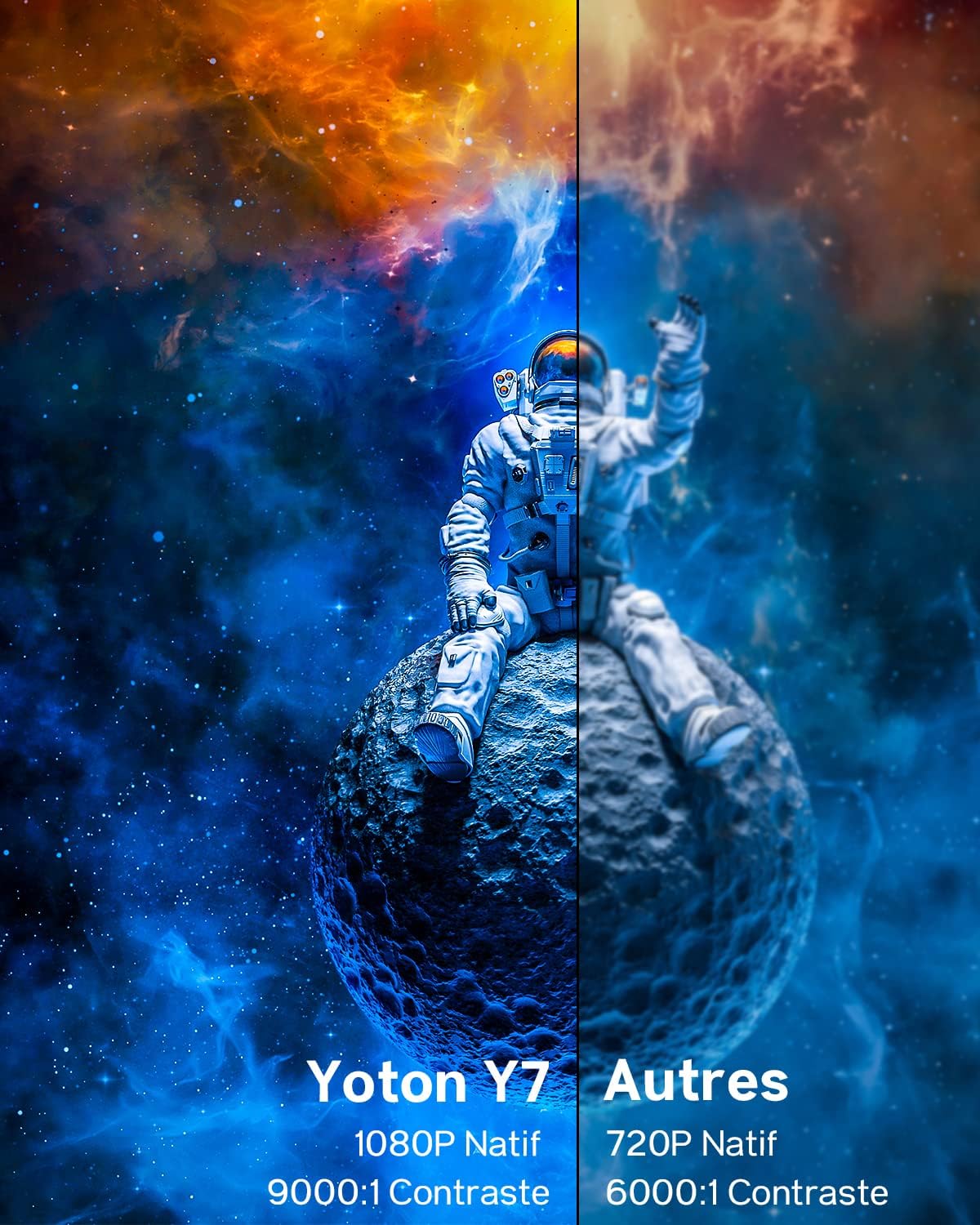
Figure 9.1: Visual comparison highlighting the superior native 1080P resolution and 9000:1 contrast ratio of the YOTON Y7 projector compared to other 720P projectors with lower contrast.

Figure 9.2: Detailed explanation of the projector's native 1920x1080 resolution, enhanced by LED 3.0 technology for clearer and more vivid images, with support for ultra-clear 4K video via HDMI.
10. Warranty and Support
YOTON provides comprehensive support for its products. If you encounter any issues or have questions, please contact us.
- Warranty: 1-Year Warranty.
- Returns: 30-Day Return & Refund Policy.
- Official Support: For 24-hour assistance, please contact support@yoton.co.


Figure 10.1: YOTON's customer support details, including email, 1-year warranty, and 30-day return policy.
Related documentsY7


Ask a question about this manual
Ask about setup, troubleshooting, compatibility, parts, safety, or missing instructions. Manuals+ will review the question and use this page’s manual context to help answer it.