
1. Introduction
This manual provides instructions for the Epson Expression Photo XP-8700 Wireless All-in-One Printer. This device is designed for printing professional-quality photos, scanning, and copying documents. It features 6-color Claria Photo HD inks for vibrant borderless prints and a 4.3-inch color touchscreen for intuitive control.

Figure 1.1: Front view of the Epson Expression Photo XP-8700 printer, showcasing a photo being printed.
2. Initial Setup
Follow these steps to set up your Epson Expression Photo XP-8700 printer for the first time.
2.1 Unpacking and Component Verification
Carefully remove all components from the packaging. Ensure all items listed below are present:
- Epson Expression Photo XP-8700 All-in-One printer
- CD-ROM for product setup
- Power cord
- 6x Claria Photo HD Ink cartridges (Black, Cyan, Magenta, Yellow, Light Cyan, Light Magenta)
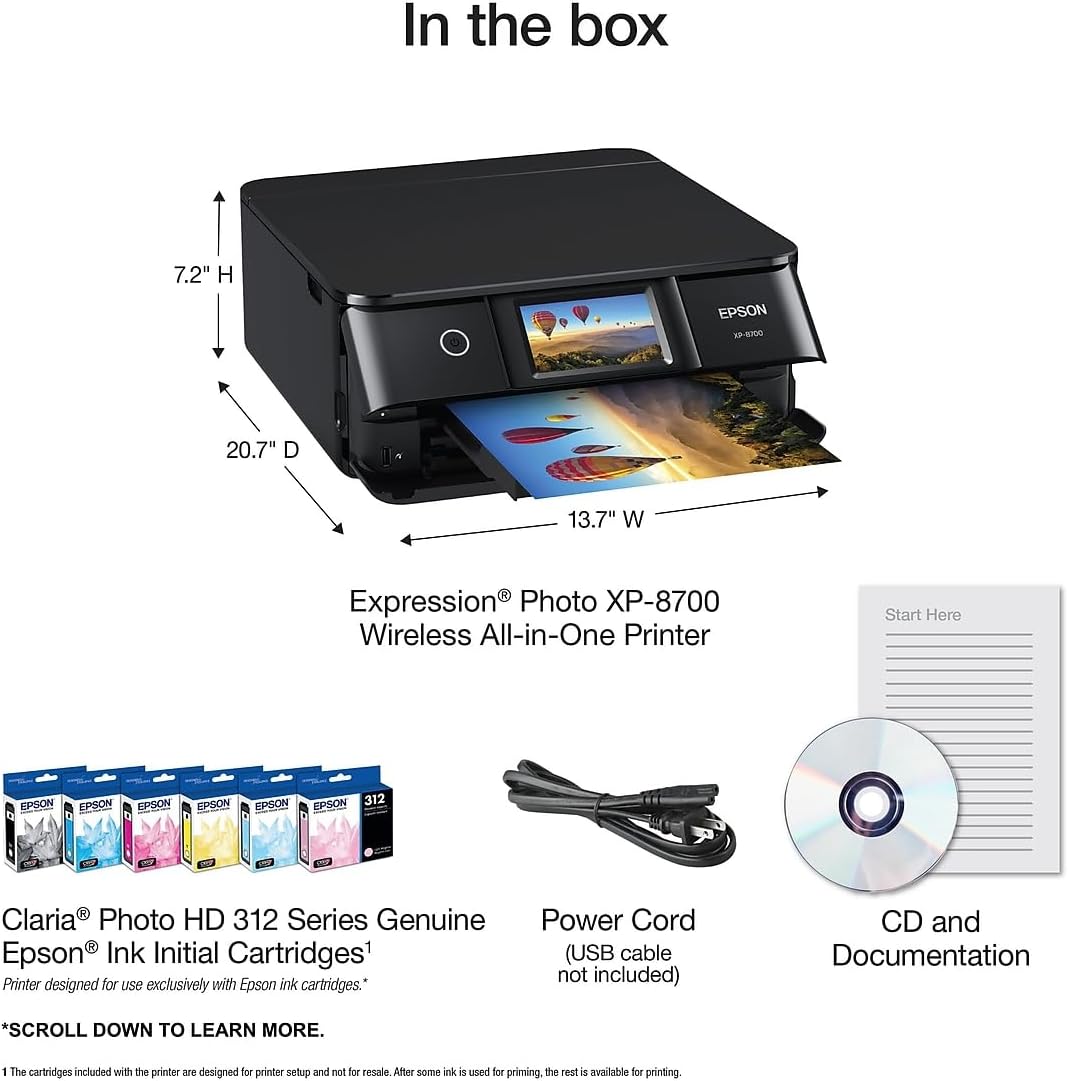
Figure 2.1: Contents included in the product packaging.
2.2 Power Connection
- Connect the power cord to the printer's power input.
- Plug the other end of the power cord into a functional electrical outlet.
- Press the power button on the printer to turn it on.
2.3 Ink Cartridge Installation
Install the included Claria Photo HD Ink cartridges according to the on-screen instructions displayed on the printer's 4.3-inch color touchscreen. Use only genuine Epson cartridges for optimal performance and to avoid potential damage not covered by warranty.
2.4 Software Installation and Network Connection
- Insert the CD-ROM into your computer's CD drive and follow the on-screen instructions to install the printer software. Alternatively, download the latest software from the official Epson support website.
- Follow the prompts on the printer's touchscreen to connect the printer to your wireless network. This process typically involves selecting your network name (SSID) and entering the password.
- For mobile device connectivity, download the Epson Smart Panel App from your device's app store.
3. Operation
This section details the primary functions of your Epson Expression Photo XP-8700 printer.
3.1 Printing Documents and Photos
The printer supports various paper types and sizes, including borderless photo printing up to 8.5" x 11".
- Paper Trays: The printer features separate trays for plain paper and photo paper.
- Rear Feed: A dedicated rear feed is available for specialty papers, such as thicker photo paper or fine art media.
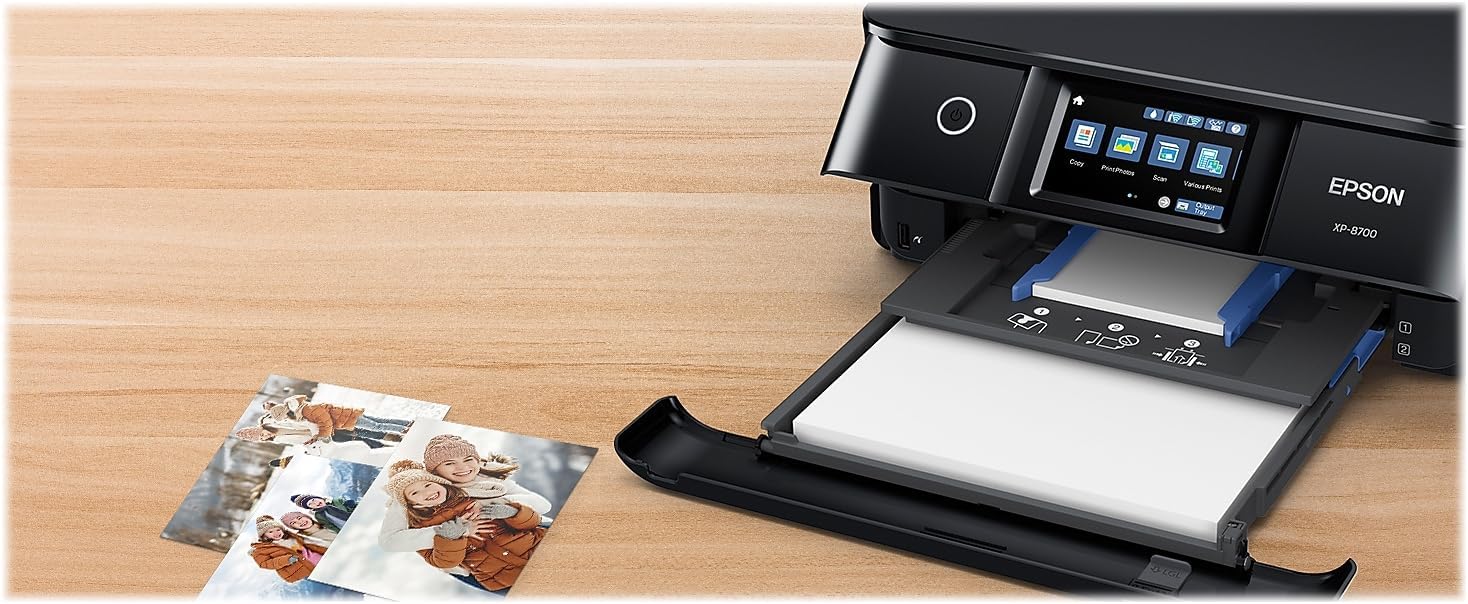
Figure 3.1: Paper trays and rear feed for versatile media handling.
To print:
- Load the desired paper into the appropriate tray or the rear feed.
- From your computer or mobile device, select the print option in your application.
- Choose the Epson XP-8700 as your printer and adjust print settings (e.g., paper type, size, quality) as needed.
- Initiate the print job.
3.2 Scanning and Copying
The built-in flatbed scanner allows for high-resolution scanning and copying.
- Place the document or photo face-down on the scanner glass.
- On the printer's touchscreen, select either the "Scan" or "Copy" function.
- Follow the on-screen prompts to adjust settings such as resolution, color mode, and destination (for scanning) or number of copies (for copying).
- Press the start button to begin the scan or copy operation.
3.3 Wireless Connectivity and Mobile Printing
The XP-8700 supports various wireless printing methods:
- Wi-Fi: Connects to your home or office wireless network for printing from connected devices.
- Wi-Fi Direct: Allows direct connection from a mobile device to the printer without a router.
- Epson Smart Panel App: Transforms your mobile device into a command center for printing, scanning, and printer management.
- Creative Print Mobile App: Enables printing photos and creating custom cards and stationery.
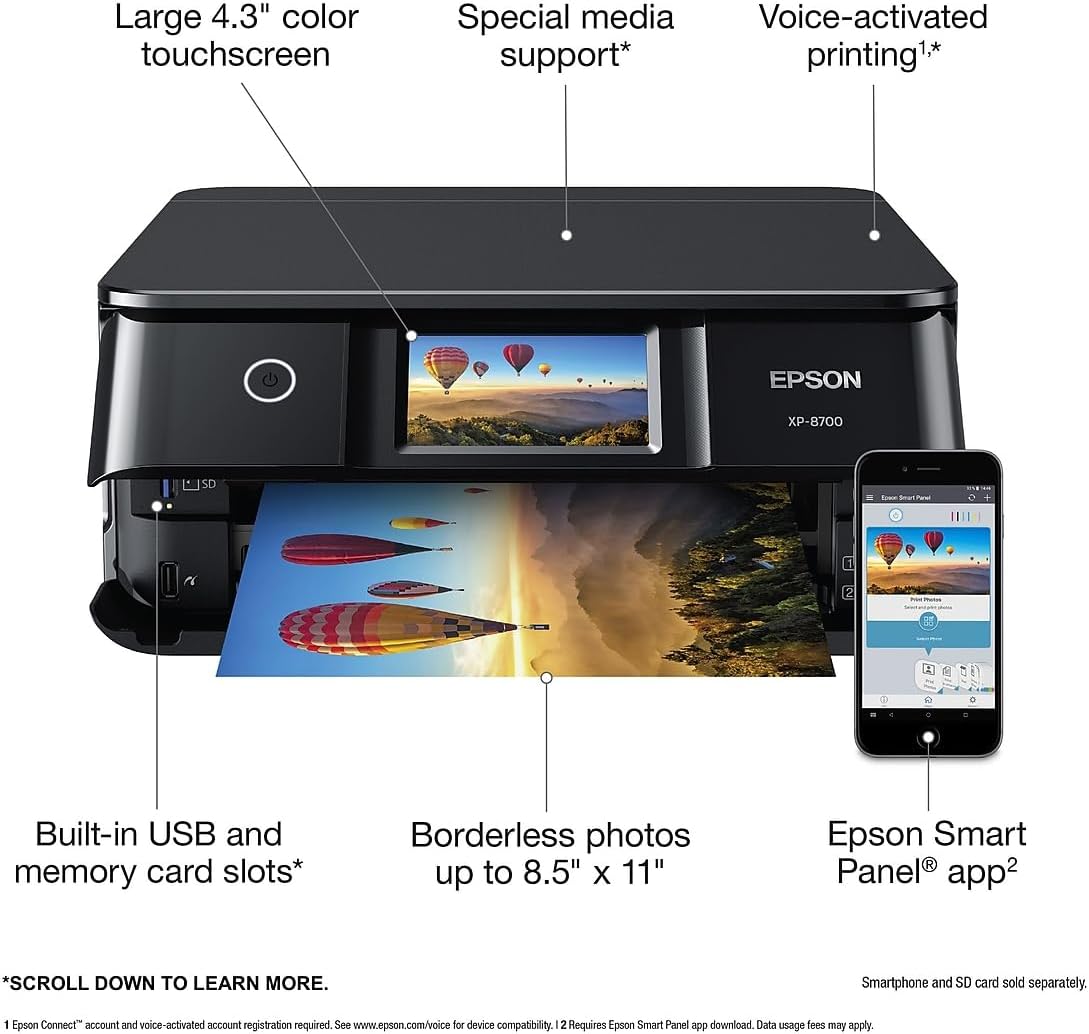
Figure 3.2: Key features of the printer, including mobile app integration.
3.4 Voice-Activated Printing
The printer supports voice-activated printing for various documents and creative projects. An Epson Connect account and voice-activated account registration are required. Refer to the Epson support website for detailed instructions on setting up voice commands.
4. Maintenance
Regular maintenance ensures optimal performance and longevity of your printer.
4.1 Ink Cartridge Replacement
The printer uses 6 individual Claria Photo HD ink cartridges. Replace cartridges when prompted by the printer or when print quality deteriorates. Only use genuine Epson-brand cartridges. Using non-genuine ink may cause damage and void your warranty.
- Open the printer cover to access the ink cartridge area.
- Follow the on-screen instructions on the touchscreen to identify and replace the empty cartridge.
- Gently press the new cartridge into its slot until it clicks into place.
- Close the printer cover.
4.2 Print Head Cleaning and Alignment
If print quality issues such as banding or misaligned lines occur, perform a print head cleaning or alignment from the printer's maintenance menu on the touchscreen. These functions help maintain print quality.
4.3 General Cleaning
Wipe the exterior of the printer with a soft, damp cloth. Avoid using abrasive cleaners or solvents. Regularly clean the scanner glass with a lint-free cloth and glass cleaner to prevent streaks on scanned documents.
5. Troubleshooting
This section addresses common issues you might encounter with your Epson Expression Photo XP-8700 printer.
5.1 Printer Not Responding
- Ensure the printer is powered on and connected to a power source.
- Verify that the USB cable (if used) is securely connected to both the printer and the computer.
- For wireless connections, check that the printer is connected to the correct network and that your computer/device is on the same network. Restarting your router may resolve connectivity issues.
- Check for any error messages on the printer's touchscreen.
5.2 Poor Print Quality
- Faded or Streaky Prints: Check ink levels and replace any low or empty cartridges. Perform a print head cleaning.
- Misaligned Prints: Perform a print head alignment.
- Incorrect Colors: Ensure you are using genuine Epson ink cartridges. Verify print settings match the paper type.
5.3 Paper Jams
- Turn off the printer and carefully remove any jammed paper from the paper trays, rear feed, or inside the printer. Refer to the on-screen instructions for specific jam locations.
- Ensure paper is loaded correctly and not overloaded.
- Use paper that meets the printer's specifications.
5.4 Network Connectivity Issues
- If unable to connect wirelessly, ensure your Wi-Fi router is functioning correctly.
- Try restarting both the printer and your router.
- If using a mobile device, temporarily disable any VPN connections during initial setup, as some VPNs can interfere with network discovery.
- Consult the printer's network status report (accessible via the touchscreen) for diagnostic information.
6. Specifications
Detailed technical specifications for the Epson Expression Photo XP-8700 printer.
| Feature | Specification |
|---|---|
| Product Dimensions | 13.7"D x 20.7"W x 7.2"H |
| Maximum Media Size | 8.5 x 14 inch |
| Print Media | Paper (plain) |
| Scanner Type | Photo |
| Max Input Sheet Capacity | 100 |
| Max Copy Speed (Black & White) | 9.5 ppm |
| Compatible Devices | Laptops, PC, Smartphones |
| Maximum Color Print Resolution | 5760 x 1440 dpi |
| Maximum Black and White Print Resolution | 5760 x 1440 dpi |
| Color Depth | 24 bpp |
| Dual-sided Printing | Yes (Automatic) |
| Maximum Copies Per Run | 99 |
| Max Copy Resolution Color | 5760 x 1440 dpi |
| Max Copy Resolution Black-White | 5760 x 1440 dpi |
| Hardware Interface | USB |
| Ink Color | Black, Cyan, Magenta, Yellow, Light Cyan, Light Magenta |
| Additional Printer Functions | All In One |
| Control Method | Voice, Touchscreen |
| Number of Trays | 3 |
| Model Series | XP-8700 |
| Specific Uses For Product | Home |
| Printer Ink Type | Dye-based |
| Memory Storage Capacity | 64 MB |
| Item Weight | 15 pounds |
| Connectivity Technology | Wi-Fi |
| Printing Technology | Inkjet |
| Special Feature | CD-Printing |
| Color | Black |
| Maximum Print Speed (Color) | 9 ppm |
| Max Printspeed Monochrome | 9.5 ppm |
7. Warranty Information
The Epson Expression Photo XP-8700 printer comes with a Limited Warranty. For specific terms, conditions, and duration of your warranty, please refer to the documentation included with your product or visit the official Epson support website. Keep your proof of purchase for warranty claims.
Note: Use of non-genuine Epson ink cartridges may void your product warranty.
8. Customer Support
For further assistance, technical support, driver downloads, or additional information, please visit the official Epson support website:
You may also find helpful resources and FAQs on the product's Amazon page or the Epson brand store.


