
Introduction
This user manual provides comprehensive instructions for the setup, operation, and maintenance of your WEWATCH Wireless Security Camera IPF2. Please read this manual thoroughly before using the product to ensure proper functionality and safety. Keep this manual for future reference.
Product Overview
Key Features
- 1080P HD & Color Night Vision: High-definition video resolution (1920x1080P) with a 120° viewing angle. Features infrared full-color night vision with LED fill light for clear recordings even at night.
- PIR Detection Alarm: Supports human shape and face detection, sending quick alarms for intrusions up to 26.3ft away. Includes 7 days of free rolling cloud recordings for abnormal events.
- Long Standby & 2.4G WIFI: Built-in 5200 mAh rechargeable battery provides up to 6 months of standby time. Features a built-in antenna for wireless connection to Wi-Fi or matching gateway.
- 2-Way Audio: Integrated speaker and microphone allow for real-time listening and communication, suitable for monitoring family, pets, or as a baby monitor.
- Weather-Resistant: IP66 waterproof and dustproof rating, operating effectively in temperatures from -4°F to 158°F, ensuring reliable performance in various weather conditions.
What's in the Box
The WEWATCH Wireless Security Camera IPF2 package includes all necessary components for immediate use and installation:
- 1 x IPF2 Security Camera
- 1 x Bracket
- 1 x USB Cable
- Mounting Screws and Drywall Anchors

Figure 1: WEWATCH Wireless Security Camera IPF2 and its components. The camera is white with a black front panel, featuring a lens and sensors.
Setup Guide
1. Charging the Camera
Before initial use, fully charge the camera using the provided USB cable. The camera features a 5200 mAh rechargeable battery designed for long standby times.

Figure 2: The WEWATCH camera on a table, highlighting its 5200mAh battery capacity and 6-month standby time. The charging port is located on the underside, protected by a rubber flap.
2. App Installation and Account Setup
Download the "WEWATCH CAM" application from your smartphone's app store (Google Play Store for Android or Apple App Store for iOS). You can scan the QR code provided on the product packaging to quickly find the app. Once installed, create a new account or log in if you already have one.
Video 1: Official WEWATCH video demonstrating the unboxing, identification of camera ports, and the simple process of downloading the "WEWATCH CAM" app by scanning a QR code on the box. It also shows the app interface for account creation and device addition.
3. Connecting the Camera to Wi-Fi
Follow the in-app instructions to connect your camera to your home Wi-Fi network. This typically involves turning on the camera, waiting for a voice prompt, and then scanning a QR code displayed on your phone screen with the camera's lens. Ensure the camera is within range of your 2.4GHz Wi-Fi network.
4. Mounting the Camera
The camera comes with a bracket and mounting screws. Choose a suitable location, either indoors or outdoors, ensuring a clear field of view. Use the provided drywall anchors if mounting on drywall. The bracket allows for easy adjustment of the camera's angle after installation.
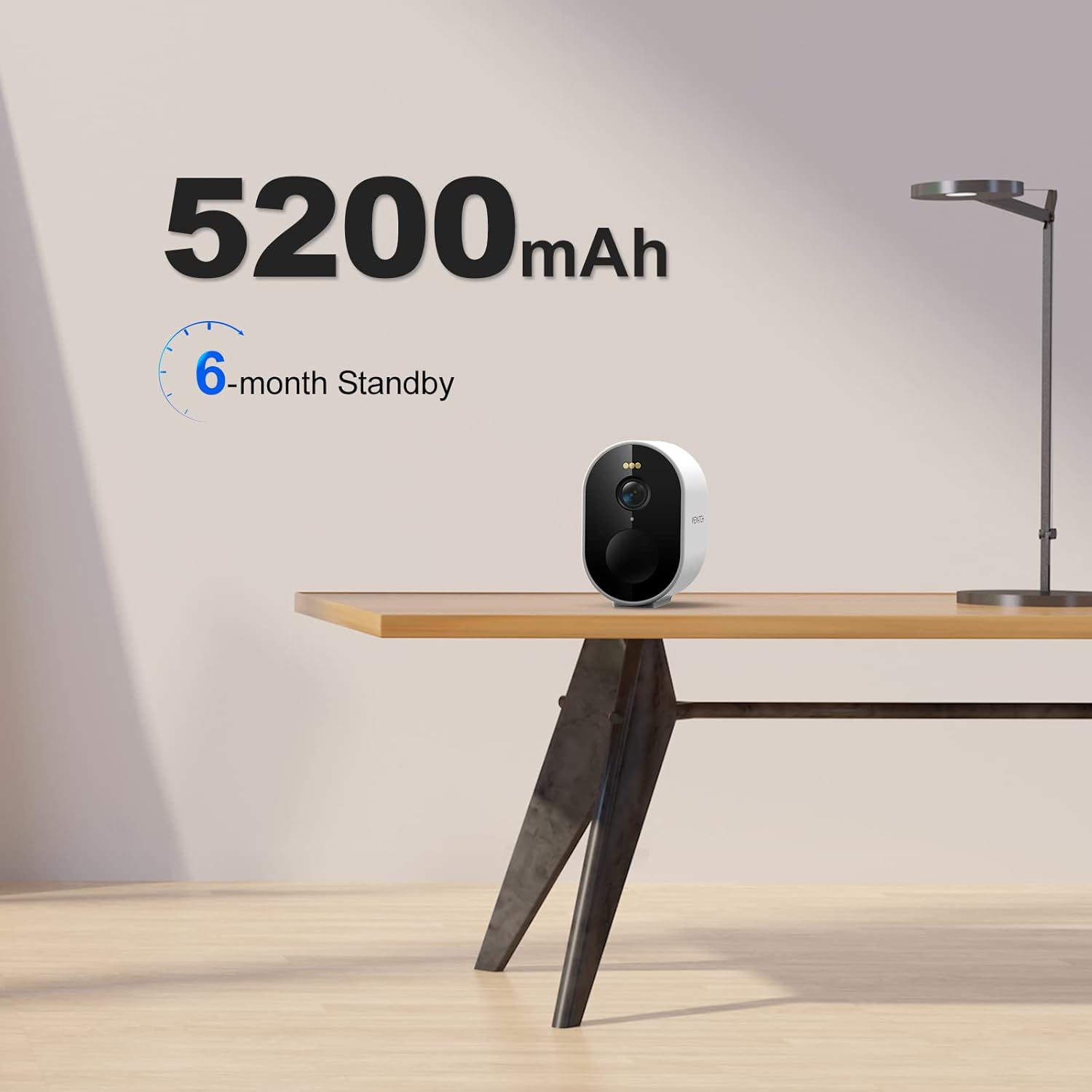
Figure 3: The WEWATCH camera mounted on an exterior wall, demonstrating its weather-resistant design suitable for outdoor use in various conditions like rain, sun, and snow.
Operating Instructions
Live View and Recording
Access the live video feed through the "WEWATCH CAM" app. The camera provides 1080P HD video quality, ensuring clear and detailed images. You can initiate manual recordings or capture snapshots directly from the app.

Figure 4: A visual comparison illustrating the superior clarity of 1080P Full HD video from the WEWATCH camera compared to standard 720P video, showing enhanced detail in surveillance footage.
PIR Detection and Alerts
The camera's PIR (Passive Infrared) detection system is designed to identify human shapes and faces, minimizing false alarms. When motion is detected, the camera will send instant alerts to your smartphone. Recorded events are stored in the cloud for 7 days, accessible for playback.

Figure 5: An illustration of the camera's human detection capability, showing a person outlined in green (detected) and a dog outlined in red (not detected as human), indicating smart detection.
Two-Way Audio Communication
Utilize the built-in speaker and microphone for two-way audio. This feature allows you to listen to the environment around the camera and speak through the camera, enabling real-time interaction with visitors or family members.
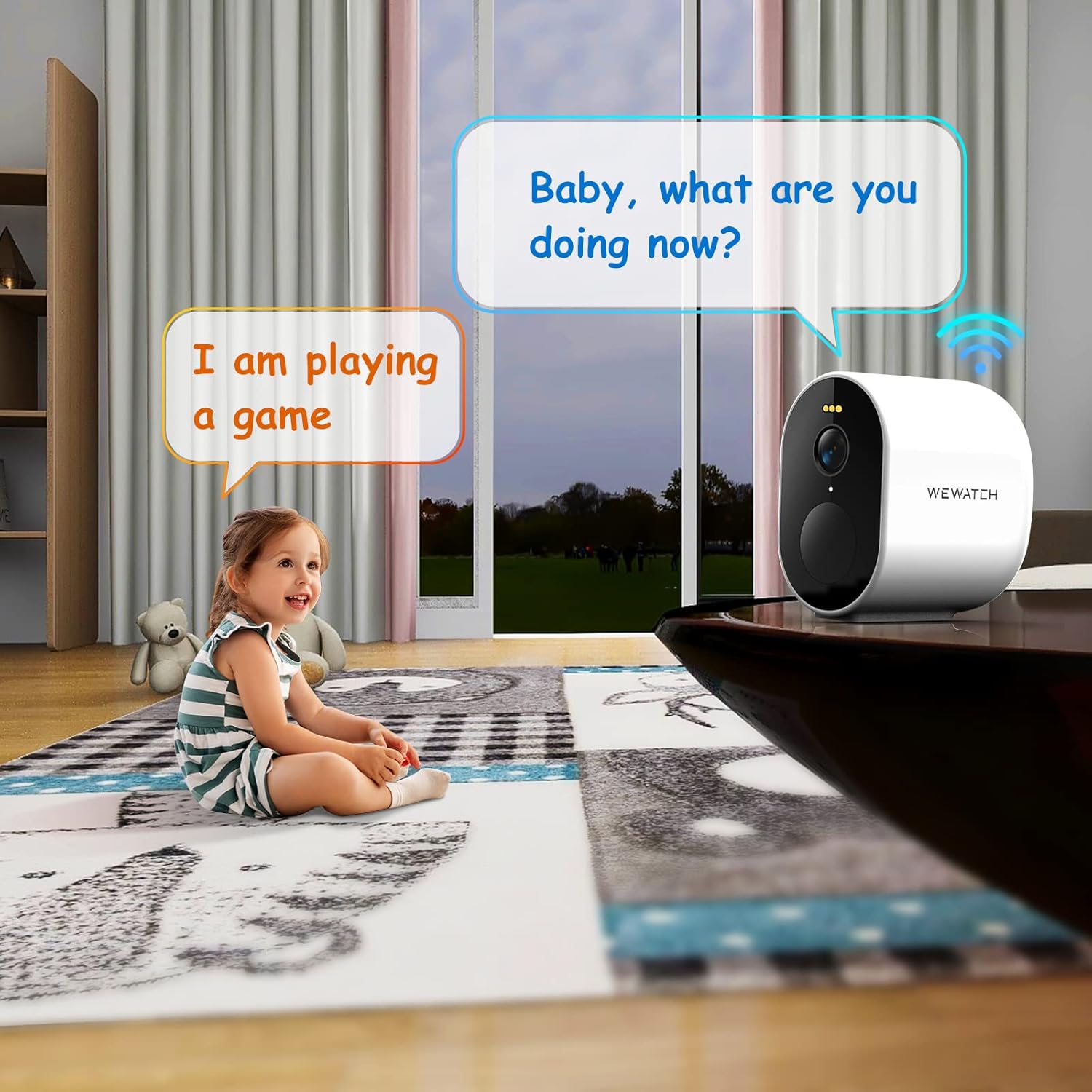
Figure 6: A scene depicting the two-way audio function, where a child is speaking and the camera is shown with speech bubbles, indicating interactive communication.
Night Vision Modes
The camera supports both infrared and full-color night vision. The LED fill light enhances visibility in low-light conditions, allowing for detailed color recordings even at night, similar to daytime clarity.
Maintenance
To ensure the longevity and optimal performance of your WEWATCH Wireless Security Camera, follow these maintenance guidelines:
- Cleaning: Gently wipe the camera lens and body with a soft, damp cloth. Avoid using harsh chemicals or abrasive materials that could damage the surface or lens.
- Battery Management: Recharge the camera battery as needed. The 6-month standby time is an estimate and may vary based on usage frequency, recording events, and environmental conditions.
- Weather Protection: While the camera is IP66 rated for weather resistance, regularly check the rubber flap covering the charging port and power button to ensure it is securely sealed, especially if installed outdoors.
- Firmware Updates: Periodically check the "WEWATCH CAM" app for any available firmware updates for your camera. Updates often include performance improvements and bug fixes.
Troubleshooting
If you encounter issues with your WEWATCH Wireless Security Camera, refer to the following common troubleshooting tips:
- Connectivity Issues:
- Ensure your Wi-Fi network is 2.4GHz. The camera does not support 5GHz networks.
- Check the distance between the camera and your Wi-Fi router. Reduce obstacles if possible.
- Restart your Wi-Fi router and the camera.
- Detection Problems:
- Verify that PIR detection is enabled in the app settings.
- Adjust the detection sensitivity in the app.
- Ensure there are no obstructions blocking the camera's view or the PIR sensor.
- Poor Video Quality:
- Check your Wi-Fi signal strength in the camera's location. A weak signal can affect video streaming quality.
- Clean the camera lens to remove any dirt or smudges.
- Battery Draining Quickly:
- Frequent motion detection events and live view access can reduce battery life.
- Ensure the camera is fully charged before deployment.
For further assistance, please contact WEWATCH customer support.
Specifications
| Feature | Detail |
|---|---|
| Brand | WEWATCH |
| Model Name | IPF2 |
| Indoor/Outdoor Usage | Outdoor |
| Video Resolution | 1080P HD (1920x1080) |
| Viewing Angle | 120 Degrees |
| Night Vision Range | 5 Meters (16.5 ft) |
| Battery | 5200mAh Rechargeable Battery |
| Connectivity Protocol | Wi-Fi (2.4GHz Only) |
| Weather Resistance | IP66 Waterproof & Dustproof |
| PIR Detecting Distance | Up to 8 m (26.4 ft) |
| PIR Detecting Angle | 100° horizontal |
| Audio Transmission | Speaker/Microphone (2-Way Audio) |
| Operating Temperature | -20°C to 70°C (-4°F to 158°F) |
| Control Method | App |
| Item Weight | 12.6 ounces |
| UPC | 745437782722 |
Warranty and Support
For detailed warranty information and customer support, please refer to the official WEWATCH website or contact their customer service directly. You can also visit the WEWATCH Store on Amazon for additional resources and product information.