1. Product Overview
The CAMECHO 7-inch Android 10 Double Din Car Stereo is an advanced in-car entertainment and navigation system. It features a 7-inch IPS touch screen with 1024*600 resolution, powered by an 8-core processor with 4GB RAM and 64GB ROM. This unit supports Apple CarPlay and Android Auto (wireless and wired), integrated DSP for enhanced audio, WIFI/4G connectivity, Bluetooth 5.0, FM/AM/RDS radio, and AI voice control. It also includes support for a backup camera and steering wheel controls.
Key features include:
- 7-inch IPS 1024*600 Capacitive Touch Screen Display.
- Android 10.0 Operating System with 8-core AC8259 CPU (2.5GHZ).
- 4GB RAM + 64GB ROM for ample storage and smooth operation.
- Integrated DSP (Digital Sound Processor) with 36-band equalization for customizable audio.
- Wireless Apple CarPlay and Wired Android Auto compatibility.
- Built-in AI Voice Control for hands-free operation.
- WIFI and 4G connectivity (requires SIM card) for internet access and online navigation.
- Bluetooth 5.0 for hands-free calling and audio streaming.
- FM/AM/RDS Radio tuner.
- Support for AHD backup camera input.
- Steering Wheel Control (SWC) compatibility.
- Dual USB interfaces.
2. Package Contents
Verify that all items listed below are included in your package:
- 1 x Car Multimedia Player
- 1 x Rear View Camera
- 1 x Power Cord
- 1 x GPS Antenna
- 1 x Camera Input Cable
- 1 x RCA Input/Output Cable (with SIM card slot)
- 2 x 4G Antennas
- 2 x USB Data Cables
- 2 x Hardware Brackets
- 1 x Instruction Manual

Image: Contents of the CAMECHO car stereo package, including the main unit and all accessories.
3. Specifications
| System | Android 10.0 |
| CPU | AC8259, 8 Cores, 2.5GHZ |
| Screen Size | 7 inches |
| Screen Resolution | 1024*600 IPS |
| Memory | 4GB RAM + 64GB ROM |
| Power Output | 4*45W |
| Power Amplifier | ST7850 |
| Radio Chip | NXP6856 (FM/AM/RDS) |
| Sound Effect | ADI/HI-Res: 192khz/32bit, DSP with 36-band EQ |
| Bluetooth Version | 5.0 |
| CarPlay / Android Auto | Wireless CarPlay, Wired Android Auto |
| Internet Connectivity | WIFI, 4G (SIM card slot) |
| Navigation | GPS/BDS/Glons, Built-in offline map (HEREWeGo) |
| USB | Dual USB interface |
| Supported Features | AHD Camera, OBD2, DAB+, DVR, TPMS, Video Output, Phone Link, External Microphone |
| Dimensions (Unit) | 178mm (L) * 104mm (H) * 45mm (W) |
| Item Weight | 2.55 pounds |
4. Setup and Installation
Professional installation is recommended. Ensure the vehicle's power is disconnected before beginning installation.
4.1 Wiring Diagram
Refer to the detailed wiring diagram for proper connections. Incorrect wiring can damage the unit or vehicle electronics.
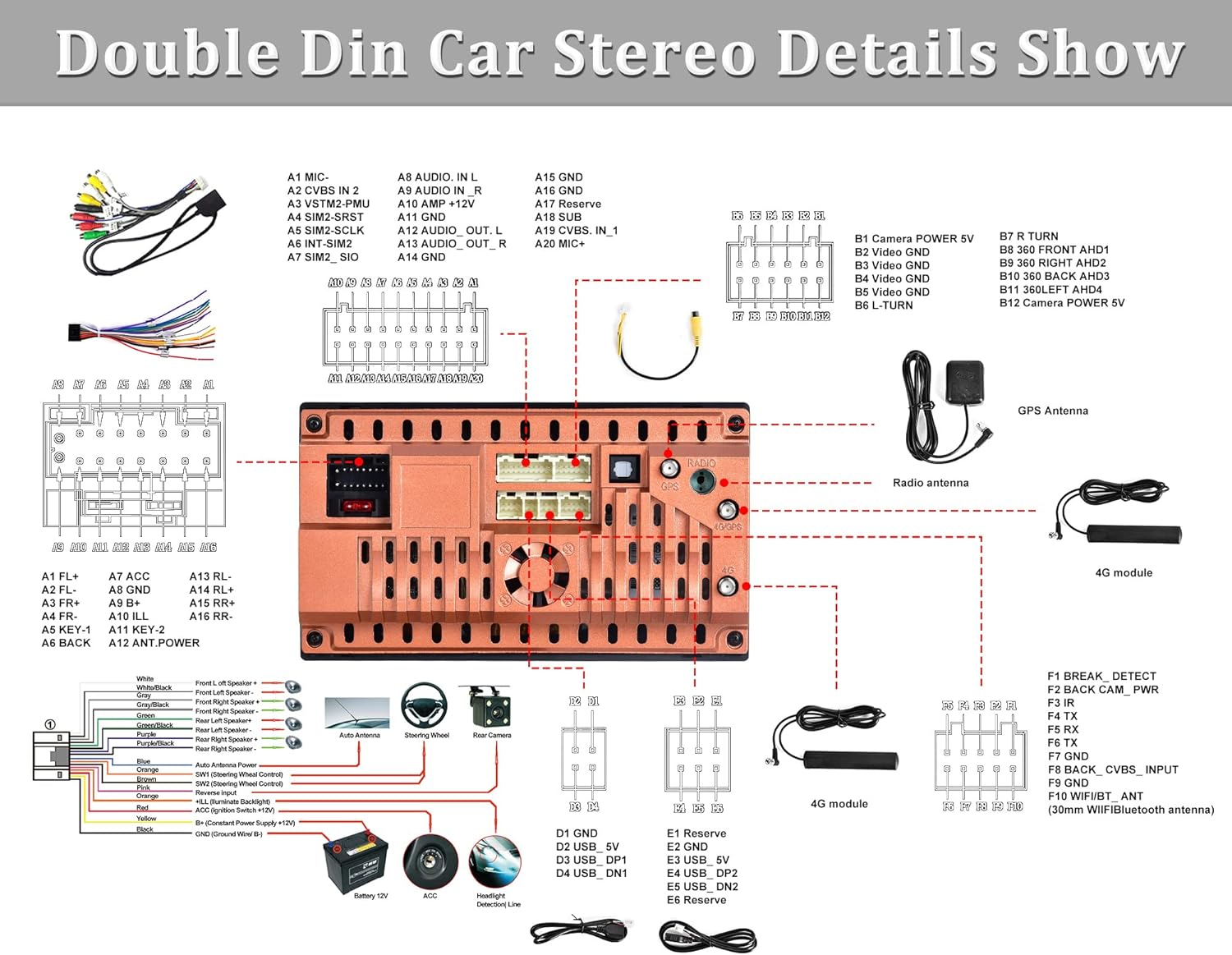
Image: Comprehensive wiring diagram for the car stereo system.
4.2 Basic Installation Steps
- Disconnect Battery: Before any wiring, disconnect the negative terminal of your vehicle's battery.
- Remove Old Head Unit: Carefully remove the existing car stereo from the dashboard.
- Connect Power and Speaker Wires: Match the power (ACC, B+, GND) and speaker wires from the car harness to the stereo's wiring harness. Ensure correct polarity for speakers.
- Connect Antennas: Attach the GPS antenna, radio antenna, and 4G antennas (if using 4G). Position GPS and 4G antennas in a location with clear sky view.
- Connect RCA Cables: Connect any external amplifiers, subwoofers, or video output devices using the RCA cables.
- Connect USB Cables: Route the USB cables to a convenient location for connecting USB devices.
- Connect Rear View Camera: Connect the camera input cable to the stereo and route the camera cable to the rear of the vehicle. Connect the camera's power to the reverse light circuit.
- Mount the Unit: Secure the car stereo into the double din slot using the provided mounting brackets.
- Reconnect Battery: Reconnect the vehicle's battery and power on the unit for initial testing.
4.3 Initial Setup
- Language and Time: Upon first boot, select your preferred language and set the correct time zone.
- WIFI Connection: Go to Settings > Network & Internet > Wi-Fi and connect to an available Wi-Fi network.
- 4G SIM Card (Optional): Insert a compatible 4G SIM card into the designated slot on the RCA cable harness for mobile data access.
- GPS Calibration: Ensure the GPS antenna is properly installed and the system acquires a satellite signal for accurate navigation.
5. Operating Instructions
5.1 Basic Operations
- Power On/Off: The unit powers on with the vehicle's ignition. Press and hold the power button (usually on the front panel) to manually turn off or restart.
- Volume Control: Adjust volume using the on-screen controls or steering wheel controls.
- Home Screen: Tap the Home icon to return to the main interface.
5.2 Radio (FM/AM/RDS)
Access the Radio application from the main menu.
- Tuning: Use the on-screen arrows to manually tune or scan for stations.
- Preset Stations: Touch and hold a frequency slot to save the current station as a preset.
- RDS: If available, RDS (Radio Data System) will display station information like song title or program type.

Image: Radio and Bluetooth 5.0 interfaces.
5.3 Bluetooth 5.0
Pair your mobile phone for hands-free calling and audio streaming.
- Pairing: Go to the Bluetooth app on the stereo. Enable Bluetooth on your phone and search for the stereo (e.g., "CAMECHO"). Select it and confirm the pairing code.
- Hands-Free Calling: Once paired, you can make/receive calls directly from the stereo's interface.
- Music Streaming: Play audio from your phone via Bluetooth.
5.4 Apple CarPlay / Android Auto
Connect your smartphone for an integrated experience.
- Wireless CarPlay: For iPhones, ensure Wi-Fi and Bluetooth are enabled. Open the CarPlay app on the stereo, then connect via Bluetooth on your iPhone. Follow on-screen prompts.
- Wired Android Auto: Connect your Android phone to one of the stereo's USB ports using a high-quality USB cable. Ensure Android Auto is installed on your phone.

Image: Apple CarPlay and Android Auto interfaces.
5.5 Navigation (GPS)
The unit supports both online and offline navigation.
- Offline Maps: The unit comes with a built-in offline map application (HEREWeGo). Download regional maps via Wi-Fi for navigation without an internet connection.
- Online Maps: With Wi-Fi or 4G connectivity, you can use online navigation apps like Google Maps.
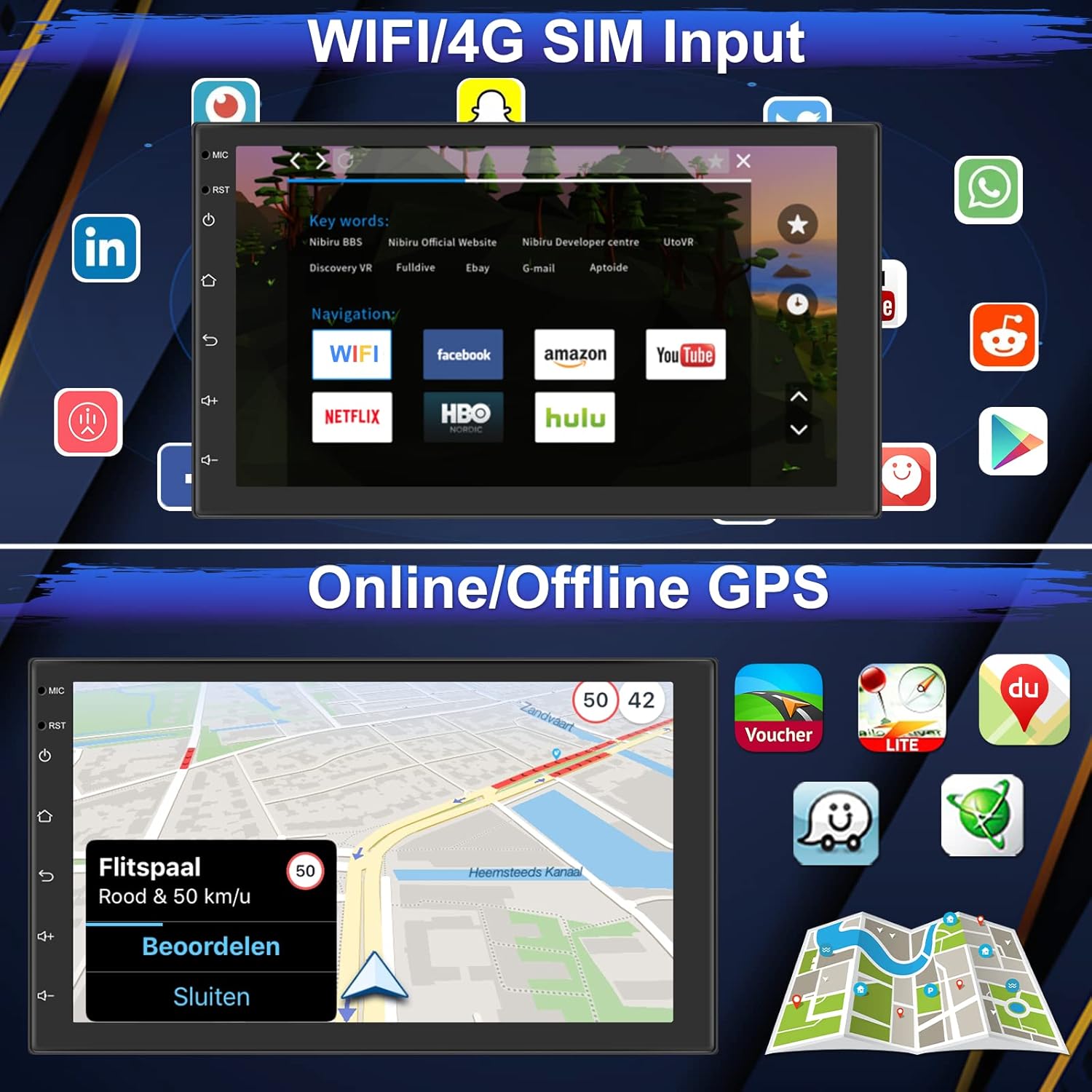
Image: WIFI/4G SIM input and Online/Offline GPS navigation.
5.6 DSP and EQ Settings
Customize your audio experience using the Digital Sound Processor (DSP) and Equalizer (EQ) settings.
- Access the DSP/EQ app from the main menu.
- Adjust frequency bands, AE (Acoustic Environment), 36-band equalization, and sound type selections to optimize audio output.

Image: IPS Screen comparison and DSP/EQ settings interface.
5.7 AI Voice Control
Utilize the built-in intelligent voice chip for hands-free control.
- Activate voice control by saying a specific command or pressing the voice button (if available).
- Commands include: "Navigate to [destination]", "Play [song/artist]", "Call [contact]", "Open Radio", etc.

Image: AI Voice control features for radio, video, navigation, and calls.
5.8 Backup Camera and Steering Wheel Control
- Backup Camera: When the vehicle is shifted into reverse, the stereo automatically displays the rear view from the connected camera.
- Steering Wheel Control (SWC): Configure SWC in the system settings to map your vehicle's steering wheel buttons to stereo functions (e.g., volume, track skip, mode).
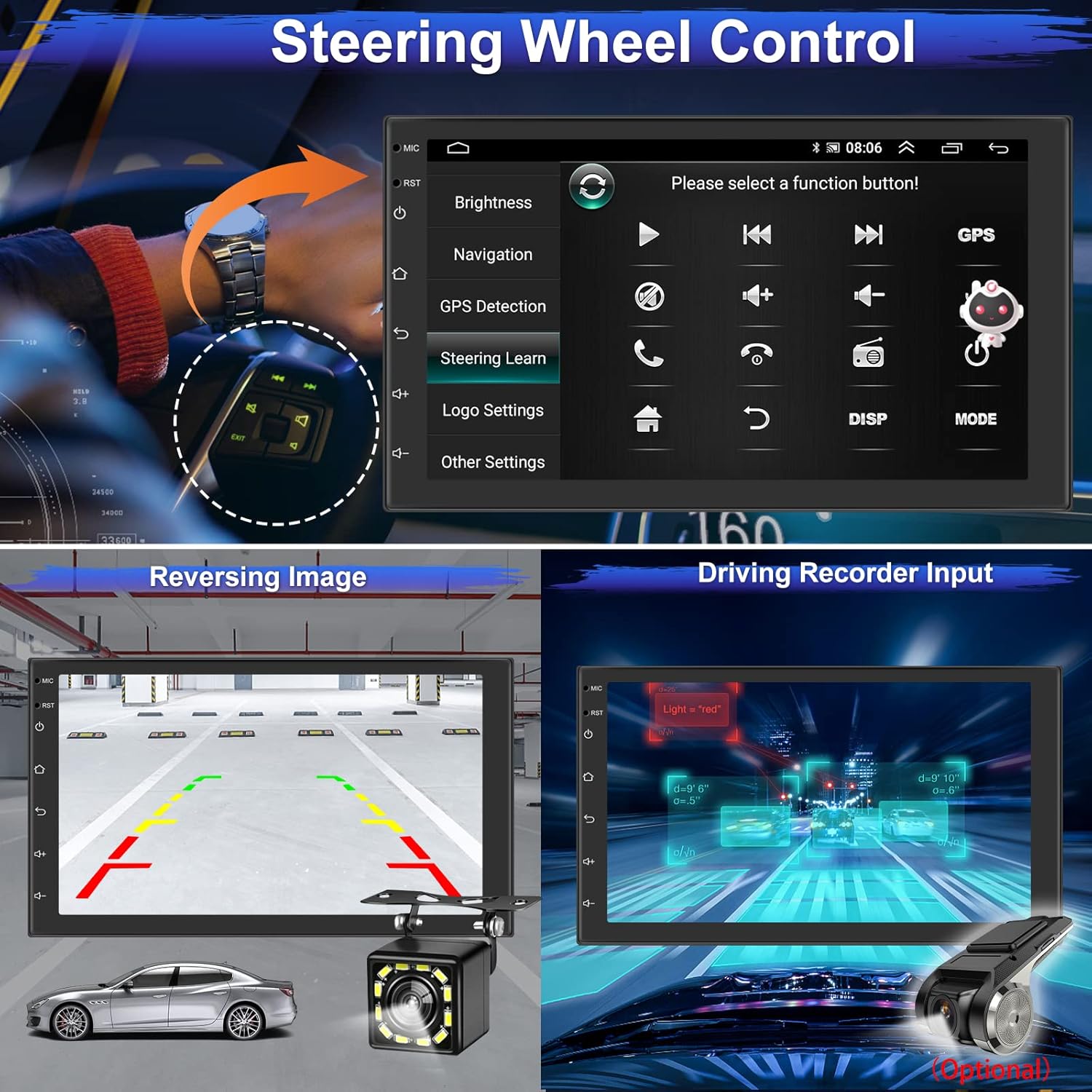
Image: Steering Wheel Control setup, Reversing Image, and Driving Recorder Input.
6. Maintenance
- Screen Cleaning: Use a soft, lint-free cloth to clean the touch screen. Avoid abrasive cleaners or solvents.
- Software Updates: Periodically check for system software updates via Wi-Fi in the system settings to ensure optimal performance and access to new features.
- Avoid Extreme Temperatures: Do not expose the unit to extreme heat or cold, as this can affect its performance and lifespan.
7. Troubleshooting
7.1 Common Issues and Solutions
- No Power:
- Check power connections (B+, ACC, GND) for proper wiring and fuses.
- Ensure the vehicle's ignition is on.
- No Sound:
- Verify speaker wiring connections.
- Check volume levels and mute settings.
- Ensure external amplifiers (if used) are powered on.
- GPS Signal Lost/Inaccurate:
- Ensure the GPS antenna is installed in a location with a clear view of the sky.
- Check antenna connection to the unit.
- Bluetooth Not Connecting:
- Ensure Bluetooth is enabled on both the stereo and your phone.
- Delete previous pairings and try pairing again.
- Restart both devices.
- CarPlay/Android Auto Not Working:
- For wired connections, use a high-quality USB cable.
- Ensure the respective apps are installed and updated on your phone.
- Check phone settings for CarPlay/Android Auto permissions.
- Touch Screen Unresponsive:
- Restart the unit.
- If the issue persists, a factory reset might be necessary (note: this will erase all user data).
8. Warranty and Support
For warranty information and technical support, please refer to the warranty card included in your package or contact CAMECHO customer service directly. Keep your purchase receipt as proof of purchase.
For further assistance, visit the official CAMECHO website or contact their support channels.