Introduction
This manual provides essential information for the safe and efficient operation of your Victron Energy Phoenix 1200VA 24-Volt 120V AC Pure Sine Wave Inverter. This inverter is designed to convert 24-Volt DC battery power into 120-Volt AC power, suitable for various domestic equipment in leisure, automotive, or off-grid applications.
Video 1: An overview of the Victron Energy Phoenix Pure Sinewave Inverter, highlighting its suitability for off-grid RV or boat applications due to its small and compact design.
Key features include:
- Pure sine wave output for sensitive electronics.
- 250VA continuous power and 400-Watt peak power.
- High efficiency with a low 0.8-Watt draw in ECO mode.
- VE.Direct communication port for monitoring and configuration via VictronConnect app.
- High start-up power capability for inductive loads.
- Compact design utilizing hybrid HF technology.
Safety Information
WARNING: Electrical Shock Hazard. Read all safety instructions before installation or operation.
- Installation must be performed by qualified personnel in accordance with local electrical codes.
- Ensure the inverter is disconnected from all power sources before performing any maintenance or wiring.
- Do not expose the inverter to rain, snow, spray, or liquids.
- Operate the inverter in a well-ventilated area.
- Do not open the inverter casing. There are no user-serviceable parts inside.
- Ensure proper grounding of the inverter.
- Use appropriate battery cables and fuses as specified in the installation guide.
Product Overview
The Victron Energy Phoenix Inverter is a compact and robust device designed for reliable AC power conversion.
Physical Appearance and Dimensions

Figure 2: Front view of the Victron Energy Phoenix 1200VA Pure Sine Wave Inverter. For more information, visit ve3.nl/plJz.

Figure 3: Dimensions of the Victron Energy Phoenix Inverter. The unit measures approximately 327 mm (12.9 inches) in length, 232 mm (9.1 inches) in width, and 117 mm (4.6 inches) in height. For more information, visit ve3.nl/plJz.
Connections and Controls
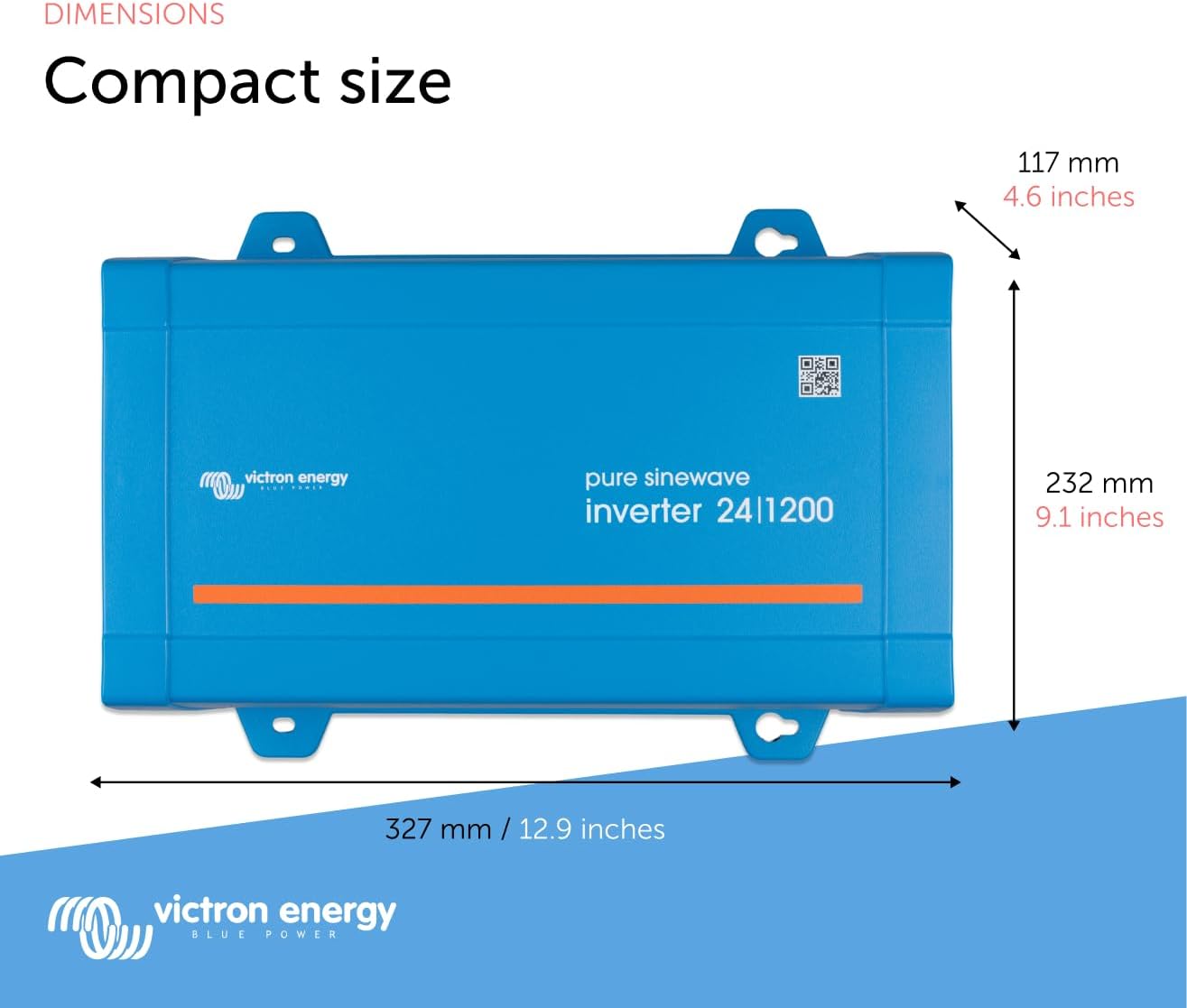
Figure 4: Rear panel of the inverter with DC input terminals, ON/OFF/ECO switch, VE.Direct port, remote connection, and ground terminal.
- DC Input Terminals: Marked NEG (-) and POS (+), these are for connecting the 24-Volt DC battery bank.
- ON/OFF/ECO Switch: Controls the inverter's operating mode.
- ON: Inverter is continuously active.
- OFF: Inverter is powered off.
- ECO: Energy-saving mode where the inverter switches to standby when the load decreases below a preset value. It periodically checks for load and reactivates when detected.
- Power LED (Green): Indicates the inverter is operating.
- Alarm LED (Red): Indicates a fault or warning condition.
- VE.Direct Port: A communication port for connecting to a computer (via VE.Direct to USB interface cable) or smartphones/tablets (via VE.Direct Bluetooth Smart dongle) for monitoring and configuration.
- Remote Connector: Allows connection of an external ON/OFF switch or vehicle ignition for remote control.
- Ground Terminal: For proper grounding of the inverter.
- AC Output: The 120V AC NEMA GFCI outlet for connecting AC loads.
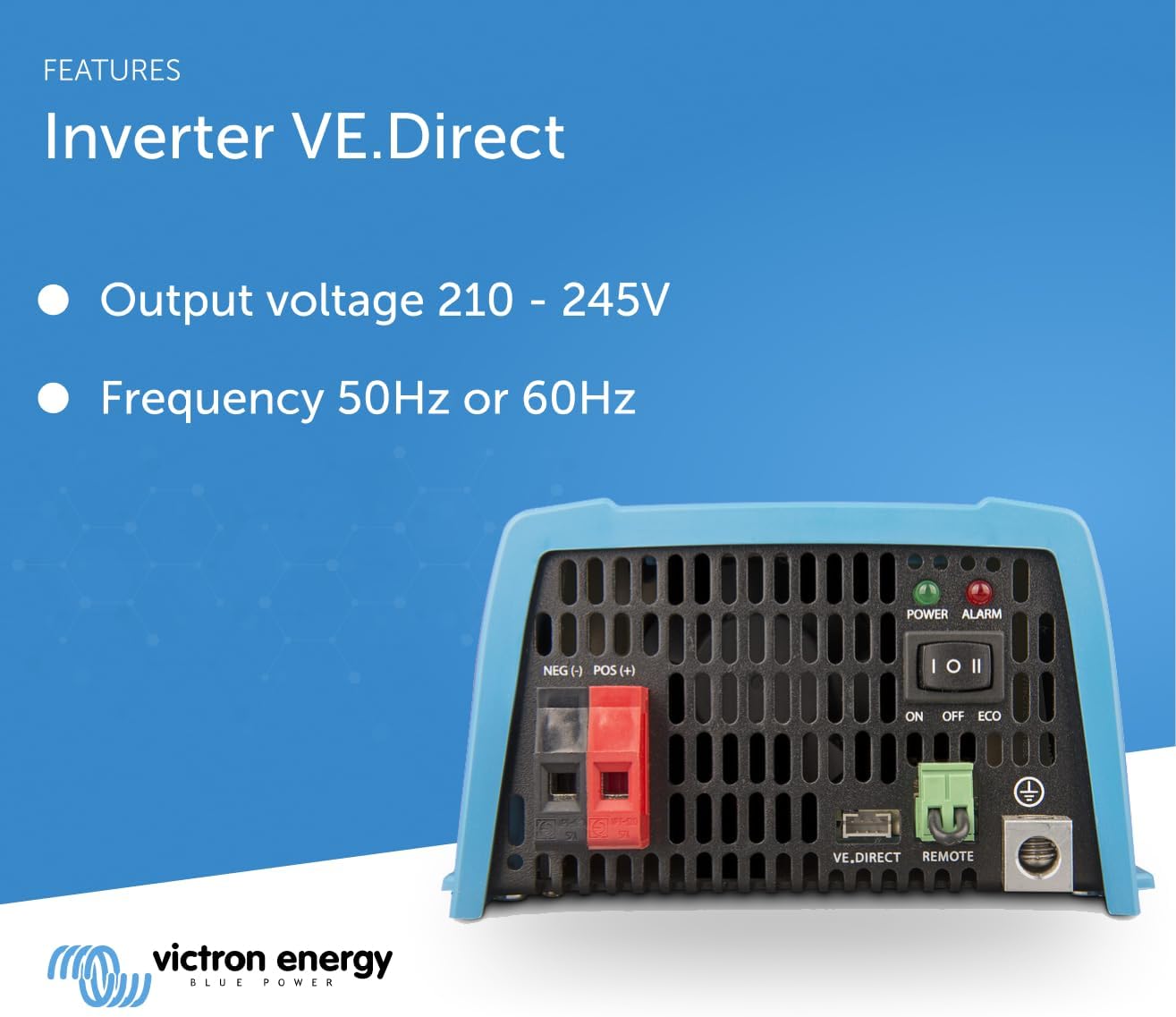
Figure 5: Side view of the inverter showing the NEMA GFCI AC output socket.
Setup
Installation
- Mount the inverter in a dry, well-ventilated area, away from direct sunlight and heat sources.
- Ensure adequate clearance around the unit for proper airflow.
- Use appropriate mounting hardware to secure the inverter firmly.
Wiring
- DC Connection: Connect the battery cables to the NEG (-) and POS (+) terminals. Ensure correct polarity. Use appropriately sized cables and fuses for your system.
- Grounding: Connect the ground terminal to a reliable earth ground.
- AC Output: Plug your 120V AC appliances into the NEMA GFCI outlet.
- Remote Control (Optional): If using a remote switch, connect it to the REMOTE terminals.
- VE.Direct Connection (Optional): For monitoring and configuration, connect a VE.Direct to USB interface cable to a computer or a VE.Direct Bluetooth Smart dongle for wireless connection to a smartphone/tablet.

Figure 6: Illustration of various output socket types and the VE.Direct port for connectivity, including options for remote control and different output sockets.
Operating Instructions
Powering On/Off and ECO Mode
- To turn the inverter ON, set the switch to the 'ON' position. The green Power LED will illuminate.
- To turn the inverter OFF, set the switch to the 'OFF' position. All LEDs will turn off.
- To activate ECO mode, set the switch to the 'ECO' position. The inverter will enter a low-power standby state and periodically check for connected loads.

Figure 7: Visual representation of high start-up power, ECO mode functionality, and the remote on/off connector for easy system management.
VE.Direct Communication and VictronConnect App
The VE.Direct port allows for advanced monitoring and configuration of your inverter using the VictronConnect app on a smartphone, tablet, or computer.
Video 2: This video demonstrates how to reduce power consumption of an inverter in standby mode using the AES function in VE.Configure and VictronConnect. It explains the modified sine wave and search modes for energy saving.
Using VictronConnect, you can:
- Monitor real-time status, including input voltage, output power, and battery state.
- Configure settings such as output voltage, frequency, and low battery shutdown levels.
- Enable and adjust the Automatic Energy Saver (AES) function to optimize standby power consumption.
- Access diagnostic information and update firmware.


Figure 8: Screenshots of the VictronConnect app interface for monitoring and configuring inverter settings.
For detailed instructions on using VictronConnect, refer to the app's help section or the Victron Energy website.
Maintenance
- Cleaning: Keep the inverter clean and free from dust and debris. Use a dry cloth for cleaning. Do not use liquid cleaners.
- Ventilation: Regularly check that the ventilation openings are not blocked to ensure proper cooling.
- Connections: Periodically inspect all electrical connections for tightness and corrosion. Tighten any loose connections and clean any corrosion.
- Battery Health: Monitor your battery bank's health and charge levels to ensure optimal inverter performance and battery longevity.
Troubleshooting
This section provides guidance on common issues. For more complex problems, contact Victron Energy support.
| Symptom | Possible Cause | Solution |
|---|---|---|
| No AC output, Red Alarm LED on. | Overload, short circuit, over-temperature, low battery voltage. | Reduce load, check for short circuits, allow inverter to cool, charge batteries. |
| Inverter frequently switches to ECO mode or off. | Low battery voltage, high standby consumption, or load below ECO threshold. | Charge batteries, adjust ECO mode settings via VictronConnect, ensure load is above threshold. |
| No communication via VE.Direct. | Incorrect cable, faulty dongle, software issue. | Check cable connections, ensure correct dongle is used, restart VictronConnect app. |
Specifications
| Feature | Detail |
|---|---|
| Model Number | PIN242120510 |
| Continuous Power (25°C) | 1200VA |
| Peak Power | 2200 Watts |
| DC Input Voltage | 24-Volt |
| AC Output Voltage | 120V AC |
| Output Waveform | Pure Sine Wave |
| No-load Power (ECO mode) | 0.8-Watt |
| Dimensions (L x W x H) | 12.9 x 9.1 x 4.6 inches (327 x 232 x 117 mm) |
| Item Weight | 18.33 pounds |
| Manufacturer | Victron Energy |
Note: Full specifications can be found on the official Victron Energy website.
Warranty and Support
Victron Energy products are known for their quality and reliability. For specific warranty terms and conditions, please refer to the documentation included with your product or visit the official Victron Energy website.
For technical support, product registration, or service inquiries, please contact Victron Energy customer service or an authorized dealer.
Online Resources:
- Victron Energy Official Website: www.victronenergy.com
- VictronConnect App: Available for download on major app stores.


