
Introduction
The Xoopar Pokket Eco Wireless Mouse XP81002.21WT is an ultra-slim, rechargeable optical mouse designed for comfortable and efficient use with your computer. This manual provides essential information for setting up, operating, maintaining, and troubleshooting your device.
Package Contents
Please check the package for the following items:
- Xoopar Pokket Eco Wireless Mouse
- USB 2.4G Receiver
- USB Charging Cable
- Cork Storage Pouch
- User Manual (this document)
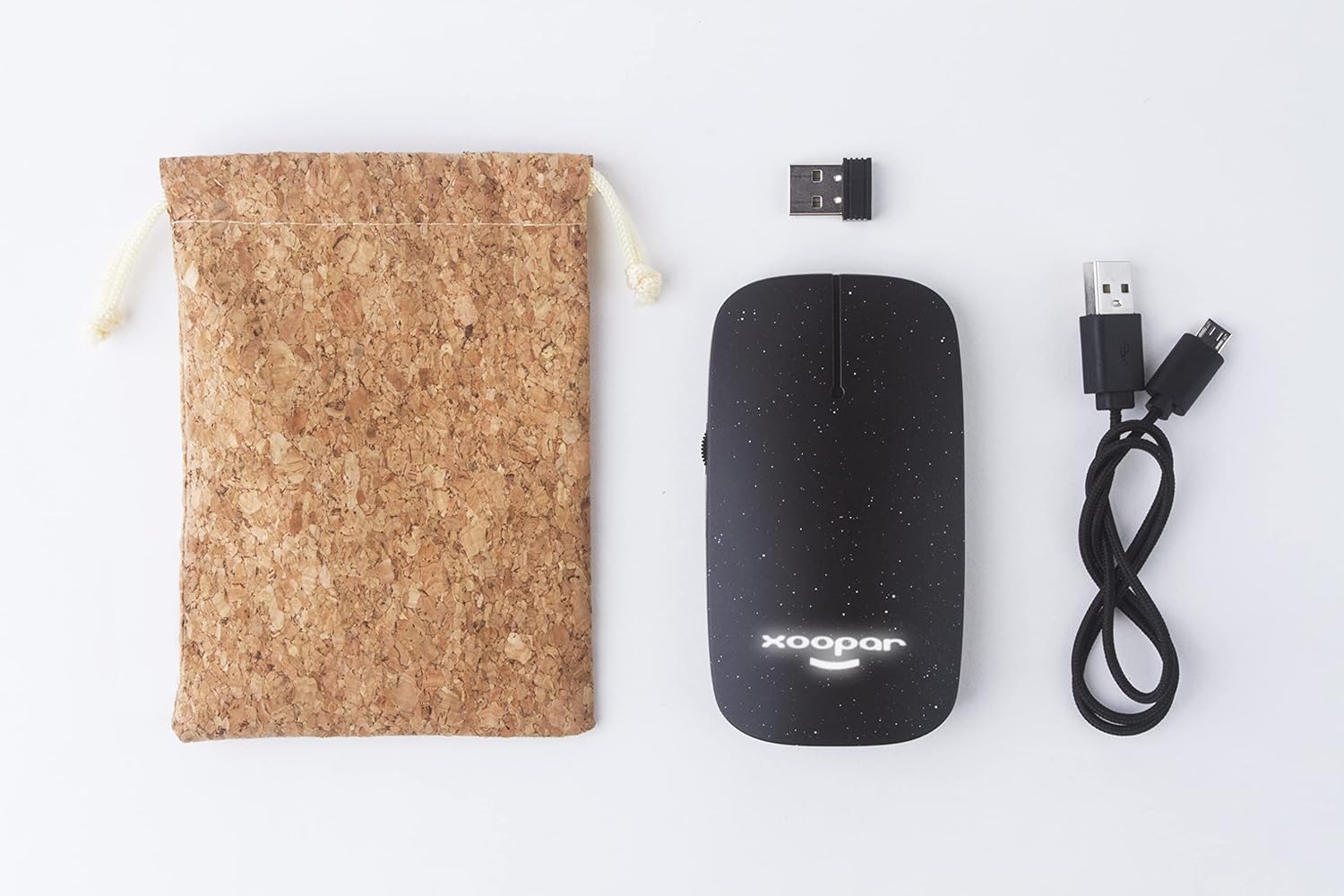
Image: Contents of the Xoopar Pokket Eco Wireless Mouse package, including the mouse, USB receiver, charging cable, and cork pouch.
Setup
1. Charging the Mouse
Before first use, it is recommended to fully charge the mouse. Connect the provided USB charging cable to the charging port on the mouse and the other end to a USB power source (e.g., computer USB port, USB wall adapter).
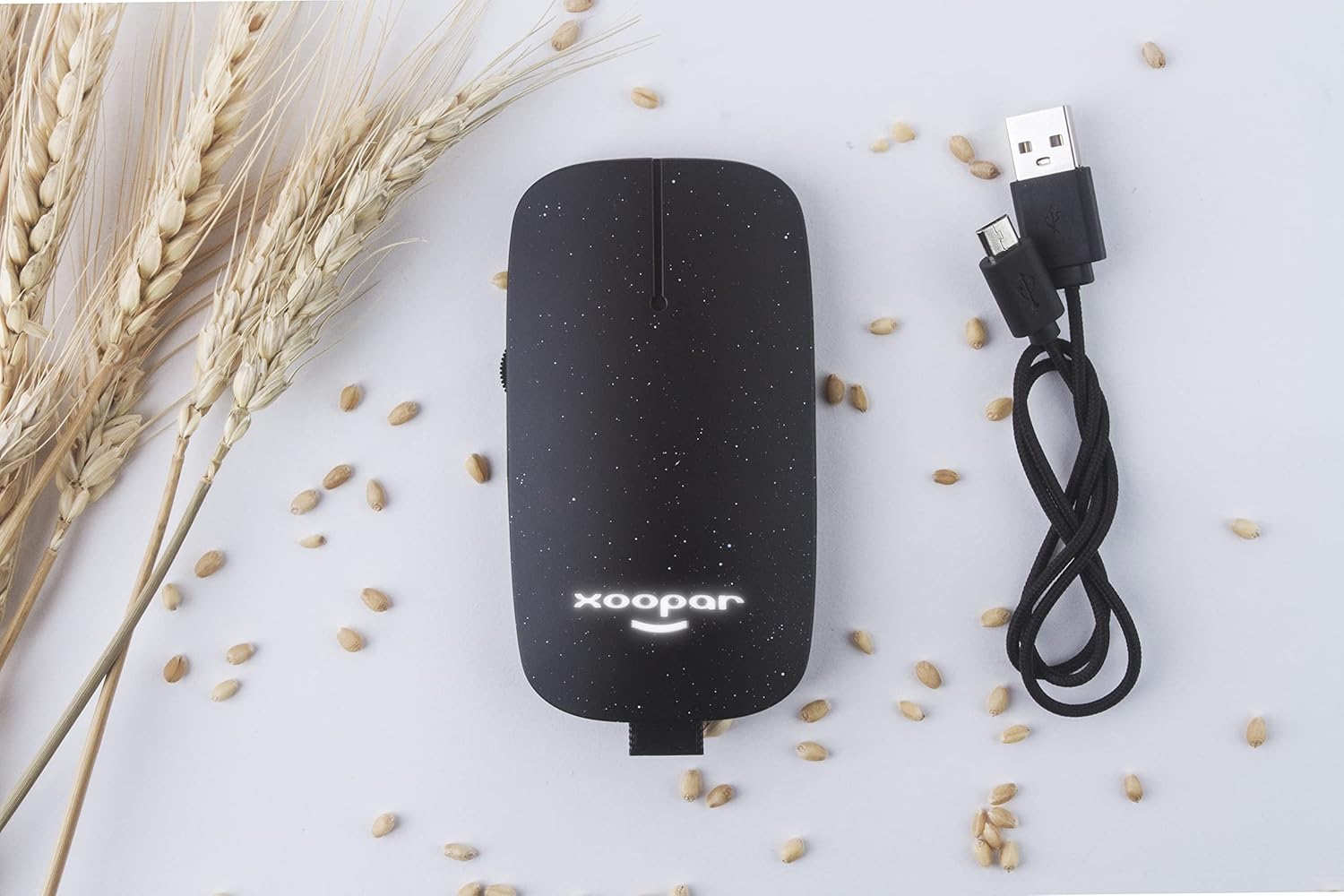
Image: The Xoopar Pokket Eco Wireless Mouse connected to its USB charging cable.
2. Connecting the USB Receiver
- Locate the USB 2.4G receiver, typically stored within the mouse itself or included separately in the package.
- Plug the USB receiver into an available USB port on your computer.
- Your computer should automatically detect and install the necessary drivers. This may take a few moments.

Image: The USB 2.4G receiver inserted into a laptop's USB port.
3. Powering On the Mouse
Locate the power switch on the bottom of the mouse and slide it to the "ON" position. The mouse should now be ready for use.
Operating Instructions
The Xoopar Pokket Eco Wireless Mouse features standard mouse functionality:
- Left Click: Primary action, selection.
- Right Click: Secondary action, context menus.
- Scroll Wheel: Scroll up or down in documents and web pages. The scroll wheel also functions as a middle click button.
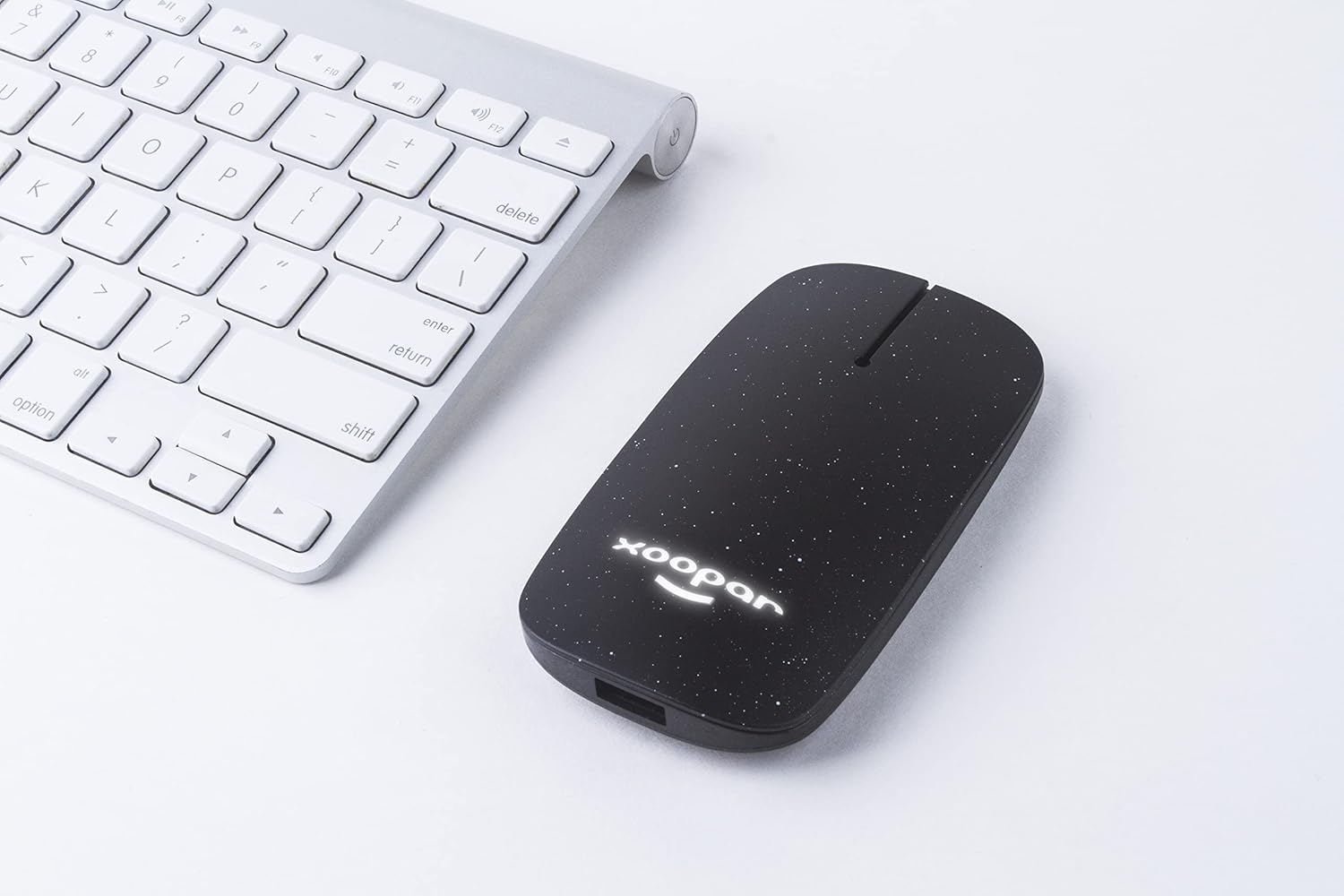
Image: The Xoopar Pokket Eco Wireless Mouse positioned next to a computer keyboard, ready for use.
Maintenance
- Cleaning: Use a soft, dry cloth to clean the mouse. Avoid using harsh chemicals or abrasive materials.
- Storage: When not in use, store the mouse in its cork pouch to protect it from dust and scratches.
- Battery Care: To prolong battery life, avoid fully discharging the mouse frequently. Charge it when the battery indicator is low.
Troubleshooting
| Problem | Solution |
|---|---|
| Mouse is unresponsive or not moving. |
|
| Mouse movement is erratic. |
|
| Mouse does not charge. |
|
Specifications
| Brand | Xoopar |
| Model Number | XP81002.21WT |
| Connectivity Technology | 2.4G Wireless (USB Receiver) |
| Movement Detection | Optical |
| Number of Buttons | 3 |
| Hand Orientation | Ambidextrous design (Note: Product specifications may list "Left" but the design is symmetrical.) |
| Compatible Operating Systems | Windows, macOS, Linux |
| Compatible Devices | Laptop, Desktop Computers |
| Item Weight | 50 Grams |
| Color | Black |
Warranty and Support
For warranty information or technical support, please refer to the official Xoopar website or contact Xoopar customer service directly. Keep your purchase receipt as proof of purchase for any warranty claims.
Xoopar Europe Seller ID: A3PFMQ8HI1NEP8
Note: Specific warranty terms may vary by region.