
1. Introduction
The MEILAN M1 GPS Bike Computer is a versatile device designed to enhance your cycling experience. It provides precise positioning, real-time navigation, and comprehensive data tracking for speed, distance, cadence, heart rate, and more. With Bluetooth BLE4.0 and ANT+ connectivity, it supports various external sensors and offers seamless integration with the MEILAN app for data analysis and training management. Its waterproof design ensures reliable performance in diverse weather conditions.
2. Product Overview
The MEILAN M1 features a 2.6-inch MONO LCD screen with Japanese anti-glare technology for clear visibility in various lighting conditions. It is equipped with a highly sensitive GPS chip supporting GPS, GLONASS, and BEIDOU systems for accurate positioning.
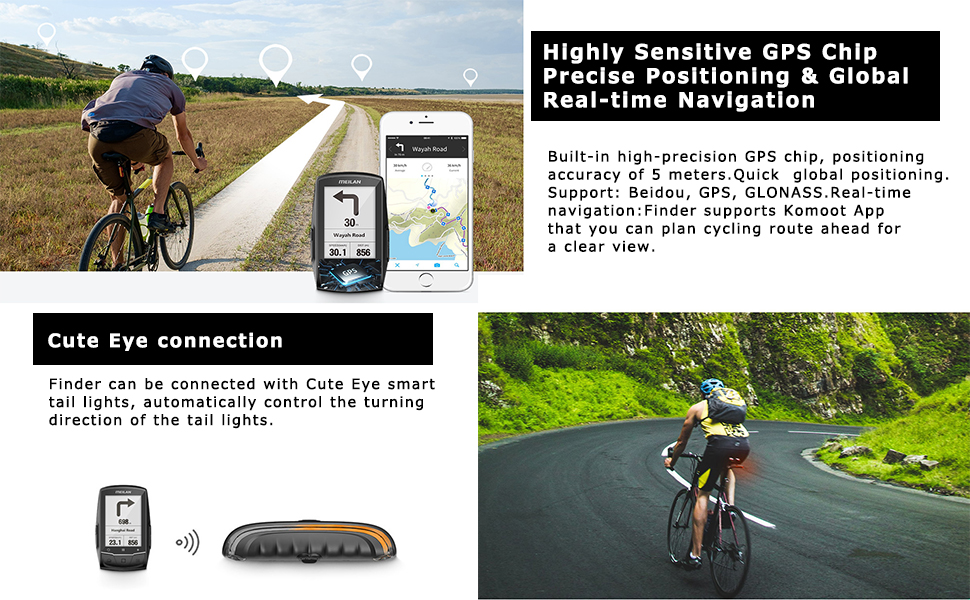
Image: The MEILAN M1 GPS Bike Computer displaying various data points on its 2.6-inch screen.
The device offers up to 48 types of data display, including speed, cadence, heart rate, power, altitude, and more. It also includes advanced features like virtual rival function and heart rate/power zone training support.
3. Setup
3.1 Charging the Device
Before first use, fully charge the MEILAN M1. Connect the device to a standard USB 5V, 0.5A power source using the provided USB cable. A full charge provides approximately 40 hours of battery life.
3.2 Mounting on Bicycle
Attach the MEILAN M1 to your bicycle's handlebar using the included handlebar mount. Ensure the mount is securely fastened and the device is firmly clicked into place to prevent dislodgement during rides.
3.3 Initial Power On and Language Selection
Press and hold the power button to turn on the device. Follow the on-screen prompts to select your preferred language. The device supports 15 languages.
Video: This video demonstrates the initial setup, including powering on the MEILAN M1 GPS Bike Computer and selecting the language. It also showcases various features like GPS tracking, data display, and navigation in action.
3.4 Sensor Pairing (Bluetooth BLE4.0 & ANT+)
The MEILAN M1 supports dual-mode wireless connection via Bluetooth BLE4.0 and ANT+. To pair external sensors such as heart rate monitors, power meters, speed sensors, or cadence sensors:
- Ensure the sensor is active and within range of the M1.
- Navigate to the device's settings menu and select 'Sensor Pairing' or 'Add Device'.
- The M1 will scan for available sensors. Select your sensor from the list to pair.
- Once paired, the sensor data will be displayed on the M1 screen.
Note: The M1 does not support 5.3KHZ heart rate monitors.

Image: The MEILAN M1 GPS Bike Computer demonstrating its Bluetooth BLE4.0 and ANT+ connectivity with external sensors.
4. Operating the MEILAN M1
4.1 GPS Navigation and Positioning
The M1 utilizes a built-in high-precision GPS chip for quick global positioning and real-time navigation. It supports Beidou, GPS, and GLONASS systems. You can plan cycling routes via the Komoot App, and the M1 will provide real-time turn-by-turn navigation.

Image: The MEILAN M1 GPS Bike Computer showing precise positioning and global real-time navigation capabilities.
4.2 Data Display and Customization
The M1 can display up to 48 kinds of practical data, including speed, cadence, heart rate, left power, right power, maximum, average, current time, ride time, total distance (ODO), calories, temperature, altitude, air pressure, longitude, latitude, heading, total ascent, total descent, slope, VAM, road name, and HR zone. You can zoom in and out of pages and freely choose which data to display.
4.3 Historical Records and App Synchronization
The M1 can store approximately 50 hours of riding data. This data can be synchronized to the MEILAN APP after each ride. You can also use the USB data cable to export records and upload them to popular sports websites like Strava and Komoot for further analysis.

Image: The MEILAN M1 GPS Bike Computer demonstrating how to view and upload historical records via the MEILAN APP and USB connection.
4.4 Training Features
The M1 supports heart rate interval and power interval display. After each training session, you can view your training effect on the MEILAN APP and set new promotion goals. Adhere to scientific training to prevent injury.
The Virtual Rival Function allows you to set up a virtual competitor to race against on the same road, providing a reference for personal improvement or competitive training.
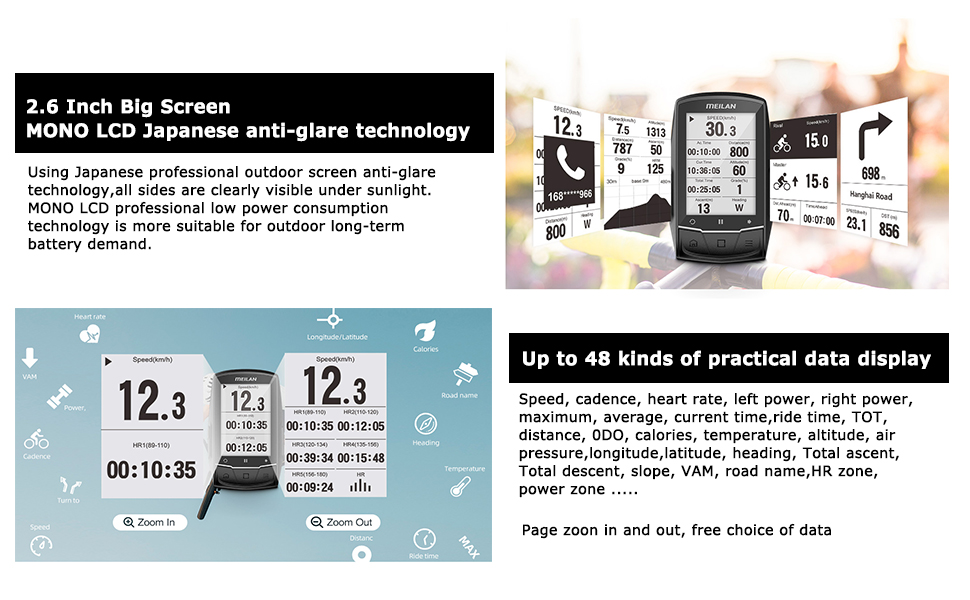
Image: The MEILAN M1 app displaying heart rate and power zone data for effective training.
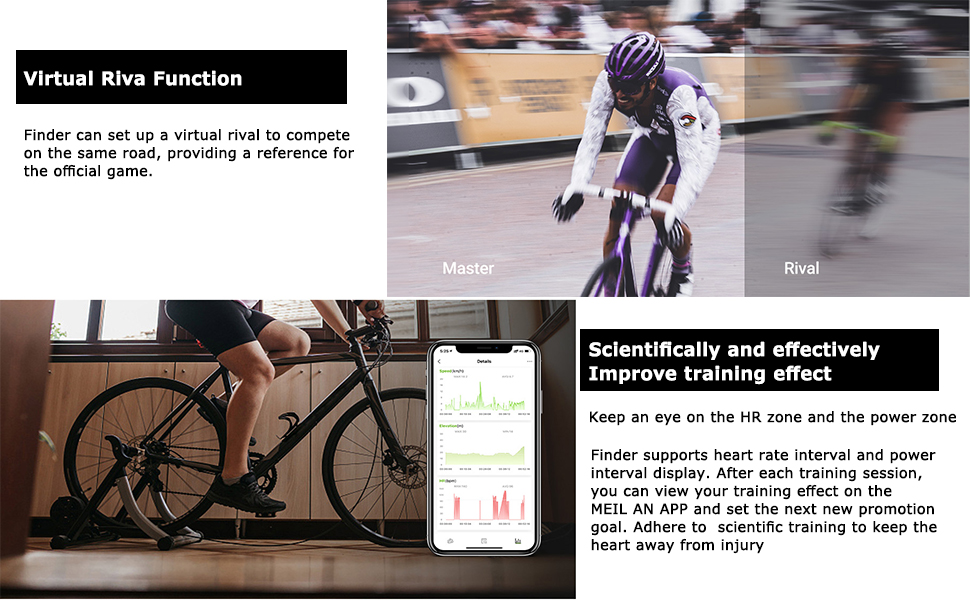
Image: The MEILAN M1 GPS Bike Computer's Virtual Rival Function in action, showing a comparison with a virtual competitor.
4.5 Smart Tail Light Connection
The M1 can connect to 'Cute Eye' smart tail lights, automatically controlling the turning direction of the tail lights for enhanced safety.
5. Maintenance
5.1 Cleaning
Wipe the device with a soft, damp cloth. Avoid using harsh chemicals or abrasive cleaners, as these can damage the screen or casing.
5.2 Water Resistance
The MEILAN M1 is rated IPX5 waterproof, making it suitable for small to medium rain environments. For heavy rain or to prevent water ingress, ensure the USB cover is tightly plugged when using the device.

Image: The MEILAN M1 GPS Bike Computer showcasing its IPX5 waterproof capability during a rainy ride.
5.3 Storage
Store the device in a cool, dry place away from direct sunlight and extreme temperatures when not in use.
6. Troubleshooting
6.1 Device Not Powering On
- Ensure the device is fully charged. Connect it to a USB power source and wait a few minutes before attempting to power on again.
- If the issue persists, try a different USB cable or power adapter.
6.2 GPS Signal Issues
- Ensure you are in an open outdoor area with a clear view of the sky.
- Avoid areas with tall buildings, dense foliage, or strong electromagnetic interference.
- Allow the device sufficient time to acquire a GPS signal upon startup.
6.3 Sensor Not Connecting
- Check if the sensor's battery is charged and correctly installed.
- Ensure the sensor is active and in pairing mode (refer to the sensor's manual).
- Move the sensor closer to the M1 during the pairing process.
- Try unpairing and re-pairing the sensor from the M1's settings.
6.4 Data Not Syncing to App
- Ensure Bluetooth is enabled on your smartphone and the M1 is connected to the MEILAN APP.
- Check for any pending updates for the MEILAN APP.
- Restart both the M1 and your smartphone, then try syncing again.
7. Specifications
| Feature | Detail |
|---|---|
| Model | M1 |
| Item Weight | 9.9 ounces |
| Product Dimensions | 5.28 x 0.47 x 1.97 inches |
| Display Size | 2.6 Inches |
| Battery Life | 40 Hours |
| Connectivity Technology | ANT, Bluetooth, USB |
| Special Feature | Bluetooth, Waterproof |
| Waterproof Rating | IPX5 |
| Mounting Type | Handlebar Mount |
| Control Method | App |
| Are Batteries Included | Yes |
| UPC | 767123017406 |
8. Warranty and Support
For warranty information and customer support, please refer to the documentation included with your purchase or visit the official MEILAN website. You may also contact the seller directly for assistance.


