
1. Product Overview
The DOGNESS Smart Camera Pet Feeder is designed to provide automated feeding for your pets, offering convenience and peace of mind. It features a built-in camera for monitoring, portion control, voice recording, and timer-programmable feeding schedules.

Image 1.1: Front view of the DOGNESS Smart Camera Pet Feeder. The feeder is dark blue and silver, with a camera lens and speaker grille visible on the front panel, and a stainless steel food bowl at the base.

Image 1.2: The DOGNESS Smart Camera Pet Feeder shown alongside a smartphone displaying the live camera feed from the feeder. This illustrates the remote monitoring capability.
2. Setup
2.1 Unpacking and Component Check
Carefully remove all components from the packaging. Ensure the following items are present:
- DOGNESS Smart Camera Pet Feeder unit
- Power Adapter
- Stainless Steel Food Bowl
- Instruction Manual (this document)
2.2 Power Connection
The feeder can be powered by the included AC adapter or by D-cell batteries (not included) for backup power.
- Connect the AC adapter to the power port on the feeder and plug it into a standard wall outlet.
- For battery backup, open the battery compartment (usually located at the bottom or back of the unit) and insert three (3) D-cell batteries, ensuring correct polarity.
Note: The feeder will automatically switch to battery power in case of a power outage. Wi-Fi functionality may be limited when operating solely on battery power.
2.3 App Download and Installation
The DOGNESS Smart Camera Pet Feeder requires the official DOGNESS app for full functionality.
- Search for "DOGNESS" in your device's app store (Apple App Store for iOS or Google Play Store for Android).
- Download and install the official DOGNESS app.
- Follow the in-app instructions to create an account and log in.
2.4 Wi-Fi Connection
Connect your feeder to your home Wi-Fi network using the DOGNESS app.
- Ensure your smartphone is connected to a 2.4GHz Wi-Fi network. The feeder does not support 5GHz Wi-Fi networks.
- Open the DOGNESS app and select "Add Device" or the '+' icon.
- Follow the on-screen prompts to pair your feeder with the app. This typically involves selecting your Wi-Fi network and entering the password.
- The feeder's indicator light will confirm a successful connection.
2.5 Filling the Food Hopper
The feeder has a large capacity for dry pet food.
- Open the lid of the food hopper located at the top of the feeder.
- Pour dry pet food into the hopper. Ensure the food kibble size is appropriate for automatic feeders to prevent jamming.
- Close the lid securely to maintain food freshness.
- Place the stainless steel food bowl into its designated slot at the base of the feeder.
3. Operating Instructions
3.1 Scheduling Meals
Program automatic feeding times and portion sizes through the DOGNESS app.
- Open the DOGNESS app and select your feeder.
- Navigate to the "Schedule" or "Feeding Plan" section.
- Add new feeding times, specifying the time of day and the number of portions for each meal.
- Save your settings. The feeder will dispense food automatically at the scheduled times.
3.2 Manual Feeding
Dispense food instantly using the app or the manual feed button on the unit.
- Via App: On the feeder's main screen in the DOGNESS app, locate the "Feed Now" or "Manual Feed" option. Select the desired number of portions and confirm.
- Via Unit: Press and hold the manual feed button (if available) on the feeder for a few seconds to dispense a single portion.
3.3 Voice Recording and Playback
Record a custom message to play at meal times to call your pet.
- In the DOGNESS app, go to the feeder settings.
- Find the "Voice Recording" or "Meal Call" option.
- Follow the prompts to record your voice message.
- The recorded message will play automatically before each scheduled meal.
3.4 Camera Features
Monitor your pet and the feeder's status using the built-in HD camera with night vision.
- Live View: Open the DOGNESS app and select your feeder to access the live camera feed.
- Night Vision: The camera automatically switches to night vision in low-light conditions, providing clear visibility.
- Two-Way Audio: Use the app's microphone and speaker functions to communicate with your pet remotely.
4. Maintenance
4.1 Cleaning Instructions
Regular cleaning ensures hygiene and proper functioning of the feeder.
- Food Hopper and Bowl: These components are removable and should be hand washed with mild soap and water. Rinse thoroughly and dry completely before reassembling.
- Main Unit: Wipe the exterior of the feeder with a soft, damp cloth. Do not immerse the main unit in water or use abrasive cleaners.
- Ensure all parts are completely dry before adding food or reconnecting power.
Care Instructions: Hand Wash Only for removable food contact parts.
4.2 Refilling Food
Monitor the food level in the hopper and refill as needed to prevent interruptions in feeding.
- The app may provide notifications for low food levels.
- Visually inspect the food level through the transparent section of the hopper.
- Open the lid and add dry kibble, ensuring it does not exceed the maximum fill line.
4.3 Battery Replacement
If using battery backup, replace batteries periodically or when the low battery indicator appears.
- Open the battery compartment.
- Remove old D-cell batteries and dispose of them responsibly.
- Insert new D-cell batteries, observing correct polarity.
- Close the battery compartment securely.
5. Troubleshooting
This section addresses common issues you might encounter with your DOGNESS Smart Camera Pet Feeder.
| Problem | Possible Cause | Solution |
|---|---|---|
| Feeder not dispensing food. |
|
|
| Cannot connect to Wi-Fi. |
|
|
| App is unresponsive or crashes. |
|
|
| Camera feed is unclear or unavailable. |
|
|
6. Specifications
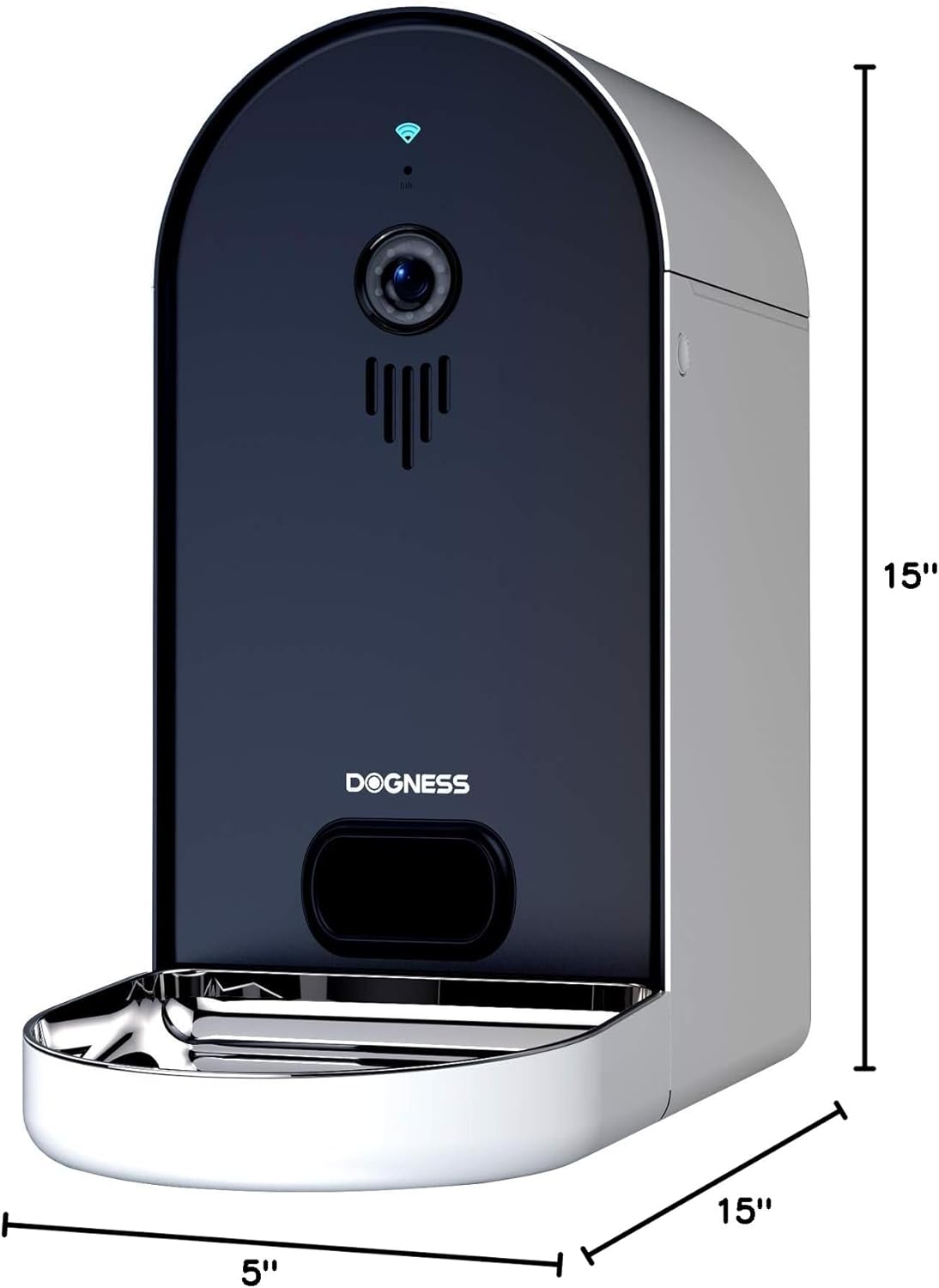
Image 6.1: Diagram illustrating the dimensions of the DOGNESS Smart Camera Pet Feeder, showing a height of 15 inches, width of 5 inches, and depth of 15 inches.
| Feature | Detail |
|---|---|
| Brand | DOGNESS |
| Model Number | B09KBPR7TS |
| Item Weight | 6.5 Pounds |
| Product Dimensions (LxWxH) | 15 x 5 x 15 inches |
| Target Species | Dog, Cat |
| Breed Recommendation | All Breed Sizes |
| Recommended Uses | Multiple Pets |
| Special Features | Portion Control, Timer, Voice Recording, Night Vision Camera |
| Care Instructions | Hand Wash Only (removable parts) |
| Wi-Fi Compatibility | 2.4GHz networks only |
| Power Source | AC Adapter, D-cell Battery Backup |
7. Warranty and Support
For warranty information and customer support, please refer to the documentation included with your product or visit the official DOGNESS website. The manufacturer's website typically provides detailed warranty terms, registration options, and contact information for technical assistance.
Keep your purchase receipt as proof of purchase for any warranty claims.
