
1. Introduction
Thank you for choosing the ENUOSUMA Retro FM Radio. This device combines classic aesthetics with modern functionality, offering FM radio, Bluetooth 5.0 connectivity, an alarm clock, and multiple media playback options. Its compact and portable design, along with a built-in rechargeable battery, makes it suitable for various environments.
This manual provides detailed instructions for setting up and operating your radio to ensure optimal performance and user experience.

Figure 1: Front view of the ENUOSUMA Retro FM Radio, featuring a wooden casing, a black control panel with an LCD display showing '23:26', a speaker grille, and various buttons for alarm, mode, track control, and a rotary knob for power/volume and select/pause.
2. Package Contents
Please check the package for the following items:
- 1 x ENUOSUMA Retro FM Radio (Bluetooth Speaker)
- 1 x Audio Cable
- 1 x USB Charging Cable (Type-C)
- 1 x User Manual
3. Product Features
- Multi-Mode Functionality: FM Radio, Bluetooth 5.0, Clock, Alarm.
- High-Quality Audio: Built-in 5W stereo speaker with 3D stereo audio.
- Dual Alarms: Set two independent alarms with snooze function.
- Digital Display: Clear LCD display for time, mode, and frequency.
- Hands-Free Calling: Integrated microphone for Bluetooth calls.
- Multiple Input Options: TF card slot, USB port, AUX input.
- Portable Design: Compact size with a 2000mAh rechargeable battery for up to 9 hours of playtime.
- Retro Aesthetic: Distinctive wooden casing for a classic look.
4. Controls and Ports Overview
Familiarize yourself with the buttons and ports on your ENUOSUMA Retro FM Radio:
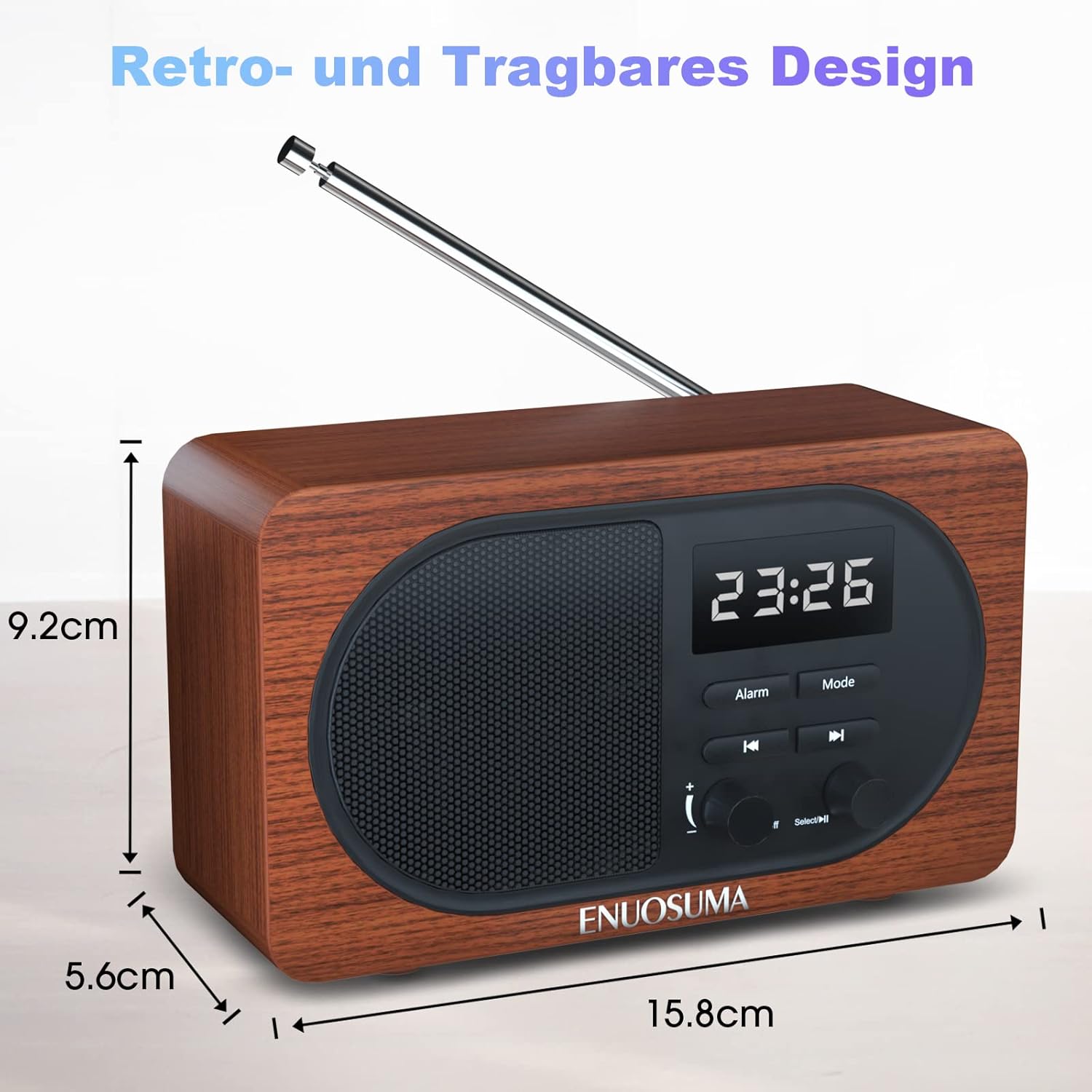
Figure 2: Detailed diagram labeling the front controls and rear ports of the ENUOSUMA Retro FM Radio.
- Power ON/OFF / Volume +/-: Rotate to adjust volume. Press and hold to power on/off.
- Select / Pause: Press to select or pause playback. Long press in FM mode for auto-search.
- Alarm Function: Button to set and manage alarms.
- Mode: Press to switch between FM, Bluetooth, TF Card, USB, and AUX modes.
- Previous Track: Press to go to the previous track (in media playback modes) or tune down (in FM mode).
- Next Track: Press to go to the next track (in media playback modes) or tune up (in FM mode).
- Aux Input: 3.5mm jack for external audio devices.
- USB Disk Port: For USB flash drives with audio files.
- TF Card Slot: For MicroSD/TF cards with audio files.
- Type-C Charging Port: For charging the internal battery.
- Microphone (MIC): For hands-free calling.
5. Setup
5.1 Initial Charging
Before first use, fully charge the radio. Connect the supplied Type-C USB charging cable to the Type-C Charging Port (10) on the back of the radio and the other end to a USB power adapter (not included) or a computer's USB port. The charging indicator will show the charging status.
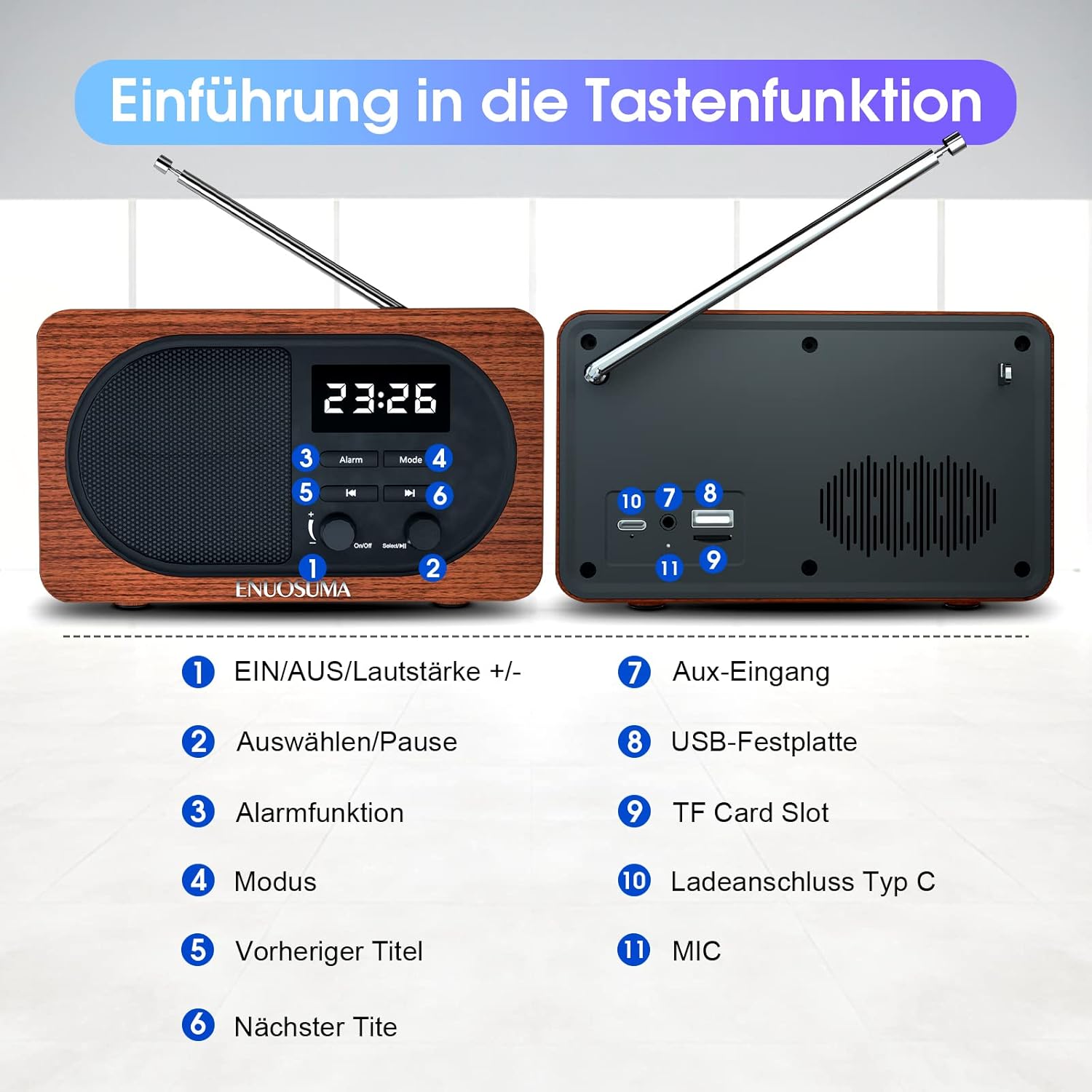
Figure 3: The radio's Type-C port can be used for charging the device. The image also illustrates the snooze function and the extendable antenna.
6. Operating Instructions
6.1 Power On/Off and Volume Control
- Power On: Press and hold the Power ON/OFF / Volume +/- knob (1) until the display lights up.
- Power Off: Press and hold the Power ON/OFF / Volume +/- knob (1) again.
- Volume Adjustment: Rotate the Power ON/OFF / Volume +/- knob (1) clockwise to increase volume and counter-clockwise to decrease volume.
6.2 Mode Selection
Press the 'Mode' button (4) repeatedly to cycle through available modes: FM Radio, Bluetooth, TF Card, USB, and AUX.
6.3 FM Radio Operation
- Enter FM Mode: Press the 'Mode' button (4) until 'FM' is displayed.
- Extend Antenna: For best reception, fully extend the telescopic antenna located on the back of the radio.
- Automatic Channel Search: Long press the 'Select / Pause' button (2). The radio will automatically scan and store available FM stations. The number of stations found depends on signal strength.
- Manual Tuning: In FM mode, briefly press the 'Previous Track' (5) or 'Next Track' (6) buttons to fine-tune the frequency.
- Navigate Stored Stations: After an auto-search, briefly press 'Previous Track' (5) or 'Next Track' (6) to cycle through stored stations.
6.4 Bluetooth Pairing
- Enter Bluetooth Mode: Press the 'Mode' button (4) until 'Bluetooth' or 'BT' is displayed, and you hear an audible prompt. The radio will enter pairing mode.
- Enable Bluetooth on Your Device: On your smartphone, tablet, or other Bluetooth-enabled device, go to Bluetooth settings and enable Bluetooth.
- Select Device: Look for 'ENUOSUMA' (or similar name) in the list of available devices and select it to pair.
- Confirmation: Once paired, you will hear a confirmation sound from the radio. You can now play audio from your device through the radio.

Figure 4: The radio supports Bluetooth 5.0 for wireless connection to devices such as smartphones, laptops, and tablets.
6.5 Alarm Clock Setup
- Setting Time: In clock mode, press and hold the 'Alarm' button (3) to enter time setting. Use 'Previous Track' (5) and 'Next Track' (6) to adjust hours and minutes, and 'Select / Pause' (2) to confirm and move to the next setting.
- 12/24 Hour Format: The radio supports both 12-hour and 24-hour time formats. This can typically be toggled during time setting or via a dedicated setting.
- Setting Alarm: Briefly press the 'Alarm' button (3) to select Alarm 1 or Alarm 2. Press and hold the 'Alarm' button (3) to set the alarm time. Use 'Previous Track' (5) and 'Next Track' (6) to adjust, and 'Select / Pause' (2) to confirm.
- Snooze Function: When the alarm sounds, press any button (except power off) to activate the 5-minute snooze function.

Figure 5: This infographic highlights the 12/24 hour time display, clock and FM modes, built-in microphone, and various input interfaces.
6.6 Media Playback (TF Card, USB, AUX)
- TF Card/USB Playback: Insert a TF card into the TF Card Slot (9) or a USB flash drive into the USB Disk Port (8) with compatible audio files. The radio will automatically switch to the respective mode or you can select it using the 'Mode' button (4). Use 'Previous Track' (5), 'Next Track' (6), and 'Select / Pause' (2) for playback control.
- AUX Input: Connect an external audio device (e.g., MP3 player, smartphone) to the Aux Input (7) using the supplied audio cable. Select AUX mode using the 'Mode' button (4). Audio will be played through the radio's speaker.
6.7 Hands-Free Function
When connected via Bluetooth to a smartphone, the built-in Microphone (11) allows you to answer and make calls directly through the radio. Use the 'Select / Pause' button (2) to answer or end calls.
7. Maintenance
- Keep the device dry. Avoid exposure to water or excessive humidity.
- Clean the radio with a soft, dry cloth. Do not use abrasive cleaners or solvents.
- Store the radio in a cool, dry place when not in use for extended periods.
- Do not attempt to disassemble or repair the device yourself. Refer to qualified service personnel.
8. Troubleshooting
| Problem | Possible Cause | Solution |
|---|---|---|
| Radio does not power on. | Low battery or no power. | Charge the radio using the Type-C USB cable. Ensure the charging cable is properly connected. |
| Poor FM reception. | Antenna not extended, weak signal area. | Fully extend the telescopic antenna. Try repositioning the radio to an area with better signal reception. |
| Bluetooth device cannot pair. | Radio not in pairing mode, Bluetooth off on device, device too far. | Ensure the radio is in Bluetooth mode. Make sure Bluetooth is enabled on your device and it's within range (approx. 10 meters). Restart both devices. |
| No sound from TF card/USB. | Incorrect mode, unsupported file format, corrupted files. | Ensure the radio is in TF Card or USB mode. Check if the audio files are in a supported format (e.g., MP3). Try another TF card or USB drive. |
| Cannot set time/alarm. | Incorrect button sequence. | Refer to section 6.5 for detailed instructions on setting time and alarms. Ensure you are pressing and holding the correct buttons as indicated. |
9. Specifications
| Feature | Specification |
|---|---|
| Brand | ENUOSUMA |
| Model Number | BS22 |
| Product Dimensions | 16 x 5.8 x 9.3 cm |
| Item Weight | 0.64 Kilograms |
| Connectivity Technology | Bluetooth 5.0, USB, AUX |
| Special Features | Audio Input, FM Radio, Alarm Clock, Built-in Microphone |
| Speaker Output Power | 5 Watts (Stereo) |
| FM Frequency Range | Up to 108 MHz |
| Battery Capacity | 2000mAh |
| Playtime | Up to 9 hours |
| Charging Port | Type-C USB |
10. Warranty and Support
ENUOSUMA products are designed for reliability and performance. If you encounter any product quality problems or require assistance, please contact our customer service team. We are committed to providing 24-hour customer support to address your concerns.
Please retain your proof of purchase for warranty claims.