
1. Product Overview
This manual provides instructions for the Mopect 10.1 Inch Double Din Android Car Stereo. This device integrates a 10.1-inch HD 1080P 2.5D touchscreen with Android operating system capabilities, offering features such as WiFi, GPS navigation, Bluetooth connectivity, backup camera support, steering wheel control (SWC), subwoofer output, and Android/iOS mirror link functionality.
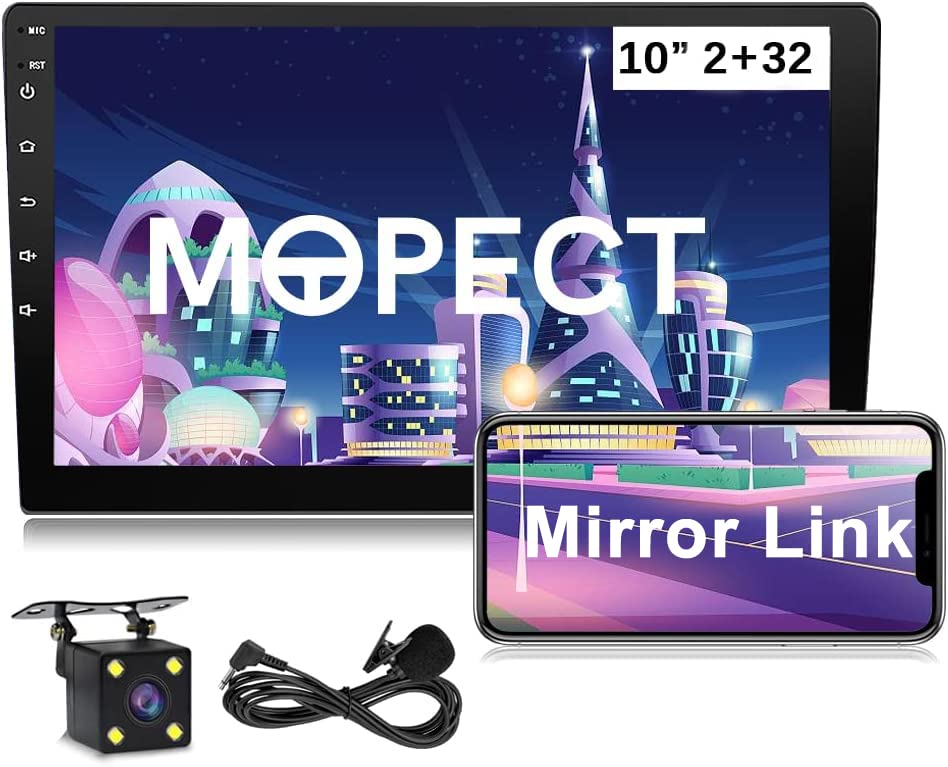
Image: Front view of the Mopect 10.1 Inch Double Din Android Car Stereo, showing the 10-inch capacitive touchscreen display with various app icons and an Android robot figure.
2. Key Features
- 10.1 Inch HD Touchscreen: A large 2.5D capacitive touchscreen display for clear visuals and intuitive control.
- Android Operating System: Provides access to a wide range of applications and features.
- GPS Navigation: Integrated GPS for worldwide navigation.
- WiFi Connectivity: Connect to the internet via a mobile hotspot for online services and app downloads.
- Bluetooth: Supports hands-free calling and audio streaming.
- Mirror Link: Compatible with both Android and iOS devices for screen mirroring.
- Rear View Camera Support: Input for a backup camera to assist with parking.
- Steering Wheel Control (SWC): Allows integration with existing vehicle steering wheel buttons for safe operation.
- FM Radio: Built-in radio tuner for local broadcasts.
- EQ Setting: Customizable audio equalizer for sound optimization.
- Split Screen Functionality: Run two applications simultaneously on the display.

Bluetooth Call Interface

Mirror Link Functionality

Split Screen Display

FM Radio Interface

GPS Navigation Map

WiFi Connection Screen
3. Installation Guide
Before beginning installation, ensure the vehicle's battery is disconnected to prevent electrical damage. Professional installation is recommended.
3.1 Package Contents
Verify all components are present before installation:
- Mopect 10.1 Inch Android Car Stereo Unit
- GPS Antenna
- External Microphone
- Power Cable (ISO Power Cable)
- RCA Input/Output Cables
- USB Cables (x2)
- Camera Input Cable
- Mounting Brackets (Iron Sheet)
- Fuse
- User Manual (this document)
- Optional: Backup Camera (if included with purchase)

Image: All components included in the Mopect 10.1 Inch Double Din Android Car Stereo package, such as the main unit, cables, GPS antenna, and mounting hardware.
3.2 Wiring Diagram
Refer to the following diagram for proper wiring connections. Incorrect wiring can damage the unit or vehicle electrical system.
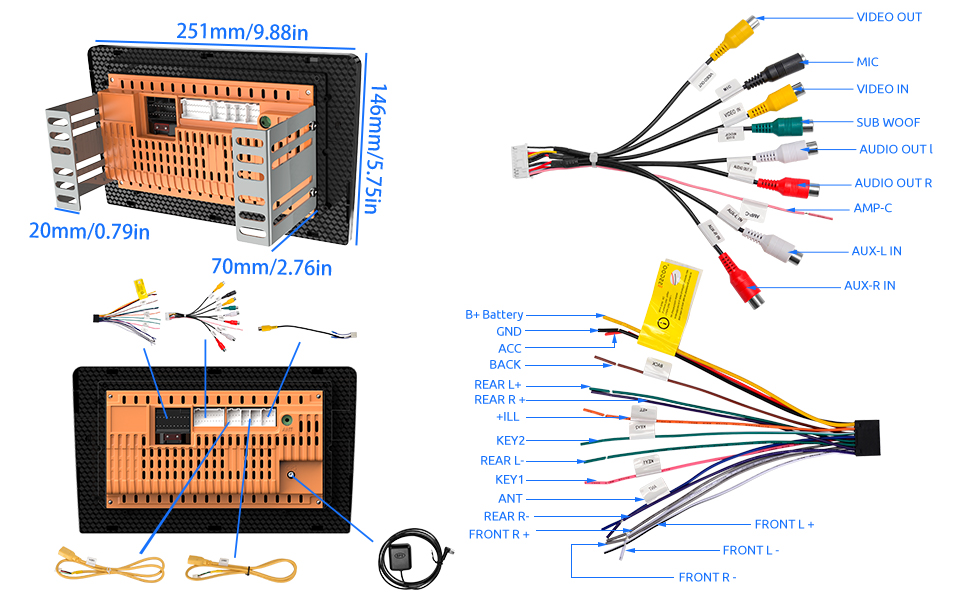
Image: Detailed wiring diagram for the Mopect car stereo, showing connections for power, speakers, camera, and other accessories.
Key Connections:
- Power Cable: Connect the ISO power cable to the vehicle's wiring harness. Ensure correct polarity (B+ Battery, ACC, GND).
- Speaker Outputs: Connect front and rear speaker wires (FL+, FL-, FR+, FR-, RL+, RL-, RR+, RR-).
- GPS Antenna: Connect the GPS antenna to the dedicated port on the back of the unit and mount it in a location with a clear view of the sky.
- Radio Antenna: Connect the vehicle's radio antenna.
- Reverse Input: Connect to the vehicle's reverse light signal for automatic camera display.
- Steering Wheel Control (SWC): Connect KEY1 and KEY2 wires to the vehicle's SWC wires. Refer to your vehicle's wiring diagram for specific connections.
- USB Ports: Connect the provided USB cables for media playback, phone charging, or mirror link.
- External Microphone: Connect for improved hands-free call quality.
- RCA Outputs: For connecting external amplifiers or subwoofers.

Image: The ISO Power Cable, showing various colored wires for different connections.
3.3 Mounting the Unit
Use the provided mounting brackets (iron sheets) to secure the double din unit into the vehicle's dashboard opening. Ensure the unit is firmly seated and does not obstruct any vehicle controls.

Image: Rear view of the Mopect car stereo showing various connection ports and overall dimensions.
4. Operating Instructions
4.1 Basic Operation
- Power On/Off: Press and hold the power button on the unit's front panel or use the vehicle's ignition.
- Volume Control: Adjust using the on-screen controls or steering wheel buttons (if configured).
- Touchscreen: Navigate the interface by tapping, swiping, and pinching on the 10.1-inch display.

Image: Various screens of the Mopect car stereo user interface, including the main menu, settings, radio, and phone dialer.
4.2 GPS Navigation
The unit comes with pre-installed navigation software. To use:
- Tap the "Navigation" or "Maps" icon on the home screen.
- Enter your destination using the on-screen keyboard.
- Follow the voice prompts and on-screen directions.
- Ensure the GPS antenna has a clear signal for accurate positioning.
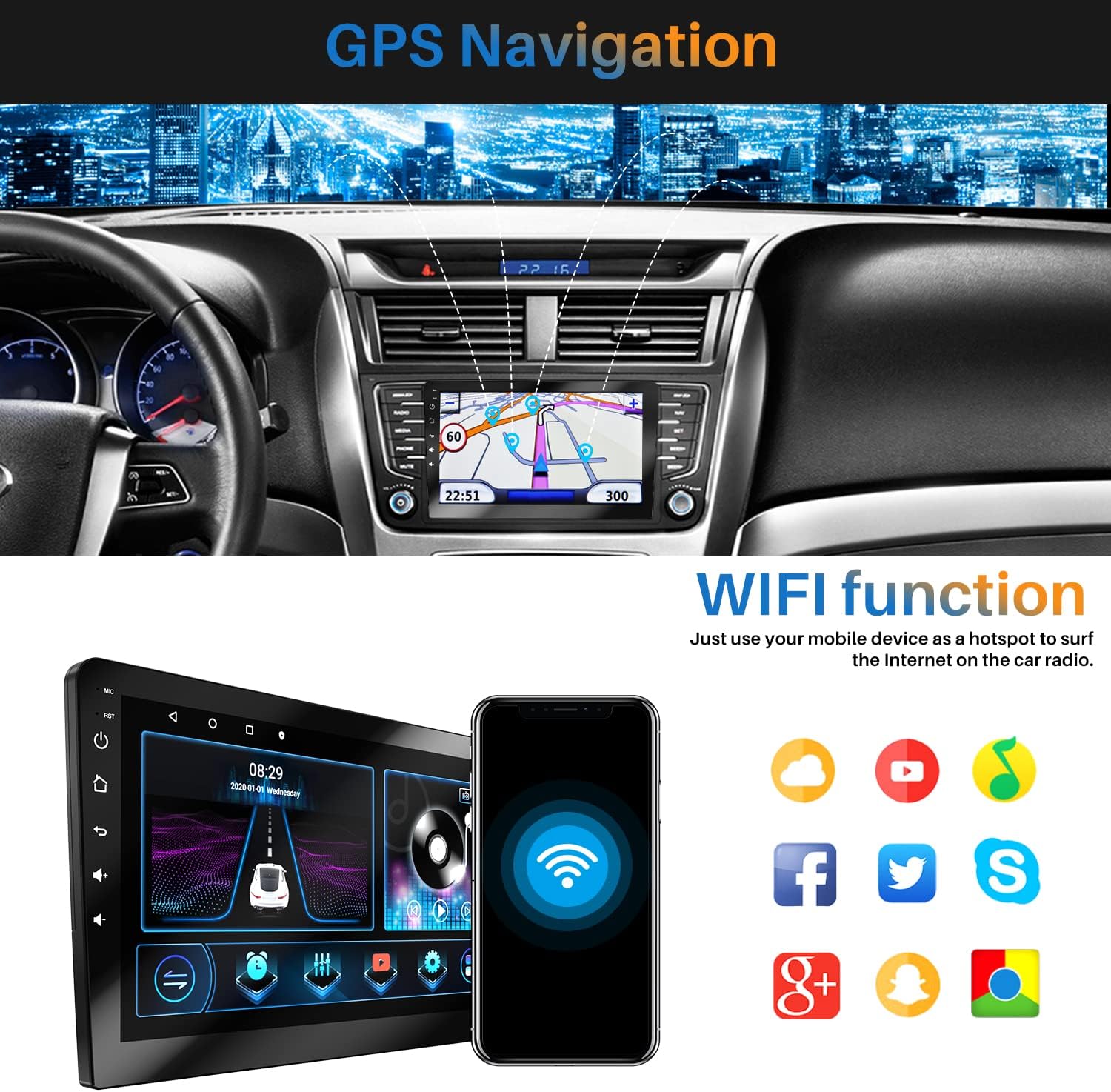
Image: The car stereo displaying a GPS navigation map within a vehicle dashboard.
4.3 Bluetooth Connectivity
Pair your mobile device for hands-free calls and audio streaming:
- Go to "Settings" and select "Bluetooth".
- Enable Bluetooth on both the car stereo and your mobile device.
- Search for available devices on your mobile phone and select "Mopect Car Stereo" (or similar name).
- Confirm the pairing code if prompted.
- Once paired, you can make/receive calls and play music through the car stereo.
4.4 WiFi Functionality
Connect to a mobile hotspot or available WiFi network:
- Go to "Settings" and select "Wi-Fi".
- Turn on Wi-Fi and select your desired network from the list.
- Enter the password if required.
- Once connected, you can access online apps, browse the internet, and download updates.

Image: The car stereo displaying its WiFi function, with a smartphone nearby indicating hotspot connectivity.
4.5 Mirror Link (Android/iOS)
Mirror your smartphone screen to the car stereo display:
- For Android: Connect via USB cable or WiFi. The phone can display the stereo interface, and the stereo can display the phone interface, allowing mutual operation.
- For iOS: Supports one-way connection (screen casting) via USB cable or WiFi. The phone screen is displayed on the stereo.

Image: Diagram illustrating Mirror Link functionality for both Apple (iOS) and Android phones, showing USB and WiFi connection options.
4.6 Rear View Camera Display
When the vehicle is shifted into reverse, the display will automatically switch to the rear view camera feed (if a camera is connected and wired correctly).

Image: The car stereo screen showing a rear view camera feed with parking guidelines, alongside a diagram of a car with a backup camera.
4.7 Steering Wheel Control (SWC) Learning
To configure your steering wheel buttons:
- Go to "Settings" and find the "Steering Wheel Control" or "SWC Learning" option.
- Follow the on-screen instructions to assign functions to each button. This typically involves pressing a button on the steering wheel and then selecting the corresponding function on the stereo's screen.

Image: The car stereo displaying the Steering Wheel Control learning interface, showing various functions that can be assigned to physical buttons.
5. Maintenance
- Screen Cleaning: Use a soft, lint-free cloth to clean the touchscreen. Do not use abrasive cleaners or solvents.
- Software Updates: Periodically check for software updates via the system settings to ensure optimal performance and access to new features.
- Fuse Replacement: If the unit loses power, check the fuse in the power cable. Replace with a fuse of the same rating.
- General Care: Avoid exposing the unit to extreme temperatures, direct sunlight for prolonged periods, or excessive moisture.
6. Troubleshooting
| Problem | Possible Cause | Solution |
|---|---|---|
| Unit does not power on. | No power connection; Blown fuse; Incorrect wiring. | Check power cable connections (B+ Battery, ACC, GND). Verify fuse is intact and replace if necessary. Consult wiring diagram. |
| No sound. | Volume too low; Mute activated; Speaker wires disconnected; Incorrect audio settings. | Increase volume. Check if mute is active. Verify speaker wire connections. Adjust audio output settings. |
| GPS signal lost or inaccurate. | GPS antenna obstructed or disconnected. | Ensure GPS antenna is properly connected and mounted in a clear location (e.g., dashboard, not under metal). |
| Bluetooth not connecting. | Bluetooth off; Device not discoverable; Pairing issue. | Ensure Bluetooth is enabled on both devices. Make sure the stereo is in pairing mode. Delete previous pairings and try again. |
| Rear view camera not displaying. | Camera not connected; Reverse trigger wire not connected; Camera faulty. | Check camera input connection. Verify the reverse trigger wire is correctly connected to the vehicle's reverse light signal. Test camera functionality. |
| Steering wheel controls not working. | SWC wires incorrectly connected; SWC learning not performed. | Verify KEY1/KEY2 connections. Perform SWC learning procedure in settings. |
| Date and time reset after turning off car. | Constant power (B+) wire not connected or faulty. | Ensure the B+ (yellow) wire is correctly connected to a constant 12V power source in the vehicle. |
7. Product Specifications
| Feature | Detail |
|---|---|
| Model | 10.1 Inch Double Din Android Car Stereo |
| Display Size | 10.1 Inches |
| Resolution | 1080p HD |
| Memory Storage Capacity | 32 GB |
| Connectivity Technology | Wi-Fi, Bluetooth |
| Special Features | Touchscreen, GPS Navigation, Backup Camera Support, SWC, Mirror Link (Android/iOS), Subwoofer Output |
| Audio Output Mode | Speaker, Stereo |
| Map Type | Worldwide |
| Mounting Type | Panel Mount (Double Din) |
| Item Weight | 3.27 pounds |
| Product Dimensions | 9.84 x 5.75 x 3.15 inches |
8. Support & Warranty Information
Mopect is committed to providing high-quality products and customer service.
8.1 Customer Support
If you encounter any issues or have questions regarding your Mopect car stereo, please contact Mopect Support via Amazon Messages. Our professional technical team is available to provide assistance and solutions.
- Online reply within 24 hours.
- Professional technical guidance.

Image: Mopect customer service representatives providing support.
8.2 Warranty
Specific warranty details are typically provided with your purchase documentation. Please retain your proof of purchase for warranty claims. For any warranty-related inquiries, contact Mopect Support.
