1. Introduction
Thank you for purchasing the TZ-D205W Drive Recorder. This device is designed to provide reliable video recording of your journeys, enhancing safety and security on the road. It features a dual-camera system for front and rear coverage, advanced recording modes, and essential safety functions. Please read this manual thoroughly before installation and operation to ensure proper use and optimal performance.
2. Product Features
- Dual Camera System: Records both front and rear views simultaneously for comprehensive coverage.
- Full HD Recording: Captures clear, high-definition video.
- Parking Mode: Automatically records events when the vehicle is parked and the engine is off, providing surveillance against bumps or vandalism.
- G-Sensor: Detects sudden impacts or collisions and automatically locks the current video file to prevent overwriting.
- GPS Functionality: Records location and speed data, which can be viewed during playback.
- Night Vision: Enhanced low-light recording capabilities for clear video in dark conditions.
- LED Traffic Light Compatible: Designed to avoid flickering issues when recording LED traffic signals.
- MicroSD Card Maintenance-Free: Optimized for extended use without frequent manual formatting.
- Multiple Recording Modes: Includes Event Recording, Manual Recording, and Quick Recording.
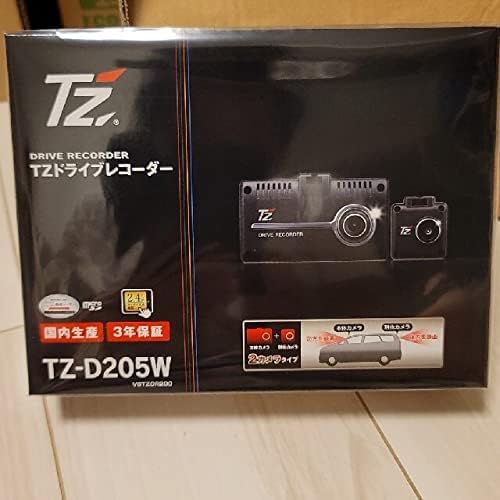
Figure 2.1: Front of the TZ-D205W Drive Recorder product packaging. This image highlights the model number, the dual-camera feature, and the 3-year warranty.

Figure 2.2: Back of the TZ-D205W Drive Recorder product packaging. This image provides an overview of the device's functions, such as front and rear recording, parking mode, night vision, and various recording options.
3. Setup and Installation
3.1 Package Contents
Please verify that all components are present in your package. Typical contents include:
- Main Drive Recorder Unit (Front Camera)
- Rear Camera
- Power Cable (for vehicle's 12V outlet)
- Mounting Bracket (Adhesive Type)
- MicroSD Card (may be included or sold separately)
- User Manual
3.2 MicroSD Card Insertion
- Ensure the drive recorder is powered off.
- Locate the microSD card slot on the main unit.
- Insert the microSD card with the contacts facing the correct direction until it clicks into place.
- To remove, gently push the card until it springs out.
3.3 Mounting the Drive Recorder
The TZ-D205W uses an adhesive mounting method.
- Clean the chosen area on your windshield thoroughly to ensure good adhesion.
- Attach the adhesive mounting bracket to the main drive recorder unit.
- Peel off the protective film from the adhesive pad.
- Firmly press the bracket onto the windshield, ensuring the front camera has a clear view of the road.
- Mount the rear camera on the rear windshield, ensuring a clear view.
3.4 Power Connection
- Connect the power cable to the main drive recorder unit.
- Plug the other end of the power cable into your vehicle's 12V power outlet (cigarette lighter socket).
- Route the cable neatly along the edges of the windshield and dashboard to avoid obstructing your view or interfering with driving.
- Connect the rear camera cable to the main unit and route it to the rear of the vehicle.
4. Operating Instructions
4.1 Powering On/Off
- Automatic Operation: The drive recorder will automatically power on and begin recording when your vehicle's ignition is turned on. It will power off automatically when the ignition is turned off.
- Manual Operation: Refer to the device's buttons for manual power control, typically a dedicated power button.
4.2 Recording Modes
- Continuous Recording: The device continuously records video in short segments (e.g., 1, 3, or 5 minutes). When the microSD card is full, the oldest files are overwritten, except for locked event files.
- Event Recording (G-Sensor): In the event of a sudden impact or collision, the G-sensor triggers and automatically saves the current recording segment as a protected file that will not be overwritten.
- Manual Recording: Press a designated button to manually start an emergency recording, which will also be saved as a protected file.
- Parking Mode: When the vehicle is parked and the engine is off, the drive recorder can detect motion or impacts and automatically begin recording. This feature requires a continuous power supply (e.g., hardwiring kit, sold separately).
4.3 Viewing Recordings
Recordings can typically be viewed in one of two ways:
- On the Device: Use the built-in screen and navigation buttons to browse and play back recorded videos.
- On a Computer: Remove the microSD card from the device and insert it into a computer's card reader. Use a compatible video player or the manufacturer's dedicated software (if provided) to view the files. GPS data can often be viewed with specialized software.
4.4 Settings Adjustment
Access the device's menu to adjust various settings, including:
- Date and Time
- Video Resolution
- G-Sensor Sensitivity
- Parking Mode Settings
- Microphone On/Off
- Format MicroSD Card (recommended periodically)
5. Maintenance
- Cleaning the Lens: Gently wipe the camera lenses with a soft, lint-free cloth to ensure clear recordings. Avoid abrasive materials.
- MicroSD Card Management: Although the device features "maintenance-free" microSD card operation, it is good practice to periodically format the card (e.g., once a month) to ensure optimal performance and prevent data corruption. Back up any important files before formatting.
- Firmware Updates: Check the manufacturer's website periodically for any available firmware updates. Updates can improve performance, add features, or fix bugs. Follow the instructions provided with the update carefully.
6. Troubleshooting
| Problem | Possible Cause | Solution |
|---|---|---|
| Device does not power on. | No power supply; faulty cable; vehicle's 12V outlet not working. | Check power cable connection; test 12V outlet with another device; try a different power cable. |
| Not recording. | MicroSD card full or corrupted; card not inserted correctly; recording function disabled. | Format the microSD card; reinsert the card; check recording settings. |
| Poor video quality. | Dirty lens; protective film still on lens; low resolution setting. | Clean the lens; remove any protective film; adjust video resolution in settings. |
| G-sensor too sensitive/not sensitive enough. | G-sensor sensitivity setting is incorrect for driving conditions. | Adjust G-sensor sensitivity in the device settings. |
| Parking mode not working. | No continuous power supply; parking mode not enabled. | Ensure continuous power supply (e.g., hardwiring kit); enable parking mode in settings. |
7. Specifications
| Feature | Detail |
|---|---|
| Model Number | TZ-D205W |
| Brand | No Brand |
| Camera Type | Dual (Front & Rear) |
| Video Resolution | Full HD (Front & Rear) |
| Mounting Method | Adhesive Type |
| Special Features | G-Sensor, GPS, Parking Mode, Night Vision, LED Traffic Light Compatible, MicroSD Maintenance-Free |
| Package Dimensions | 21.4 x 16.1 x 6.1 cm |
| Package Weight | 660 g |
| First Available (Amazon.co.jp) | October 22, 2021 |
8. Warranty and Support
The TZ-D205W Drive Recorder comes with a 3-year warranty from the date of purchase. This warranty covers manufacturing defects and malfunctions under normal use.
For warranty claims, technical support, or any inquiries regarding your product, please contact the retailer from whom you purchased the device. Keep your proof of purchase for warranty validation.
Please note that the warranty may not cover damages caused by improper installation, misuse, accidents, unauthorized repairs, or natural disasters.