
FMOUSE B09K4248DB_CA NARF
FMOUSE Slim Multifunctional Bluetooth Mouse User Manual
Model: B09K4248DB_CA NARF
Introduction
This manual provides comprehensive instructions for the FMOUSE Slim Multifunctional Bluetooth Mouse. Please read it carefully to ensure proper use, optimal performance, and longevity of your device. This mouse offers versatile connectivity, silent operation, and convenient shortcut functions for enhanced productivity.
What's in the Box
- 1 x Silent Wireless Mouse
- 1 x USB charging cable
- 1 x USB receiver
- 1 x Instruction manual
Product Overview

The FMOUSE Slim Multifunctional Bluetooth Mouse, shown here with its USB receiver partially extended from the top. It features a sleek grey design with RGB lighting on the scroll wheel and three prominent buttons on the top surface.
Key Features:
- Multi-functional Bluetooth Mouse: Connects to two devices simultaneously (Bluetooth 5.1 and 2.4G USB receiver). Features a stylish design with multiple buttons for enhanced productivity. Operates silently.
- Desktop Return Button: A dedicated shortcut button to instantly return to your computer's home page, offering quick privacy protection.
- Adjustable Volume / Mute Button: A shortcut button to instantly mute your computer's volume. Long press and scroll to adjust volume.
- 4 Adjustable DPI Levels: Easily switch cursor sensitivity between 800, 1200, 1600, and 2400 DPI. The scroll wheel's light color indicates the current DPI level. Long press the DPI button to turn off the roller light.
- Wide Compatibility: Dual Mode Mouse compatible with Windows, MacOS, iPadOS, ChromeOS, and Linux.
- Type-C Rechargeable: Convenient USB-C charging.
- Slim and Portable: Compact design for easy travel and storage.
- Magnetic Receiver Slot: Securely stores the USB receiver within the mouse.
Setup
1. Charging the Mouse
Before first use, ensure the mouse is fully charged. Connect the provided USB charging cable to the Type-C port on the front of the mouse and to a USB power source (e.g., computer USB port, wall adapter).

The image shows the mouse connected via a USB-C cable for charging. The scroll wheel light indicates charging status: red for charging, off when charging is complete, and flashing red for low battery.
- Charging Indicator: The scroll wheel light will be red while charging.
- Charging Complete: The light will turn off when charging is complete.
- Low Battery: The light will flash red when the battery is low.
2. Connecting the Mouse (Dual Mode)
The FMOUSE supports two connection methods: 2.4G Wireless (via USB receiver) and Bluetooth 5.1.
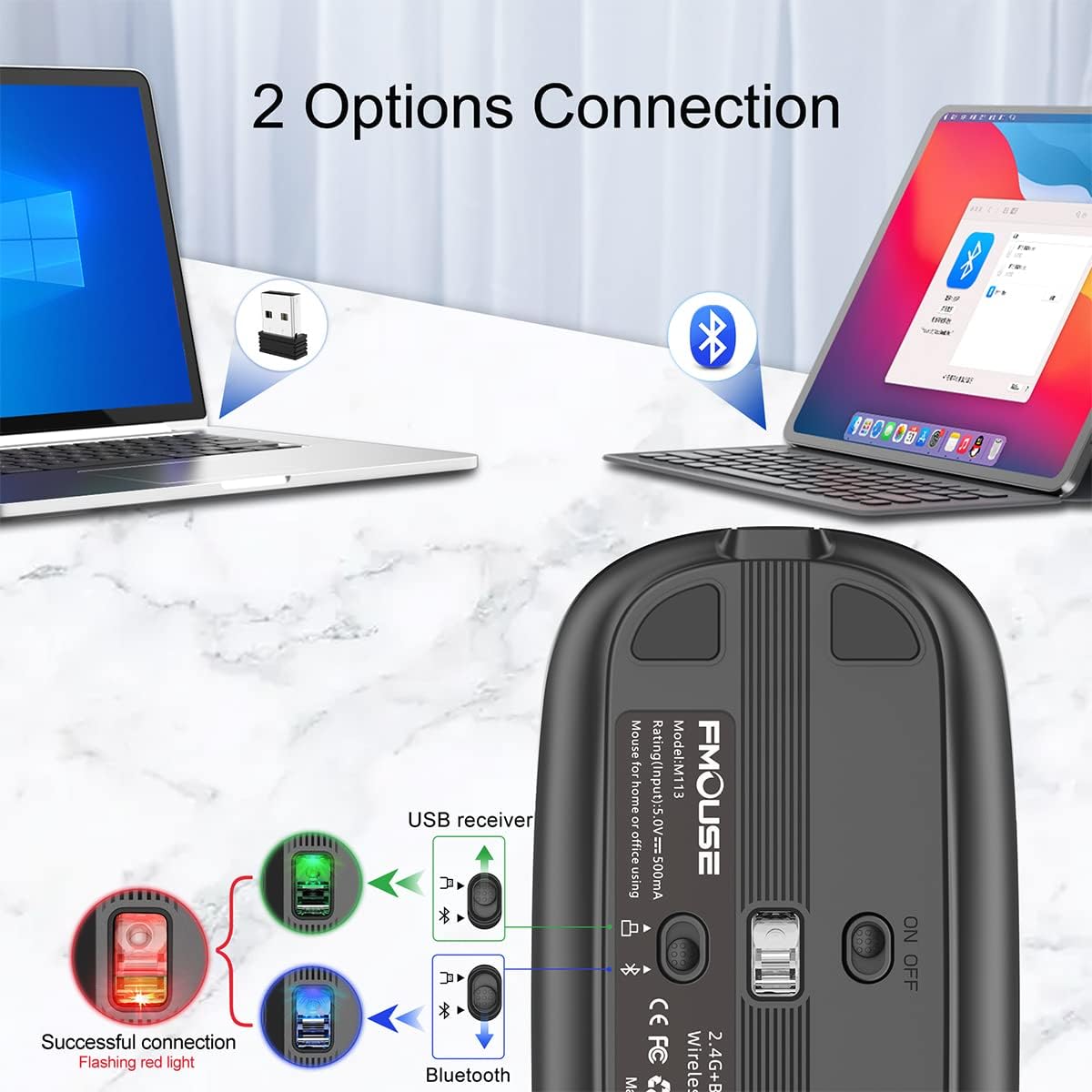
This diagram illustrates the two connection options: 2.4G wireless via a USB receiver for one laptop and Bluetooth for another. The underside of the mouse shows the power switch and the USB receiver storage slot.
2.1. 2.4G Wireless Connection (USB Receiver)
- Locate the USB receiver stored in the magnetic slot on the underside of the mouse.
- Plug the USB receiver into an available USB port on your computer.
- Turn on the mouse using the ON/OFF switch located on the underside.
- The mouse should automatically connect to your computer.
2.2. Bluetooth 5.1 Connection
- Turn on the mouse using the ON/OFF switch located on the underside.
- On your device (MacBook, iPad, PC, etc.), go to Bluetooth settings.
- Search for new devices. The mouse should appear as "FMOUSE" or similar.
- Select the mouse to pair. Once paired, the mouse is ready for use.
Operating Instructions
1. Silent Click Operation
The FMOUSE is designed for silent clicks, making it suitable for quiet environments like libraries or offices.

This image highlights the silent click feature of the mouse, indicating that it produces minimal sound when clicked, ideal for quiet environments.
2. Desktop Return Button
Press the dedicated Desktop Return button (often marked with a computer monitor icon) to instantly minimize all open windows and return to your desktop.

The image shows the mouse positioned next to a computer screen, with an arrow pointing from the mouse's desktop button to the desktop, illustrating its function to quickly return to the home screen.
3. Mute / Volume Adjustment Button
The mute button (often marked with a speaker icon) provides quick audio control.
- Instant Mute: Press the mute button once to instantly set your computer's volume to zero.
- Volume Adjustment: Press and hold the mute button for 2 seconds, then scroll the mouse wheel up or down to adjust the volume level.

This image demonstrates the mute and volume adjustment features. The top panel shows pressing the mute button to silence audio. The bottom panel shows pressing the mute button for 2 seconds and then using the scroll wheel to adjust volume.
4. DPI Adjustment
Press the DPI button (often marked "DPI") to cycle through the four adjustable DPI settings: 800, 1200, 1600, and 2400. The color of the scroll wheel light will change to indicate the current DPI level.

This image illustrates the four adjustable DPI settings (800, 1200, 1600, 2400) and how the scroll wheel's RGB light changes color to indicate the selected DPI level.
Turning Off Roller Light:
If you prefer to turn off the RGB roller light, long press the DPI button for 2 seconds.
Maintenance
- Cleaning: Use a soft, dry cloth to clean the mouse. For stubborn dirt, slightly dampen the cloth with water or a mild cleaning solution. Avoid harsh chemicals or abrasive materials.
- Storage: When not in use, store the mouse in a cool, dry place. If traveling, utilize its slim design and consider storing the USB receiver in its magnetic slot to prevent loss.
- Battery Care: To prolong battery life, avoid fully discharging the mouse frequently. Charge it when the low battery indicator flashes.
Troubleshooting
| Problem | Possible Cause | Solution |
|---|---|---|
| Mouse not responding | Low battery; Mouse is off; Incorrect connection mode; USB receiver not plugged in (2.4G); Bluetooth not paired. | Charge the mouse; Turn on the mouse; Ensure correct mode is selected (2.4G or BT); Re-insert USB receiver; Re-pair Bluetooth. |
| Cursor movement is erratic or slow | Low DPI setting; Dirty optical sensor; Unsuitable surface. | Increase DPI using the DPI button; Clean the optical sensor; Use on a smooth, non-reflective surface or mouse pad. |
| Bluetooth connection drops frequently | Interference; Distance from device; Low mouse battery. | Move closer to the device; Ensure no strong interference sources; Charge the mouse. |
| Roller light is off | Light has been turned off; Low battery. | Long press the DPI button for 2 seconds to turn it back on; Charge the mouse. |
Specifications
- Model: B09K4248DB_CA NARF
- Brand: FMOUSE
- Connectivity Technology: Bluetooth 5.1, 2.4G Wireless (USB)
- Movement Detection Technology: Optical
- DPI Levels: 800 / 1200 / 1600 / 2400
- Special Features: One-click muting, One-click access to desktop, One-click DPI adjustment, Three shortcut keys, Silent Click, RGB Roller Light
- Power Source: Rechargeable Lithium Ion Battery (1 included)
- Product Dimensions: 4.45 x 2.24 x 0.98 inches (113mm x 57mm x 25mm)
- Item Weight: 2.4 ounces (approx. 68g)
- Color: Grey
- Manufacturer: FMOUSE
- Country of Origin: China

This image provides a visual representation of the mouse's dimensions, highlighting its slim and portable design with measurements of 113mm (4.45 inches) in length and 25mm (0.98 inches) in height.
Warranty and Support
For warranty information or technical support, please refer to the official FMOUSE website or contact their customer service. Keep your purchase receipt for warranty claims.
You can also find additional information and support resources on the FMOUSE Store on Amazon.
Related documentsB09K4248DB_CA NARF


Ask a question about this manual
Ask about setup, troubleshooting, compatibility, parts, safety, or missing instructions. Manuals+ will review the question and use this page’s manual context to help answer it.