
Albrecht 27861
Albrecht DR 86 Small Senior Radio User Manual
Model: 27861 | Brand: Albrecht
Introduction
This user manual provides comprehensive instructions for the operation and maintenance of your Albrecht DR 86 Small Senior Radio. Please read this manual carefully before using the device to ensure proper function and safety. Keep this manual for future reference.
Safety Instructions
- Do not expose the radio to water, moisture, or extreme temperatures.
- Avoid dropping or subjecting the device to strong impacts.
- Do not attempt to disassemble or repair the radio yourself. Refer all servicing to qualified personnel.
- Use only the provided power supply for charging.
- Keep the radio away from heat sources and direct sunlight.
- Ensure proper ventilation when operating the device.
Package Contents
Please check that all items are present in the package:
- Albrecht DR 86 Radio
- Integrated 2200 mAh Battery (pre-installed)
- Power Supply Unit
- User Manual (this document)
Product Overview
Familiarize yourself with the main components and controls of your Albrecht DR 86 radio.

Figure 1: Front view of the Albrecht DR 86 radio, showing the display, speaker grille, and control buttons. Key controls include the power button, menu button, OK button, navigation/volume knob, and dedicated preset buttons (1-5).
Controls and Display
- 2.4-inch LCD Display: Shows station information, time, menu options, and battery status. Designed for clear readability with large fonts.
- Power Button (●): Turns the radio on or off.
- Menu Button: Accesses the radio's settings and options.
- OK Button: Confirms selections in the menu.
- Navigation/Volume Knob: Rotates to navigate menus or adjust volume. Press to select.
- DAB/FM Button: Switches between DAB+ and FM radio modes.
- BT Button: Activates Bluetooth mode for music streaming.
- Preset Buttons (1-5): Directly access your stored favorite stations.
Ports and Connections
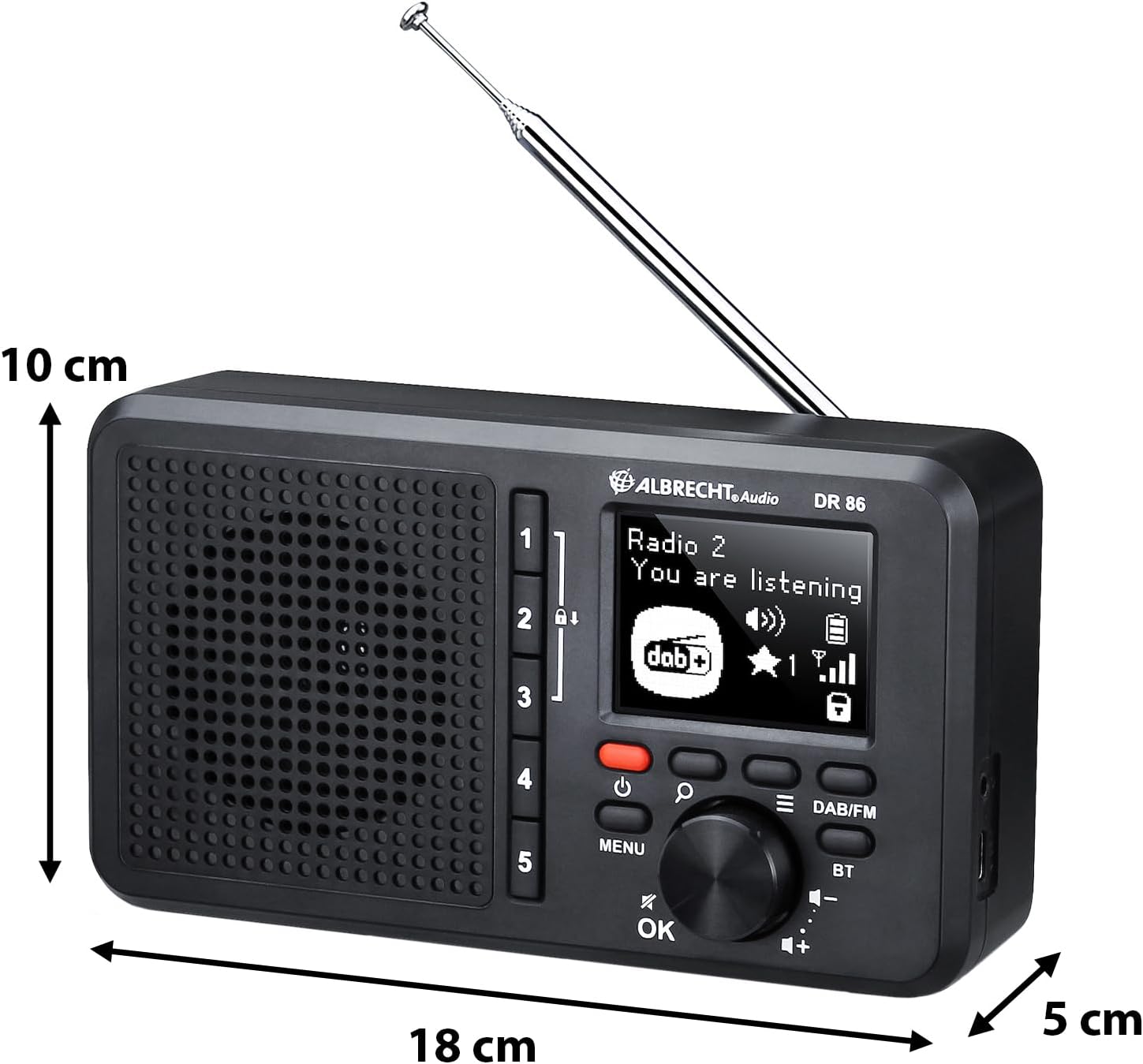
Figure 2: Side view of the Albrecht DR 86 radio, illustrating its compact dimensions and the location of the telescopic antenna and USB-C charging port.
- USB-C Charging Socket: For connecting the power supply to charge the integrated battery.
- Headphone Jack: For private listening (headphones not included).
- Telescopic Antenna: Extend fully for optimal radio reception.
Setup
Initial Power On and Charging
- Connect the provided power supply to the USB-C charging socket on the radio and plug it into a wall outlet. The battery icon on the display will indicate charging status.
- Press and hold the Power button (●) to turn on the radio.
- Upon first power-on, the radio will automatically perform a station scan for DAB+ and FM stations. This may take a few minutes.
Setting Up Senior Mode
The Senior Mode simplifies operation by limiting functions to only essential controls, preventing accidental changes. Follow these steps to activate it:
- Ensure the radio has completed its initial station scan.
- Tune to your desired DAB+ or FM stations using the standard mode (if not already in Senior Mode).
- To store a favorite station, tune to the station, then press and hold one of the Preset buttons (1-5) until "Preset Saved" appears on the display. Repeat for up to 5 favorite stations.
- To enable Senior Mode, navigate through the menu (using the Menu button and Navigation knob) to find the "Senior Mode" option and select "On". Once activated, only the Power button, Volume control, and Preset buttons (1-5) will be active.
Operating
Switching Operating Modes (Senior vs. Standard)
The radio offers two operating modes:
- Senior Mode: Provides simplified operation with only power on/off, volume adjustment, and direct access to 5 preset stations. All other settings are locked to prevent accidental changes.
- Standard Mode: Offers full functionality, including station search, station list browsing, and access to all settings. This mode is used for initial setup and advanced configurations.
To switch between modes, access the "Senior Mode" option in the system settings menu. Note that Senior Mode can only be disabled from Standard Mode.
DAB+ Radio Operation
- Press the DAB/FM button to select DAB+ mode.
- If a station scan has not been performed recently, the radio may initiate one.
- Rotate the Navigation knob to browse available DAB+ stations. Press the knob or OK to select a station.
- To save a favorite station, tune to it, then press and hold one of the Preset buttons (1-5).
FM Radio Operation
- Press the DAB/FM button to select FM mode.
- Rotate the Navigation knob to manually tune to a frequency.
- To auto-scan for the next available station, press and hold the Navigation knob briefly.
- To save a favorite station, tune to it, then press and hold one of the Preset buttons (1-5).
Music Streaming via Bluetooth

Figure 3: The Albrecht DR 86 radio connected via Bluetooth to a smartphone, ready for music streaming.
- Press the BT button on the radio to enter Bluetooth pairing mode. The display will show "Pairing".
- On your smartphone or tablet, enable Bluetooth and search for available devices. Select "Albrecht DR 86" from the list.
- Once paired, the radio will indicate a successful connection. You can now stream audio from your device to the radio.
- Control playback (play/pause, skip tracks) from your connected device. Volume can be adjusted on both the radio and your device.
Charging and Battery
The Albrecht DR 86 features an integrated 2200 mAh Lithium-Ion battery for portable operation.
- Charging: Connect the radio to the power supply using the USB-C port. The battery indicator on the display will show charging progress.
- Battery Life: A fully charged battery provides approximately 7 hours of playback at 50% volume. Actual battery life may vary depending on volume level and usage.
- Battery Care: For optimal battery longevity, avoid fully discharging the battery frequently. If storing the radio for an extended period, charge it to about 50% before storage.
Maintenance
- Cleaning: Use a soft, dry cloth to clean the radio's exterior. Do not use abrasive cleaners, waxes, or solvents.
- Storage: Store the radio in a cool, dry place away from direct sunlight and extreme temperatures when not in use for extended periods.
- Antenna: Handle the telescopic antenna carefully to avoid bending or breaking.
Troubleshooting
| Problem | Possible Cause | Solution |
|---|---|---|
| Radio does not turn on. | Battery is discharged. | Connect the radio to the power supply and charge the battery. |
| No sound or low volume. | Volume is too low; Mute is active; Poor signal. | Increase volume; Check if headphones are connected; Extend antenna fully; Perform a station scan. |
| Poor radio reception (DAB+/FM). | Antenna not extended; Weak signal area. | Fully extend the telescopic antenna. Try repositioning the radio. Perform a new station scan. |
| Bluetooth pairing fails. | Radio not in pairing mode; Device too far; Bluetooth disabled on device. | Ensure radio is in BT pairing mode; Move devices closer; Enable Bluetooth on your smartphone/tablet. |
| Buttons are unresponsive (Senior Mode). | Radio is in Senior Mode. | This is normal behavior in Senior Mode. To access full functionality, disable Senior Mode via the menu (if accessible, or consult someone who can disable it). |
Specifications
| Feature | Detail |
|---|---|
| Model Number | 27861 |
| Dimensions (L x W x H) | 18.1 x 4.9 x 10.1 cm |
| Weight | 420 g |
| Battery | Integrated 2200 mAh Lithium Ion |
| Power Source | Battery Powered / USB-C |
| Audio Output Power | 3 watts |
| Display | 2.4 inch LCD |
| Radio Tuner | DAB+, FM |
| Connectivity | Bluetooth, USB-C (charging), Headphone Jack |
Warranty and Support
For warranty information or technical support, please refer to the warranty card included with your product or visit the official Albrecht Audio website. You may also contact your local retailer for assistance.
Note: Product specifications and features are subject to change without prior notice.
Related documents27861


Ask a question about this manual
Ask about setup, troubleshooting, compatibility, parts, safety, or missing instructions. Manuals+ will review the question and use this page’s manual context to help answer it.