Introduction
This manual provides detailed instructions for the AOIKTYE 2nd Generation Procreate Keyboard, Model A3. This wireless Bluetooth shortcut keyboard is designed to streamline your workflow in digital art applications, primarily Procreate, but also compatible with other software such as Painter, Adobe Illustrator, SAI, Clip Studio Paint, and Adobe Photoshop.
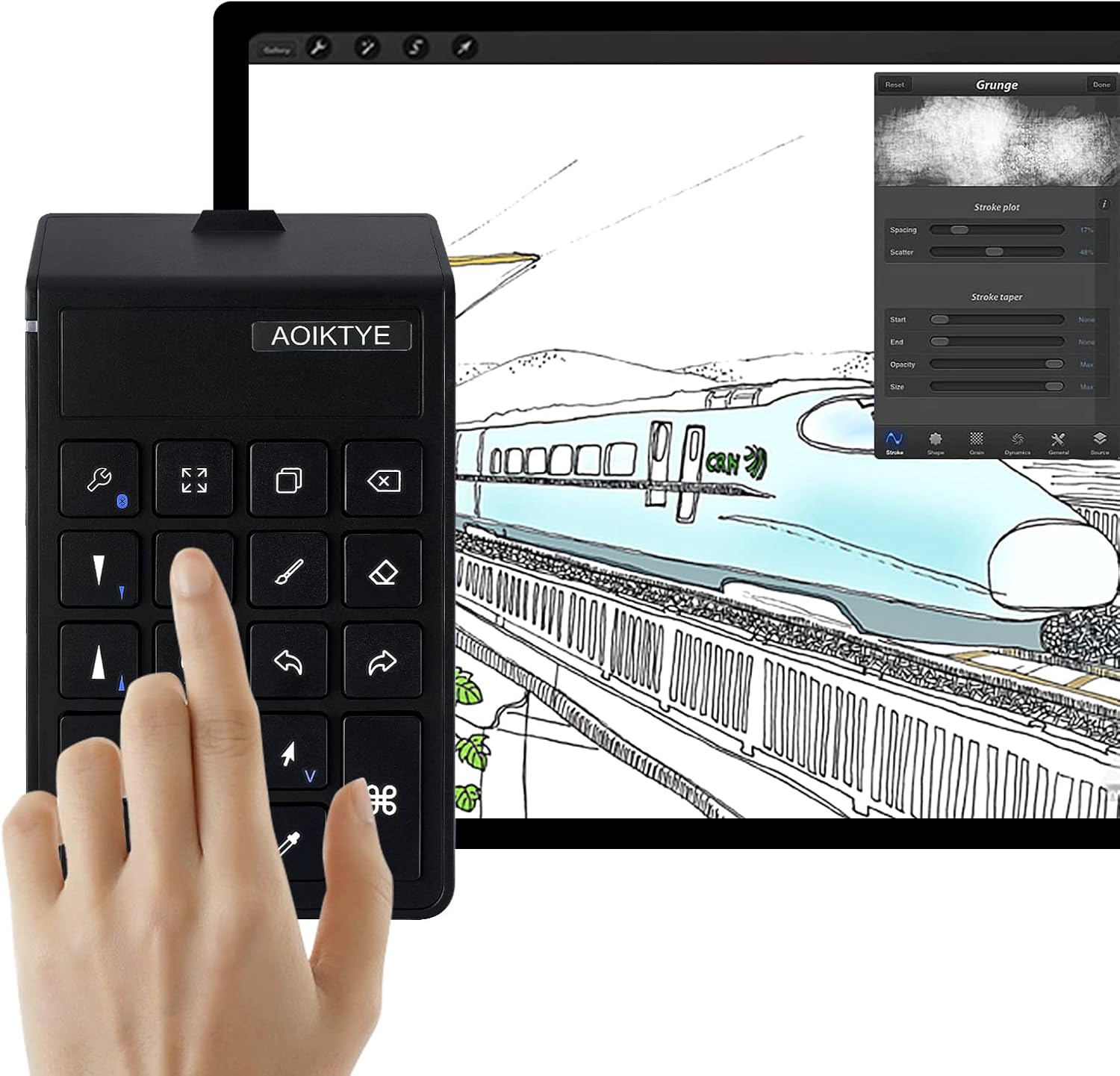
Image: The AOIKTYE Procreate Left-Handed Device, Model A3, shown in use alongside a tablet displaying a digital drawing interface. A hand is positioned over the keyboard, indicating its ergonomic design for efficient shortcut access during creative work.
Setup
Bluetooth Connection
- Ensure the keyboard is charged.
- Locate the power switch on the side of the keyboard and slide it to the "ON" position.
- Press and hold the Bluetooth pairing button (often indicated by a Bluetooth icon) for 3 seconds until a blue light flashes, indicating it's in pairing mode.
- On your iPad or compatible device, navigate to Settings > Bluetooth.
- In the "OTHER DEVICES" list, locate and tap "AOIKTYE" to connect. The status should change to "Connected".

Image: A visual guide demonstrating the Bluetooth connection process for the AOIKTYE keyboard. It illustrates turning on the device, pressing the pairing button, and selecting "AOIKTYE" from the Bluetooth device list on an iPad.
Important Note for iPad Users
For optimal functionality, especially for certain keys, it is essential to change your iPad's input method to American English. Failure to do so may result in some buttons not functioning as intended.
Operating Instructions
The AOIKTYE keyboard features over 20 shortcut keys designed to enhance your drawing efficiency. The 2nd generation model includes an updated key sequence for more intuitive access to frequently used functions, a dedicated layer delete button, and an ergonomic design for comfortable use.

Image: A detailed diagram highlighting the various shortcut keys on the AOIKTYE keyboard and their corresponding actions within a digital art application interface on a tablet. This visual aid demonstrates the extensive range of functions available at your fingertips.
Key Functions Overview:
- Color Picker (Eyedropper): Quickly select colors from your canvas.
- Color Balance / HSB Adjustment: Fine-tune color properties.
- Crop: Trim your artwork.
- Copy / Paste: Duplicate and insert elements.
- Undo / Redo: Correct mistakes or revert actions.
- Brush Size Control: Adjust brush dimensions for precise strokes.
- Layer Delete: Remove unwanted layers (new in 2nd Gen).
- And many more for efficient drawing and editing.
Specific Software Settings:
Procreate Eyedropper Function: If the eyedropper tool is not working correctly in Procreate, please adjust the following settings:
- Open Procreate settings.
- Navigate to Operation → Preferences → Gesture control.
- Under Eyedropper, select "+Apple pencil".
Displaying On-Screen Keyboard: If the on-screen keyboard does not appear when needed, follow these steps on your iPad:
- Go to iPad Settings.
- Navigate to Accessibility → Touch → Auxiliary control.
- Ensure "Show on-screen keyboard" is enabled.
- Under Mouse Keys, ensure "Mouse Keys" is turned OFF.
Maintenance
Battery Information
The AOIKTYE keyboard is equipped with a built-in 250mAh rechargeable lithium-ion battery, charged via USB. A full charge takes approximately 2 hours, providing over 84 hours of continuous use and more than 6 months of standby time.
Image: This visual highlights the impressive battery performance of the AOIKTYE keyboard, detailing its quick charging time and extended operational and standby durations, ensuring long periods of uninterrupted creative work.
General Care
- Keep the device dry and away from extreme temperatures.
- Clean the keyboard with a soft, dry cloth. Avoid using harsh chemicals or abrasive materials.
- Store in a safe place to prevent physical damage.
Troubleshooting
| Problem | Solution |
|---|---|
| Some keys are not working. | Ensure your iPad's input method is set to American English. |
| Procreate eyedropper tool is not functioning. | In Procreate, go to Operation → Preferences → Gesture control → Eyedropper, and select "+Apple pencil". |
| On-screen keyboard does not appear on iPad. | On iPad, go to Settings → Accessibility → Touch → Auxiliary control. Ensure "Show on-screen keyboard" is enabled and "Mouse Keys" is turned OFF. |
| Issues after updating to iOS 17. | Due to changes in keyboard properties in iOS 17, please update the keyboard system from the official AOIKTYE website. |
Specifications
- Brand: AOIKTYE
- Model: A3
- Dimensions (L x W x H): 14.6 x 8.6 x 2.5 cm (5.75 x 3.39 x 0.98 inches)
- Weight: 120 g (0.26 lbs)
- Battery: 1 x 250mAh Rechargeable Lithium-Ion Battery (included)
- Connectivity Technology: Bluetooth
- Number of Keys: 19
- Features: Rechargeable, Ergonomic Design
- Compatible Devices: All devices capable of running Procreate and other listed digital art software.
- Included Components: USB Cable
Warranty and Support
This AOIKTYE keyboard comes with a 1-year warranty from the date of purchase. If you encounter any issues or have questions during this period, please do not hesitate to contact our customer support. We are committed to providing reliable and satisfying after-sales service.
For the latest updates and support, please visit the official AOIKTYE website.


