Introduction
This manual provides essential information for the setup, operation, and maintenance of your Garmin DriveSmart 66 6-inch Car GPS Navigator. This device is designed to provide reliable navigation and enhance your driving experience with smart features.
Key features include a bright 6-inch high-resolution display, Garmin voice assist for directions and hands-free calling, driver alerts, and detailed map updates for North America. It also integrates with the Garmin Drive app for live traffic, weather, fuel prices, parking, and smart notifications.
Setup
1. Unboxing and Components
Carefully unpack your Garmin DriveSmart 66. Ensure all components are present:
- Garmin DriveSmart 66 Navigator
- Vehicle suction cup mount
- Traffic receiver
- Vehicle power cable
- Documentation
- Dual USB DC12V/24V Electronic Car Socket Cigarette Lighter
- 32GB MicroSD High-Speed Memory Card
- Deco Gear Microfiber Cleaning Cloth

Image: Garmin DriveSmart 66 GPS Navigator with included accessories.
2. Mounting the Device
Attach the vehicle suction cup mount to your windshield or dashboard. Ensure the mounting location does not obstruct your view of the road. Secure the Garmin DriveSmart 66 to the mount.

Image: Garmin DriveSmart 66 mounted on a car dashboard, showing a clear view for the driver.
3. Powering On and Charging
Connect the vehicle power cable to the navigator and plug the other end into your vehicle's 12V power outlet. The device will automatically power on when connected to power. For charging other devices, use the included Dual USB DC12V/24V Electronic Car Socket Cigarette Lighter.

Image: Dual USB DC12V/24V Electronic Car Socket Cigarette Lighter for powering accessories.
4. Initial Setup and Smartphone Connection
Follow the on-screen prompts to select your language, time zone, and other preferences. To access live services and smart notifications, download the Garmin Drive app on your compatible smartphone and pair it with your navigator via Bluetooth. This also enables hands-free calling.
Operating Instructions
1. Basic Navigation
From the main menu, select 'Where To?' to enter a destination. You can search by address, point of interest, or recent locations. Use Garmin voice assist by saying "OK Garmin" followed by your command to get directions or find places hands-free.
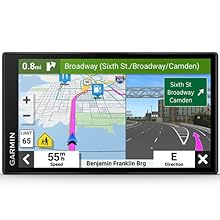
Image: The main menu of the Garmin DriveSmart 66, displaying options like 'Where To?' and 'View Map'.

Image: The Garmin DriveSmart 66 screen showing an active navigation route with turn-by-turn directions.
2. Smart Features and Driver Alerts
When paired with your smartphone via the Garmin Drive app, the navigator provides live traffic updates, weather forecasts, current fuel prices, and parking availability. It also delivers smart notifications from your phone directly to the device screen. Driver alerts notify you of sharp curves, speed changes, school zones, and other potential hazards.
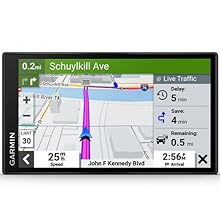
Image: The navigator screen showing live traffic conditions and estimated delays.
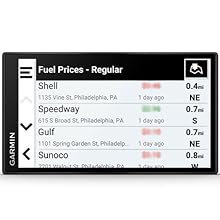
Image: The navigator screen showing a list of nearby fuel stations with their current prices.
3. Trip Planning and Points of Interest
Utilize the preloaded Tripadvisor traveler ratings to find highly-rated hotels, restaurants, and attractions along your route. The device also includes a directory of U.S. national parks and the HISTORY database of notable sites, enhancing your travel experience.

Image: The Garmin DriveSmart 66 screen showing details for a point of interest, including options to save or navigate.
Maintenance
1. Cleaning the Device
Use the included Deco Gear Microfiber Cleaning Cloth to gently wipe the screen and exterior of your navigator. Avoid using abrasive cleaners or solvents, as these can damage the device.

Image: A red microfiber cleaning cloth, suitable for cleaning the device screen.
2. Software and Map Updates
Keep your device's software and maps up to date for optimal performance and the latest road information. The Garmin DriveSmart 66 supports wireless updates via Wi-Fi. Connect your device to a Wi-Fi network and follow the on-screen prompts to install available updates.
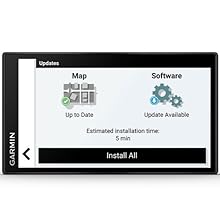
Image: The Garmin DriveSmart 66 screen showing available map and software updates.
3. Battery Care
To prolong battery life, avoid exposing the device to extreme temperatures. Charge the device regularly using the provided vehicle power cable.
Troubleshooting
No GPS Signal
- Ensure the device has a clear view of the sky.
- Move away from tall buildings or dense foliage.
- Allow several minutes for the device to acquire satellites.
Device Not Powering On
- Check that the vehicle power cable is securely connected to both the device and the vehicle's power outlet.
- Verify that the vehicle's power outlet is functioning.
- Ensure the device battery is charged.
Bluetooth Connectivity Issues
- Ensure Bluetooth is enabled on both your smartphone and the Garmin DriveSmart 66.
- Restart both devices.
- Unpair and re-pair the devices through the Bluetooth settings.
For further assistance, refer to the comprehensive documentation included with your device or contact Garmin customer support.
Specifications
| Feature | Specification |
|---|---|
| Model Number | E2GRDRIVE66 |
| Display Size | 6 Inches |
| Display Resolution | 1280 x 720 pixels |
| Item Weight | 11.2 ounces |
| Product Dimensions | 6 x 0.7 x 3.4 inches |
| Connectivity Technology | USB |
| Map Type | North America |
| Voice Command | Yes (Garmin voice assist) |
| Special Features | Driver Alerts, Tripadvisor, National Parks Directory, Voice Assist, Hands-Free Calling, Live Traffic and Weather, Traffic Cams, Parking, Smart Notifications, Wireless Updates |
| Mounting Type | Dashboard Mount (Suction Cup) |
Warranty
This Garmin DriveSmart 66 Navigator is covered by an Authorized Garmin Limited Warranty. For specific terms, conditions, and duration of the warranty, please refer to the warranty documentation included in the product packaging or visit the official Garmin website.
Support
For additional support, product registration, software downloads, or to view frequently asked questions, please visit the official Garmin support website. You can also contact Garmin customer service directly for personalized assistance.
Garmin Support Website: www.garmin.com/support


