1. Introduction
The Eyoyo 5-inch portable monitor is designed to provide a clear and versatile display solution. Featuring an 800x480 resolution and a wide 140° viewing angle, it delivers vivid images and an enhanced visual experience, whether extending your screen or engaging in gaming. The monitor incorporates an eye-friendly LCD display technology, which helps reduce blue light emissions, thereby minimizing eye fatigue during extended periods of use.

Figure 1: Eyoyo 5-inch portable monitor displaying a vibrant city scene.
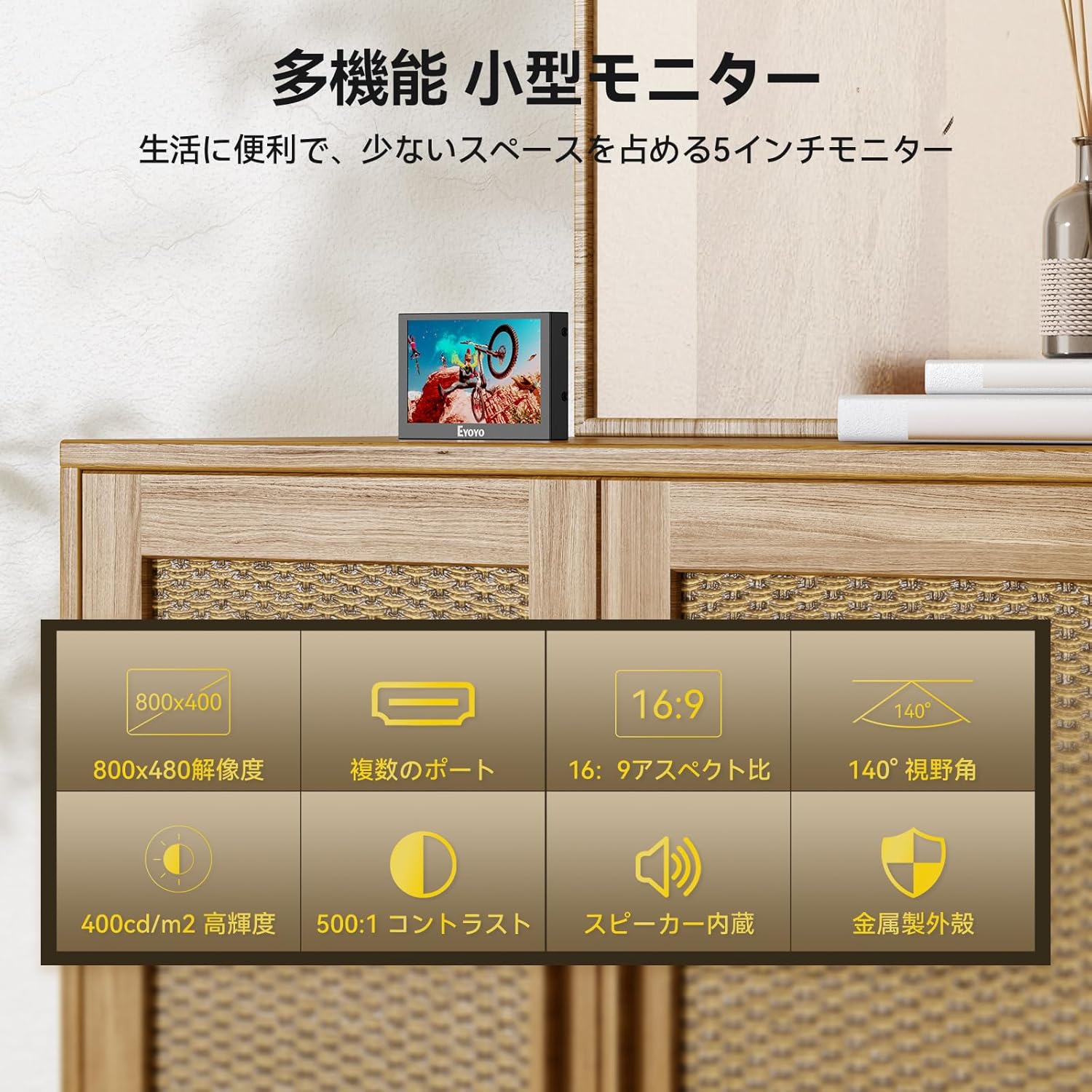
Figure 2: Key features of the Eyoyo 5-inch monitor, including 800x480 resolution, multiple ports, 16:9 aspect ratio, 140-degree viewing angle, 400cd/m2 brightness, 500:1 contrast, built-in speaker, and metal casing.
2. Package Contents
Please verify that all items listed below are included in your package:
- 1 x Eyoyo 5-inch Monitor
- 1 x USB Cable
- 1 x AV to BNC Adapter
- 1 x User Manual

Figure 3: Contents included in the product package.
3. Setup
3.1. Connecting Devices
The Eyoyo monitor supports multiple input interfaces, including HDMI, AV, VGA, and BNC, making it compatible with a wide range of devices. These include gaming consoles like PS3, PS4, Switch, and Xbox360, as well as car monitors, DVD players, VCD players, microscope monitors, and video cameras.

Figure 4: The Eyoyo monitor connected to various compatible devices.
3.2. Power Supply
The monitor can be powered via USB, offering flexibility for both indoor and outdoor use. Weighing approximately 355g, it is highly portable. You can power it using a mobile battery, making it convenient for on-the-go applications.

Figure 5: Two methods for powering the Eyoyo monitor.
3.3. Raspberry Pi Compatibility
This compact monitor is ideal for Raspberry Pi enthusiasts. It is compatible with Raspberry Pi 4B, 3B+, and 3B models and offers plug-and-play functionality, eliminating the need for additional file installations. Please note that this mobile monitor does not support touch functionality; an external mouse connection is required for interaction.
4. Operating Instructions
4.1. Switching Input Sources
To switch between input sources (HDMI/VGA/BNC/AV), power on the monitor. Then, press the multi-function button upwards to cycle through the available input sources. Once the desired input source is selected and set, connect the monitor to your signal output device to display the image.
4.2. Screen Rotation Adjustment
If the screen image appears inverted, you can adjust its orientation through the OSD (On-Screen Display) settings. Navigate to Menu 3 in the OSD settings. Here, you can adjust the Horizontal Position (H Position) and Vertical Position (V Position) within a range of 0-100 to correct the display orientation.
5. Maintenance
To ensure the longevity and optimal performance of your Eyoyo monitor, follow these general maintenance guidelines:
- Cleaning: Use a soft, lint-free cloth slightly dampened with water or a screen cleaner to wipe the display surface. Avoid using harsh chemicals or abrasive materials.
- Handling: Handle the monitor with care to prevent drops or impacts. Avoid placing heavy objects on the monitor.
- Storage: When not in use for extended periods, store the monitor in a cool, dry place away from direct sunlight and extreme temperatures.
- Ventilation: Ensure proper ventilation around the monitor to prevent overheating. Do not block the ventilation openings.
6. Troubleshooting
6.1. VGA Connection Issues
When connecting via VGA, it is crucial to ensure the monitor's input source is correctly set to VGA before connecting the signal cable. If the image does not display correctly, follow these steps:
- Power on the monitor.
- Press the multi-function button upwards to cycle through the input sources (HDMI/VGA/BNC/AV) until 'VGA' is selected.
- Once the monitor's input is set to VGA, connect your VGA signal output device to the monitor. The image should now display correctly.
This input source switching procedure applies to all other signal types as well.
7. Specifications
| Feature | Specification |
|---|---|
| Brand | Eyoyo |
| Manufacturer | Eyoyo |
| Product Model Number | E05, E07, E08 |
| Product Dimensions (Width × Height) | 12.5 x 7.9 cm |
| Standing Screen Display Size | 5 inches |
| Resolution | 800x480 pixels |
| Voltage | 12 Volts |
| Product Weight | 360 g |
| ASIN | B09JSDRBWQ |
| Aspect Ratio | 1.63:1 |
| Screen Surface Description | Non-glossy |

Figure 6: The Eyoyo monitor's compact size and portability.
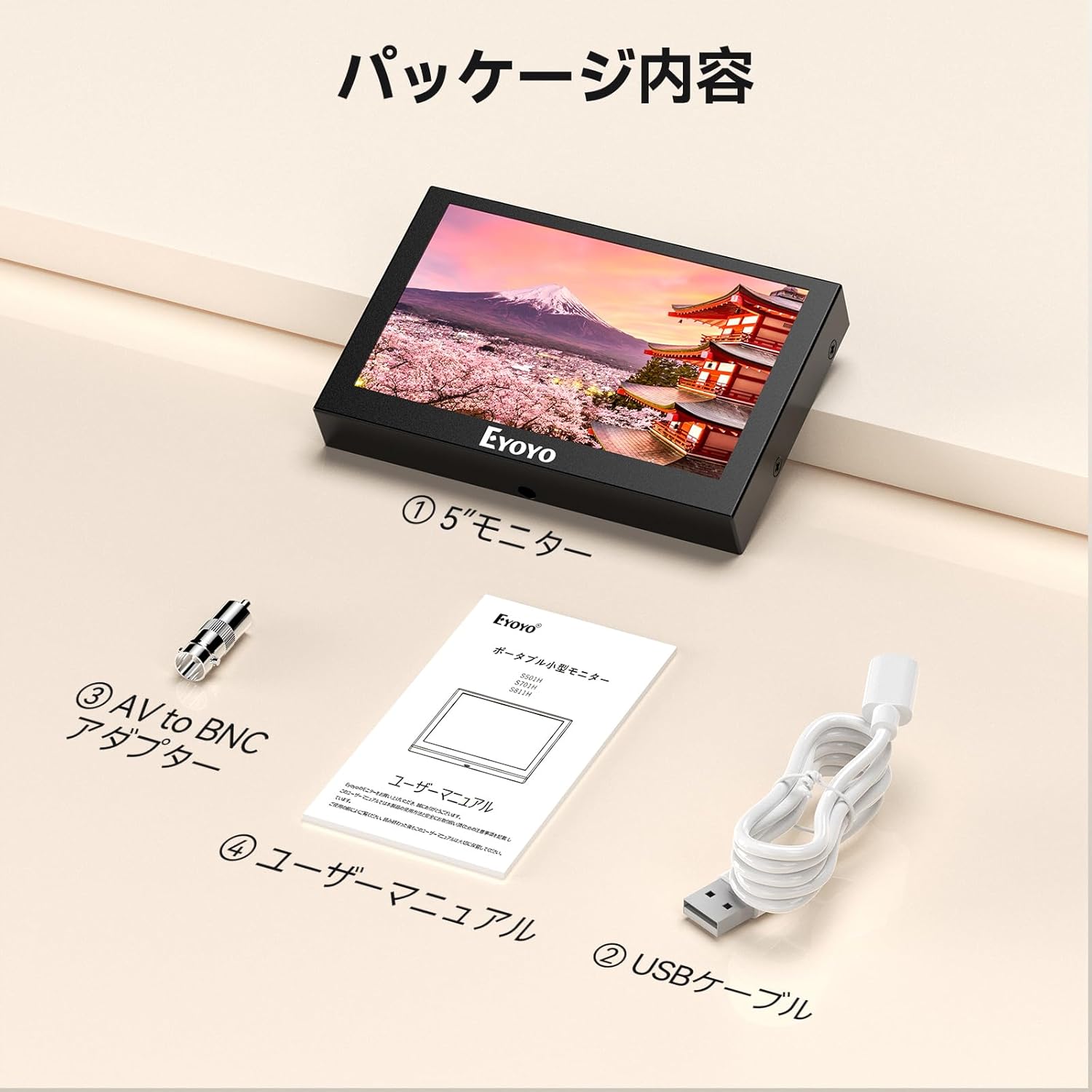
Figure 7: The Eyoyo monitor used as a car display for navigation.
8. Warranty and Support
All Eyoyo products are backed by reliable after-sales service. Should you encounter any issues during the use of your monitor, please do not hesitate to contact us. If the product is found to be defective upon initial receipt, we offer an exchange service upon contact with our store.


