
1. Introduction
Welcome to the HASAKEE Q1 GPS Drone user manual. This guide provides detailed instructions on how to set up, operate, maintain, and troubleshoot your new drone. Please read this manual thoroughly before your first flight to ensure safe and optimal performance.
2. Product Overview & Features
The HASAKEE Q1 is a high-performance, foldable GPS drone designed for both beginners and experienced pilots. It features a 4K UHD camera, brushless motors, and intelligent flight modes for an enhanced aerial experience.

Figure 2.1: The HASAKEE Q1 GPS Drone, including the remote controller, two flight batteries, and the drone in both unfolded and folded states.

Figure 2.2: The drone's 4K UHD camera, capable of 90-degree adjustable angle and 5G WiFi transmission for high-speed real-time image viewing.

Figure 2.3: GPS positioning enables the drone to hover stably, assisting in capturing clearer images and providing an easier flight experience for beginners.

Figure 2.4: The drone features durable brushless motors for powerful flight and a foldable design for portability. Two intelligent batteries provide extended flight time.
Key Features:
- 4K UHD Camera: Remote-controlled 90° adjustable angle for wide aerial shots. Captures stunning 4K ultra HD images and supports 5G WiFi real-time transmission.
- GPS Auto Return & Stable Flight: Equipped with GPS for precise return to home (low battery, signal loss, or manual recall). GPS positioning ensures stable hovering for clear photos.
- Advanced Flight Modes: Includes 'Follow Me' mode, 'Drawing a Route' on the app, and 'Circling an Object' for dynamic and creative flight paths.
- Durable Brushless Motors: Provides powerful and fast flight, ensuring a long lifetime for the drone. Suitable for both adults and beginners.
- Long Flight Time & Portable Design: Each intelligent battery offers 21-25 minutes of flight time, with two batteries providing up to 50 minutes. The foldable structure enhances portability.
- Cool LED Lights: Features green and red LED lights for easy identification and improved visibility during night flights.
3. Package Contents
Upon unboxing, please verify that all the following components are included:
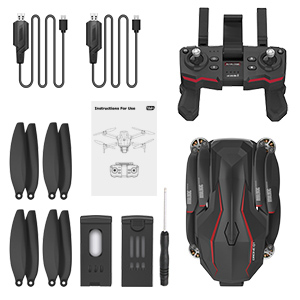
Figure 3.1: All items included in the HASAKEE Q1 drone package: drone, remote controller, two batteries, two USB charging cables, extra propellers, a small screwdriver, and the user manual.
- HASAKEE Q1 GPS Drone (x1)
- Remote Controller (x1)
- Intelligent Flight Batteries (x2)
- USB Charging Cables (x2)
- Spare Propellers (x4)
- Screwdriver (x1)
- User Manual (x1)
4. Setup Guide
4.1 Charging the Batteries
- Connect the intelligent flight battery to the USB charging cable.
- Plug the USB cable into a compatible USB power adapter (e.g., computer USB port, wall adapter).
- The battery indicator lights will show charging status. Charging typically takes about 3 hours per battery.
- Once fully charged, disconnect the battery.
4.2 Preparing the Drone
- Unfold the Drone: Gently unfold the drone's arms until they lock into place. Ensure all four arms are fully extended.
- Install Propellers: If not pre-installed, attach the propellers according to the markings (A and B) on the propellers and motor arms. Use the provided screwdriver to secure them.
- Insert Battery: Slide a charged intelligent flight battery into the battery compartment on the drone until it clicks securely into place.
4.3 Preparing the Remote Controller
- Install Batteries: Open the battery compartment on the back of the remote controller and insert 3 AA batteries (not included), ensuring correct polarity.
- Attach Phone Holder: Pull up the phone holder on the remote controller and securely place your smartphone.
- Download App: Scan the QR code in the manual or search for the official HASAKEE drone app in your smartphone's app store (e.g., App Store for iOS, Google Play for Android). Install the app.
5. Operating Instructions
5.1 Powering On & Pairing
- Power On Drone: Press and hold the power button on the drone for 2-3 seconds until the indicator lights turn on and it emits a sound.
- Power On Controller: Press the power button on the remote controller. The controller will beep, and its indicator light will flash.
- Pairing: Push the left joystick on the controller all the way up, then all the way down. The drone's lights will stop flashing and become solid, indicating successful pairing.
5.2 GPS Calibration
For stable flight and GPS features, calibrate the drone outdoors in an open area with a clear view of the sky.
- After pairing, place the drone on a flat, level surface.
- Perform the horizontal calibration by pushing both joysticks to the bottom-left (or bottom-right, refer to app/manual for exact gesture). The drone's lights will flash rapidly.
- Once horizontal calibration is complete, pick up the drone and rotate it horizontally 360 degrees until the lights change.
- Then, point the drone's nose downwards and rotate it vertically 360 degrees until the lights become solid. This indicates successful GPS calibration.
- Wait for the drone to acquire enough GPS satellites (usually indicated by a solid green light or an icon in the app). This may take a few minutes.
5.3 Basic Flight Controls
- One-Key Takeoff/Landing: Press the dedicated takeoff/landing button on the controller. The drone will automatically ascend to a safe height or descend and land.
- Throttle (Left Joystick Up/Down): Controls the drone's altitude. Push up to ascend, pull down to descend.
- Yaw (Left Joystick Left/Right): Rotates the drone left or right on its vertical axis.
- Forward/Backward (Right Joystick Up/Down): Moves the drone forward or backward.
- Left/Right Sideways Flight (Right Joystick Left/Right): Moves the drone left or right horizontally.
6. Advanced Flight Modes & Camera Operation
6.1 Intelligent Flight Modes
Utilize the HASAKEE app to access and control these advanced features:

Figure 6.1: The drone supports intelligent flight modes such as Follow Me, Custom Flight (drawing a route), and Point of Interest (circling an object).
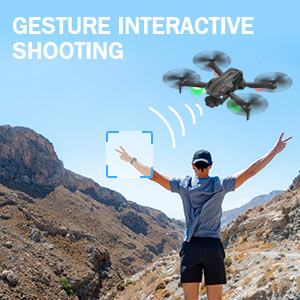
Figure 6.2: The drone supports gesture interactive shooting, allowing you to trigger photo or video capture with specific hand gestures.
- Follow Me Mode: The drone will automatically follow your movement based on the GPS signal from your smartphone.
- Drawing a Route: Draw a desired flight path on the app's map interface, and the drone will fly along the specified route.
- Point of Interest: Select a central point on the map, and the drone will circle around it at a set radius and altitude, capturing cinematic footage.
- Gesture Control: Use specific hand gestures to command the drone to take photos or record videos (refer to app instructions for specific gestures).
6.2 Camera Operation
The 4K UHD camera provides high-quality imaging and real-time FPV (First Person View) via 5G WiFi transmission.

Figure 6.3: The drone's 4K camera can be adjusted up to 90 degrees remotely, allowing for flexible shooting angles.
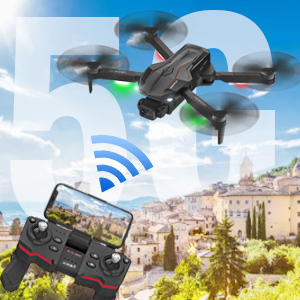
Figure 6.4: Experience real-time FPV streaming to your smartphone via 5G WiFi, providing a clear view from the drone's perspective.
- Adjust Camera Angle: Use the dedicated button/dial on the remote controller to adjust the camera's vertical angle (0-90 degrees) during flight.
- Photo/Video Capture: Use the corresponding buttons on the remote controller or within the app to take photos or start/stop video recording.
- FPV View: Connect your smartphone to the drone's WiFi network (check app for specific network name) to view live footage from the drone's camera.
7. Maintenance
Regular maintenance ensures the longevity and optimal performance of your HASAKEE Q1 drone.
- Cleaning: Use a soft, dry cloth to clean the drone body and camera lens. Avoid using liquid cleaners.
- Propeller Inspection: Regularly check propellers for any cracks, bends, or damage. Replace damaged propellers immediately using the provided spare parts and screwdriver.
- Motor Care: Keep motors free from dust and debris. Avoid flying in sandy or dusty environments.
- Battery Storage: Store batteries in a cool, dry place, away from direct sunlight and extreme temperatures. For long-term storage, charge batteries to approximately 50-60%.
- Firmware Updates: Check the official HASAKEE website or app periodically for any available firmware updates to ensure your drone has the latest features and bug fixes.
8. Troubleshooting
If you encounter issues with your drone, refer to the following common problems and solutions:
| Problem | Possible Cause | Solution |
|---|---|---|
| Drone does not power on | Low battery; Battery not inserted correctly | Charge drone battery; Reinsert battery firmly. |
| Drone cannot pair with controller | Incorrect pairing sequence; Controller battery low | Ensure drone and controller are powered on in correct order; Repeat pairing steps; Replace controller batteries. |
| Unstable flight / Drifting | Improper calibration; Strong wind; Damaged propeller | Perform GPS and gyroscope calibration; Fly in calm conditions; Replace damaged propellers. |
| No FPV image on phone | Not connected to drone's WiFi; App not open/crashed | Ensure phone is connected to the drone's WiFi network; Restart the app and drone. |
| GPS Auto Return Home not working | Insufficient GPS satellites; GPS signal lost during flight | Ensure drone has acquired enough satellites before takeoff; Fly in open areas away from obstructions. |
9. Specifications
| Feature | Detail |
|---|---|
| Brand | HASAKEE |
| Model | Q1 |
| Video Capture Resolution | 4K UHD 2160p |
| Connectivity Technology | Wi-Fi (5G) |
| Skill Level | Beginner |
| Control Type | Remote Control |
| Flight Time (per battery) | 21-25 minutes |
| Motor Type | Brushless |
| Special Feature | Foldable, GPS Positioning, Auto Return Home, Follow Me |
| Item Weight | 1.54 pounds |
| Package Dimensions | 9.45 x 8.54 x 2.68 inches |
10. Safety Guidelines
Adhering to these safety guidelines is crucial for a safe and enjoyable flight experience and to prevent damage to the drone or injury to others.
- Fly in Open Areas: Always operate the drone in open, unobstructed spaces, away from people, buildings, and trees.
- Check Local Regulations: Be aware of and comply with all local laws and regulations regarding drone operation, including no-fly zones and altitude restrictions.
- Weather Conditions: Do not fly in strong winds, rain, snow, or other adverse weather conditions.
- Pre-Flight Check: Before each flight, ensure the drone and controller batteries are fully charged, propellers are securely attached and undamaged, and the drone is properly calibrated.
- Maintain Visual Line of Sight: Always keep the drone within your visual line of sight during flight.
- Respect Privacy: Be mindful of others' privacy when using the camera.
- Emergency Landing: In case of an emergency, be prepared to perform an immediate landing.
11. Warranty and Support
For warranty information, technical support, or service inquiries, please refer to the contact details provided on the product packaging or visit the official HASAKEE website. Keep your purchase receipt as proof of purchase for warranty claims.