
1. Introduction
This manual provides essential information for the proper use and maintenance of your Gateway 15.6-inch FHD Ultra Slim Laptop, Model GTW15G. This device is equipped with an AMD Ryzen 5 3450U Mobile Processor, 8GB of DDR4 RAM, and a 256GB Solid State Drive (SSD). It features a 15.6-inch Full HD (1920x1080) IPS display, a built-in fingerprint scanner, and runs on Windows 10, with an available free upgrade to Windows 11.
Please read this manual thoroughly before operating your laptop to ensure optimal performance and longevity.
2. Setup
2.1 Unpacking and Initial Inspection
Carefully remove the laptop and all accessories from the packaging. Verify that all components are present and undamaged. The package should include the laptop, power adapter, and this user manual.
2.2 Connecting the Power Adapter
Before first use, connect the power adapter to the laptop's charging port and then to a power outlet. Allow the battery to charge for at least 30 minutes before powering on for the first time.

Figure 2.1: Gateway 15.6-inch Ultra Slim Laptop overview.
2.3 First Power On and Windows Setup
Press the power button located on the keyboard. The laptop will boot up and guide you through the Windows 10 initial setup process. Follow the on-screen instructions to configure your region, language, network connection, and user account.
2.4 Fingerprint Scanner Setup (Windows Hello)
During or after the initial Windows setup, you can configure the built-in fingerprint scanner for secure login using Windows Hello. Navigate to Settings > Accounts > Sign-in options and follow the prompts to set up your fingerprint.
3. Operating Instructions
3.1 Power On/Off and Sleep Mode
- Power On: Press the power button.
- Shut Down: Click the Start button, then Power > Shut down.
- Sleep Mode: Close the lid or click the Start button, then Power > Sleep.
3.2 Using the Precision Touchpad
The laptop features a precision touchpad for navigation. It supports multi-touch gestures for scrolling, zooming, and other functions. Refer to Windows settings for customizing touchpad gestures.
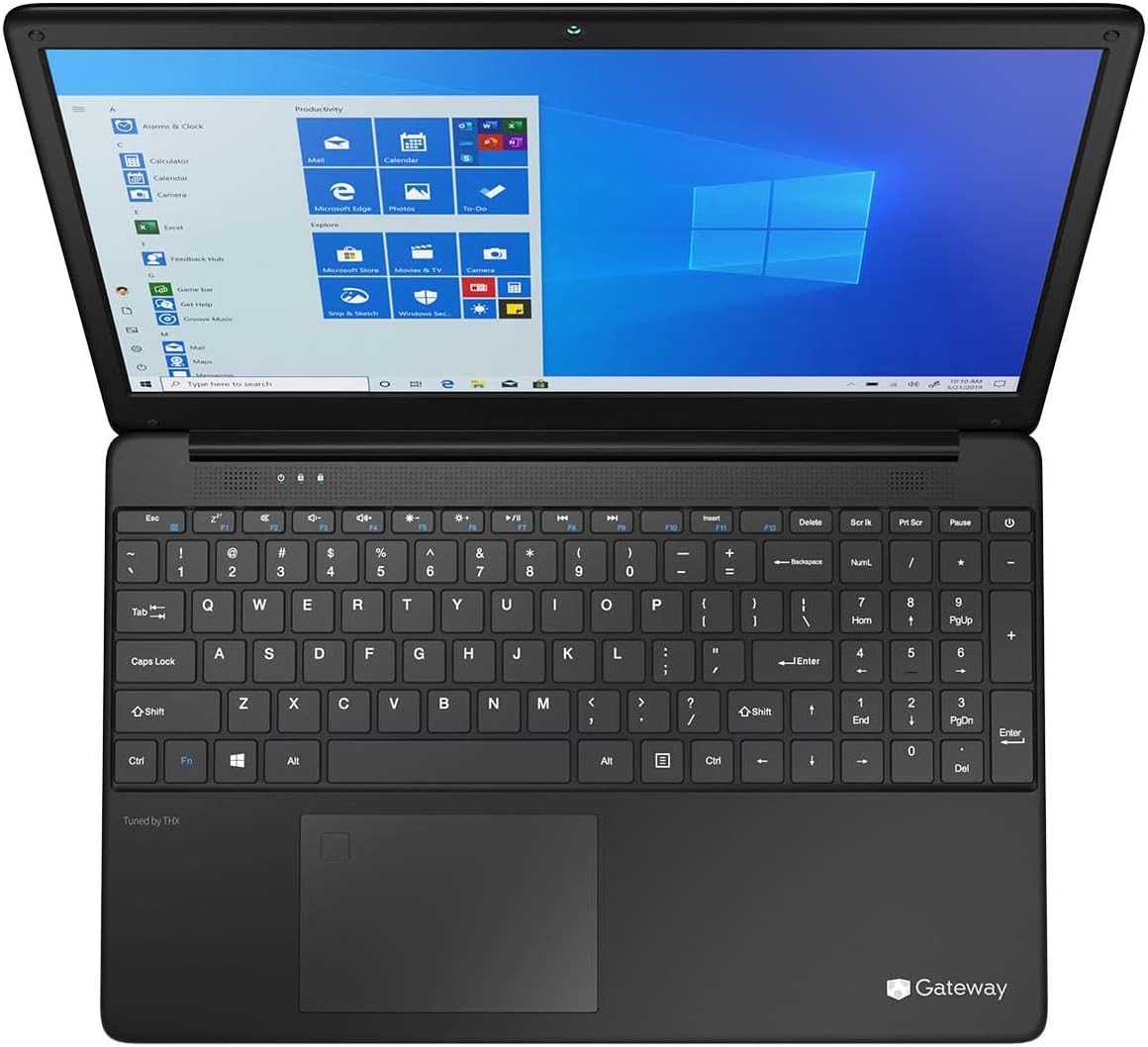
Figure 3.1: Keyboard and Precision Touchpad layout.
3.3 Connecting External Devices
The laptop provides various ports for connecting peripherals:
- USB 3.0 Ports (x2): For connecting USB devices such as external hard drives, mice, or keyboards.
- USB Type-C Port (x1): Supports both charging and data transfer.
- HDMI Output (x1): Connect to an external monitor or TV.
- Micro SD Slot (x1): Supports Micro SD cards up to 512 GB for expanded storage.
- Kensington Lock: For physical security.
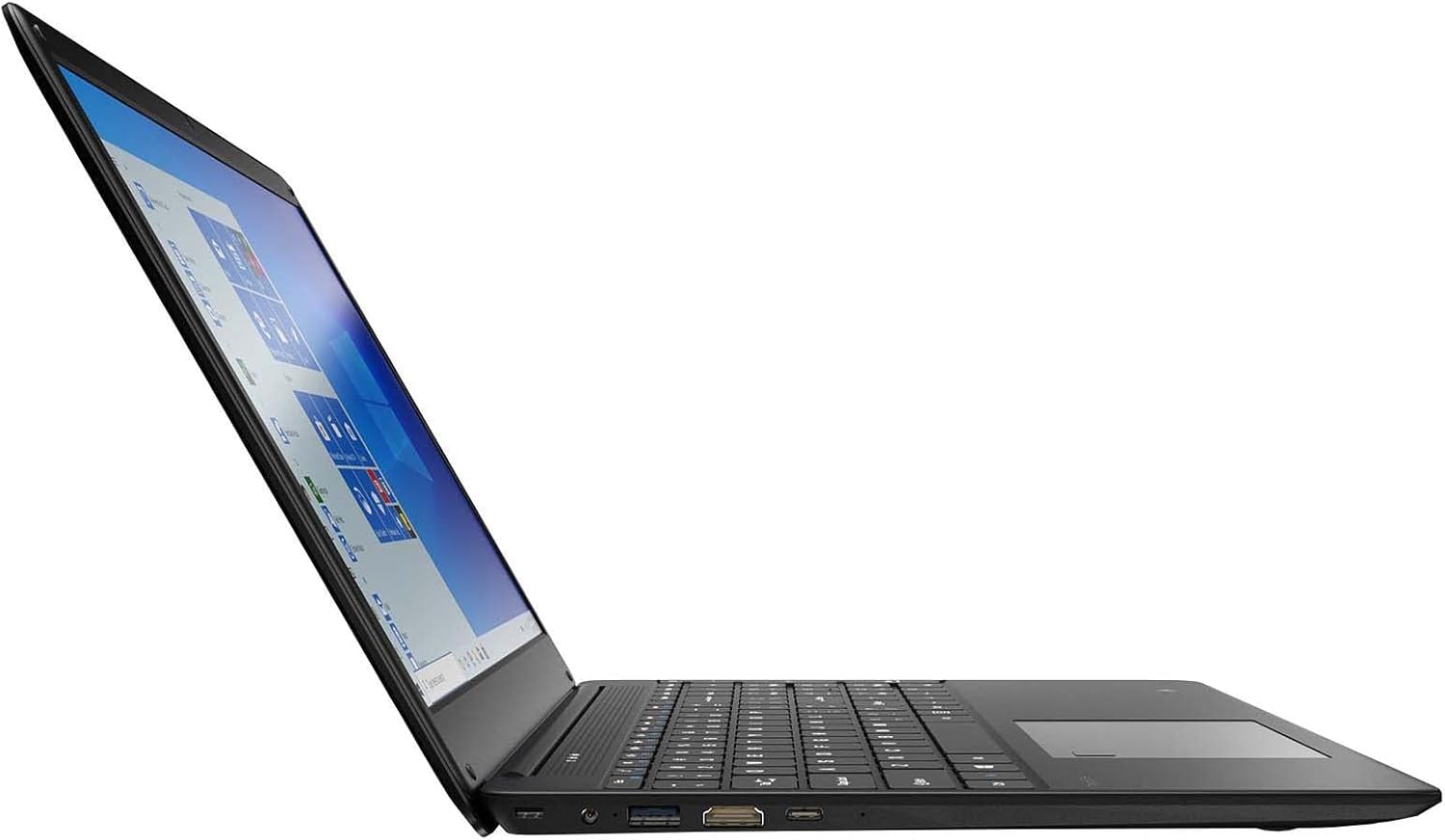
Figure 3.2: Left side ports (USB, HDMI, USB Type-C).
3.4 Wireless Connectivity
The laptop supports Wi-Fi and Bluetooth 5.1 for wireless connections. Access network settings via the Windows taskbar or Settings > Network & Internet to connect to Wi-Fi networks or pair Bluetooth devices.
3.5 Audio Features
The built-in stereo speakers are tuned by THX Audio, providing enhanced sound quality. Adjust volume using the function keys on the keyboard or through Windows sound settings.
4. Maintenance
4.1 Cleaning the Laptop
- Screen: Use a soft, lint-free cloth slightly dampened with water or a screen cleaner. Do not spray liquid directly onto the screen.
- Chassis and Keyboard: Use a soft, dry cloth. For stubborn dirt, a slightly damp cloth can be used. Avoid harsh chemicals.
- Vents: Periodically clean the ventilation openings with compressed air to prevent dust buildup, which can affect cooling.
4.2 Battery Care
To maximize battery life and longevity:
- Avoid completely discharging the battery frequently.
- Do not expose the laptop to extreme temperatures.
- If storing the laptop for an extended period, ensure the battery is charged to approximately 50-70%.
- Optimize power settings in Windows to conserve battery power.
4.3 Software Updates
Regularly check for and install Windows updates to ensure your system has the latest security patches and performance improvements. Navigate to Settings > Update & Security > Windows Update.
4.4 Data Backup
Regularly back up your important data to an external drive or cloud storage to prevent data loss.
5. Troubleshooting
This section addresses common issues you might encounter with your laptop.
5.1 Laptop Does Not Power On
- Ensure the power adapter is securely connected to both the laptop and a working power outlet.
- Verify the power outlet is functional by plugging in another device.
- Allow the laptop to charge for some time before attempting to power it on again.
5.2 Wi-Fi Connectivity Issues
- Check if Wi-Fi is enabled in Windows settings.
- Restart your router and modem.
- Ensure you are within range of the Wi-Fi network and have entered the correct password.
- Run the Windows Network Troubleshooter (Settings > Network & Internet > Status > Network troubleshooter).
5.3 Slow Performance
- Close unnecessary applications running in the background.
- Check for and install any pending Windows updates.
- Ensure there is sufficient free space on your SSD.
- Scan for malware or viruses.
5.4 Overheating
If the laptop feels excessively warm, ensure that the ventilation vents are not blocked. Operate the laptop on a hard, flat surface to allow for proper airflow. Avoid using it on soft surfaces like beds or couches that can obstruct vents.
5.5 Other Issues
For issues not covered here, refer to the Windows help documentation or contact Gateway customer support.
6. Specifications
| Feature | Specification |
|---|---|
| Model Name | Gateway GWTN156 (GTW15G) |
| Display Size | 15.6 Inches |
| Screen Resolution | 1920 x 1080 pixels (FHD) |
| Processor | AMD Ryzen 5 3450U (2.1 GHz, Up to 3.50 GHz) |
| RAM | 8 GB DDR4 |
| Storage | 256 GB SSD |
| Graphics Coprocessor | AMD Radeon Vega 8 Graphics |
| Operating System | Windows 10 (Free Upgrade to Windows 11) |
| Wireless Type | Wi-Fi, Bluetooth 5.1 |
| Ports | 1x HDMI, 1x USB Type-C (Charge + Data), 2x USB 3.0, 1x Micro SD Slot (Up to 512 GB) |
| Special Features | Built-in Fingerprint Scanner (Windows Hello), Stereo Speakers Tuned by THX Audio, HD Webcam |
| Item Weight | 5.5 pounds |
| Package Dimensions | 16.65 x 11.73 x 2.8 inches |
7. Warranty and Support
For warranty information and technical support, please refer to the official Gateway website or contact Gateway customer service directly. Keep your proof of purchase for warranty claims.
This product may be eligible for separate protection plans. Details regarding these plans are available from your retailer at the time of purchase.


