
1. Introduction
Thank you for choosing the VU 50LX Cinema Series 4K Ultra HD Android Smart LED TV. This manual provides essential information for setting up, operating, and maintaining your television. Please read it thoroughly before using the product to ensure proper functionality and safety.
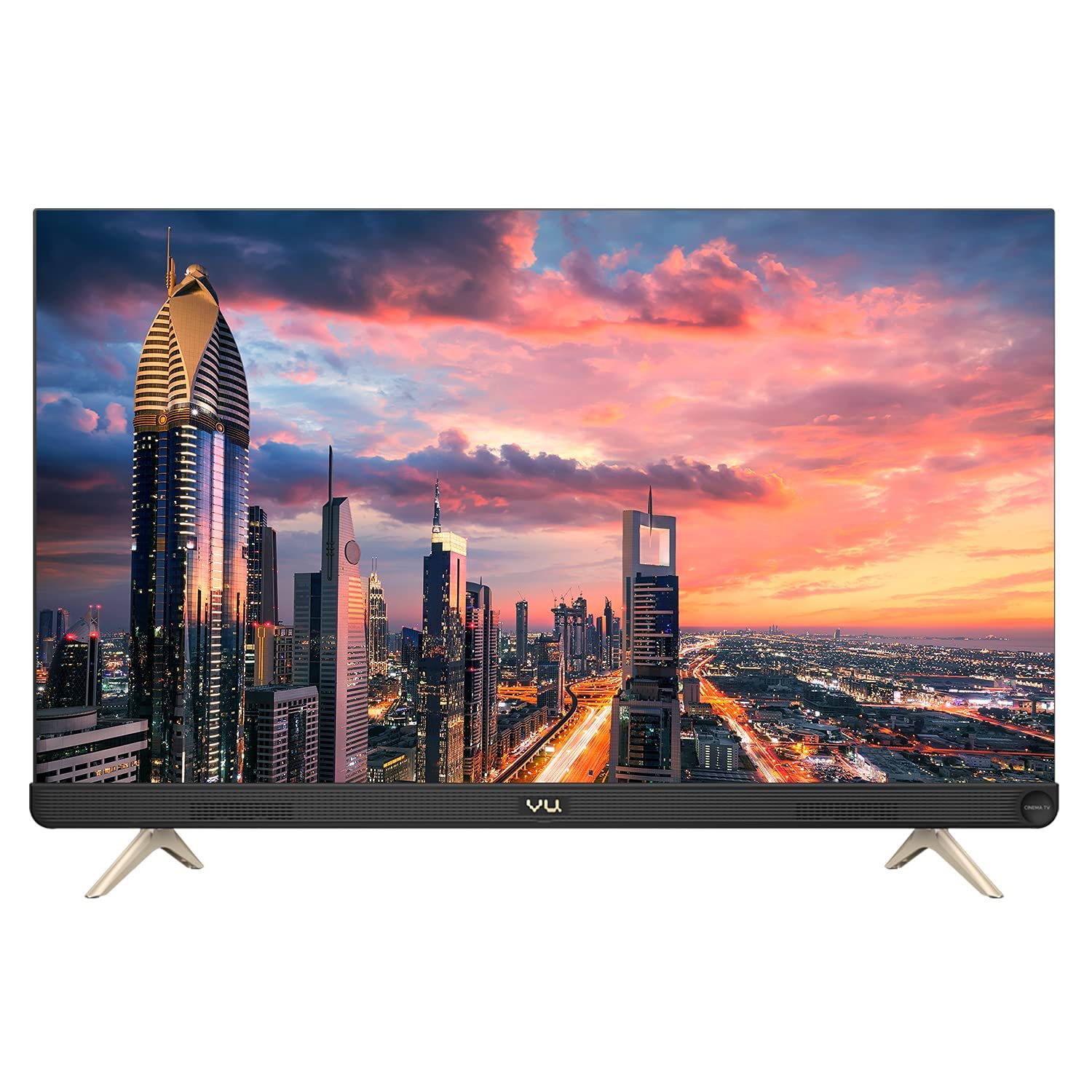
Image 1.1: The VU 50LX Cinema Series 4K Ultra HD Android Smart LED TV.
2. Safety Information
Always follow basic safety precautions when using this television to reduce the risk of fire, electric shock, and injury. Keep the TV away from water and moisture. Do not block ventilation openings. Use only specified attachments and accessories. Refer all servicing to qualified service personnel.
3. What's in the Box
Carefully unpack the box and ensure all items are present:
- 1 x VU 50LX TV Unit
- 1 x Remote Control
- 1 x Table Top Stand (set)
- 2 x AAA Batteries (for remote)
- 1 x User Manual (this document)
- 1 x Quick Setup Guide
4. Setup
4.1. Physical Setup (Stand or Wall Mount)
Your VU TV can be placed on a table using the included stand or mounted on a wall (wall mount kit sold separately). Ensure the TV is placed on a stable, level surface or securely mounted to a wall according to the wall mount kit instructions.

Image 4.1: The VU 50LX TV assembled with its table top stand.
4.2. Connecting Peripherals
Connect your external devices such as set-top boxes, gaming consoles, or sound systems to the TV using the available ports. The TV features multiple HDMI and USB ports, an AV port, and supports Bluetooth 5 for wireless connections.

Image 4.2: Side view of the VU 50LX TV, highlighting the various connectivity ports.
4.3. Initial Power On and Network Setup
After connecting the power cord, press the power button on the remote control or TV. Follow the on-screen instructions to complete the initial setup, including language selection, time zone, and connecting to your Wi-Fi network (802.11 ac/b/g/n supported).
5. Operating the TV
5.1. Remote Control Overview
The included remote control is an IR & Bluetooth remote with Activvoice for voice search. It features dedicated hotkeys for popular streaming services like Netflix, YouTube, Prime Video, and Hotstar, providing quick access to your favorite content.

Image 5.1: The VU 50LX TV remote control, showing dedicated app hotkeys and voice search functionality.
5.2. Basic Functions
- Power On/Off: Press the power button on the remote.
- Volume Control: Use the VOL +/- buttons.
- Channel Selection: Use the CH ^/v buttons or number pad.
- Input Selection: Press the INPUT button to switch between HDMI, AV, and other sources.
5.3. Smart TV Features (Android OS)
Your VU TV runs on the Android operating system, providing access to a wide range of applications through the Google Play Store. Enjoy pre-installed apps like Netflix, Amazon Instant Video, YouTube, and a built-in browser. The TV also features Built-in Chromecast, allowing you to cast content from your mobile devices, tablets, or computers directly to the screen.

Image 5.2: The Android Smart TV interface of the VU 50LX, displaying various streaming applications.
5.4. Picture and Sound Settings
Navigate to the TV settings menu to adjust picture modes (e.g., Standard, Vivid, Cinema), brightness, contrast, and color. For audio, you can select sound modes (e.g., Standard, Music, Movie) and adjust bass/treble. The TV features a 100W Cinematic Soundbar with 6 JBL speakers for an enhanced audio experience.
6. Maintenance
6.1. Cleaning
To clean the screen, gently wipe it with a soft, dry, lint-free cloth. For stubborn marks, slightly dampen the cloth with water or a screen cleaner specifically designed for electronics. Avoid using harsh chemicals or abrasive materials. Clean the TV's exterior with a soft, dry cloth.
6.2. Software Updates
Your Android Smart TV may receive periodic software updates. Ensure your TV is connected to the internet to receive these updates, which can improve performance and add new features. You can usually check for updates in the TV's settings menu.
7. Troubleshooting
If you encounter issues with your TV, refer to the following common solutions:
- No Power: Ensure the power cord is securely plugged into both the TV and a working power outlet. Check if the power indicator light is on.
- No Picture/Sound: Verify that the correct input source is selected. Check all cable connections (HDMI, AV). Try restarting the TV and connected devices.
- Remote Control Not Working: Replace the AAA batteries in the remote. Ensure there are no obstructions between the remote and the TV's IR sensor.
- Wi-Fi Connectivity Issues: Restart your Wi-Fi router. Ensure the TV is within range of the router. Re-enter the Wi-Fi password in the TV's network settings.
- Apps Not Loading: Check your internet connection. Clear the cache of the problematic app in the TV's settings, or reinstall the app.
For persistent issues, contact customer support.
8. Specifications
Detailed technical specifications for the VU 50LX Cinema Series 4K Ultra HD Android Smart LED TV:
| Feature | Specification |
|---|---|
| Model | 50LX |
| Display Size | 126 cm (50 inches) |
| Resolution | 4K Ultra HD (3840 x 2160 pixels) |
| Display Technology | LED |
| Refresh Rate | 60 Hz |
| Viewing Angle | 178 Degrees |
| Operating System | Android |
| RAM Memory | 2 GB |
| Storage Capacity | 16 GB |
| Audio Output | 100 Watts (Stereo, 2.0 Channel) |
| Speakers | 6 JBL Speakers |
| Connectivity | Wi-Fi (802.11 ac/b/g/n), Bluetooth 5, HDMI, USB 2.0, AV Port |
| Product Dimensions (LxWxH) | 111.8 x 7.8 x 67.6 cm |
| Item Weight | 11.2 kg |
| Power Source | Corded Electric (230 Volts) |

Image 8.1: Dimensional diagram of the VU 50LX TV.
9. Warranty and Support
9.1. Warranty Information
This VU 50LX Cinema Series TV comes with a 3-year warranty from the date of purchase. Please retain your purchase receipt as proof of warranty. The warranty covers manufacturing defects and malfunctions under normal use. It does not cover damage caused by misuse, accidents, unauthorized repairs, or natural disasters.
9.2. Customer Support
For technical assistance, service requests, or warranty claims, please contact VU customer support. Refer to the contact information provided in your Quick Setup Guide or visit the official VU website for the latest support details.

