
Introduction
Welcome to your new ONN 24-Inch Class HD (720P) LED Smart TV. This manual provides essential information for setting up, operating, and maintaining your television. Enjoy a high-definition viewing experience with integrated smart features, allowing access to popular streaming services and voice control capabilities.

Figure 1: ONN 24-Inch Class HD Smart TV (Front View)
What's Included
Please check the box for the following items:
- ONN 24-Inch Class HD (720P) LED Smart TV
- Remote Control
- TV Stand (2 pieces)
- Screws for Stand Assembly
- Quick Start Guide (not included in this manual)

Figure 2: Included Remote Control
Setup
1. Attaching the TV Stand
- Carefully place the TV screen-down on a soft, clean surface to prevent scratches.
- Align each stand piece with the corresponding screw holes on the bottom of the TV.
- Secure each stand piece with the provided screws using a Phillips head screwdriver. Ensure they are tightened firmly.
2. Connecting Your Devices
Your ONN TV offers various connection ports for your external devices. Refer to the back panel image for port locations.
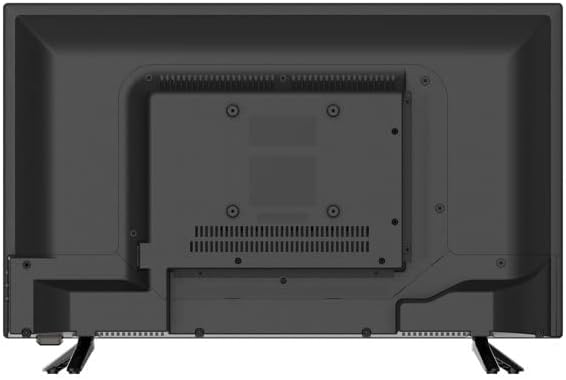
Figure 3: Rear Panel Connections
- HDMI: Connect Blu-ray players, game consoles, cable boxes, etc. (3 ports available).
- Composite (AV): Connect older devices using red, white, and yellow cables (1 port available).
- USB: For media playback from USB drives (1 port available).
- Optical (Digital Audio Out): For connecting to soundbars or audio receivers.
- Coaxial/Cable (Antenna/Cable In): For connecting an antenna or cable TV feed.
- Headphone: For private listening.
3. Powering On and Initial Setup
- Plug the power cord into a wall outlet.
- Press the Power button on the remote control or the TV.
- Follow the on-screen instructions to select your language, connect to Wi-Fi, and activate your Roku account. An internet connection is required for smart features.
Operating Your TV
Remote Control Functions
Familiarize yourself with the remote control for easy navigation:
- Power Button: Turns the TV on or off.
- Directional Pad (D-Pad): Navigate menus and select items.
- OK Button: Confirms selections.
- Home Button: Returns to the Roku Home screen.
- Back Button: Returns to the previous screen.
- Volume Up/Down: Adjusts audio volume.
- Mute Button: Mutes or unmutes audio.
- Channel Up/Down: Changes channels (for antenna/cable input).
- Playback Controls: Play, Pause, Fast Forward, Rewind.
- Shortcut Buttons: Direct access to popular streaming services (e.g., Netflix, YouTube).
Smart TV Features (Roku TV)
Your ONN Smart TV is powered by Roku, providing access to a vast library of streaming content.
- Home Screen: Customize your home screen with your favorite streaming channels and input sources.
- Roku Search: Search across top streaming channels by title, actor, or director.
- Mobile App: Download the free Roku mobile app for iOS or Android to use your device as a remote, search with voice, and cast content.
- Supported Services: VUDU, Netflix, YouTube, Showtime, Starz, GooglePlay, Sling, Hulu, Disney+, Pandora, LG channels, AppleTV.
Maintenance
Cleaning Your TV
- Always unplug the TV before cleaning.
- Use a soft, dry, lint-free cloth to wipe the screen and cabinet.
- For stubborn marks on the screen, lightly dampen the cloth with water or a screen cleaner specifically designed for electronics. Do not spray liquid directly onto the screen.
- Avoid using abrasive cleaners, waxes, or solvents.
General Care
- Do not block ventilation openings on the back of the TV.
- Keep the TV away from direct sunlight, heat sources, and excessive dust.
- Avoid placing heavy objects on top of the TV.
Troubleshooting
If you encounter issues with your TV, refer to the following common problems and solutions:
| Problem | Possible Cause / Solution |
|---|---|
| No Power | Ensure the power cord is securely plugged into the TV and a working electrical outlet. Try a different outlet. |
| No Picture, But Has Sound | Check input source. Ensure cables are securely connected. Adjust brightness/contrast settings. |
| No Sound, But Has Picture | Check volume level and mute setting. Ensure external audio devices are connected correctly. |
| Remote Control Not Working | Replace batteries. Ensure no obstructions between remote and TV. Point remote directly at the TV's IR sensor. |
| Cannot Connect to Wi-Fi | Check Wi-Fi password. Restart your router and modem. Ensure TV is within range of the Wi-Fi signal. |
| Sleep Timer Issue | Note: Some users have reported issues with the sleep timer where the picture turns off but sound remains. This may indicate a software or hardware design characteristic. If this persists, contact customer support. |
Specifications
| Feature | Detail |
|---|---|
| Brand | ONN |
| Model Name | 100012590 |
| Screen Size | 24 Inches |
| Display Technology | LED |
| Resolution | 720p HD |
| Product Dimensions (D x W x H) | 6.49" x 21.91" x 14.5" |
| Item Weight | 5.73 pounds (7.09 pounds packaged) |
| Connectivity Technology | USB, HDMI |
| HDMI Ports | 3 |
| Composite (AV) Ports | 1 |
| USB Ports | 1 |
| Optical Audio Out | 1 |
| Coaxial/Cable In | 1 |
| Headphone Jack | 1 |
| Supported Internet Services | Netflix, Pandora, Hulu, Vudu, YouTube, Showtime, Starz, GooglePlay, Sling, Disney+, AppleTV, LG channels |
| Energy Cost (Estimated Yearly) | $5 (Based on 12 cents per kWh and 5 hours use per day) |

Figure 4: Product Dimensions
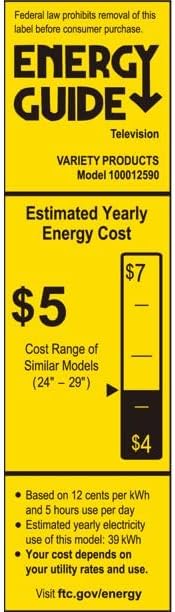
Figure 5: Energy Guide Information
Warranty and Support
For warranty information, technical support, or service inquiries, please refer to the documentation included with your purchase or visit the official ONN support website. Keep your proof of purchase for warranty claims.
Online Resources: For the most up-to-date information, FAQs, and troubleshooting guides, please visit the ONN product support page.


