
1. Introduction
This manual provides essential information for the proper setup, operation, and maintenance of your DTEN Me Pro 27. Please read these instructions carefully before using the device to ensure optimal performance and safety. The DTEN Me Pro 27 is an all-in-one desktop device designed for enhanced video conferencing and collaboration.
2. Setup
2.1 Unpacking and Inspection
Carefully remove the DTEN Me Pro 27 from its packaging. Inspect the device and all accessories for any signs of damage. If any components are missing or damaged, contact DTEN support immediately.
2.2 Physical Connections
- Power Connection: Connect the power adapter to the device's power input port and then plug it into a standard electrical outlet.
- Network Connection: For optimal performance, connect an Ethernet cable from your network router or switch to the device's Ethernet port. Wi-Fi connectivity is also available and can be configured during initial setup.
- External Devices (Optional): If using the DTEN Me Pro 27 as a secondary display or connecting external peripherals, use the appropriate USB or HDMI ports.
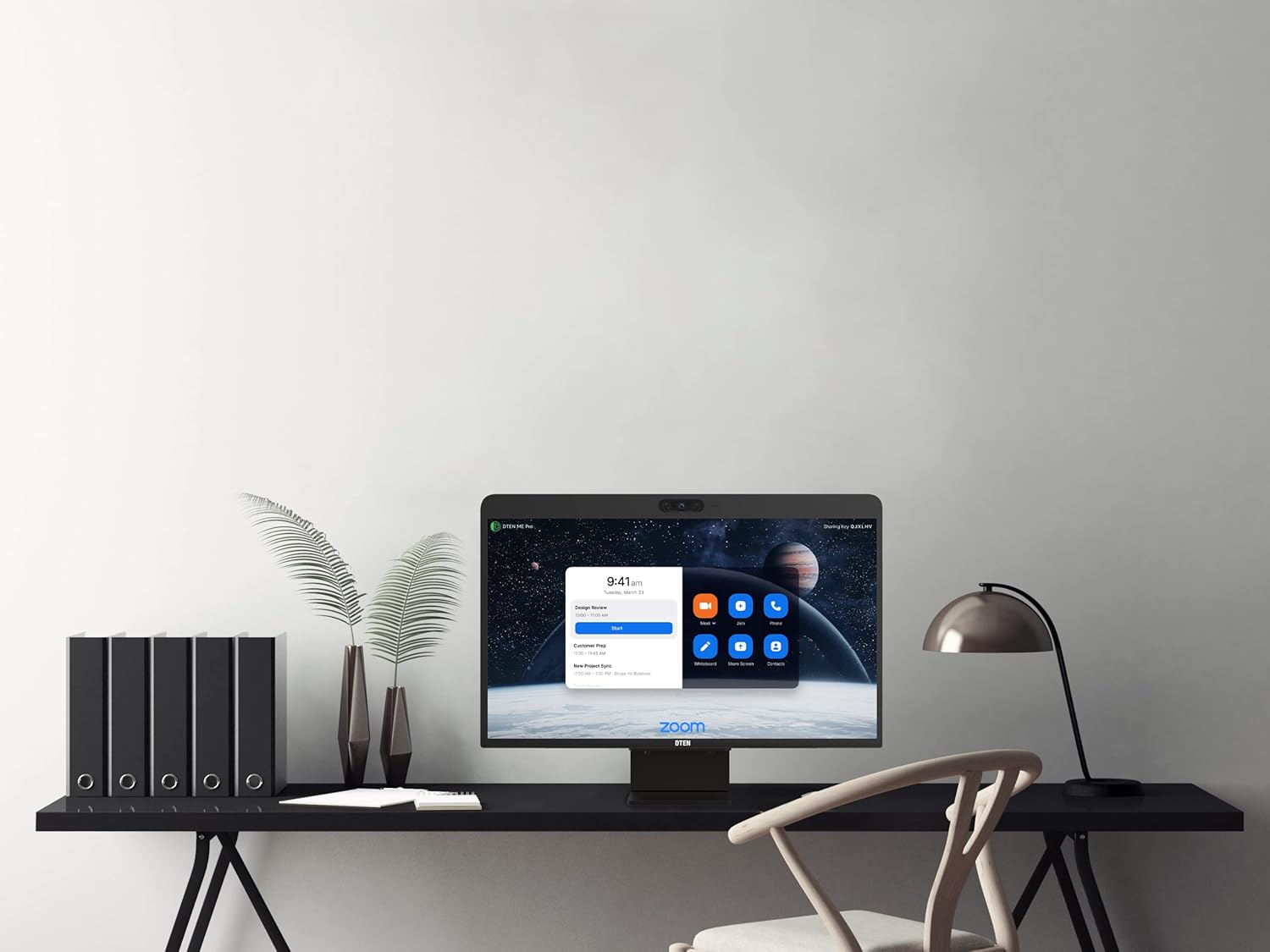
Figure 2.2.1: DTEN Me Pro 27 positioned on a desk, ready for connection.
2.3 Initial Power-On
Press the power button, typically located on the back or side of the device. The DTEN Me Pro 27 will boot up and guide you through the initial setup process, which includes network configuration, time zone settings, and Zoom account login.

Figure 2.3.1: The DTEN Me Pro 27 demonstrating Smart Connect functionality with a connected laptop.
3. Operating Instructions
3.1 User Interface Navigation
The DTEN Me Pro 27 features a capacitive touch screen display. Navigate the interface by tapping, swiping, and pinching gestures similar to a tablet device. The main screen typically displays your meeting schedule and quick access icons for common functions like 'Meet', 'Join', 'Whiteboard', and 'Share Screen'.

Figure 3.1.1: The DTEN Me Pro 27 display showing the primary Zoom interface with meeting details and interaction options.
3.2 Joining and Starting Meetings
- To Join a Meeting: Tap the 'Join' icon and enter the meeting ID and passcode.
- To Start a Meeting: Tap the 'Meet' icon to initiate an instant meeting or select a scheduled meeting from your calendar and tap 'Start'.
3.3 Using Whiteboard and Annotation
The integrated whiteboard feature allows for real-time collaboration. Tap the 'Whiteboard' icon to begin. You can draw, write, and annotate directly on the screen using your finger or a compatible stylus. During a screen share, you can also use annotation tools to highlight or mark up content.
3.4 Audio and Video Controls
During a meeting, controls for microphone mute/unmute, camera on/off, and volume adjustment are typically accessible on the screen. The device features an 8-microphone array and a high-resolution camera for clear communication.

Figure 3.4.1: A user engaging in a video conference using the DTEN Me Pro 27, highlighting its audio and video capabilities.
4. Maintenance
4.1 Cleaning Instructions
To clean the screen, gently wipe it with a soft, lint-free cloth. For stubborn smudges, slightly dampen the cloth with water or a screen-safe cleaning solution. Avoid using harsh chemicals, abrasive materials, or excessive moisture. For the device body, use a dry, soft cloth.
4.2 Software Updates
The DTEN Me Pro 27 receives regular software updates to improve performance and add new features. Ensure your device is connected to the internet to receive these updates. Updates are typically managed automatically or prompted through the device's settings.
4.3 Safety Guidelines
- Do not block ventilation openings.
- Keep the device away from direct sunlight, heat sources, and liquids.
- Use only the provided power adapter.
- Avoid dropping or subjecting the device to strong impacts.
5. Troubleshooting
If you encounter issues with your DTEN Me Pro 27, refer to the following common troubleshooting steps:
- No Power: Ensure the power cable is securely connected to both the device and the power outlet. Try a different outlet.
- No Display: Check power connection. If connected to an external source, ensure the correct input is selected.
- Audio/Video Issues: Verify microphone and camera settings within the meeting application. Check internet connection stability.
- Touchscreen Unresponsive: Restart the device. Ensure the screen is clean and free from obstructions.
- Network Connectivity Problems: Check Ethernet cable connection or Wi-Fi settings. Restart your router if necessary.
For persistent issues, consult the DTEN support website or contact their technical support team.
6. Specifications
| Feature | Detail |
|---|---|
| Model Number | DBA0027EA-S1 |
| Product Dimensions | 24.25 x 15.4 x 4.1 inches |
| Item Weight | 19.8 pounds |
| Standing Screen Display Size | 27 Inches |
| Resolution | 2560 x 1440 (QHD Wide 1440p) |
| Aspect Ratio | 16:9 |
| Screen Surface Description | Capacitive Touch Screen Display |
| Total USB Ports | 1 |
| Manufacturer | DTEN |
7. Warranty and Support
7.1 Warranty Information
The DTEN Me Pro 27 comes with a standard manufacturer's warranty. For detailed information regarding warranty terms, coverage, and duration, please refer to the warranty card included with your product or visit the official DTEN website.
7.2 Technical Support
For technical assistance, product inquiries, or to report issues, please visit the official DTEN support portal or contact their customer service. Support resources often include FAQs, knowledge bases, and contact options for direct assistance.


