
le-idea IDEA31
le-idea IDEA31 Professional Drone User Manual
Model: IDEA31
Brand: le-idea
1. Introduction
Thank you for choosing the le-idea IDEA31 Professional Drone. This advanced quadcopter is equipped with a 4K HD camera, 5GHz FPV real-time transmission, GPS intelligent functions, and powerful brushless motors, offering an exceptional flight and aerial photography experience. This manual provides essential information for safe operation, setup, maintenance, and troubleshooting. Please read it thoroughly before first use.

The le-idea IDEA31 drone in flight, showcasing its sleek design against a mountainous backdrop.
2. Safety Guidelines
Always prioritize safety during drone operation. Failure to follow these guidelines may result in injury, damage to property, or legal issues.
- Pre-Flight Check: Ensure all parts are correctly assembled, batteries are fully charged, and propellers are securely attached and undamaged.
- Environmental Conditions: Fly in open areas, away from people, buildings, and obstacles. Avoid flying in strong winds, rain, snow, or fog.
- Line of Sight: Always maintain visual line of sight with the drone during flight.
- Battery Safety: Use only original batteries. Do not overcharge or over-discharge. Store batteries in a cool, dry place away from flammable materials.
- Respect Privacy: Be mindful of privacy laws and do not record individuals without their consent.
- Local Regulations: Familiarize yourself with local drone regulations and restrictions. The drone weighs 235g, which may exempt it from certain registration requirements in some regions, but always verify local laws.
3. Package Contents
Verify that all items listed below are included in your package:
- le-idea IDEA31 Drone
- Remote Control
- Lithium Polymer Batteries (2 included)
- USB Charging Cable
- Spare Propellers
- Screwdriver
- User Manual
- Storage Case

The complete package contents of the le-idea IDEA31 drone, including the drone, remote controller with a phone mount, two batteries, and a carrying case.

A visual representation of all items included in the box: drone, remote, batteries, USB cable, spare propellers, screwdriver, and user manual.
4. Components Overview
4.1 Drone Components
- Foldable Arms: For compact storage and portability.
- Brushless Motors: Provide powerful, quiet, and stable flight with enhanced wind resistance (up to Level 4).
- 4K HD Camera: Adjustable 90° electronic angle, 120° wide-angle lens for high-resolution photos (3840*2160) and 2K video.
- Optical Flow Positioning Sensor: Ensures stable hovering indoors and outdoors.
- GPS Module: Enables precise positioning, intelligent return functions, and stable flight.
- LED Indicator Lights: Indicate drone status and direction.

Detailed view of the drone's brushless motors, highlighting their robust construction.

An illustration demonstrating the superior performance and durability of brushless motors compared to brushed motors.

The drone in its folded configuration, emphasizing its portable and compact design, made from aviation-grade PA+PS material.
4.2 Remote Control
The remote control features dual joysticks for flight control, dedicated buttons for various functions (e.g., one-key return, photo/video), and a smartphone holder for FPV viewing.
5. Setup
5.1 Charging Batteries
Fully charge both the drone battery and the remote control battery before first use. Use the provided USB charging cable. The drone battery has a capacity of 2200 mAh.
5.2 Installing Batteries
- Drone Battery: Insert the charged battery into the drone's battery compartment until it clicks into place.
- Remote Control Battery: Open the battery cover on the back of the remote control and insert the batteries according to the polarity indicators.
5.3 Attaching Propellers
Ensure propellers are correctly attached to their respective motor shafts. Match the propeller type (A or B) with the corresponding motor. Use the provided screwdriver to secure them.
5.4 App Installation and Connection
Download the official le-idea drone application from your smartphone's app store. Connect your smartphone to the drone's 5GHz Wi-Fi network for real-time FPV transmission and advanced control features.

The 5GHz WiFi ensures faster and smoother real-time video transmission for an enhanced FPV experience, compared to 2.4GHz WiFi.
6. Operating the Drone
6.1 Pairing the Remote Control
Turn on the drone, then turn on the remote control. The remote will automatically pair with the drone. Wait for the indicator lights to stabilize.
6.2 GPS Calibration
For optimal GPS performance, perform calibration in an open outdoor area away from magnetic interference. Follow the instructions in the app or manual for compass calibration (horizontal and vertical rotations).
6.3 Take-off and Landing
- One-Key Take-off: Press the designated button on the remote or in the app to automatically take off and hover at a safe altitude.
- Manual Take-off: Push both joysticks simultaneously to the bottom-outer corners to start the motors, then slowly push the left joystick up to ascend.
- One-Key Landing: Press the designated button to automatically land the drone.
- Manual Landing: Slowly pull the left joystick down to descend, then hold it down to stop the motors after landing.
6.4 Flight Controls
Use the joysticks on the remote control to maneuver the drone:
- Left Joystick (Mode 2): Up/Down for altitude (throttle), Left/Right for rotation (yaw).
- Right Joystick (Mode 2): Up/Down for forward/backward movement (pitch), Left/Right for sideways movement (roll).
6.5 Smart Flight Functions
The IDEA31 drone offers several intelligent flight modes for enhanced user experience:
- One Key Return (RTH): The drone automatically returns to its take-off point. This function activates automatically upon loss of signal, low battery, or manual activation.
- Follow Me Mode: The drone will automatically follow the remote controller or the connected smartphone, capturing dynamic footage.
- Low Power Return: The drone will automatically return when the battery level is critically low.
- Surround Mode: The drone will orbit a designated point of interest, capturing 360-degree video.
- Waypoint Mode: Plan a flight path by tapping points on the map in the app, and the drone will fly along the specified route.
- Headless Mode: Eliminates the need to distinguish the drone's head direction, making it easier for beginners to control.
- Gesture Photo/Video: Perform specific hand gestures in front of the camera to trigger photo or video recording.

An overview of the GPS-assisted smart functions: One Key Return, Follow Me, Low Power Return, Surround Mode, No Signal Return, and Waypoint Mode.
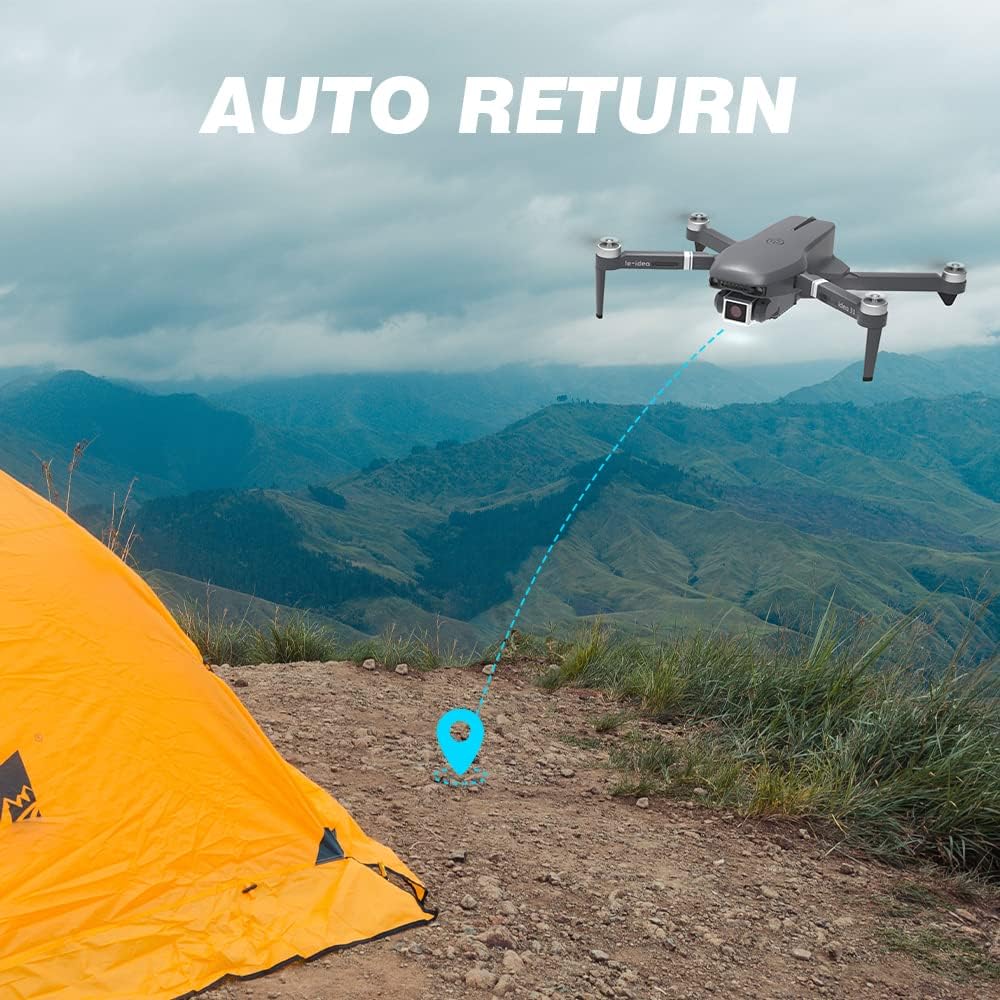
The drone executing its auto-return function, flying back to its designated home point.

The drone operating in Surround Mode, orbiting a central point to capture panoramic views.

The drone navigating a pre-defined flight path using Waypoint Mode, connecting multiple points of interest.

Intelligent recognition allows for gesture-controlled photo and video capture, simplifying aerial photography.

The drone operating in Headless Mode, simplifying control by eliminating the need to orient the drone's front.
6.6 Camera Operation
The drone's 4K HD camera captures stunning visuals. Use the app to view the real-time FPV feed, adjust the camera angle (90° electronic adjustment), and initiate photo or video recording.
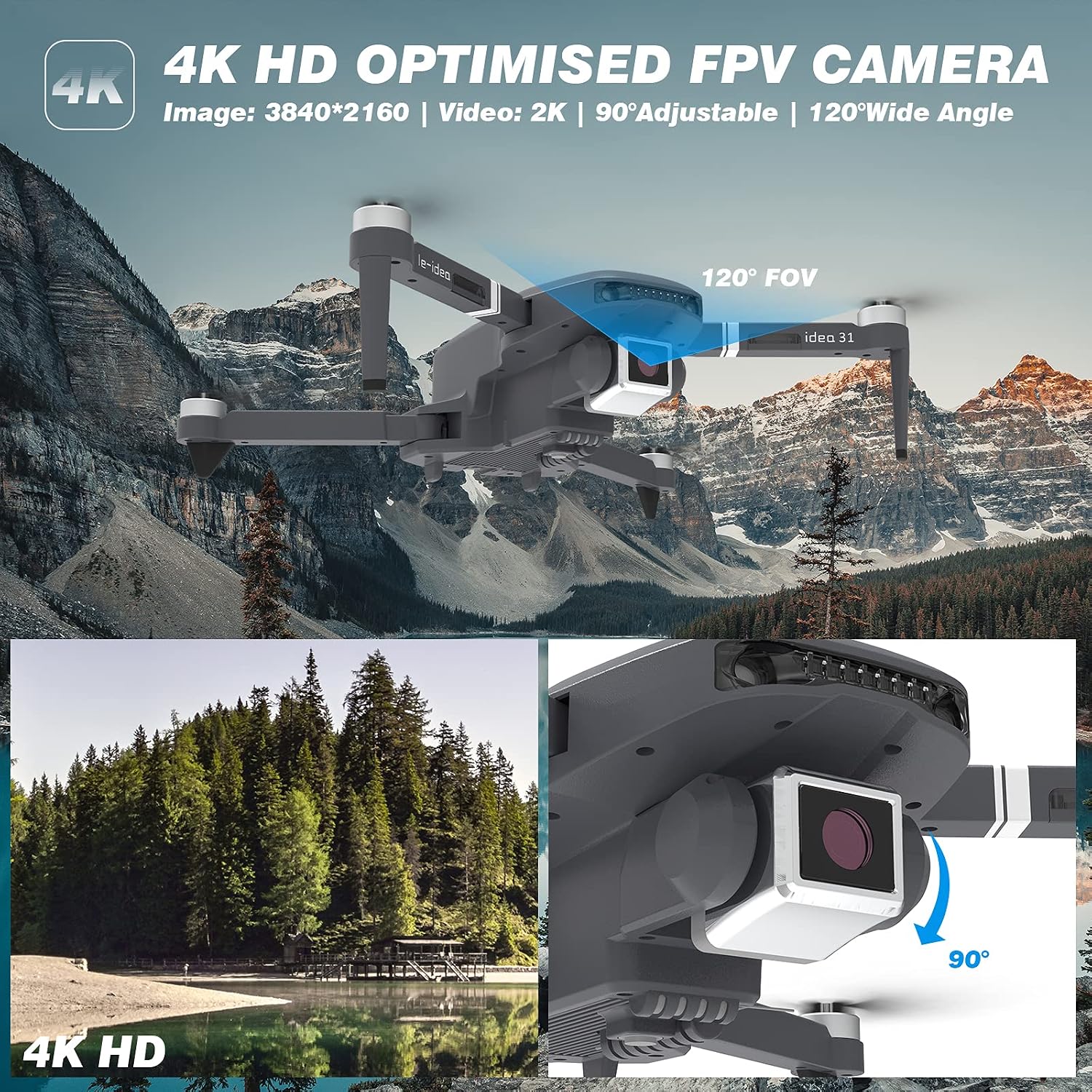
The 4K HD optimized FPV camera offers 3840x2160 image resolution, 2K video, 90-degree adjustable angle, and a 120-degree wide-angle view.

The drone's 4K UHD camera is designed to capture every detail in aerial photography.
7. Maintenance
Proper maintenance ensures the longevity and optimal performance of your drone.
- Cleaning: Gently wipe the drone and camera lens with a soft, dry cloth after each flight. Avoid using harsh chemicals.
- Propeller Replacement: If propellers are damaged or bent, replace them immediately with the provided spare parts. Ensure correct propeller type (A or B) is installed on the corresponding motor.
- Battery Care: Do not store batteries fully charged or completely depleted. For long-term storage, charge them to about 50-60%.
- Storage: Store the drone in its carrying case in a cool, dry place, away from direct sunlight and extreme temperatures.
8. Troubleshooting
| Problem | Possible Cause | Solution |
|---|---|---|
| Drone does not power on | Battery not charged or incorrectly installed. | Ensure battery is fully charged and correctly inserted. |
| No FPV feed on phone | Not connected to drone's Wi-Fi; App issue. | Connect to the drone's 5GHz Wi-Fi. Restart app/phone. Ensure app is updated. |
| Drone drifts during flight | Improper calibration; Wind interference. | Perform GPS and gyroscope calibration. Avoid flying in strong winds. |
| One-Key Return not accurate | Weak GPS signal; Calibration issue. | Ensure strong GPS signal (at least 7-8 satellites). Recalibrate GPS. |
| Propellers not spinning | Motors not armed; Obstruction. | Arm motors (joysticks to bottom-outer corners). Check for obstructions. |
9. Specifications
| Feature | Detail |
|---|---|
| Model | IDEA31 |
| Brand | le-idea |
| Weight | 235 Grams |
| Dimensions (L x W x H) | 23.5 x 18.5 x 6.3 cm |
| Battery Capacity | 2200 mAh (Lithium Polymer) |
| Video Recording Resolution | 1080p (2K video output) |
| Image Resolution | 3840 x 2160 |
| Connectivity Technology | Wi-Fi (5GHz FPV) |
| Motor Type | Brushless |
| Control Method | Remote Control, App Control |
| Skill Level | All |
| Age Range | Adult |
10. Warranty and Support
le-idea provides personalized after-sales service to assist users from beginner to professional. For any issues or inquiries, please contact le-idea customer support. Refer to your purchase documentation for specific warranty details and contact information.
The product is CE certified, ensuring compliance with European safety standards.
Related documentsIDEA31

Ask a question about this manual
Ask about setup, troubleshooting, compatibility, parts, safety, or missing instructions. Manuals+ will review the question and use this page’s manual context to help answer it.