
Introduction
The Skullcandy Indy Evo XT are true wireless in-ear earbuds designed for a seamless audio experience. They offer extended battery life, touch controls for various functions, and integrated Tile technology for easy tracking. This manual provides essential information for setting up, operating, and maintaining your earbuds.

Image: Skullcandy Indy Evo XT earbuds shown with their charging case.
What's in the Box
Your Skullcandy Indy Evo XT package includes the following items:
- True Wireless Earbuds
- Charging Case
- Ear Gels (S, M, L sizes)
- USB-C Charging Cable
- User Manual (this document)

Image: All components included in the Skullcandy Indy Evo XT retail package.
Setup
1. Charging Your Earbuds
Before first use, fully charge your Indy Evo XT earbuds and charging case. The earbuds provide up to 6 hours of playback, and the charging case provides an additional 24 hours, totaling 30 hours of battery life. A rapid charge feature allows for 2 hours of play from only 10 minutes of charging.
- Place the earbuds into the charging case.
- Connect the USB-C charging cable to the charging case and a power source.
- The LED indicators on the case will show charging status.

Image: Earbuds placed inside the charging case, illustrating the charging process.
2. Pairing with a Bluetooth Device
To connect your Indy Evo XT earbuds to your smartphone or other Bluetooth-enabled device:
- Ensure the earbuds are charged and removed from the charging case. They should automatically enter pairing mode.
- On your device, go to Bluetooth settings and turn Bluetooth on.
- Select "Indy Evo XT" from the list of available devices.
- Once connected, you will hear an audio prompt, and the earbuds' LED indicators may change.
Note: If you experience issues with Bluetooth connectivity, turn off your device's Bluetooth function for a few minutes, then turn it back on and attempt to pair again.
Operating Your Earbuds
Touch Controls
The Indy Evo XT earbuds feature touch controls for managing audio playback, calls, and other functions. Specific actions include:
- Play/Pause: Single tap on either earbud.
- Track Forward: Double tap the right earbud.
- Track Back: Double tap the left earbud.
- Volume Up: Press and hold the right earbud.
- Volume Down: Press and hold the left earbud.
- Answer/End Call: Single tap on either earbud.
- Activate Voice Assistant: Triple tap on either earbud.
EQ Modes
The earbuds offer multiple EQ modes to optimize sound for different content types. These modes can be switched directly from the earbuds:
- Music Mode
- Podcast Mode
- Movie Mode
Refer to the full user manual (digital or included in box) for specific touch sequences to cycle through EQ modes.
Ambient Mode
Ambient Mode allows you to hear your surroundings without removing your earbuds. This feature is useful for situational awareness.
Refer to the full user manual for instructions on how to activate and deactivate Ambient Mode.
Tile Technology
Your Indy Evo XT earbuds are equipped with Tile technology, making them easy to locate if misplaced. To use this feature:
- Download the Tile app on your smartphone.
- Follow the in-app instructions to activate and register your earbuds with Tile.
- You can then use the Tile app to track the location of your earbuds.
Maintenance
Proper maintenance ensures the longevity and optimal performance of your earbuds.
- Cleaning: Regularly clean the ear gels and earbud surfaces with a soft, dry cloth. Avoid using harsh chemicals or abrasive materials.
- Ear Gel Fit: Ensure the earbud tips fit snugly in your ear canals for optimal sound quality and comfort. The package includes S, M, and L ear gels to help achieve the best fit.
- Storage: When not in use, store the earbuds in their charging case to protect them and keep them charged.
- Water Resistance: The earbuds are water, sweat, and dust resistant (IP55 rating). However, they are not designed for submersion in water. Avoid exposing them to excessive moisture.
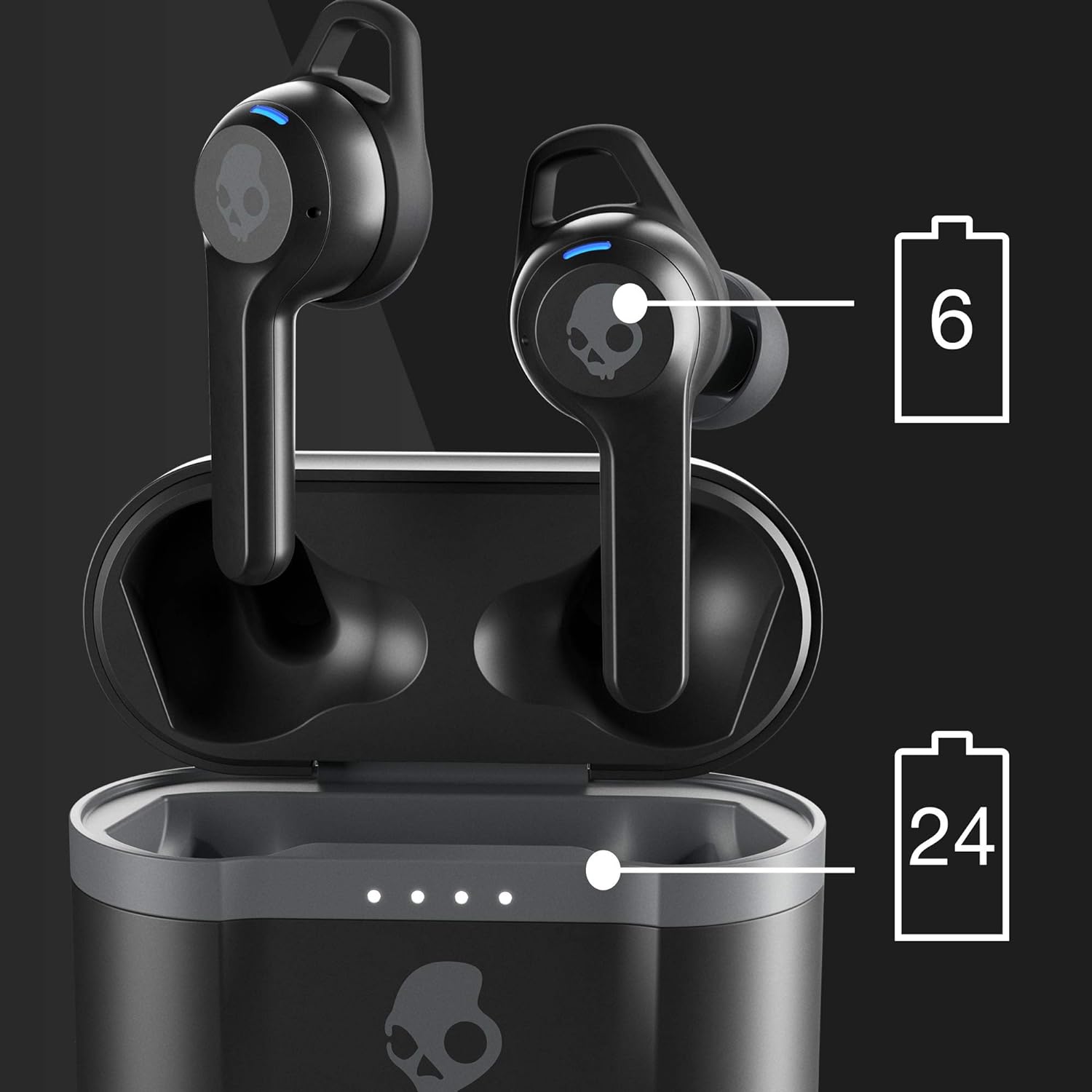
Image: Earbuds correctly positioned in an ear, highlighting the secure fit.
Troubleshooting
If you encounter issues with your Indy Evo XT earbuds, try the following solutions:
- No Sound or Poor Sound Quality:
- Ensure the earbuds are properly paired with your device.
- Check the earbud tip size. If the tips do not match your ear canals or the headset is not worn properly, sound quality may be affected. Try different sized ear gels for a more snug fit.
- Verify the volume level on both your device and the earbuds.
- Connectivity Issues:
- Turn off your device's Bluetooth for a few minutes, then turn it back on and attempt to reconnect.
- Ensure the earbuds are within the Bluetooth range of your device.
- If issues persist, try resetting the earbuds (refer to the full user manual for specific reset instructions).
- Earbuds Not Charging:
- Ensure the charging cable is securely connected to both the case and the power source.
- Check that the earbuds are correctly seated in the charging case.
- Verify that the charging case itself has power.
- Tile Tracking Not Working:
- Ensure the Tile app is installed and your earbuds are registered.
- Check that your phone's location services are enabled for the Tile app.
Specifications
| Model Name | Indy Evo XT |
| Model Number | S2IVW-N903 |
| Connectivity Technology | Bluetooth 5 |
| Wireless Communication Technology | Bluetooth |
| Battery Life (Earbuds) | Up to 6 hours |
| Battery Life (with Charging Case) | Up to 30 hours total |
| Rapid Charge | 10 minutes charge = 2 hours play |
| Water Resistance Level | IP55 (Water, Sweat, and Dust Resistant) |
| Noise Control | Sound Isolation |
| Special Features | Tile Tracking, Ambient Mode, EQ Modes, Microphone, Touch Control |
| Frequency Range | 20 Hz - 20,000 Hz |
| Impedance | 32 Ohm |
| Item Weight | 1.8 ounces |
| UPC | 810015589335 |
Warranty and Support
For warranty information and customer support, please refer to the official Skullcandy website or the warranty card included with your product. You can also visit the Skullcandy Store on Amazon for additional resources.
For further assistance, contact Skullcandy customer service directly.