
Visoud V6
Visoud V6 Native 1080P WiFi Bluetooth Projector User Manual
Model: V6
Product Overview
The Visoud V6 Native 1080P WiFi Bluetooth Projector is designed for versatile home theater and outdoor movie experiences. It features native 1080P resolution, high brightness, and multiple connectivity options, including WiFi and Bluetooth for seamless integration with various devices.

Image: Front view of the Visoud V6 Projector highlighting its key features like Full HD 1080P, 4K support, 9500 LUX brightness, and wireless connectivity options (Bluetooth and WiFi).
What's in the Box
Please check the package contents upon unboxing to ensure all items are present:
- Projector Screen (120'')
- AV Cable
- HDMI Cable
- User Manual
- Remote Control

Image: The Visoud V6 Projector and its included accessories laid out, demonstrating the complete package contents.
Product Features & Components
High-Definition Display
The projector boasts Native 1080P HD resolution (1920x1080) with 9500 lumens brightness and a 12000:1 contrast ratio, ensuring sharp, detailed, and vibrant images. LCD color calibration technology enhances color accuracy.

Image: A side-by-side comparison illustrating the superior image quality of the Visoud projector (1080P, 12000:1 contrast, 9500 Lumen) compared to a standard 720P projector.
Wireless Connectivity
Enjoy seamless screen mirroring from iOS, Android, and laptop devices via WiFi. The projector also features Bluetooth for connecting external audio devices like headsets and speakers (Dolby not supported).

Image: The Visoud V6 Projector demonstrating its WiFi connectivity, allowing screen mirroring from smartphones and laptops to project content onto a large screen.
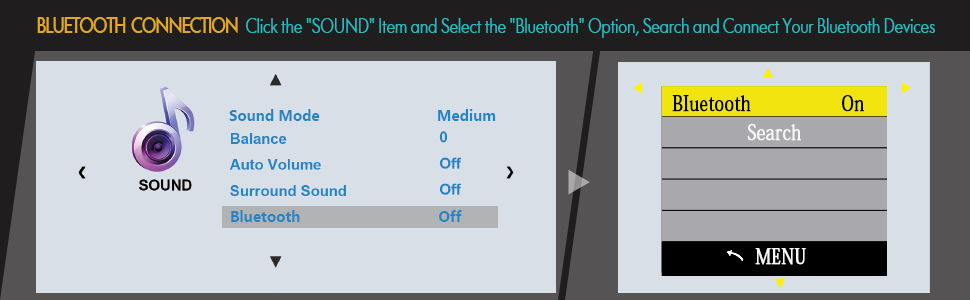
Image: A diagram illustrating the steps to enable Bluetooth on the Visoud V6 Projector and connect to external Bluetooth devices.
Built-in Dual Stereo Speakers
Equipped with dual 5W stereo speakers, the projector delivers original audio fidelity for an immersive experience.
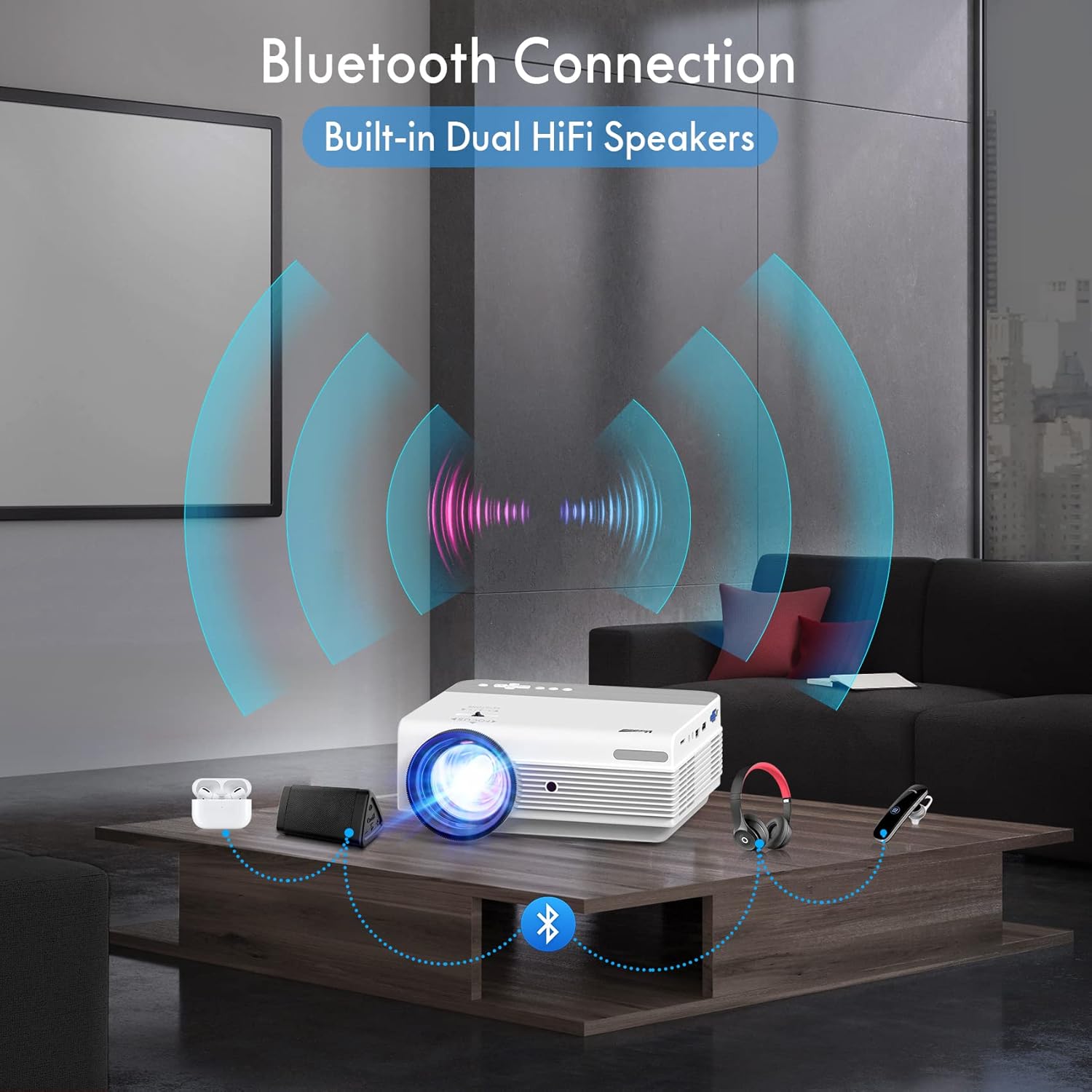
Image: The Visoud V6 Projector showcasing its Bluetooth connectivity to external audio devices, enhancing the sound experience for movies or presentations.
Multiple Interfaces & Wide Compatibility
The projector offers a variety of ports including VGA, HDMI (x2), USB, TF, AV, and 3.5mm Audio, ensuring compatibility with laptops, PCs, TV boxes, speakers, TV Sticks, PS4, USB flash drives, TF SD cards, and smartphones.

Image: A visual representation of the Visoud V6 Projector's various input ports (VGA, HDMI, USB, AV, TF, Headset) and the wide range of multimedia devices it supports.
Zoom Function & Projection Methods
Adjust image size from 100% to 75% without moving the projector using the ZOOM function. Supports Front, Front Ceiling, Rear, and Rear Ceiling projection methods.

Image: The Visoud V6 Projector demonstrating its ability to project screen sizes from 43 inches up to 300 inches, along with controls for focus and keystone correction.
Setup Instructions
Initial Power-On
- Connect the AC/DC power cable to the projector's power input port.
- Plug the power cable into a wall outlet.
- Press the power button on the projector or the remote control to turn it on.
- Remove the lens cap.
Focus and Keystone Correction
- Adjust the focus ring around the lens until the projected image is clear.
- Use the keystone correction slider (usually near the focus ring) to correct any trapezoidal distortion in the image.
Placement and Projection
- Place the projector on a stable, flat surface or mount it using compatible ceiling/wall mounts or a tripod.
- Ensure the projector is positioned at an appropriate distance from the screen or wall to achieve the desired screen size (recommended 1.2m to 3.5m for 43'' to 120'' screen).
- Adjust the projection method in the settings if mounting upside down or projecting from the rear.
Operating Instructions
Navigation and Menu
Use the directional buttons on the projector or remote control to navigate through the on-screen menu. The 'OK' button confirms selections, and the 'Back' button returns to the previous screen.
Connectivity Options
- HDMI/VGA/AV/USB/TF: Connect your device using the appropriate cable to the corresponding port on the projector. Select the correct input source from the projector's main menu.
- WiFi Screen Mirroring:
- Select 'Screen Mirroring' from the main menu.
- Follow the on-screen instructions for iOS or Android devices. This typically involves connecting your phone/tablet to the projector's WiFi network or ensuring both devices are on the same router network, then enabling screen mirroring/casting on your device.
- Bluetooth Connection:
- Go to the 'Sound' settings menu.
- Select 'Bluetooth' and turn it 'On'.
- Search for and connect to your desired Bluetooth audio device (e.g., speakers, headphones).

Image: Detailed diagrams illustrating how to establish a WiFi connection for screen mirroring, both when a router is available and when connecting directly without one.
Media Playback
From the main menu, select 'Movie', 'Music', 'Picture', or 'Text' to browse and play media files from connected USB drives or TF cards.
Note: Due to copyright issues, streaming services like Netflix, Amazon Prime Video, Disney, and Hulu must be played by connecting an external TV Stick (e.g., Amazon Fire Stick) to an HDMI port.
Settings Menu
Access the 'Setting' icon from the main menu to configure various projector options:
- Picture Mode: Adjust brightness, contrast, color, and sharpness. Options include Standard, User, Vivid, etc.
- Light Brightness: Choose between Standard, High, or Economic modes.
- Color Temperature: Set to Cool, Warm, or Standard.
- Aspect Ratio: Select 16:9, 4:3, or Auto.
- Reduce Display Size: Adjust image size from 100% down to 75% without moving the projector.
- Rotate: Adjust image orientation for different projection methods (e.g., ceiling mount).
- Sound Mode: Choose between Standard, Music, Movie, Sports, or User-defined settings for treble and bass.
- Shutdown Timer: Set a timer for automatic projector shutdown.
- Auto Sleep: Configure the projector to enter sleep mode after a period of inactivity.
- OSD Language: Change the on-screen display language (English is default).
- Software Update (USB): Update the projector's firmware via a USB drive.
- PowerOn Mode: Configure the projector's power-on behavior.
- Version: View the current firmware version (e.g., Aurora O7 V2.1.0.4-W).
Specifications
| Feature | Detail |
|---|---|
| Native Resolution | 1920 x 1080 (Full HD) |
| Brightness | 9500 Lumen |
| Contrast Ratio | 12000:1 |
| Aspect Ratio | 16:9 / 4:3 |
| Connectivity Technology | VGA, HDMI (x2), USB, AV, TF, 3.5mm Audio, Wireless (WiFi), Bluetooth |
| Dimensions | 12 x 5 x 12 inches |
| Item Weight | 5.76 pounds |
| Model Number | V6 |
Maintenance
- Lens Cleaning: Use a soft, lint-free cloth or lens cleaning solution to gently wipe the projector lens. Avoid abrasive materials that could scratch the lens.
- Ventilation: Ensure the projector's ventilation vents are clear of obstructions to prevent overheating. Regular cleaning of dust from the vents is recommended.
- Storage: When not in use, store the projector in a cool, dry place, preferably in its original packaging or a protective case, to prevent dust accumulation and damage.
- Handling: Handle the projector with care. Avoid dropping it or subjecting it to strong impacts, as this can damage internal components.
Troubleshooting
- No Image/Poor Image Quality:
- Check power connection and ensure the projector is turned on.
- Adjust focus and keystone correction.
- Verify the correct input source is selected.
- Ensure cables (HDMI, AV, etc.) are securely connected.
- Check for obstructions in front of the lens.
- No Sound/Low Sound:
- Adjust the volume on the projector and the connected device.
- Check audio cable connections.
- If using Bluetooth, ensure the device is properly paired and connected.
- Ensure the audio format is supported (Dolby is not supported).
- WiFi/Bluetooth Connection Issues:
- Ensure both devices are within range.
- Restart the projector and the connecting device.
- Verify WiFi network settings and password.
- Overheating/Loud Fan Noise:
- Ensure ventilation vents are not blocked.
- Operate in a well-ventilated area.
- Some fan noise is normal due to the cooling system.
Official Product Videos
Watch the official product videos for detailed demonstrations and features:
VISOUD Native 1080P Projector for Outdoor movie
Description: This video provides an overview of the Visoud Native 1080P Projector, highlighting its suitability for outdoor movie experiences. It showcases the projector's design and some of its core functionalities. (Duration: 4:25)
Visoud Native 1080P Wifi & Bluetooth Projector
Description: A comprehensive video demonstrating the WiFi and Bluetooth capabilities of the Visoud Native 1080P Projector, showing how to connect and stream content wirelessly. (Duration: 1:16)
Warranty & Support
Visoud provides an Extra-5 Years After-sales Service for this product. This warranty ensures professional technical support and assistance if needed, aiming for your complete satisfaction.
For detailed information, please refer to the official User Guide (PDF) provided with your product or available online.
For further assistance, please contact customer support.
Related documentsV6

Ask a question about this manual
Ask about setup, troubleshooting, compatibility, parts, safety, or missing instructions. Manuals+ will review the question and use this page’s manual context to help answer it.