
1. Introduction
This manual provides essential information for the setup, operation, and maintenance of your NKF AK59-00133A replacement remote control. This remote is designed to be compatible with Samsung Blu-ray Disc Player models BD-D5100 and BD-D5100/XU. It functions as a direct replacement for the original AK59-00133A remote, requiring no programming or pairing.
2. Setup
2.1 Battery Installation
To begin using your remote control, you must install two AAA alkaline batteries. Batteries are not included with the remote control package.
- Locate the battery compartment on the back of the remote control.
- Slide the battery compartment cover downwards and remove it.
- Insert two AAA alkaline batteries, ensuring the positive (+) and negative (-) terminals align correctly with the markings inside the compartment.
- Replace the battery compartment cover by sliding it back into place until it clicks securely.
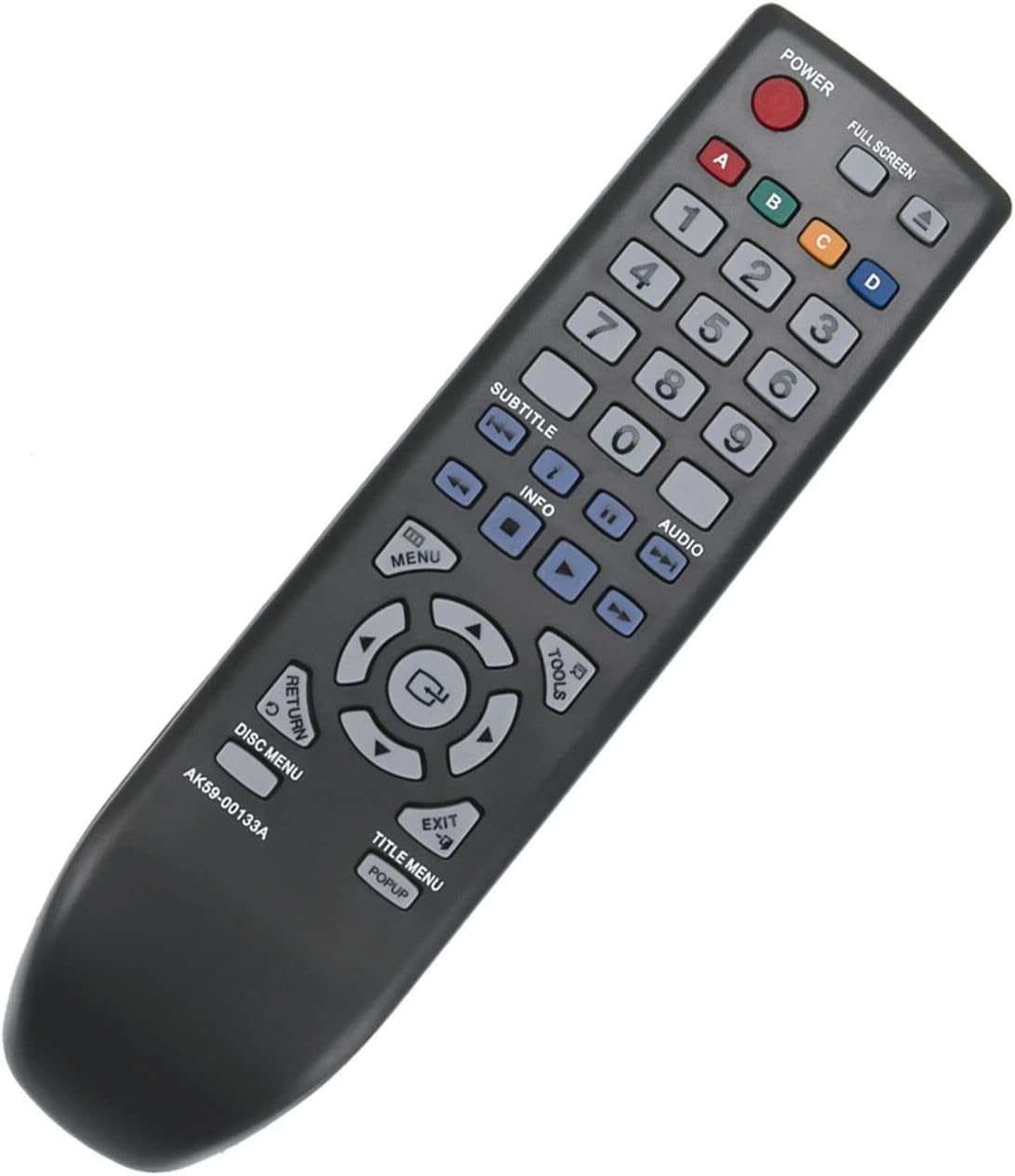
Figure 1: Battery compartment with cover removed, showing battery placement.
2.2 Initial Use
This replacement remote control operates via infrared (IR) signals and does not require any programming or pairing with your Samsung Blu-ray Disc Player. Once batteries are correctly installed, the remote is ready for immediate use.
3. Operating Instructions
Point the remote control directly at your Samsung Blu-ray Disc Player. Ensure there are no obstructions between the remote and the player's IR receiver.

Figure 2: Front view of the remote control.
3.1 Key Functions Overview
- POWER: Turns the Blu-ray Disc Player on or off.
- FULL SCREEN: Adjusts the screen display mode.
- Number Buttons (0-9): Used for direct track selection or inputting numerical data.
- A, B, C, D (Color Buttons): Access specific functions within menus or interactive content.
- SUBTITLE: Toggles subtitle display or selects subtitle languages.
- INFO: Displays information about the current disc or playback status.
- AUDIO: Selects audio tracks or sound modes.
- Playback Controls (Play, Pause, Stop, Fast Forward, Rewind, Skip): Standard media playback functions.
- MENU: Accesses the main menu of the Blu-ray Disc Player.
- TOOLS: Opens a context-sensitive menu for additional options.
- Navigation Pad (Up, Down, Left, Right, Enter): Navigates through menus and confirms selections.
- RETURN: Goes back to the previous screen or menu.
- EXIT: Exits the current menu or function.
- DISC MENU: Accesses the menu of the currently inserted disc.
- TITLE MENU / POPUP: Accesses the disc's title menu or a pop-up menu.
4. Maintenance
4.1 Battery Replacement
Replace batteries when the remote control's response becomes sluggish or stops working. Always replace both batteries at the same time with new AAA alkaline batteries. Do not mix old and new batteries, or different types of batteries.
4.2 Cleaning
To clean the remote control, use a soft, dry cloth. Do not use liquid cleaners, sprays, or abrasive materials, as these can damage the remote's surface or internal components.
5. Troubleshooting
5.1 Remote Control Not Responding
- Check Batteries: Ensure batteries are inserted correctly with the correct polarity (+/-). Replace old batteries with new AAA alkaline batteries.
- Line of Sight: Make sure there are no obstructions between the remote control and the Blu-ray Disc Player's infrared sensor. The remote requires a clear line of sight to function.
- Distance: Ensure you are within the effective operating range of the remote control (typically up to 20 feet).
- Infrared Interference: Bright sunlight or other strong infrared light sources can interfere with the remote's signal. Try operating the remote in a different lighting condition.
If the issue persists after performing these checks, please refer to the support section for further assistance.
6. Specifications
| Feature | Detail |
|---|---|
| Model Number | AK59-00133A |
| Connection Type | Infrared (IR) |
| Compatible Devices | Samsung Blu-ray Disc Player BD-D5100, BD-D5100/XU |
| Batteries Required | 2 x AAA (not included) |
| Product Dimensions | 7.5 x 2 x 0.7 inches |
| Item Weight | 2.46 ounces |
| Color | Black |
| Special Feature | Ergonomic design |
7. Support
If you encounter any issues not covered in this manual or require further assistance, please contact NKF customer service. They can provide professional suggestions and support for your replacement remote control.
For more information or to contact support, please visit the NKF Store on Amazon.